

-
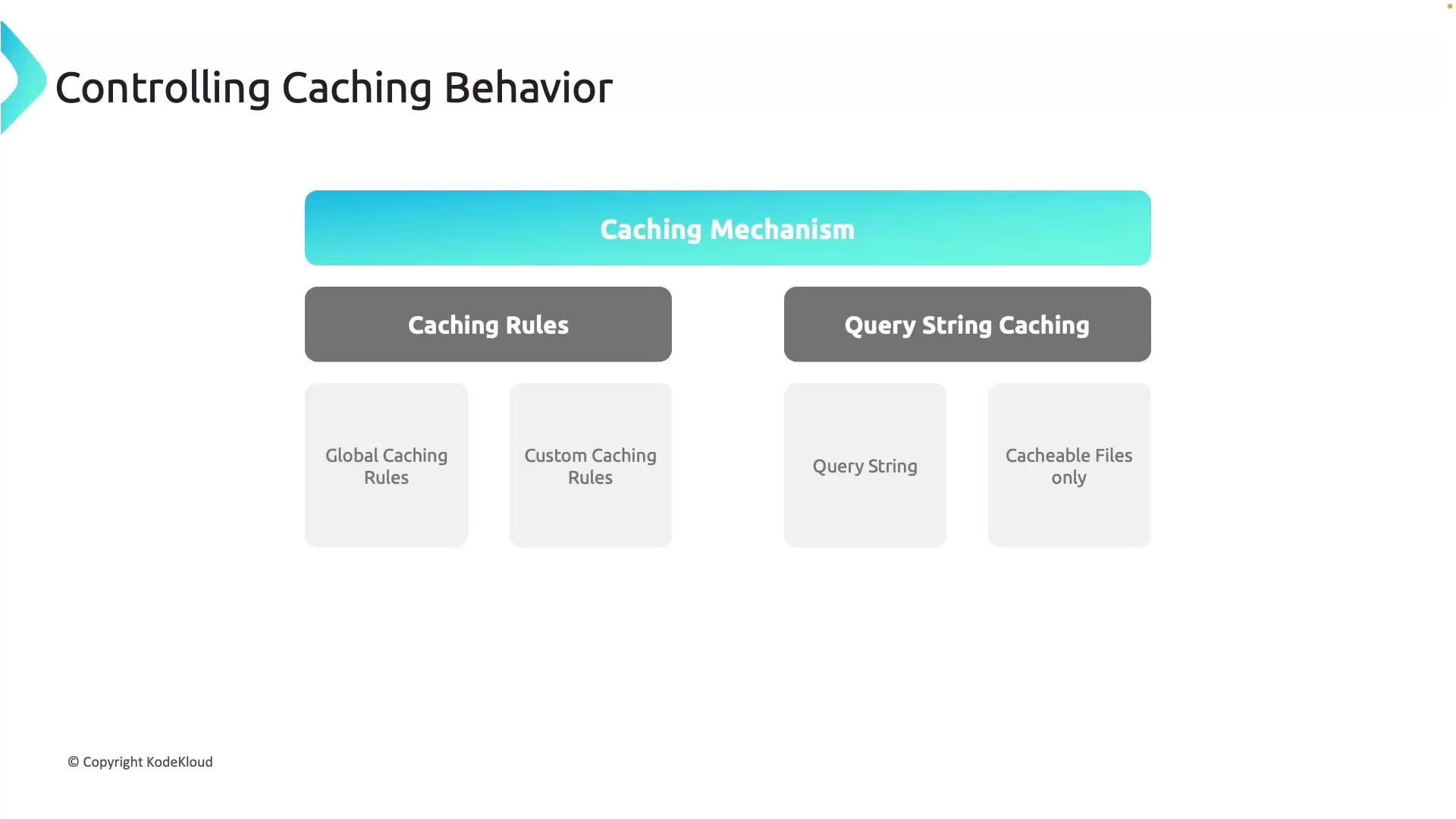
Caching Rules
- Global Caching Rules: Apply a single rule across all requests to a CDN endpoint, streamlining default caching management.
- Custom Caching Rules: Allow granular control by detailing how specific resources are cached, with the ability to override global rules for individual cases.
-
Query String Caching
Query string caching offers flexibility in handling requests with query parameters. You can choose to:- Ignore Query Strings: Serve the same cached content regardless of query variations.
- Bypass Caching: Force requests with query strings to bypass the cache and retrieve content directly from the origin server.
- Cache Each Variant: Treat each unique query string as a separate cached entry, which is useful when query parameters change the content.
Time-to-Live (TTL) Values
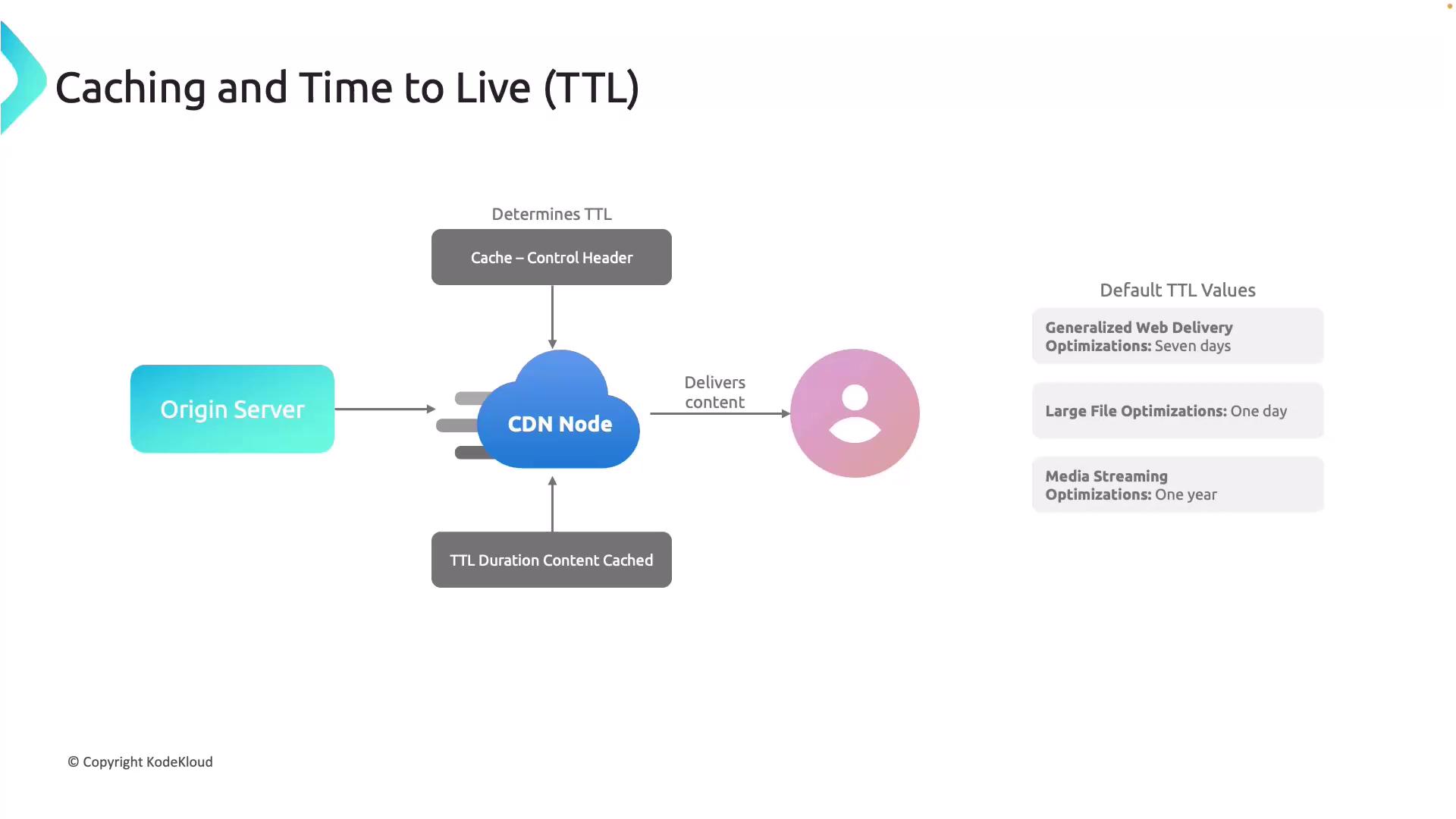
TTL settings dictate how long content is stored in the cache before a refresh is required. Azure CDN honors the TTL values provided by the origin server via the Cache-Control header. When no explicit TTL is set, Azure CDN applies default values based on the content type:- General Web Delivery: 7 days
- Large Files: 1 day
- Media Streaming: 1 year
Content Updates and Refresh Mechanisms
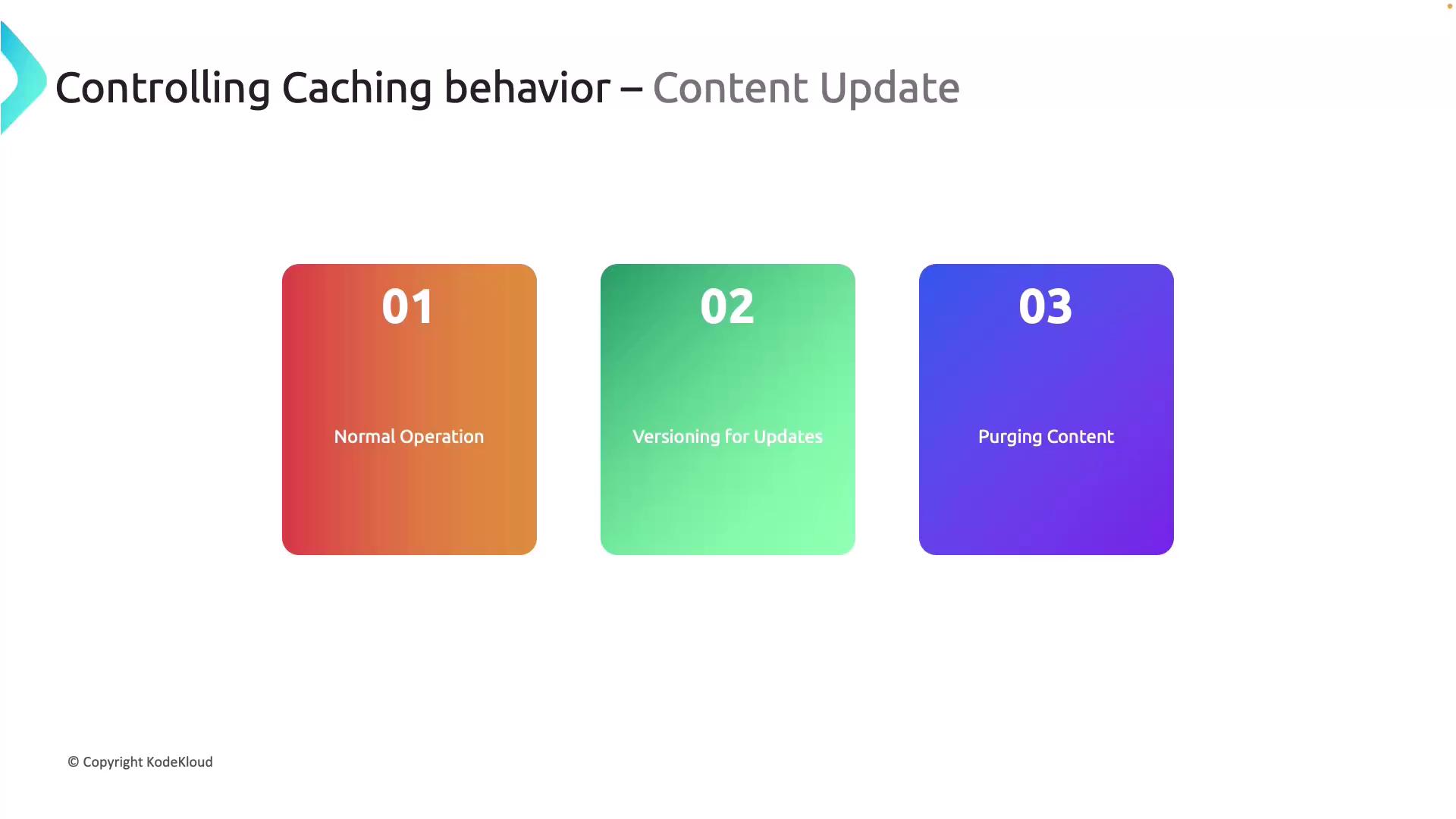
Delivering the latest version of assets is essential when using a CDN. Azure CDN supports content updates through the following mechanisms:- Normal Operation: The CDN edge serves a cached asset until its TTL expires. After expiration, it revalidates content with the origin server.
- Versioning for Updates: Including version strings in asset URLs forces the CDN to immediately fetch the new asset without waiting for TTL expiration.
- Manual Purging: Administrators can manually purge cached content, ensuring that subsequent requests retrieve the latest version directly from the origin server.
Using versioning in asset URLs is a best practice for ensuring immediate propagation of updates.
Demonstration: Integrating Azure CDN with an Azure Storage Static Website
In this demonstration, you will learn how to integrate Azure CDN with a static website hosted on an Azure Storage account.- Open the Azure portal and navigate to your storage account configured for static web hosting (typically using the $web container). Verify that the website is up and running by opening its URL in your browser.
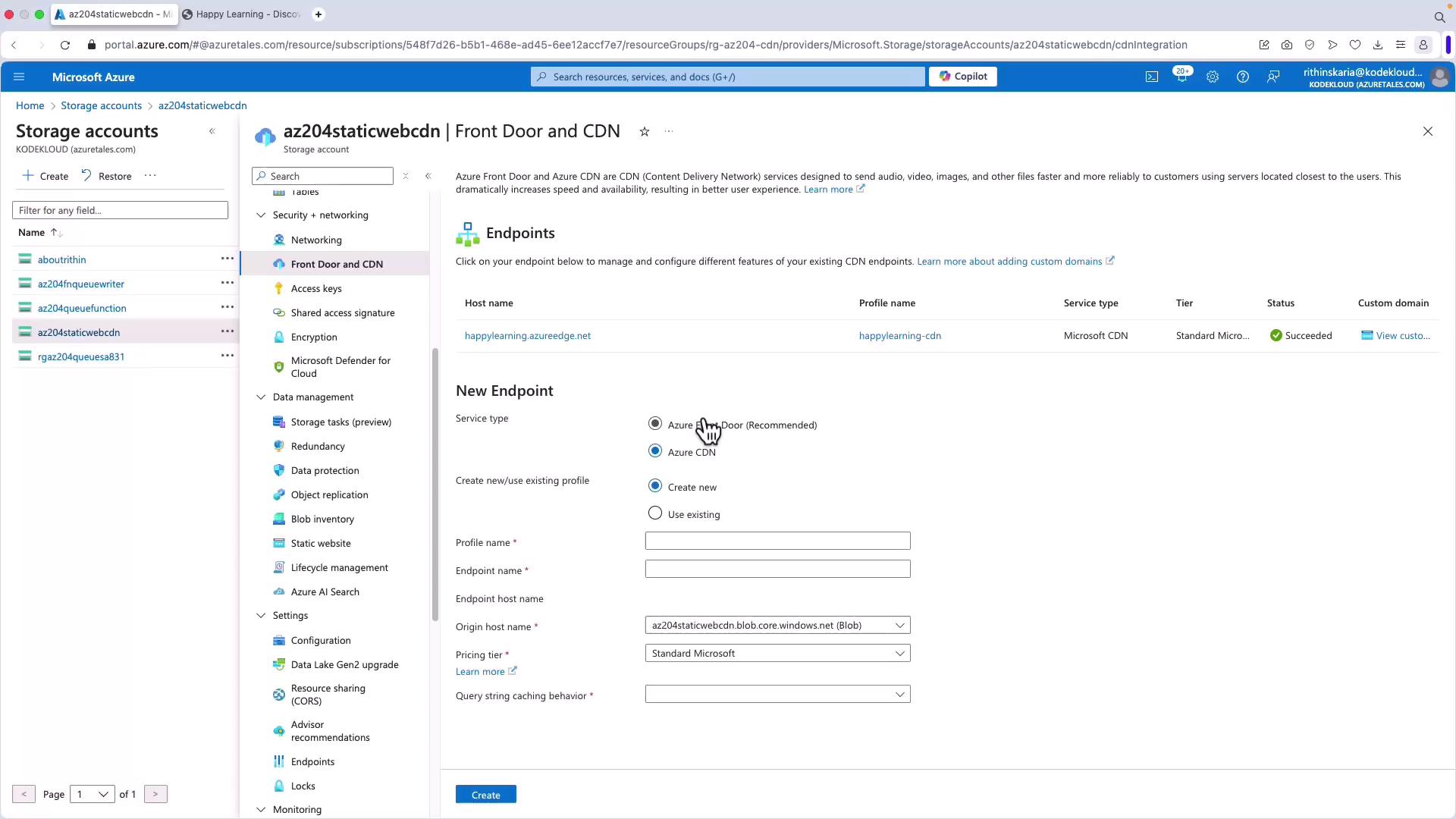
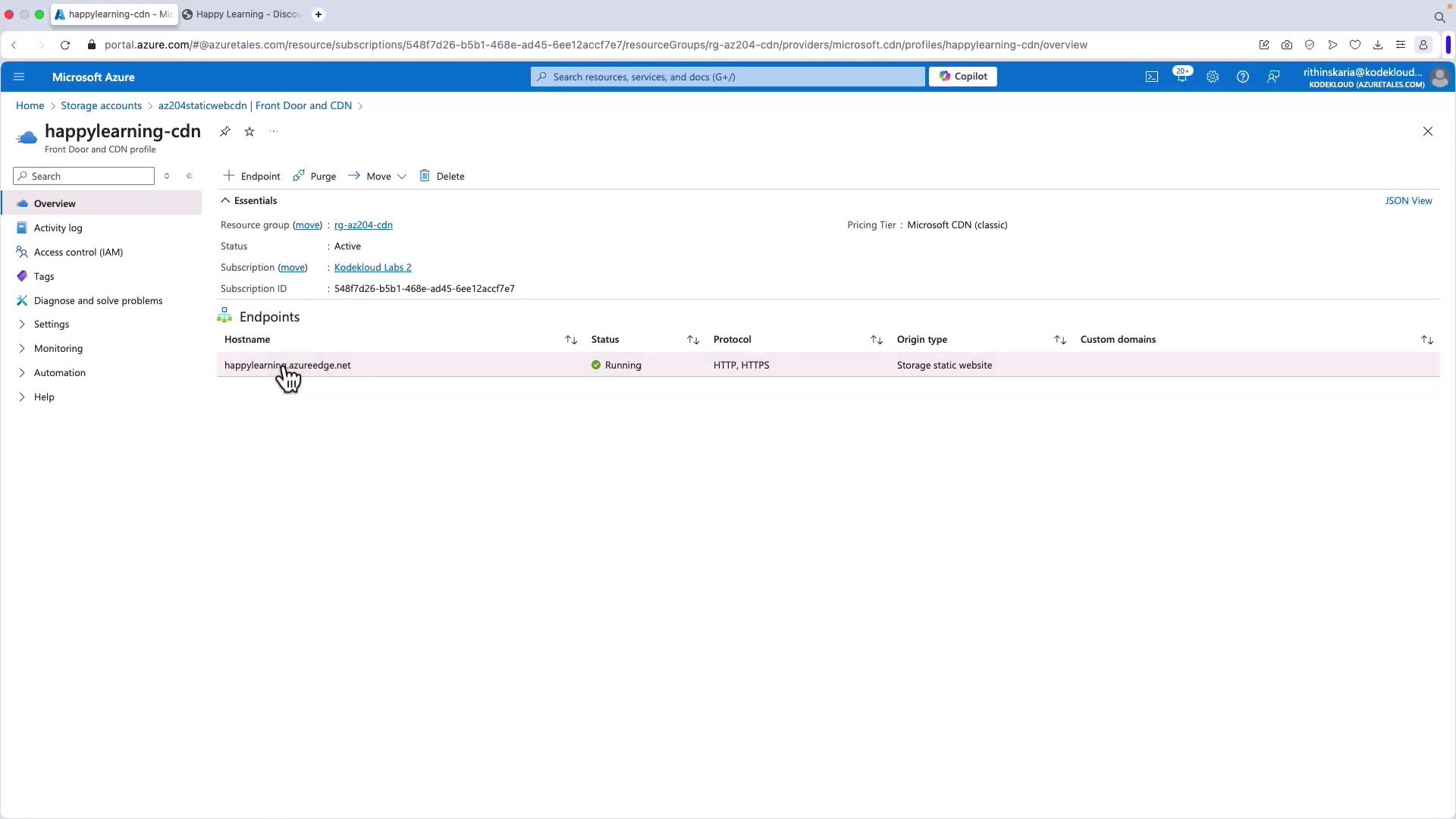
- Connect the Azure CDN to your storage account. You can either link the CDN directly from the storage account or create a new CDN endpoint. In this demonstration, the CDN is already configured.
- Within the Azure portal under the Azure CDN service, create a new endpoint by:
- Providing a unique endpoint name (which will include the azureedge.net domain).
- Selecting the origin (choose the static website).
- Configuring the pricing tier (such as Microsoft or Verizon).
- Set up the query string caching behavior by choosing one of these options:
- Ignore Query Strings: All variations are served from the same cached content.
- Bypass Caching: Requests with query strings are forwarded directly to the origin.
- Use Query Strings: Cache each distinct query string separately.
Verifying CDN Behavior with nslookup
To verify that your content is being served from the nearest point of presence, use the nslookup command to check the IP address associated with your CDN endpoint. The resulting IP address may vary based on your geographic location. For example, running the following command in your terminal:For further details on Azure CDN and related optimization techniques, consider exploring the Azure CDN Documentation and other related resources.