This article explains managing application features using feature flags, a feature manager, and Azure App Configuration integration.
This article covers the fundamental concepts of managing application features using feature flags, a feature manager, and filters. We will also demonstrate how to integrate feature management in your application with Azure App Configuration.
A feature flag is an on/off switch used to enable or disable specific functionality in an application without redeploying code. This allows developers to roll out new features incrementally, test functionality in controlled groups, and prevent unwanted exposure. For example, when introducing a new login feature, you can deploy the code with a feature flag so that only a subset of users experience the new interface while others continue using the existing one.
The feature manager orchestrates the lifecycle of feature flags. It initializes, manages, and applies flags within the application, dynamically evaluating which flags to enable or disable based on specific conditions. In a shopping app, for instance, the feature manager can control features like discount codes or alternative payment methods.
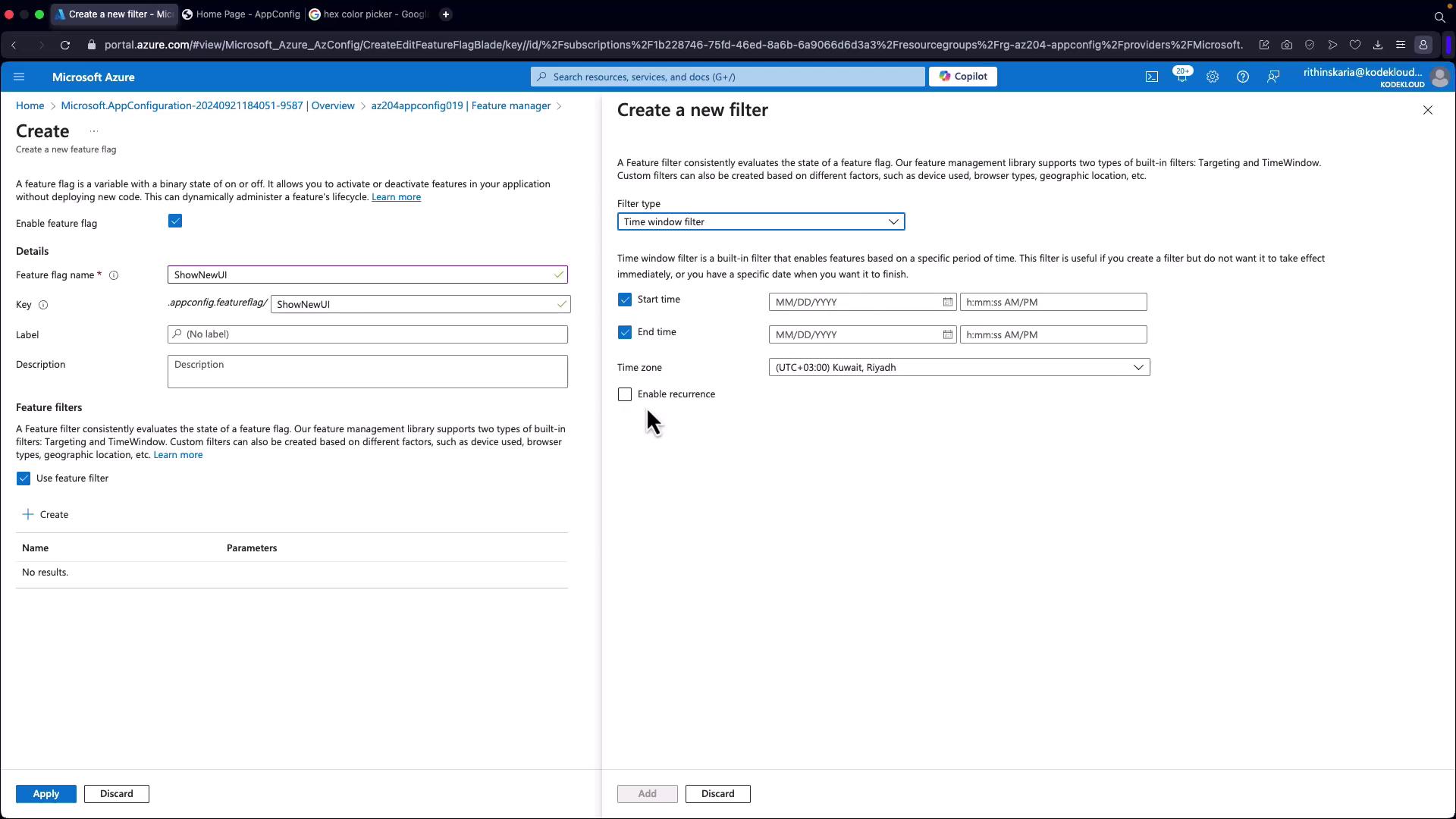
A filter defines criteria or conditions that determine when a feature flag is enabled or disabled. These conditions could be based on factors such as user roles, geographic location, browser type, or even a percentage of the user base. For example, a filter might enable a feature for users in a specific region or only during certain hours.
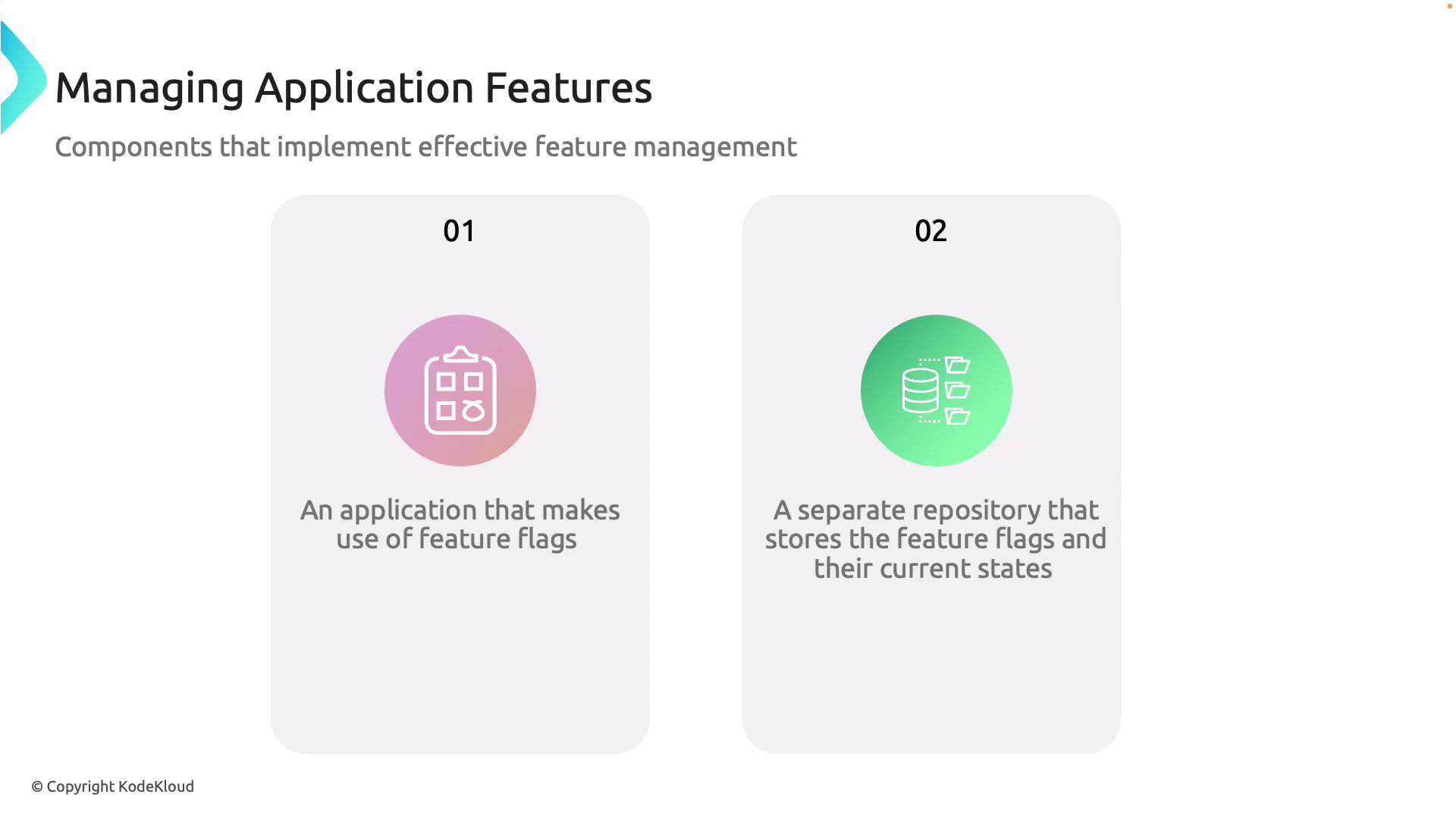
Effective feature management requires a number of components:
Application with Feature Flags:
Your application must support feature flags as a core part of its development and deployment strategy. This enables selective activation of features based on user or environment.
Feature Flag Repository:
A dedicated repository (such as Azure App Configuration) stores the feature flags and their statuses (enabled/disabled) independently from your application code.
App Configuration Service:
This service provides a centralized location for storing feature flags, allowing real-time management of application configuration.
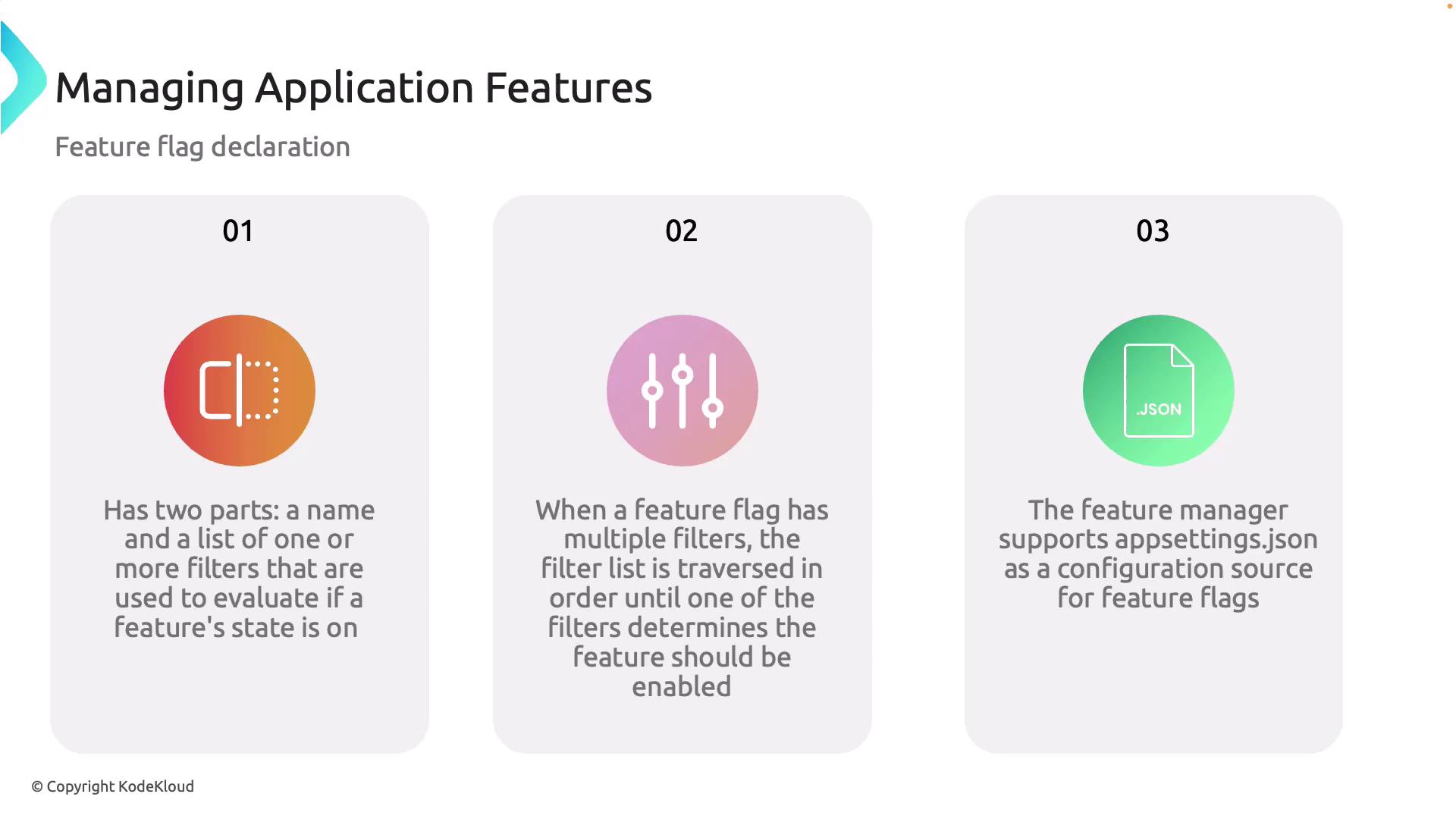
Feature flags are declared using two main components:
Name: A unique identifier for the flag.
List of Filters: Conditions that determine whether the flag is enabled or disabled.
When multiple filters are specified, they are evaluated sequentially. As soon as one filter condition is satisfied, the feature state is set according to your defined logic. Feature managers can also support external configuration files like appsettings.json to manage flags without hardcoding them.
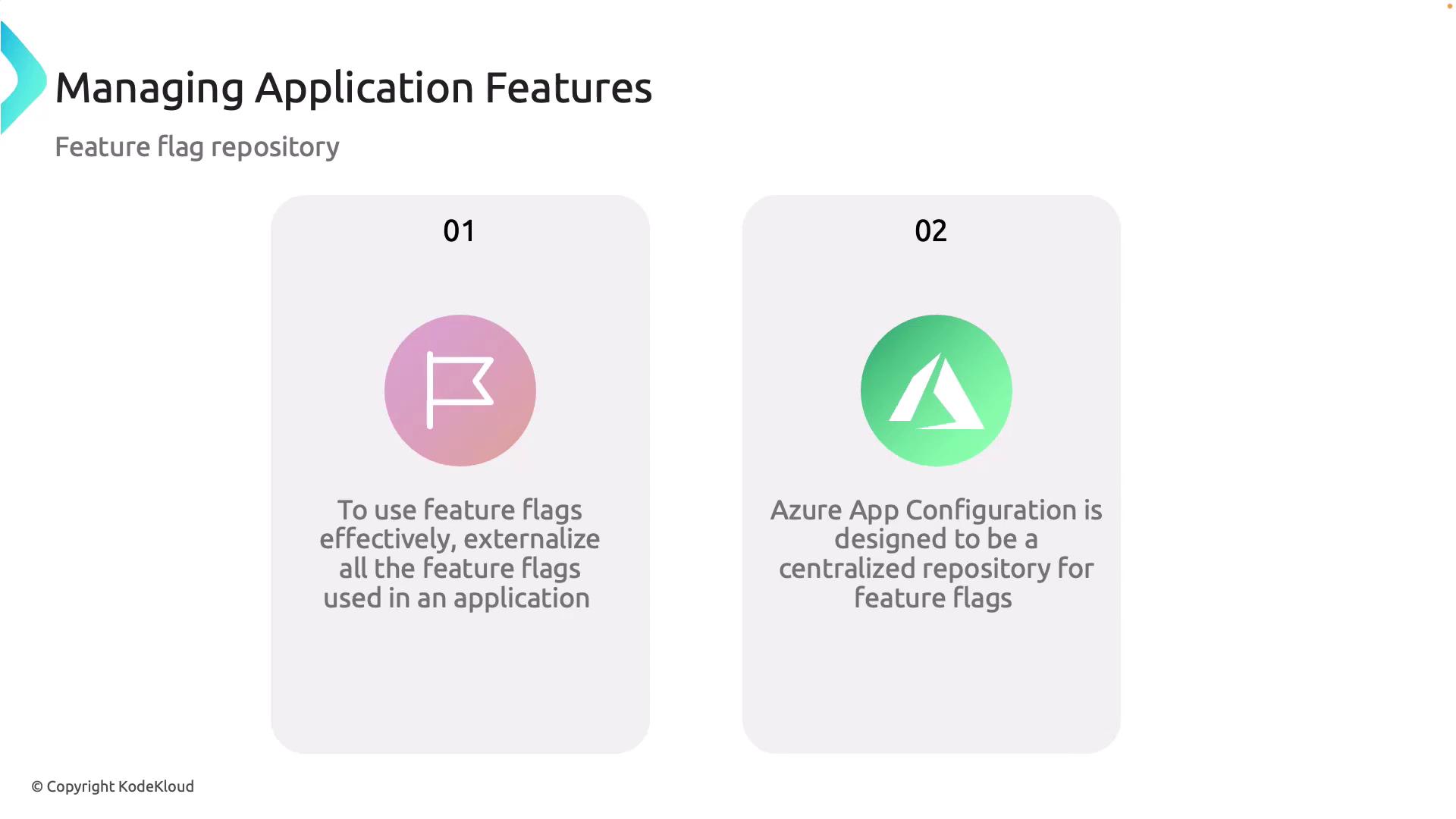
Feature Flag Repository with Azure App Configuration
For optimal use of feature flags, externalizing them is crucial. Hardcoding feature flags negates the benefit of dynamic configuration. Instead, use an external system like Azure App Configuration, which facilitates centralized management across various environments and services.
In the Azure portal, you can configure and manage feature flags, integrate Azure App Configuration into your code, and retrieve configuration values dynamically using paired keys and values.
In program.cs, add the NuGet package for Azure App Configuration and configure it with your connection string. For production scenarios, always secure your connection string using managed identities or other secure methods instead of hardcoding it.
In production environments, avoid hardcoding connection strings. Use secure methods, such as managed identities and Azure Key Vault, to access sensitive configuration data.
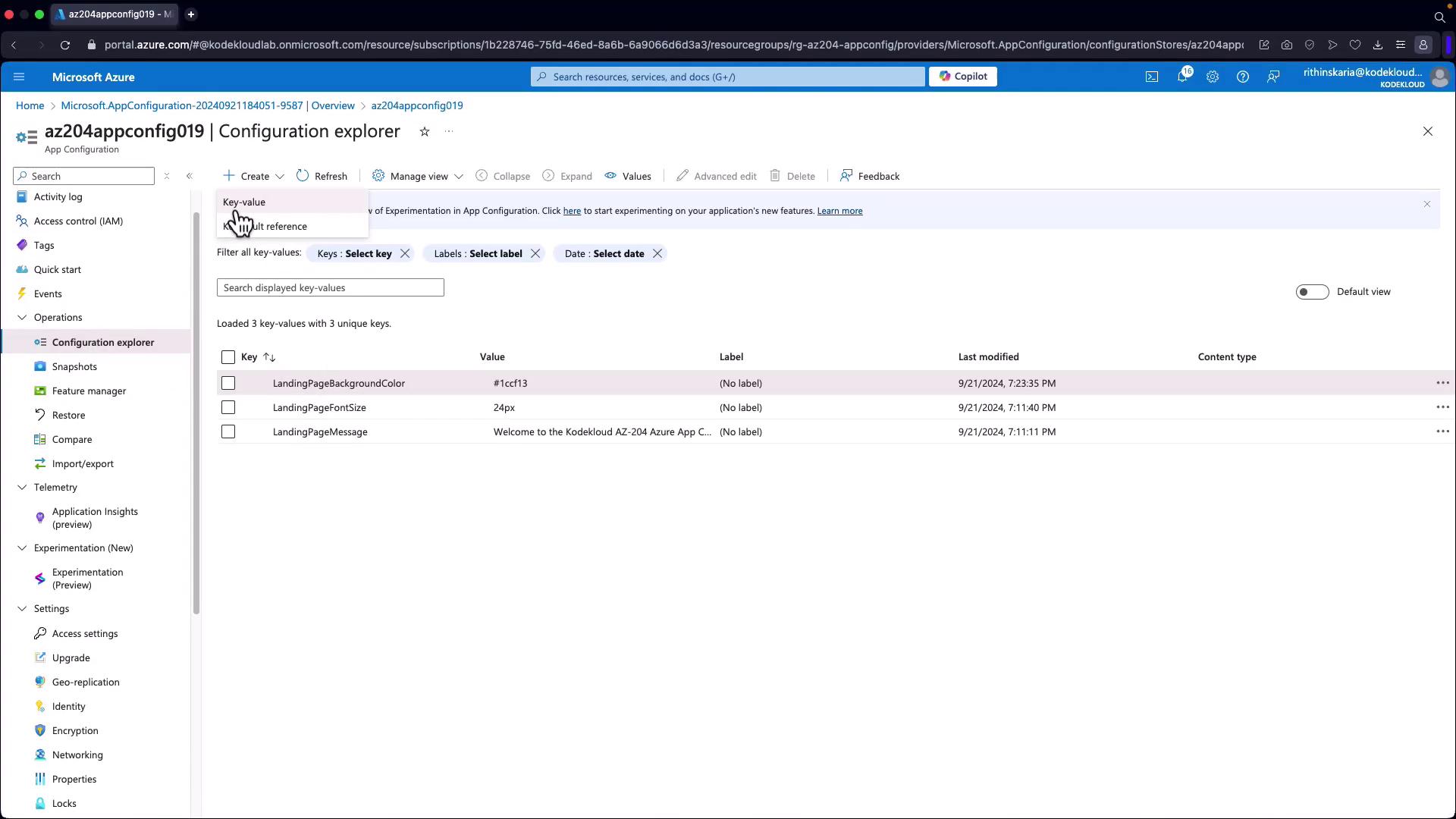
In Azure App Configuration, create key-value pairs for your app settings (e.g., background color, font size, welcome message). The image below shows the key-value pairs in the configuration explorer:
For example, you might set the landing page background color to a specific hex code, font size as a numeric value, and a custom welcome message. Caching (set to five seconds) ensures your application retrieves the latest configurations automatically.
In your HomeController, configuration values are retrieved and passed to the view. The following example demonstrates how to check for a feature flag (e.g., “ShowNewUI”) and override default settings when enabled:
Copy
Ask AI
public class HomeController : Controller{ private readonly IConfiguration _configuration; private readonly IFeatureManager _featureManager; public HomeController(IConfiguration configuration, IFeatureManager featureManager) { _configuration = configuration; _featureManager = featureManager; } public async Task<IActionResult> Index() { // Default settings from App Configuration ViewBag.Message = _configuration["LandingPageMessage"]; ViewBag.BackgroundColor = _configuration["LandingPageBackgroundColor"]; ViewBag.FontSize = _configuration["LandingPageFontSize"]; // Override settings if the "ShowNewUI" feature flag is enabled if (await _featureManager.IsEnabledAsync("ShowNewUI")) { ViewBag.Message = "Welcome to the new UI"; ViewBag.BackgroundColor = "#fab691"; ViewBag.FontSize = "18px"; } return View(); }}
In the Index.cshtml view, use the values stored in ViewBag to set styles dynamically:
Copy
Ask AI
@{ ViewData["Title"] = "Home Page";}<div style="background-color:@ViewBag.BackgroundColor; padding:50px;"> <h1 style="font-size:@ViewBag.FontSize;">@ViewBag.Message</h1> <p>This page is dynamically configured using Azure App Configuration.</p></div>
Copy
Ask AI
AppConfig dotnet runBuilding...Now listening on: http://localhost:5114Application started. Press Ctrl+C to shut down.
Every time you update a value in Azure App Configuration—such as changing the background color via the Azure portal—the application will eventually reflect the new configuration thanks to caching and refresh settings. While local development might sometimes require a restart, production environments benefit from seamless configuration updates.
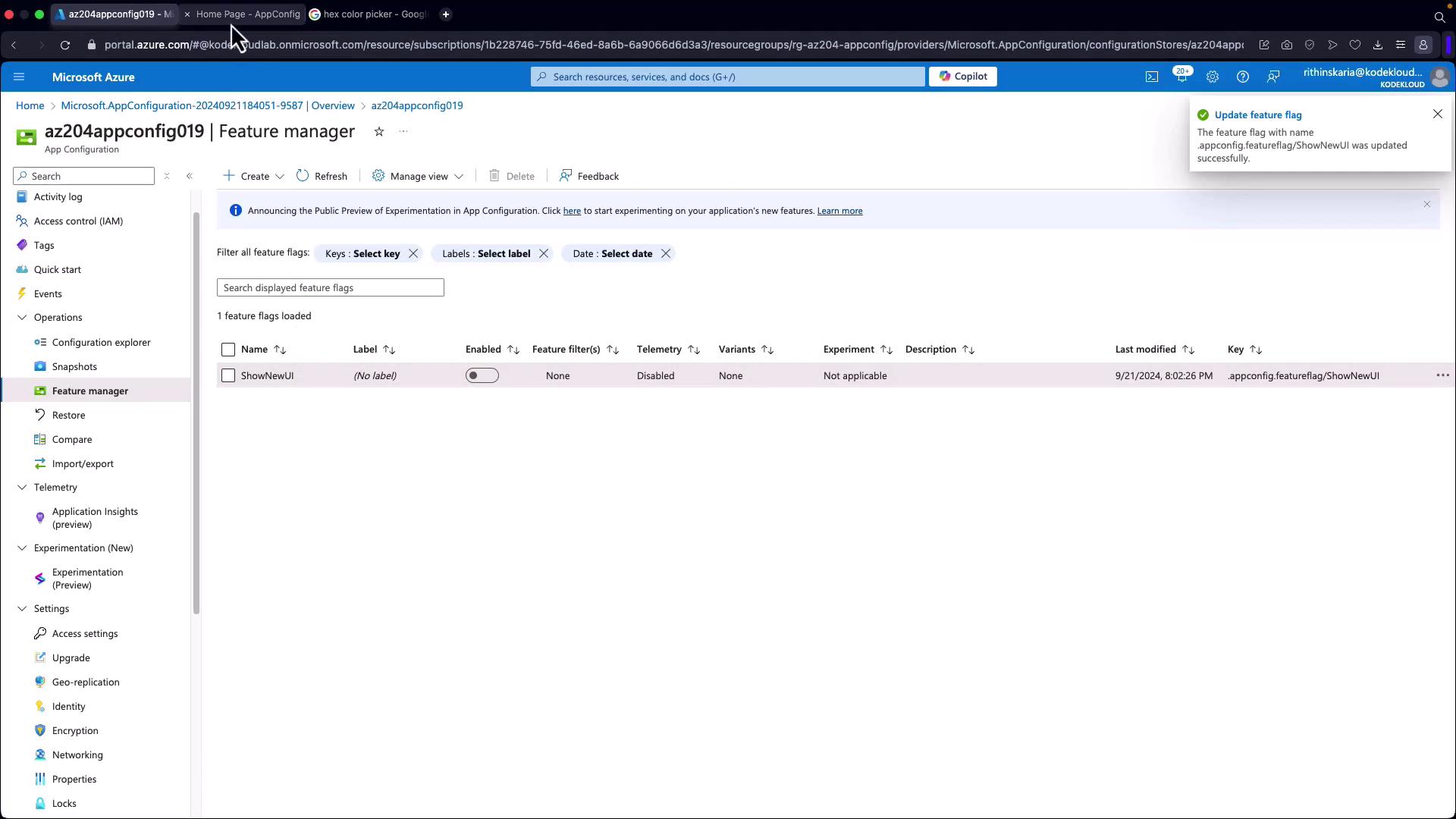
In the HomeController (as shown earlier), default configuration values are overridden when the “ShowNewUI” feature flag is enabled. Activating this flag in the Azure portal will update your application UI dynamically, while disabling the flag will revert to the default configuration.
Run your application to see the changes. Refreshing the page will reflect any new configuration based on the active feature flags.
Securing your configuration data is critical in production. Avoid hardcoding connection strings or sensitive data within your application. Instead, leverage managed identities and retrieve secrets from Azure Key Vault. This practice ensures secure access while maintaining dynamic configuration.Happy coding!