

Application Registration: Single Tenant vs. Multi-Tenant
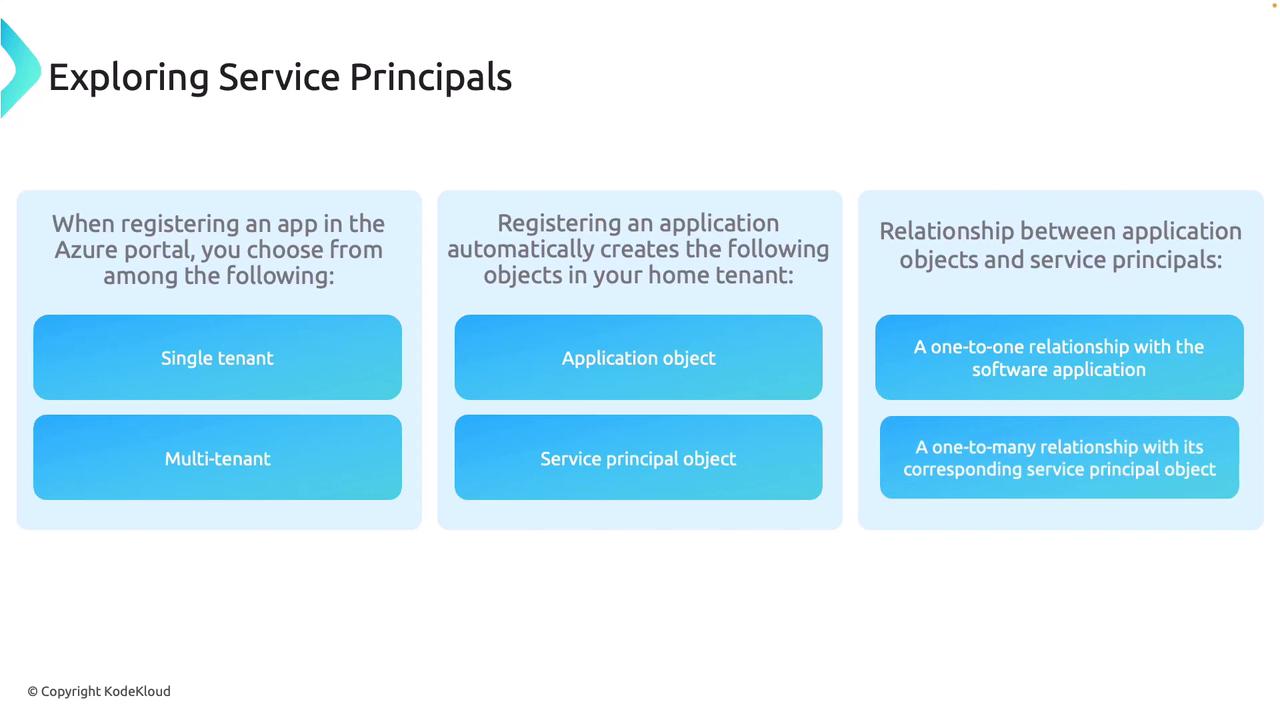
When registering an app in the Azure Portal, you can choose the appropriate access model:- Single Tenant: The app is limited to usage within your tenant. This option is ideal for enterprises serving internal users.
- Multi-Tenant: The app can be accessed by users from multiple tenants. This model is common in SaaS solutions where external organizations also utilize the app.
- Additionally, you might see options for personal accounts (e.g., Outlook or Xbox accounts), though these are less common for enterprise applications.
Application and Service Principal Objects
Upon registering an application, Azure automatically creates two essential objects:- Application Object: Represents the blueprint of your application, including its permissions and core behavior.
- Service Principal Object: Serves as the authentication identity, allowing the app to access the designated resources.
Relationship Between Application Objects and Service Principals
- One-to-One Relationship: Each application object corresponds to a specific software application or service and acts as its blueprint.
- One-to-Many Relationship: While a single application object exists, multiple service principals can be linked to it when deployed across tenants. For example, a multi-tenant app used by several companies will have distinct service principals to ensure isolated access control.
Creating a Service Principal in the Azure Portal
To create a service principal, navigate through Microsoft Entra ID in the Azure Portal where a list of app registrations is available. Details such as application names, IDs, and status indicators (e.g., “Expired” and “Current”) are displayed for each registered app.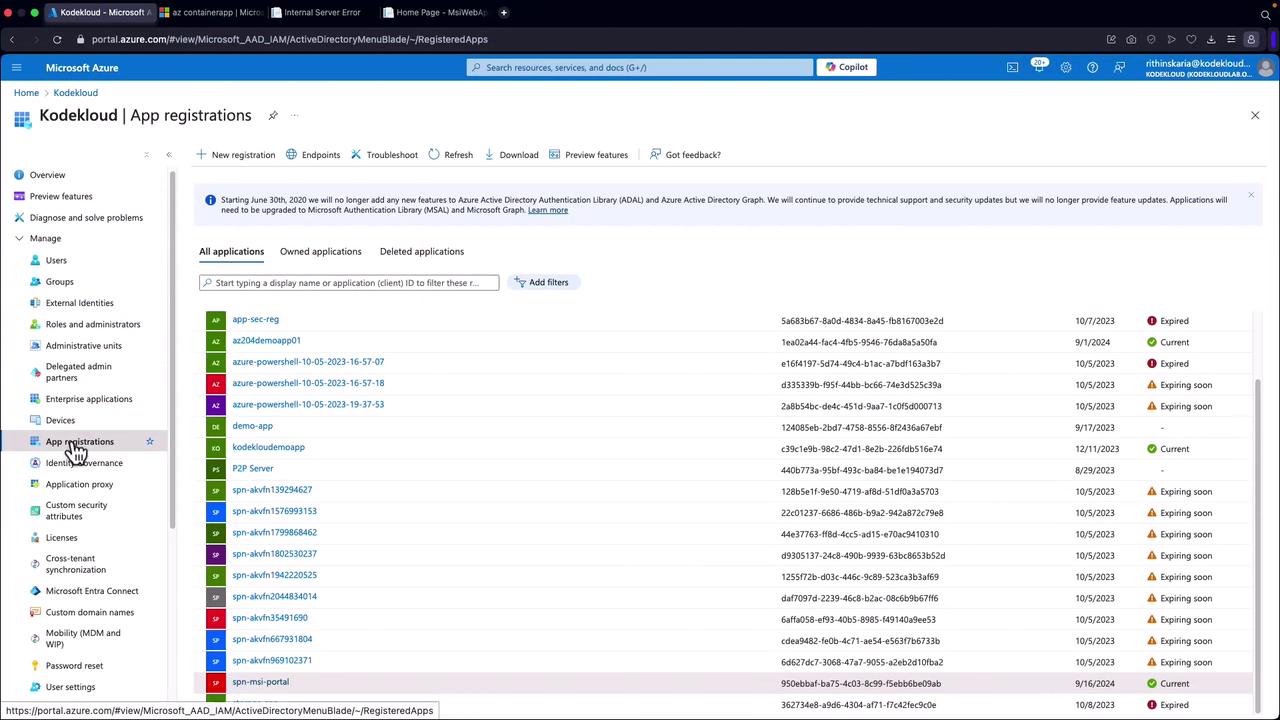
Creating a New App Registration
Follow these steps to create a new app registration:- Navigate to the “App Registrations” section in the Azure Portal.
- Click on “New Registration” to initiate a new application registration. For example, you might name the new app “AZ204 App”.
- Select the appropriate supported account type—this demonstration uses the Single Tenant option. You will be prompted to fill in fields such as application name, supported account types, and an optional redirect URI.
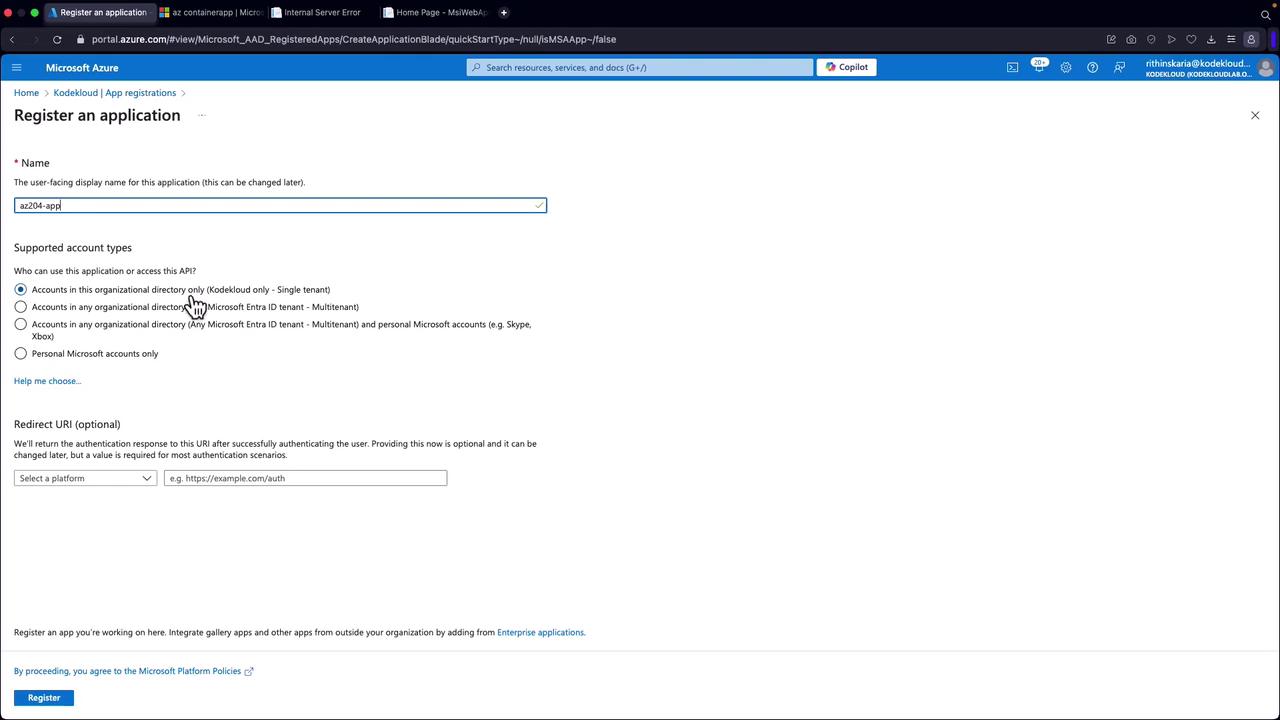
- Click “Register” to complete the registration process.
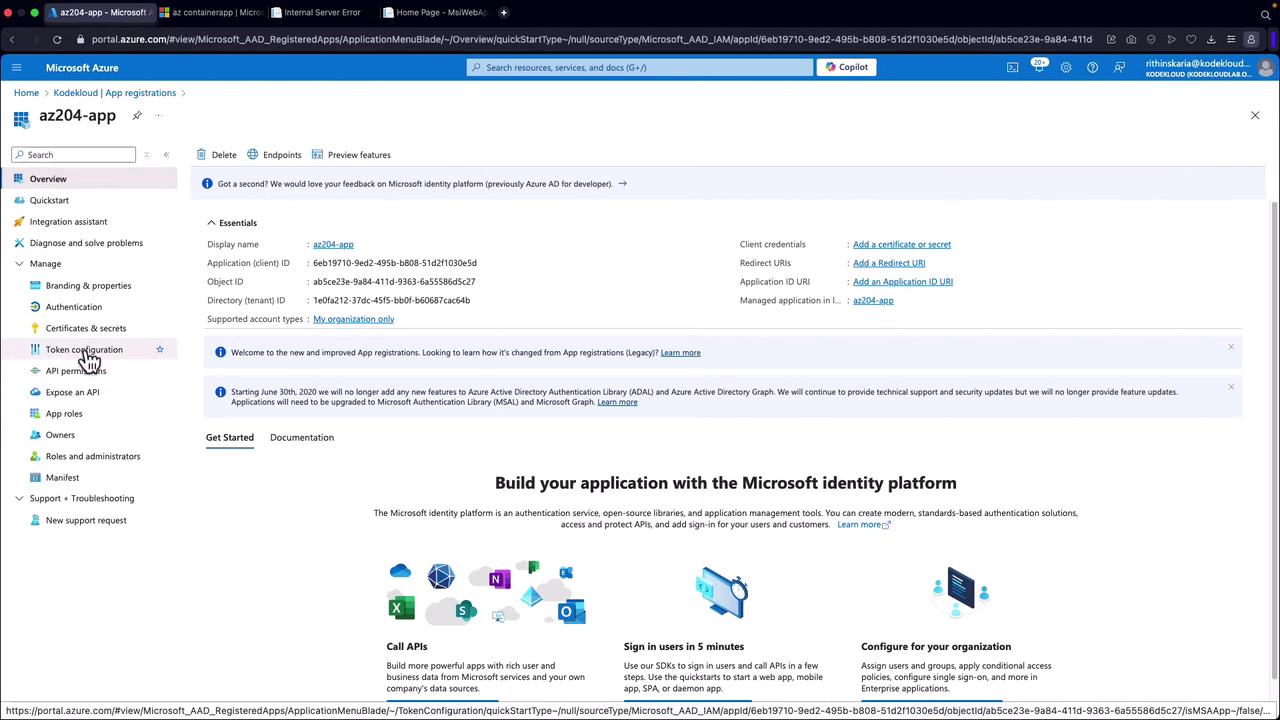
After creating the app registration, make sure to review and configure all authentication and API permissions to ensure your application meets security best practices.