This article explores debugging techniques in Rust using the println! macro and advanced logging for efficient application troubleshooting and monitoring.
In this article, we continue our debugging series in Rust by exploring two essential techniques: quick debugging with the println! macro and advanced logging for larger applications. These techniques are beneficial for both beginners and seasoned developers seeking to efficiently troubleshoot and monitor their applications.
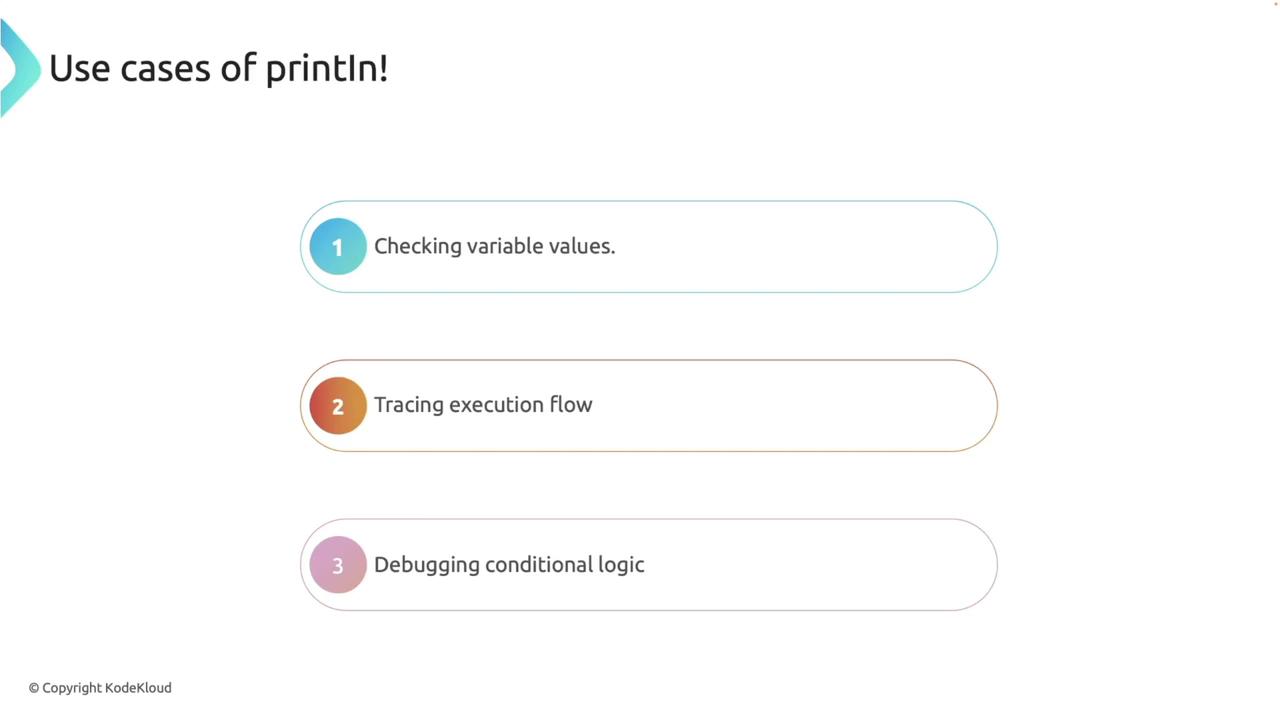
The println! macro is a straightforward way to print text and variable values to the console, making it ideal for quick and simple debugging tasks. By inserting println! statements in your code, you can trace execution, verify variable contents, and troubleshoot conditional logic.
The example below illustrates how to print the values of variables using println!:
Copy
Ask AI
fn main() { let x = 5; println!("The value of x is: {}", x); let y = 10; println!("The value of y is: {}", y); let z = x + y; println!("x + y = {}", z);}
Incorporate println! statements at strategic points in your code to verify that your logic and variable states are as expected.
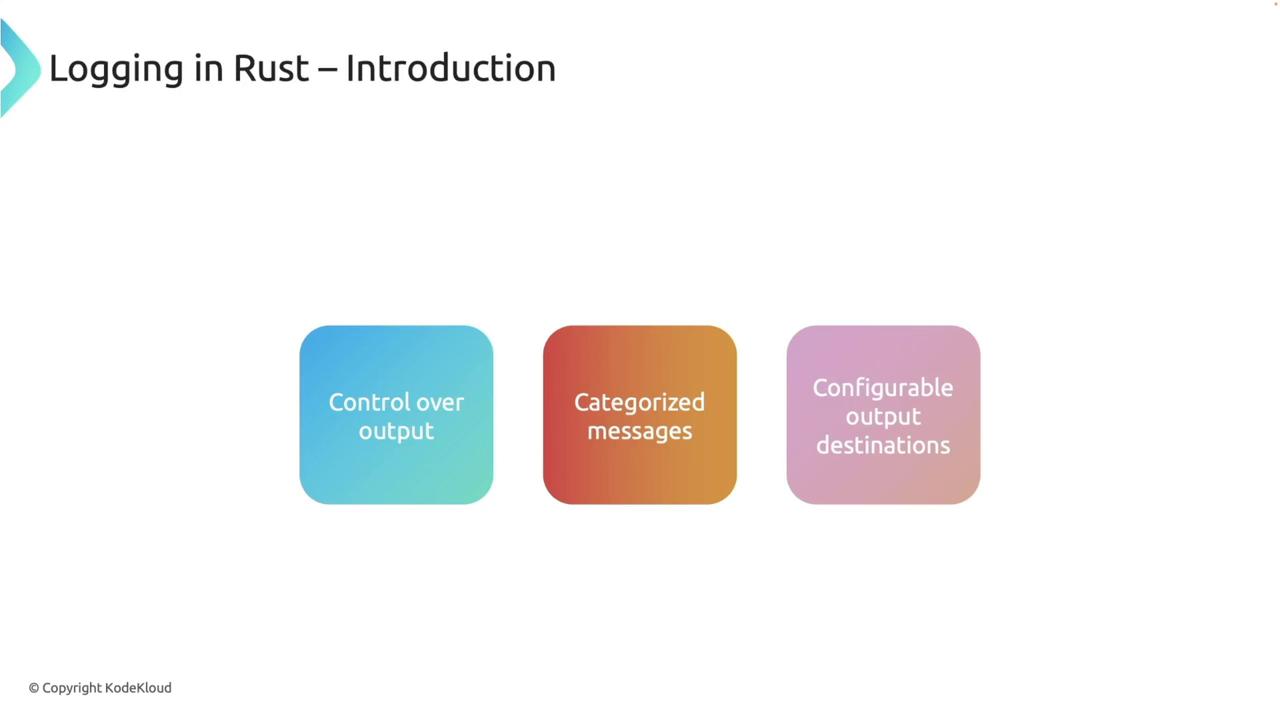
For more robust and scalable debugging, leveraging logging capabilities is essential. Logging provides finer control over the output, allowing you to define levels of verbosity, categorize messages, and choose specific output destinations.
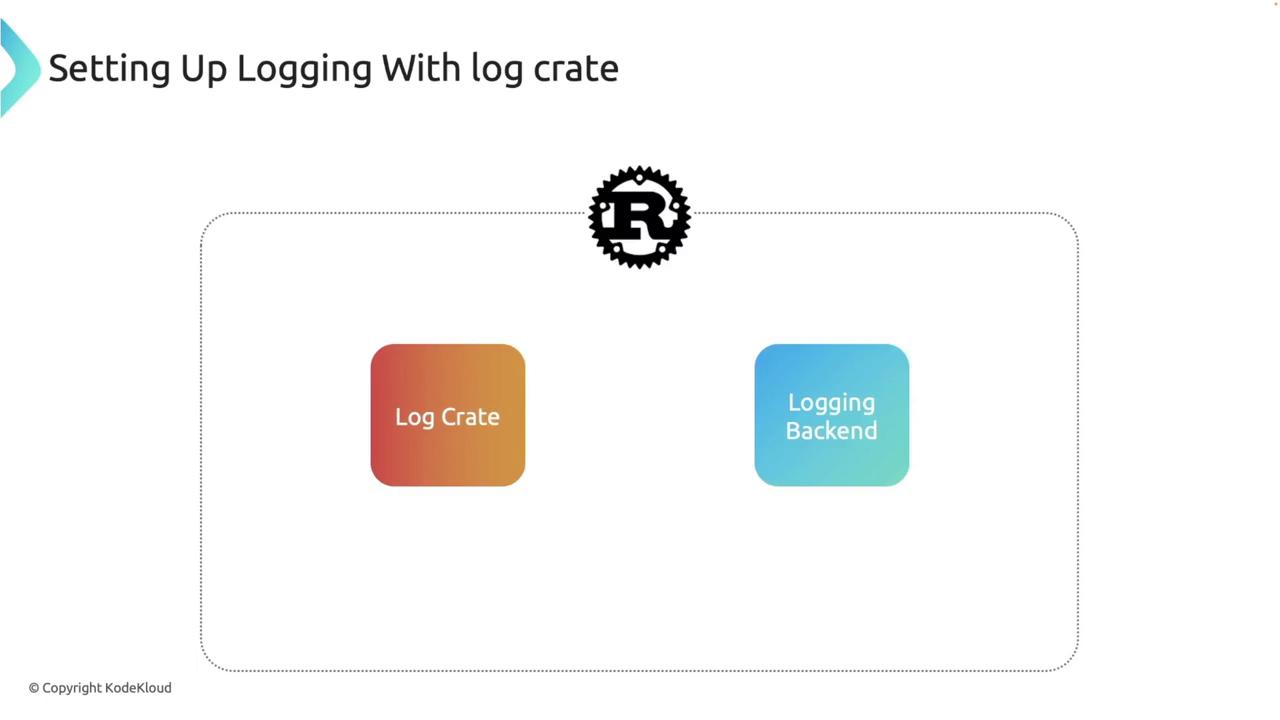
Rust offers a powerful logging ecosystem with the log crate acting as a facade. When paired with logging backends like env_logger or fern, you can build a robust logging framework tailored to your application’s needs.
To begin using logging, add the log and env_logger crates to your Cargo.toml file:
Copy
Ask AI
[dependencies]env_logger = "0.11.5"log = "0.4.22"
Once added, building your project might output messages indicating the installation of related dependencies:
Copy
Ask AI
Adding is_terminal_polyfill v1.70.1Adding memchr v2.7.4Adding regex v1.11.1...debug_rust on 'master' [?] is v0.1.0 via v1.82.0 took 3s
The log crate provides logging macros such as info!, warn!, error!, and debug!, while env_logger handles formatting and output based on the environment configuration.
The following code demonstrates how to initialize the logger and output various log messages:
Copy
Ask AI
use env_logger;use log::{debug, error, info, warn};fn main() { env_logger::init(); // Initialize the logger info!("Application started"); warn!("This is a warning message"); error!("An error occurred"); debug!("This is a debug message");}
By default, env_logger only prints log messages at the error level and above. To view more detailed logs, set the RUST_LOG environment variable:
Copy
Ask AI
# Run with info level loggingRUST_LOG=info cargo run --quiet
To include debug messages, use:
Copy
Ask AI
RUST_LOG=debug cargo run --quiet
Remember that the default settings in env_logger filter out debug messages when the log level is set to info.
Enhance your application by combining logging with business logic. Consider the following example where configuration status is checked and a division function is utilized to demonstrate error handling with appropriate logging:
Copy
Ask AI
use env_logger;use log::{debug, error, info, warn};fn main() { env_logger::init(); // Initialize the logger info!("Application started"); let config_loaded: bool = false; // Simulate whether the config file is loaded if !config_loaded { warn!("Configuration not loaded; using defaults"); } let result: Result<i32, String> = divide(10, 0); // Attempt division by zero match result { Ok(value) => info!("Division successful: {}", value), Err(e) => error!("Failed to divide: {}", e), } debug!("Application finished");}fn divide(a: i32, b: i32) -> Result<i32, String> { if b == 0 { Err(String::from("Division by zero")) } else { Ok(a / b) }}
Run the application with debug logging enabled:
Copy
Ask AI
RUST_LOG=debug cargo run --quiet
Expected output:
Copy
Ask AI
[2024-11-23T21:14:22Z INFO debug_rust] Application started[2024-11-23T21:14:22Z WARN debug_rust] Configuration not loaded; using defaults[2024-11-23T21:14:22Z ERROR debug_rust] Failed to divide: Division by zero[2024-11-23T21:14:22Z DEBUG debug_rust] Application finished
For more control over how logs are formatted, you can customize env_logger with the help of the chrono crate. This allows you to include timestamps and format messages to your preference.First, add the chrono crate:
Copy
Ask AI
cargo add chrono
Then, set up your custom logger as follows:
Copy
Ask AI
use chrono::Local;use env_logger::Builder;use log::{debug, error, info, warn, LevelFilter};use std::io::Write;fn main() { // Initialize the logger with customized settings Builder::new() .filter(None, LevelFilter::Debug) // Default log level set to Debug .format(|buf, record| { writeln!( buf, "{} [{}] - {}", Local::now().format("%Y-%m-%d %H:%M:%S"), // Timestamp record.level(), // Log level record.args() // Log message ) }) .init(); info!("Application started"); let config_loaded: bool = false; // Simulate configuration loading if !config_loaded { warn!("Configuration not loaded; using defaults"); } let result: Result<i32, String> = divide(10, 0); match result { Ok(value) => info!("Division successful: {}", value), Err(e) => error!("Failed to divide: {}", e), } debug!("Application finished");}fn divide(a: i32, b: i32) -> Result<i32, String> { if b == 0 { Err(String::from("Division by zero")) } else { Ok(a / b) }}
Run the program with debug logging:
Copy
Ask AI
RUST_LOG=debug cargo run --quiet
Sample output:
Copy
Ask AI
2024-11-24 02:51:30 [INFO] - Application started2024-11-24 02:51:30 [WARN] - Configuration not loaded; using defaults2024-11-24 02:51:30 [ERROR] - Failed to divide: Division by zero2024-11-24 02:51:30 [DEBUG] - Application finished
Redirecting logs to a file can be useful for persistent logging. The following example demonstrates how to write logs to a file named output.log:
Copy
Ask AI
use std::fs::OpenOptions;use std::io::Write;use env_logger::Builder;use chrono::Local;use log::{debug, error, info, warn, LevelFilter};fn main() { // Open or create the log file let file = OpenOptions::new() .create(true) // Create the file if it doesn't exist .write(true) // Open the file for writing .append(true) // Append messages to the file .open("output.log") .unwrap(); // Be sure to handle errors appropriately in production // Initialize the logger with custom settings directing output to the file Builder::new() .filter(None, LevelFilter::Debug) .format(|buf, record| { writeln!( buf, "{} [{}] - {}", Local::now().format("%Y-%m-%d %H:%M:%S"), record.level(), record.args() ) }) .target(env_logger::Target::Pipe(Box::new(file))) // Redirect logs to output.log .init(); info!("Application started"); let config_loaded: bool = false; // Simulate configuration status if !config_loaded { warn!("Configuration not loaded; using defaults"); } let result: Result<i32, String> = divide(10, 0); match result { Ok(value) => info!("Division successful: {}", value), Err(e) => error!("Failed to divide: {}", e), } debug!("Application finished");}fn divide(a: i32, b: i32) -> Result<i32, String> { if b == 0 { Err(String::from("Division by zero")) } else { Ok(a / b) }}
After running this application, all log output will be written to output.log instead of the terminal.
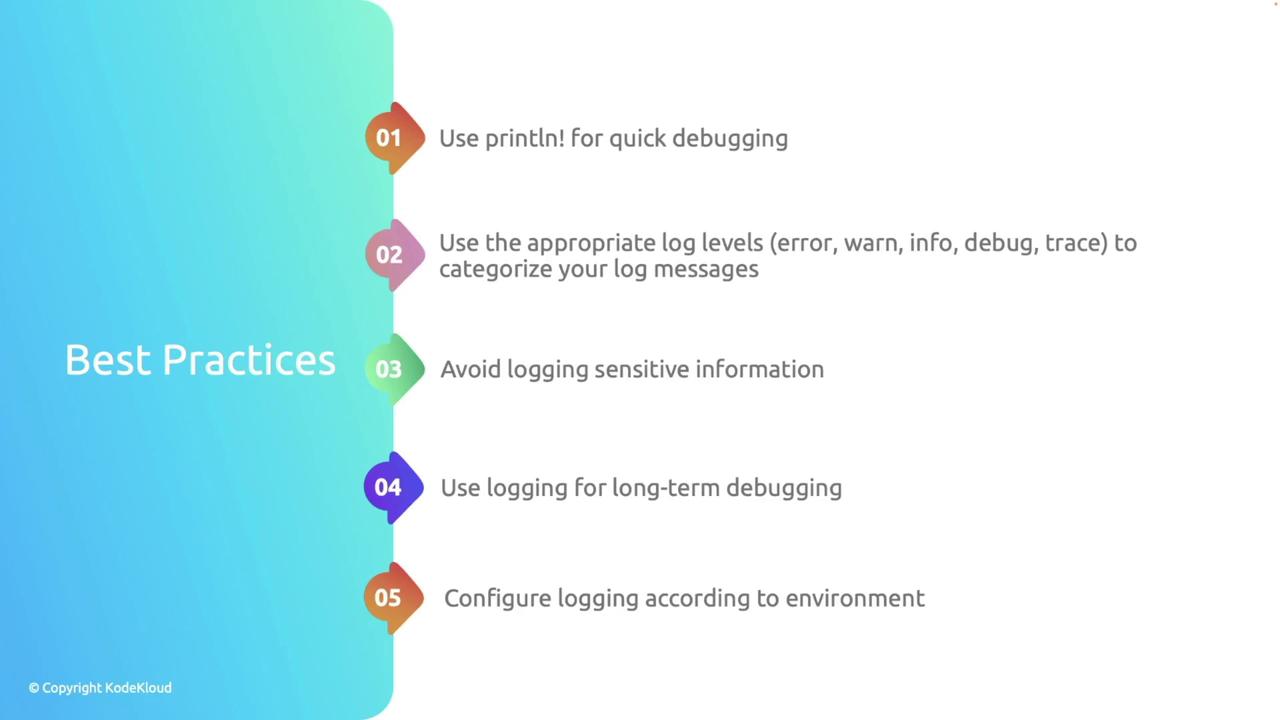
Implement these best practices to ensure your logging system is both effective and secure:
Best Practice
Description
Use println! for Quick Debugging
Ideal for small tests; avoid overusing it in larger, production-grade applications.
Categorize Message Levels
Use appropriate levels like info, warn, error, and debug for better filtering.
Avoid Logging Sensitive Data
Ensure that sensitive or personal data is not inadvertently logged, especially in production.
Use Logging for Long-term Debugging
Rely on a robust logging system for ongoing maintenance instead of temporary print statements.
Environment-specific Configuration
Apply verbose logging in development and restrict output in production environments.
Always ensure that sensitive data, including credentials and personal information, is never logged to avoid security risks.
By tailoring your logging system to match your application’s needs, you can significantly improve real-time debugging and production monitoring.Happy debugging and coding in Rust!