In this lesson, we’ll walk through refactoring our existing Jenkinsfile to serve as the foundation for more advanced pipeline demos. You’ll learn how to:
  • Extract reusable helpers (e.g., Slack notifications)
  • Simplify and structure stages for clarity
  • Spin up a new feature branch for future enhancements
  • Verify the pipeline in both classic and Blue Ocean views
By the end, you’ll have a lean, maintainable Jenkins pipeline ready for advanced integrations.

Recap: Jenkins Multibranch Pipeline

Log in to your Jenkins instance and find the multibranch Organization Folder containing the solar-system repository. This setup automatically discovers and builds branches as they appear in your Git server.
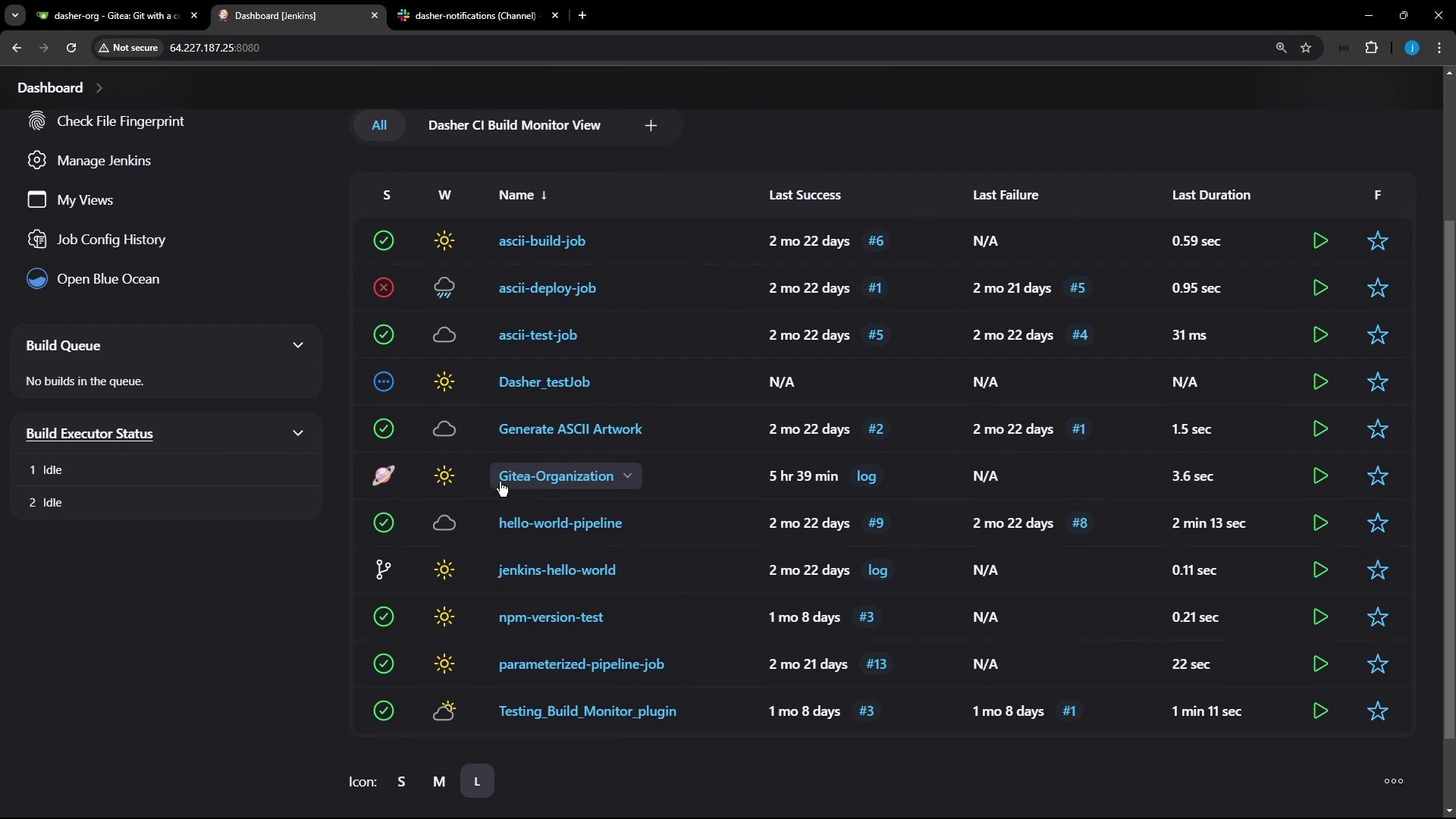
The image shows a Jenkins dashboard displaying a list of build jobs with their statuses, last success and failure times, and durations. The interface includes options for managing Jenkins and viewing build details.
Within solar-system, our last active branch was feature/enabling-slack.
The image shows a Jenkins dashboard for a project named "solar-system," displaying the status of different branches with details on their last success, last failure, and duration.
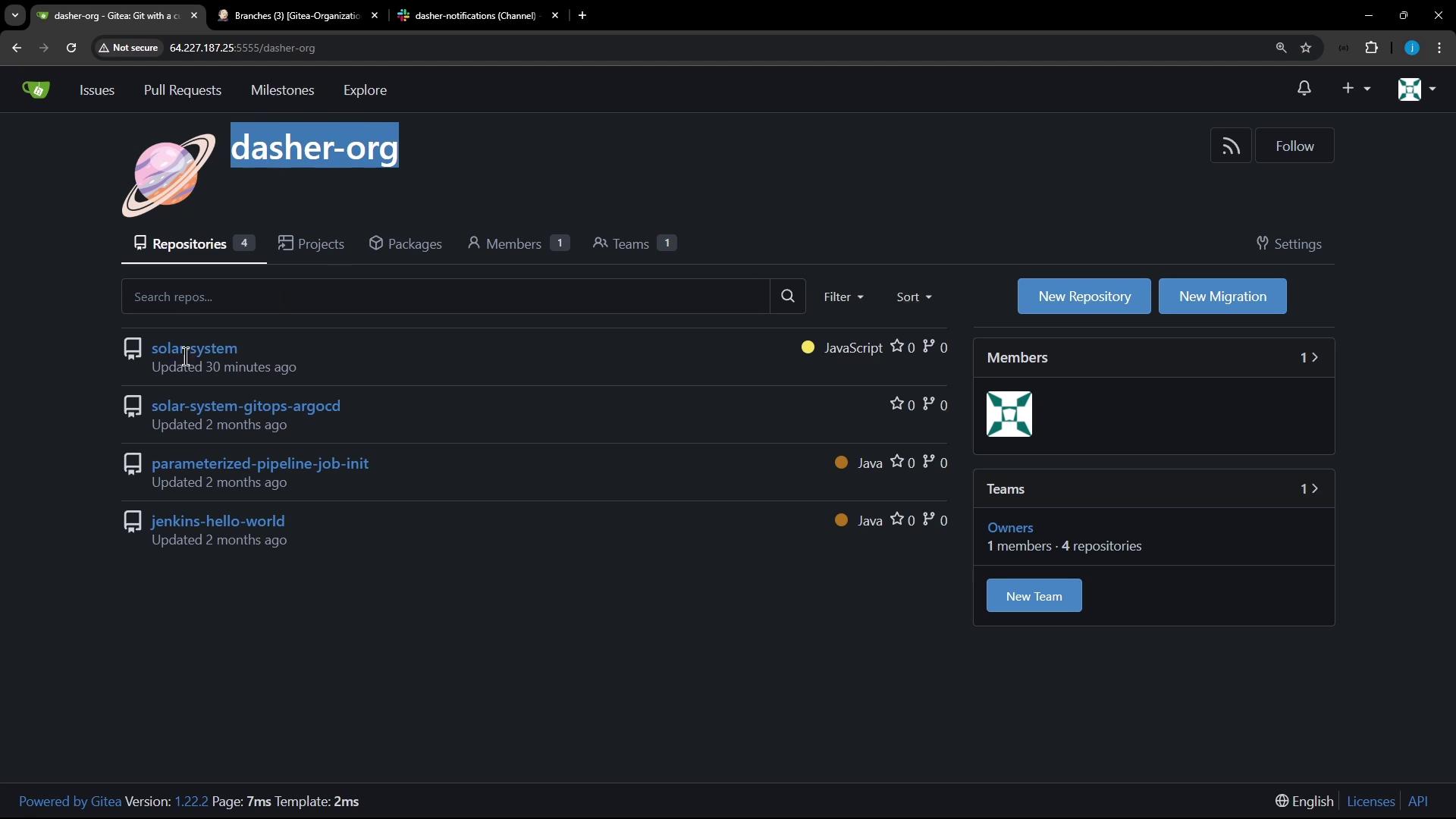
On the Git side, the project lives under the dasher-org organization in Gitea alongside related repositories.
The image shows a Gitea organization page named "dasher-org" with a list of repositories, including "solar-system" and others, along with options to create a new repository or migration.
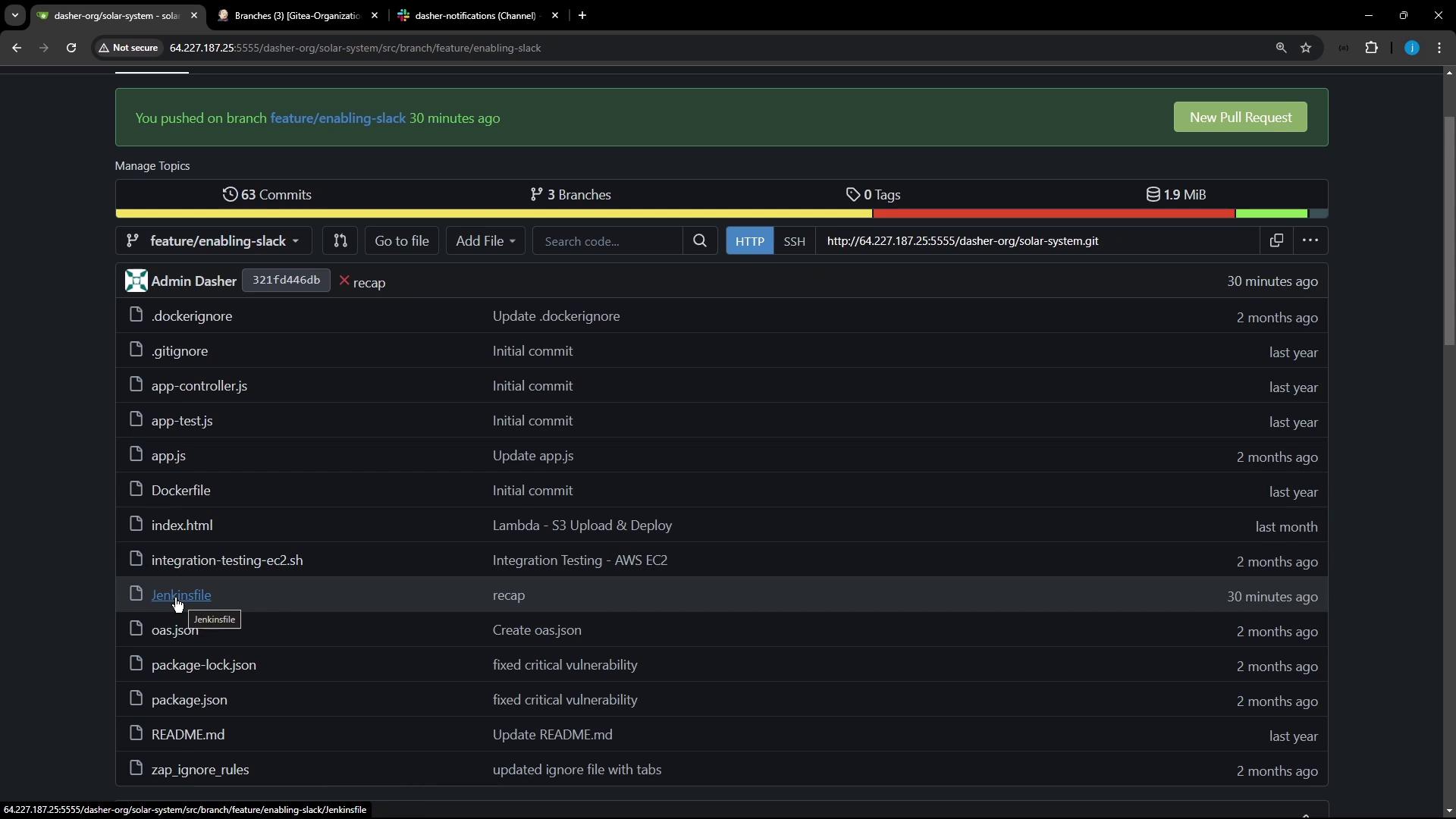
We pushed our last updates to the feature/enabling-slack branch.
The image shows a Git repository interface with a list of files and their commit messages, including a recent push to the branch "feature/enabling-slack."

Step 1: Open the Jenkinsfile in VS Code

Switch your local repo to feature/enabling-slack and open Jenkinsfile in Visual Studio Code (or your preferred editor).
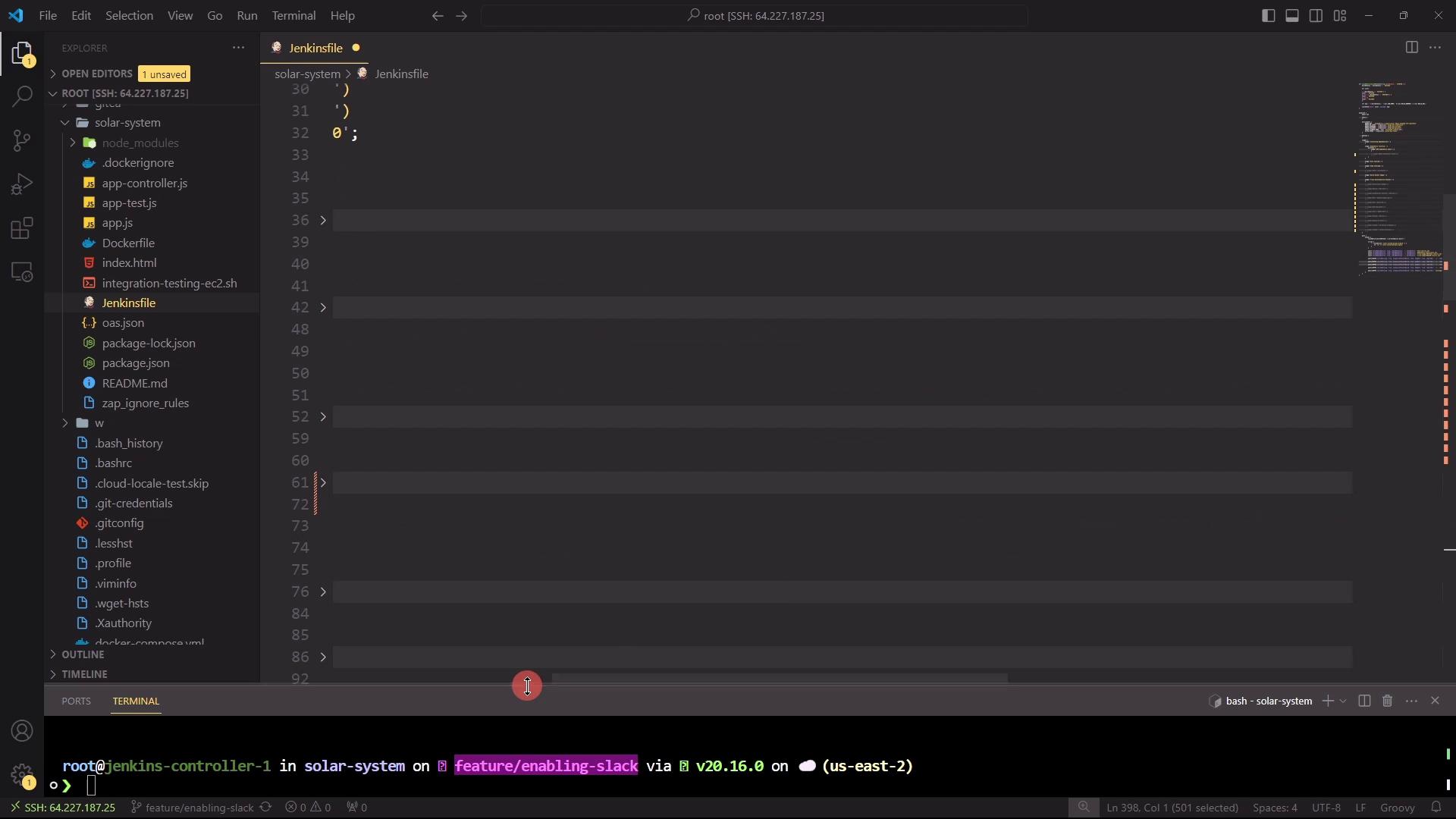
The image shows a Visual Studio Code interface with a file explorer on the left, displaying a project directory named "solar-system" and a "Jenkinsfile" open in the editor. The terminal at the bottom indicates an SSH connection to a server.
Ensure you have the following installed on your Jenkins agents:
  • Node.js & npm
  • Docker Engine
  • Trivy scanner
  • Slack Notification Plugin

Step 2: Extract Slack Notification Helper

To avoid repeating slackSend calls and status logic, define a reusable helper function at the top of your Jenkinsfile:
// Slack Notification helper
def slackNotificationMethod(String buildStatus = 'STARTED') {
    buildStatus = buildStatus ?: 'SUCCESS'
    def color = (buildStatus == 'SUCCESS') ? '#47ec05' :
                (buildStatus == 'UNSTABLE') ? '#d5eed0' : '#ec2805'
    def msg = "${buildStatus}: ${env.JOB_NAME} #${env.BUILD_NUMBER}:\n${env.BUILD_URL}"
    slackSend(color: color, message: msg)
}
This helper centralizes notification logic and can be invoked in any post block.

Step 3: Simplify Pipeline Structure

We’re focusing on five key stages for our advanced demos. Comment out or remove any extra stages. The new skeleton looks like this:
pipeline {
    agent any

    options {
        timestamps()
        skipDefaultCheckout()
    }

    environment {
        MONGO_URI          = "mongodb+srv://supercluster.d83jj.mongodb.net/superData"
        MONGO_DB_CRED      = credentials('mongo-db-credentials')
        SONAR_SCANNER_HOME = tool 'sonarqube-scanner-610'
        GITEA_TOKEN        = credentials('gitea-api-token')
    }

    stages {
        stage('Installing Dependencies') { steps { sh 'npm install --no-audit' } }
        stage('Dependency Scanning') {
            parallel {
                stage('NPM Dependency Audit') { steps { sh 'npm audit --json > audit.json' } }
                // OWASP Dependency Check removed for this demo
            }
        }
        stage('Unit Testing')    { steps { sh 'npm test' } }
        stage('Code Coverage')   {
            steps {
                catchError(buildResult: 'SUCCESS', message: 'Coverage issues', stageResult: 'FAILURE') {
                    sh 'npm run coverage'
                }
            }
        }
        stage('Build Docker Image') { steps { sh 'docker build -t ${env.JOB_NAME}:${env.GIT_COMMIT} .' } }
        stage('Trivy Vulnerability Scanner') {
            steps {
                sh '''
                  trivy image ${env.JOB_NAME}:${env.GIT_COMMIT} \
                    --severity LOW,MEDIUM,HIGH --exit-code 0 --format json \
                    -o trivy-image-MEDIUM-results.json
                  trivy convert --format template \
                    --template "/usr/local/share/trivy/templates/html.tpl" \
                    --output trivy-image-MEDIUM-results.html \
                    trivy-image-MEDIUM-results.json
                  trivy convert --format template \
                    --template "/usr/local/share/trivy/templates/junit.tpl" \
                    --output trivy-image-CRITICAL-results.xml \
                    trivy-image-MEDIUM-results.json
                '''
            }
            post {
                always {
                    publishHTML(
                      allowMissing: true,
                      alwaysLinkToLastBuild: true,
                      keepAll: true,
                      reportDir: './',
                      reportFiles: 'trivy-image-MEDIUM-results.html',
                      reportName: 'Trivy HTML Report'
                    )
                    publishHTML(
                      allowMissing: true,
                      alwaysLinkToLastBuild: true,
                      keepAll: true,
                      reportDir: './',
                      reportFiles: 'trivy-image-CRITICAL-results.xml',
                      reportName: 'Trivy JUnit Report'
                    )
                }
            }
        }
    }

    post {
        always {
            slackNotificationMethod(currentBuild.currentResult)
            script {
                if (fileExists('solar-system-gitops-argocd')) {
                    sh 'rm -rf solar-system-gitops-argocd'
                }
            }
            junit allowEmptyResults: true, testResults: 'test-results.xml'
            junit allowEmptyResults: true, testResults: 'dependency-check-junit.xml'
            publishHTML(
              allowMissing: true,
              alwaysLinkToLastBuild: true,
              reportDir: 'coverage/',
              reportFiles: 'lcov.info',
              reportName: 'Coverage Report'
            )
        }
    }
}

Key Pipeline Stages Summary

StagePurpose
Installing DependenciesInstall npm modules without audit
Dependency ScanningRun npm audit in parallel
Unit TestingExecute unit tests
Code CoverageGenerate coverage report (non-blocking)
Build Docker ImageBuild container for deployment/testing
Trivy Vulnerability ScannerScan image, export HTML & JUnit reports

Step 4: Create a New Branch for Advanced Demos

Instead of modifying feature/enabling-slack, spin up a fresh feature branch:
git checkout -b feature/advanced-demo origin/feature/enabling-slack
git push -u origin feature/advanced-demo
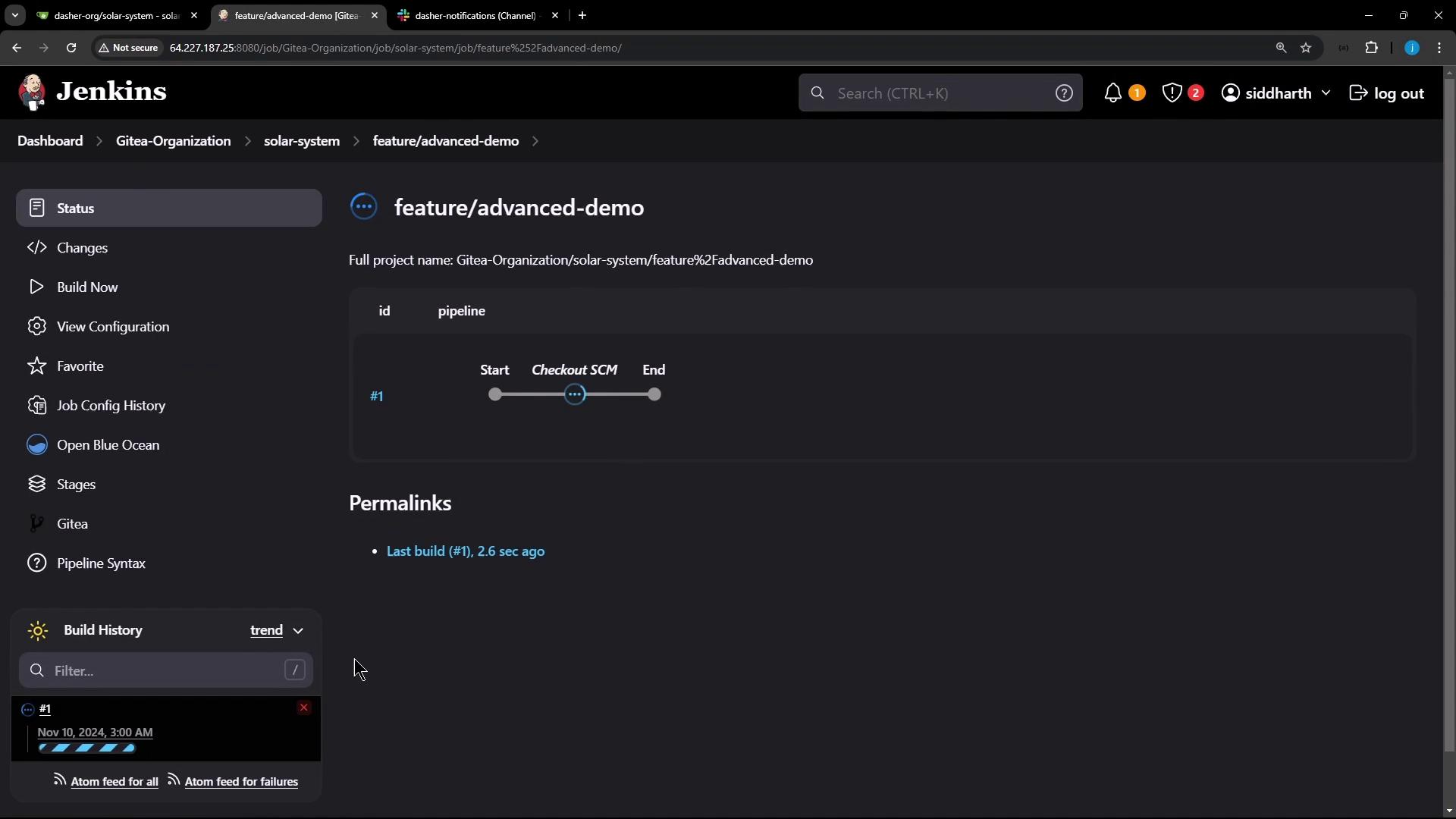
Jenkins Multibranch Pipeline will auto-detect and trigger a build for the new branch.
The image shows a Jenkins dashboard displaying the status of a pipeline for a project named "feature/advanced-demo," with a build history and navigation options on the left.

Step 5: Verify in Blue Ocean

Open the Blue Ocean UI to get a visual representation of your streamlined pipeline. You should now see only the core stages instead of the full, unfiltered list.
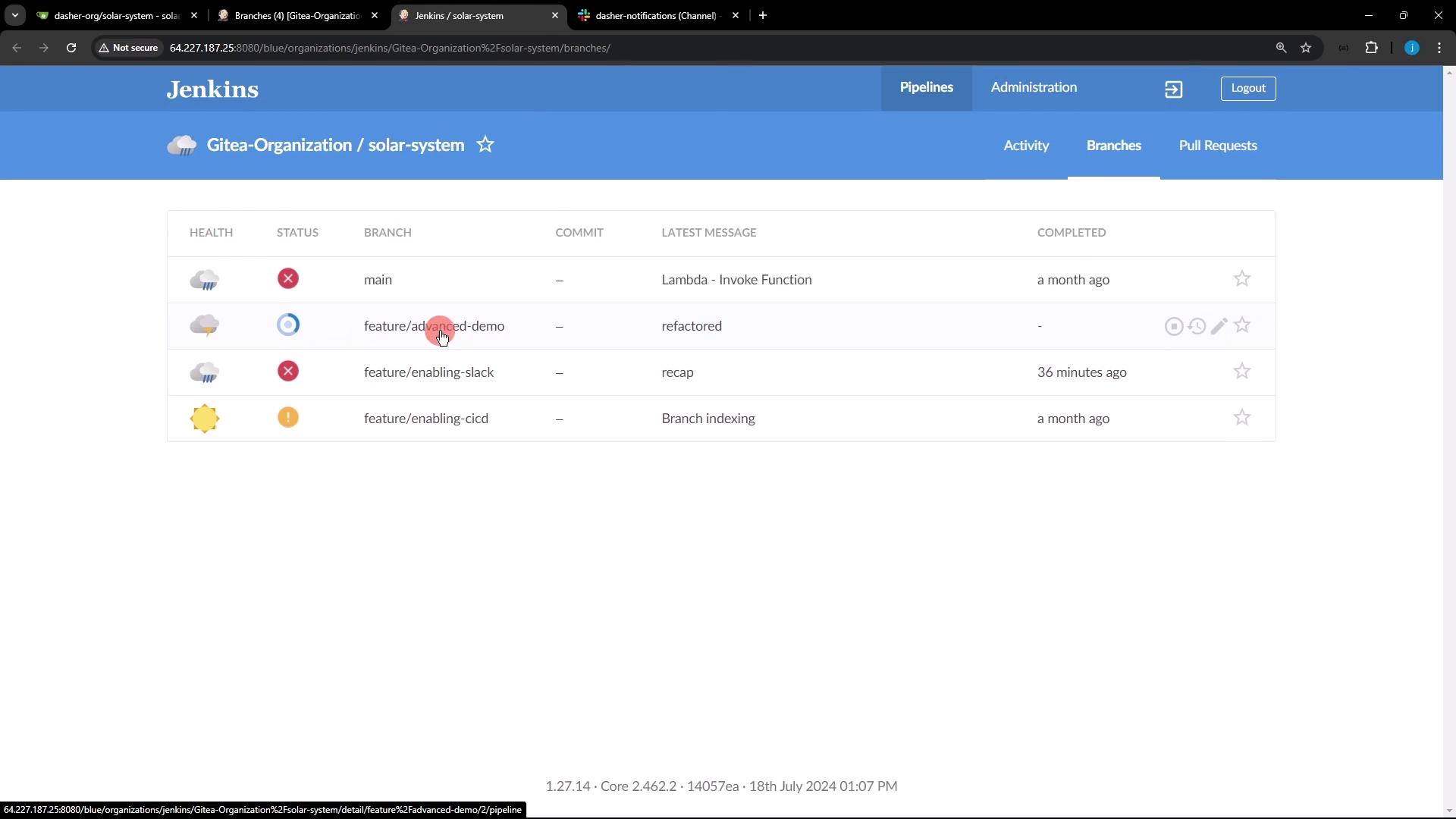
The image shows a Jenkins interface displaying the status of different branches in a project named "solar-system" under "Gitea-Organization." Each branch has a health status, latest commit message, and completion time.

With your Jenkinsfile refactored and a dedicated branch in place, you’re all set to explore advanced pipeline features in upcoming sessions.