

How ADLS Works
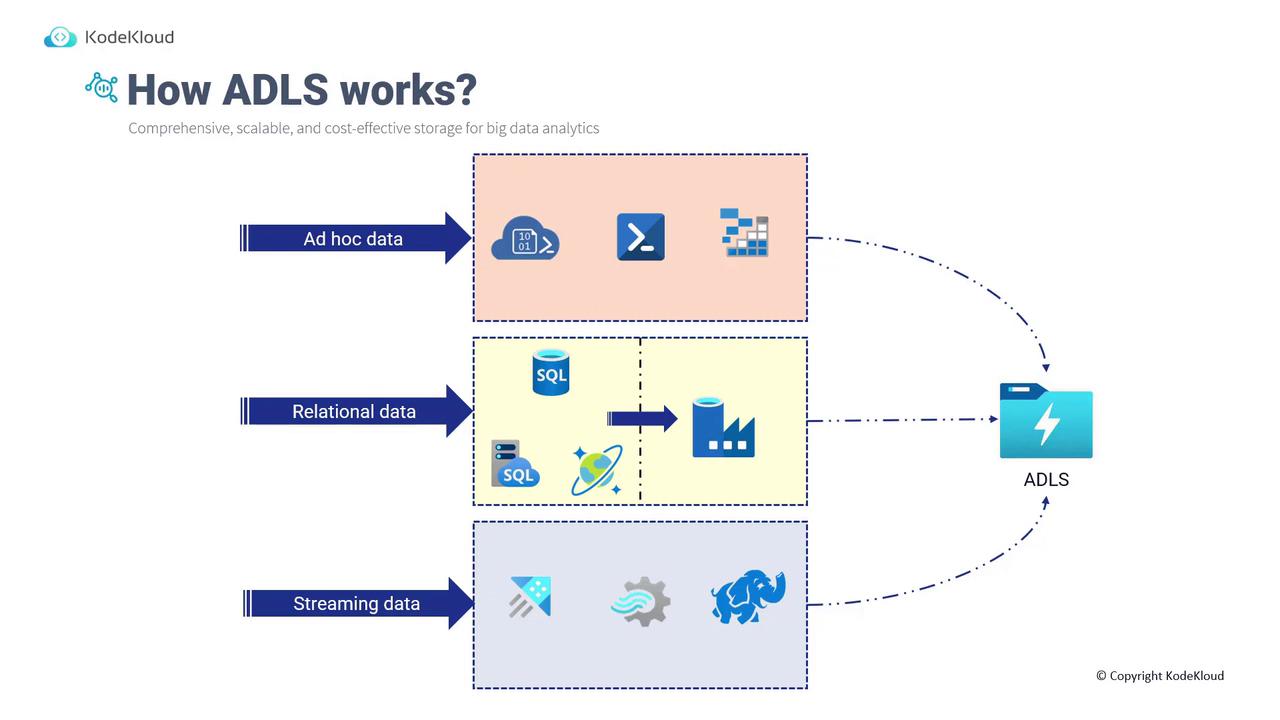
Data can be ingested into ADLS from various sources, ensuring your data remains available in its native state. The main ingestion methods include:-
Ad-hoc Data:
Data can be uploaded using tools such as PowerShell, Azure CLI, or Storage Explorer. -
Relational Data:
Data originating from SQL databases, SQL Managed Instances, PostgreSQL, or Cosmos DB can be ingested via Azure Data Factory, which includes connectors for these sources. -
Streaming Data:
Real-time data from Azure Data Explorer, Stream Analytics, Hadoop, and similar sources can be streamed directly into ADLS.
When to Use ADLS
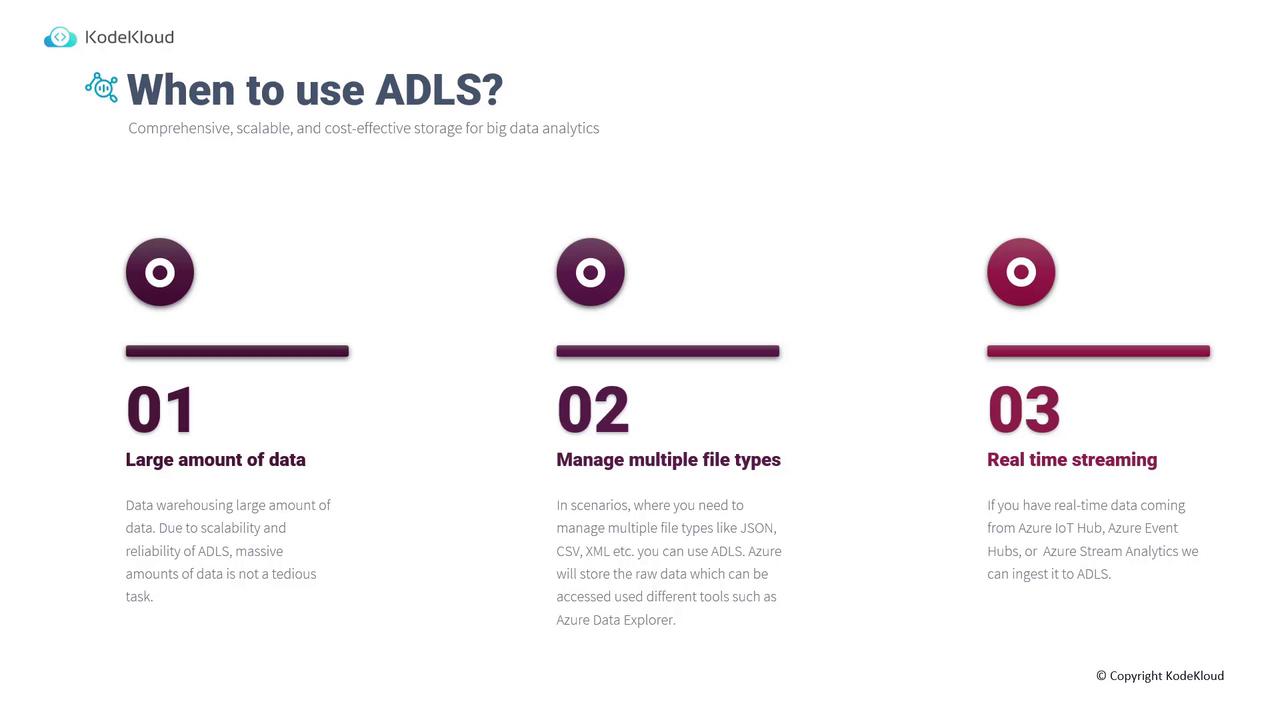
ADLS is ideal for three primary scenarios:- Large Amounts of Data:
ADLS serves as a cloud-based data warehouse capable of managing massive volumes of data. Its scalability and reliability allow for automatic billing adjustments as storage needs increase.
-
Multiple File Types:
By supporting a wide range of file types (such as JSON, CSV, XML, etc.), ADLS offers flexible ingestion of ad-hoc, relational, or streaming data. This diversity enables robust processing using tools like Data Explorer and Data Factory. -
Real-Time Streaming:
ADLS can ingest real-time data from sources such as IoT Hub, Azure Event Hub, or Stream Analytics, making it a perfect choice for immediate analytical applications.
ADLS vs. Blob Storage
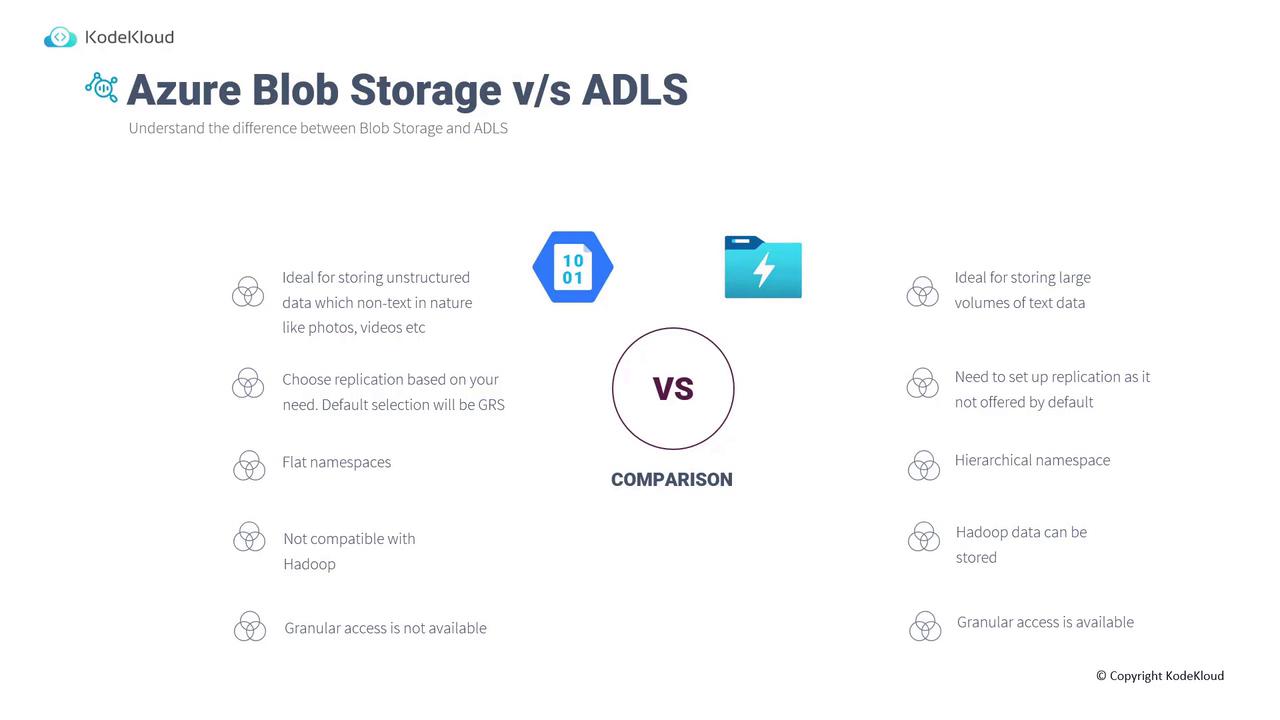
Although ADLS and Blob Storage share the same pricing model, there are significant differences in functionality and use cases:| Feature | Blob Storage | Azure Data Lake Storage (ADLS) |
|---|---|---|
| Data Type | Best for unstructured, non-text data like photos, videos, documents | Optimized for large volumes of textual data, both relational and non-relational |
| Redundancy Options | Offers multiple redundancy configurations (LRS, ZRS, GRS, GZRS) | Default replication can be enabled via the Azure portal |
| Namespace Structure | Uses a flat namespace | Employs a hierarchical namespace beneficial for complex directory structures and Hadoop integration |
| Hadoop Compatibility | Not optimized for Hadoop ecosystems | Designed to work natively with Hadoop storage solutions |
| Security | Access control mainly at the storage account or container level | Granular control with detailed ACLs |
Creating an ADLS Storage Account
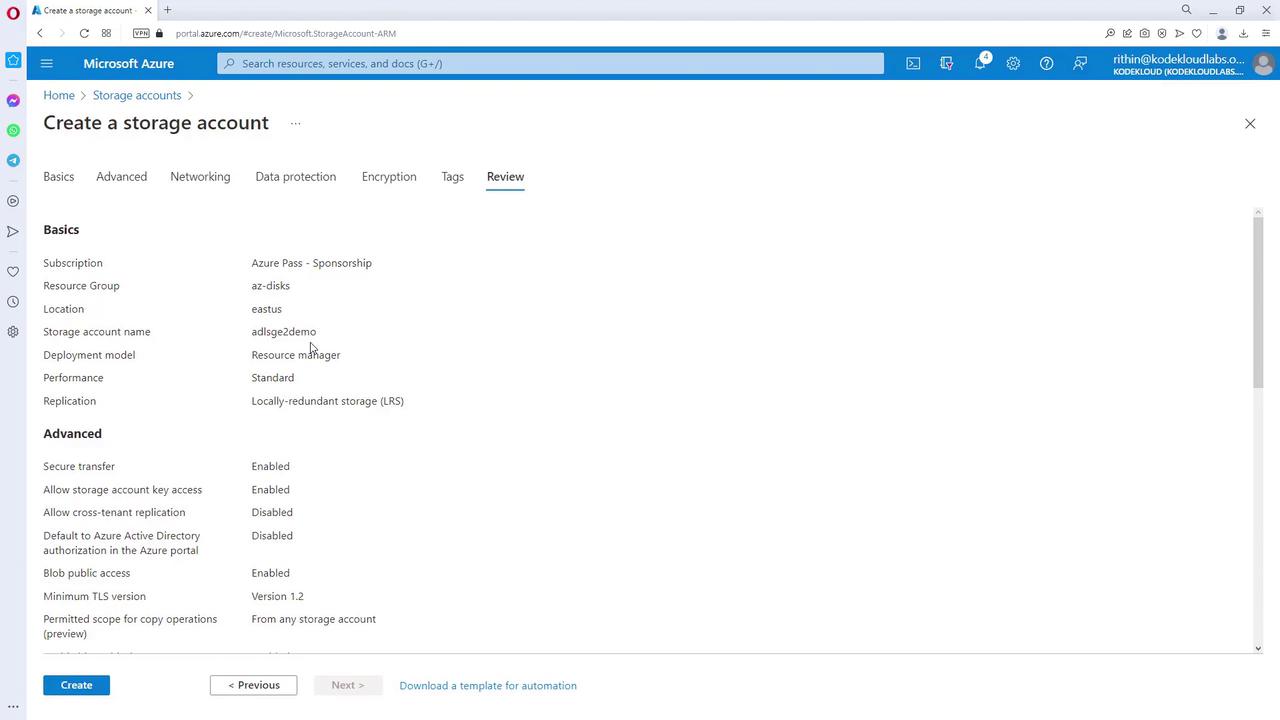
Setting up an ADLS-enabled storage account in the Azure portal is straightforward. Follow these steps:- Navigate to Storage Accounts in the Azure portal and create a new storage account.
- Choose a resource group and select an account type. You can use either a General Purpose v2 (standard account) or a Premium Block Blobs account.
- For this example, select Standard and LRS as your options.
- In the Advanced settings, enable Data Lake Storage Gen2 to activate the hierarchical namespace and unlock ADLS capabilities.
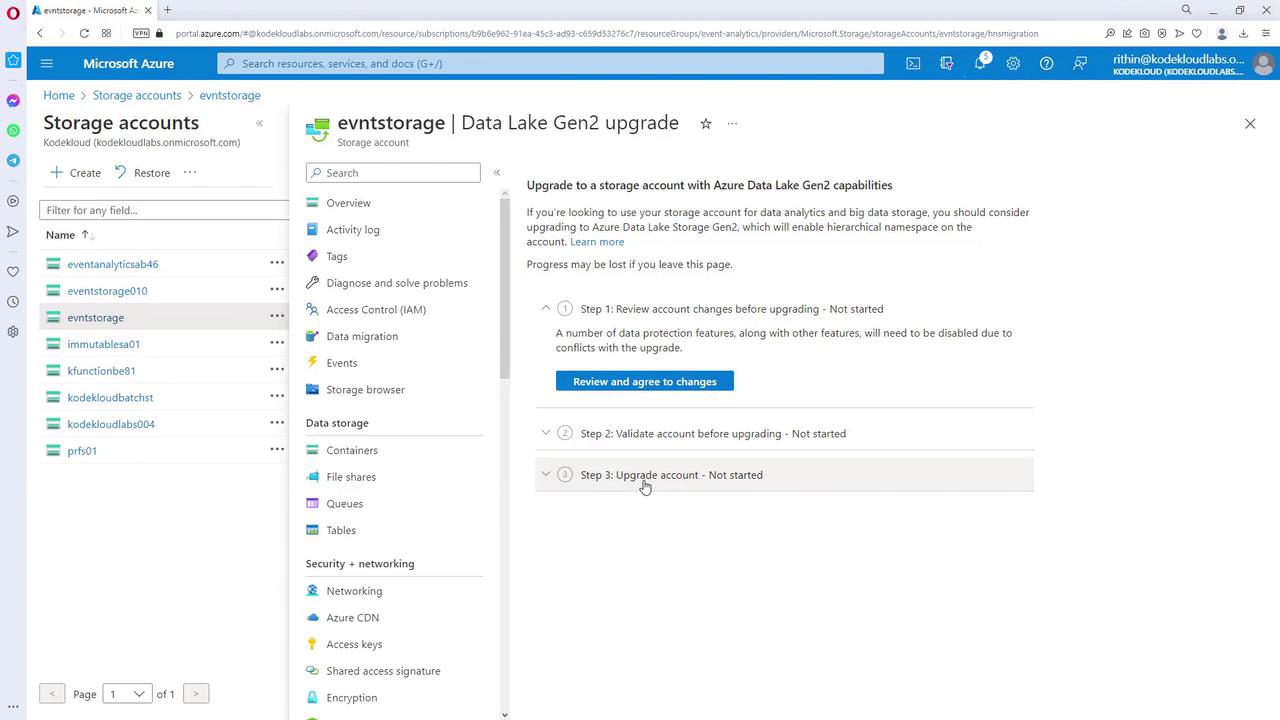
You can also upgrade an existing storage account to support ADLS:
- Select the storage account you want to upgrade.
- Notice that the hierarchical namespace is disabled.
- Click the corresponding button to enable it and follow the validation process.
- Once validated, your storage account will be upgraded to support Azure Data Lake Storage Gen2 capabilities.
For additional guidance on Azure analytics solutions and storage configurations, consider exploring the following resources: