Overview of a Data-Driven Workflow
A typical data-driven workflow in ADF involves the following steps:-
Ingestion:
Connect to various data sources to collect raw data, which is then stored in a centralized location—such as a Storage Blob—for subsequent processing. -
Transformation:
Enrich and transform the ingested data using analytics tools like Azure Databricks or Azure HDInsight. This step ensures the data is formatted correctly prior to publishing. -
Publishing:
Leveraging CI/CD integration, the transformed data is incrementally delivered to version control systems such as GitHub or Azure DevOps and ultimately published to an analytics engine. -
Monitoring:
Continuous monitoring of pipelines is essential when processing large data volumes. Tools like Azure Monitor and Azure Alerts help track pipeline performance and alert you to any failures.
Data-Driven Workflow Architecture
Azure Data Factory acts as the orchestration engine that manages data ingestion, transformation, and movement between services. The architecture supports connections to multiple data sources—including relational databases (SQL Server), on-premises networks, Blob Storage, external services, and both structured and unstructured data. After ingesting data into ADF and storing it in a Storage Blob, the data can be moved to platforms such as Azure Synapse Analytics (formerly known as Data Warehouse), analyzed with Azure Analysis Services, and visualized using Power BI.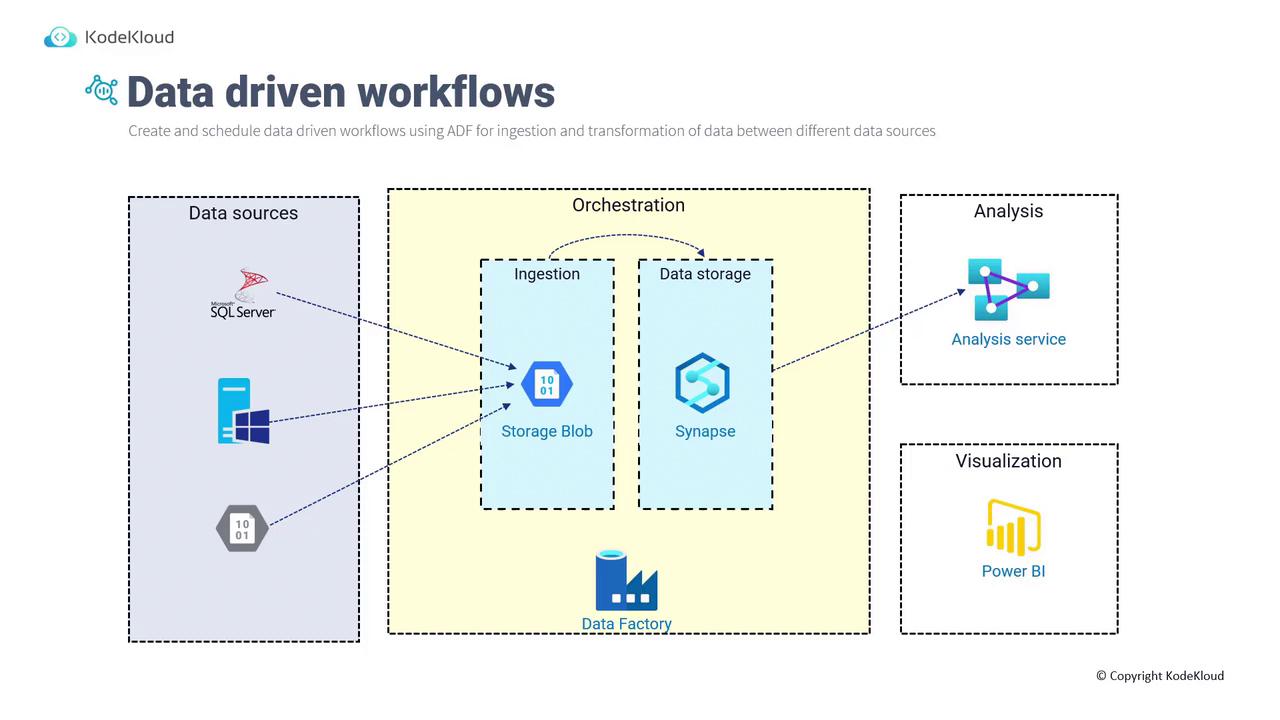
When to Use Azure Data Factory
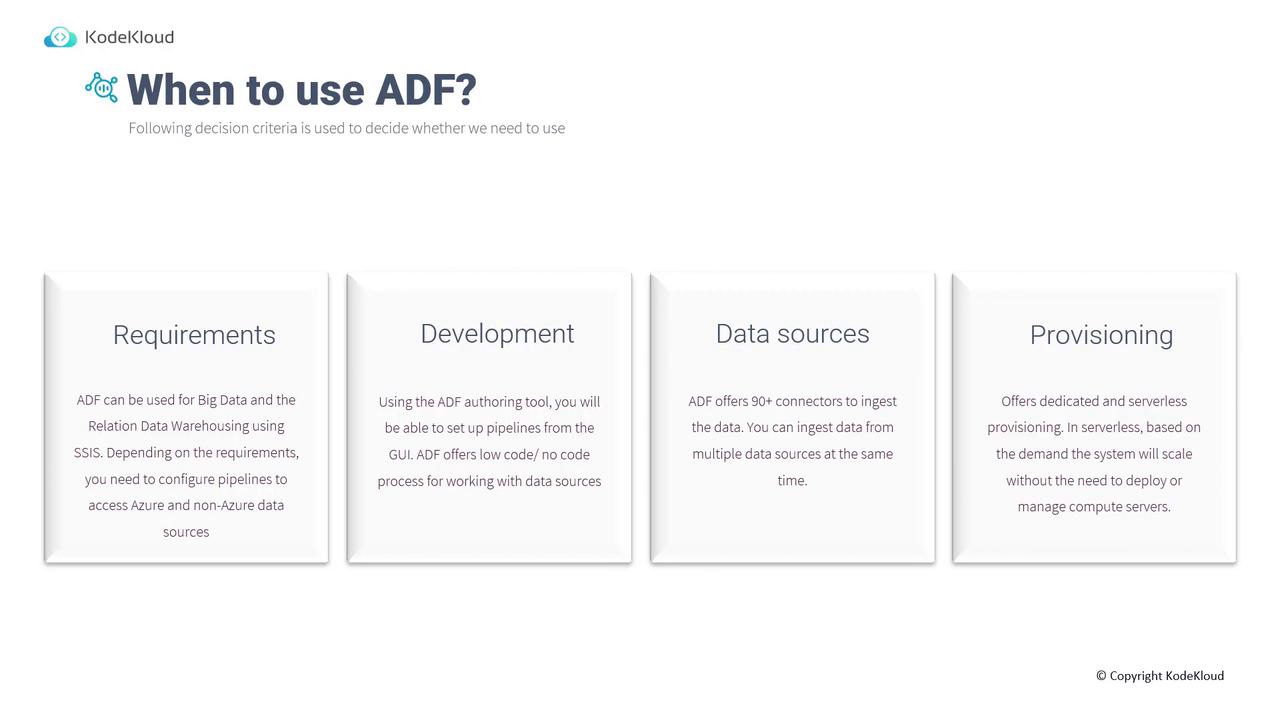
ADF is a clear choice for various data integration scenarios. Consider the following key decision criteria:-
Requirements:
ADF is ideal for big data scenarios, relational data warehousing, and integration with SQL Server Integration Services (SSIS). It allows you to create pipelines that connect to diverse Azure data sources as needed. -
Development:
With its intuitive graphical user interface, ADF offers a low-code/no-code approach to creating pipelines. Similar to Logic Apps, its visual connectors enable you to build data ingestion, transformation, and movement tasks quickly. -
Data Sources:
ADF supports over 90 connectors, permitting simultaneous ingestion from multiple data sources. This capability lets you integrate data from a cloud database along with on-premises systems to develop comprehensive analytics solutions. -
Provisioning:
ADF supports both dedicated and serverless provisioning modes. Serverless provisioning allows scaling automatically based on demand without manual compute node management.
Creating an Azure Data Factory Instance
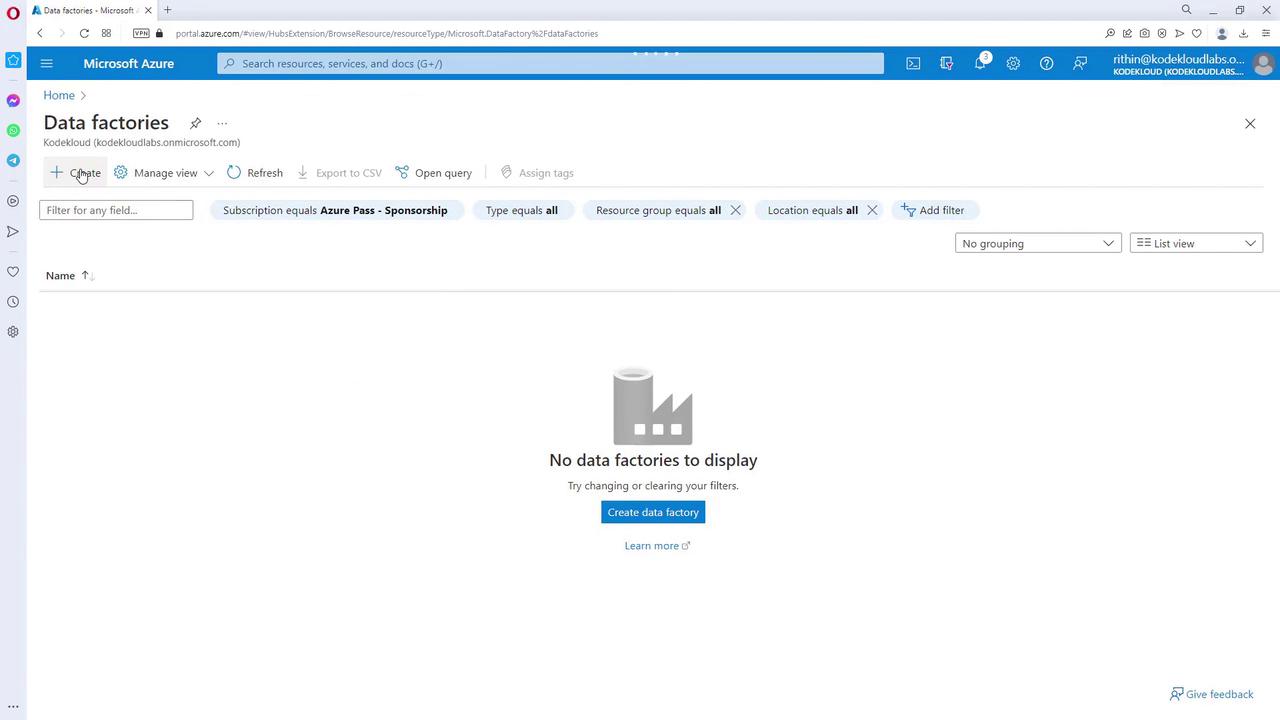
Creating an Azure Data Factory instance is a straightforward process via the Azure Portal. Follow these steps:- Access the Data Factory Resource:
Open the Azure Portal and search for “Data Factory”. If no data factories exist, you will see a message indicating that none are present.
- Create a New Resource:
Start by creating a new resource group with a unique name, then proceed to create the Data Factory instance.
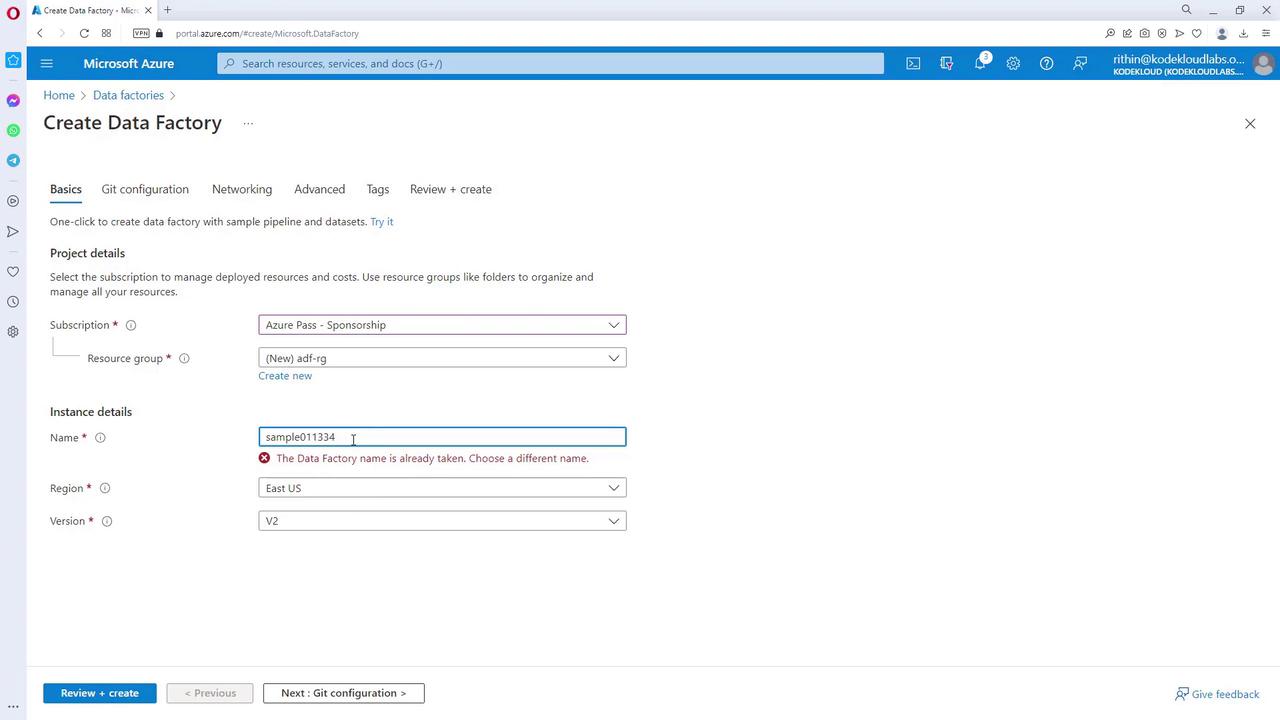
- Configure the Instance Details:
Choose a region (for example, East US) and select the appropriate version, typically V2. Git configuration and networking options (public or private endpoints) can be set up later.
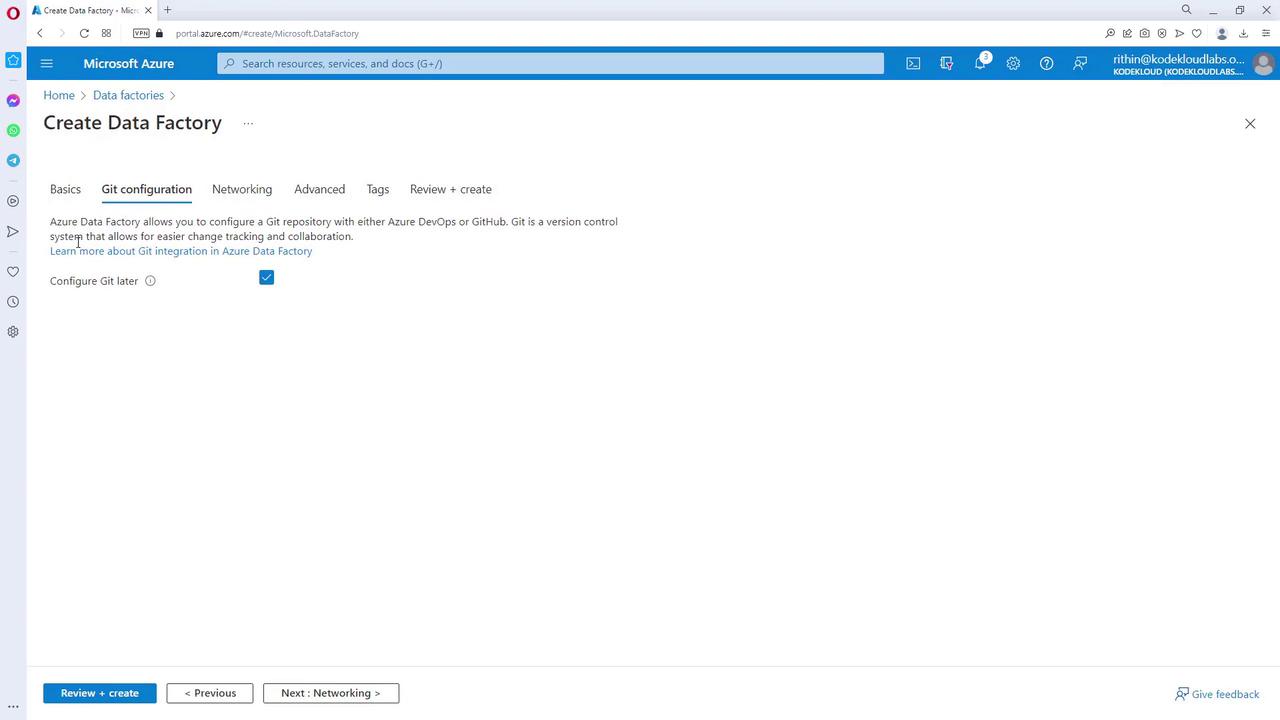
- Review and Create:
After reviewing your settings, navigate to the “Review + create” tab and click on the “Create” button.
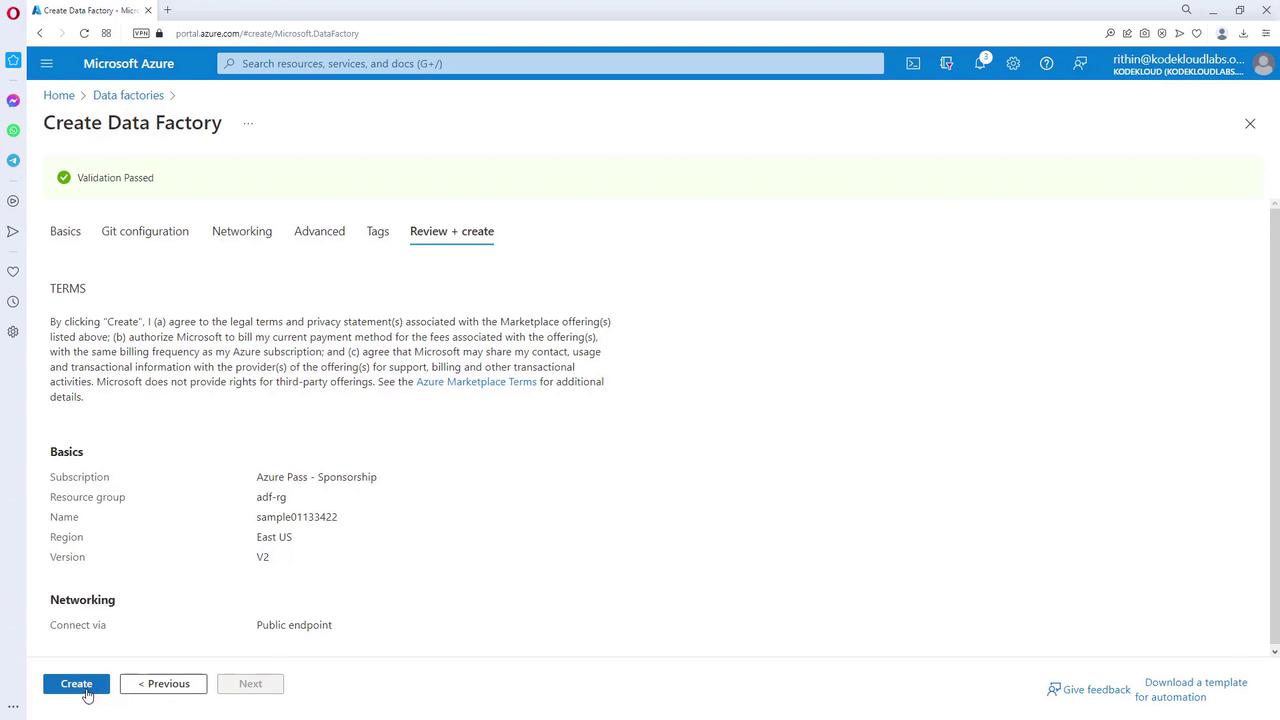
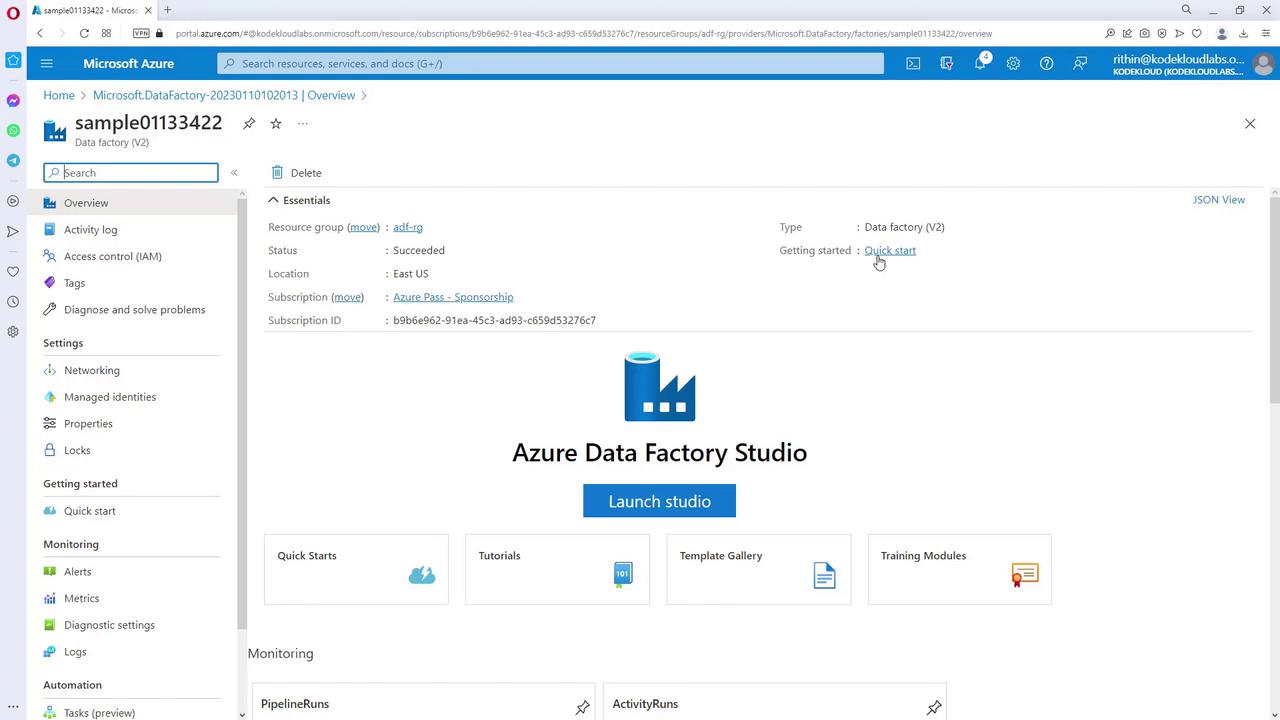
After creating your Azure Data Factory instance, use the kickstart guide to familiarize yourself with its features and best practices for managing data workflows.
Using the Azure Data Factory Studio
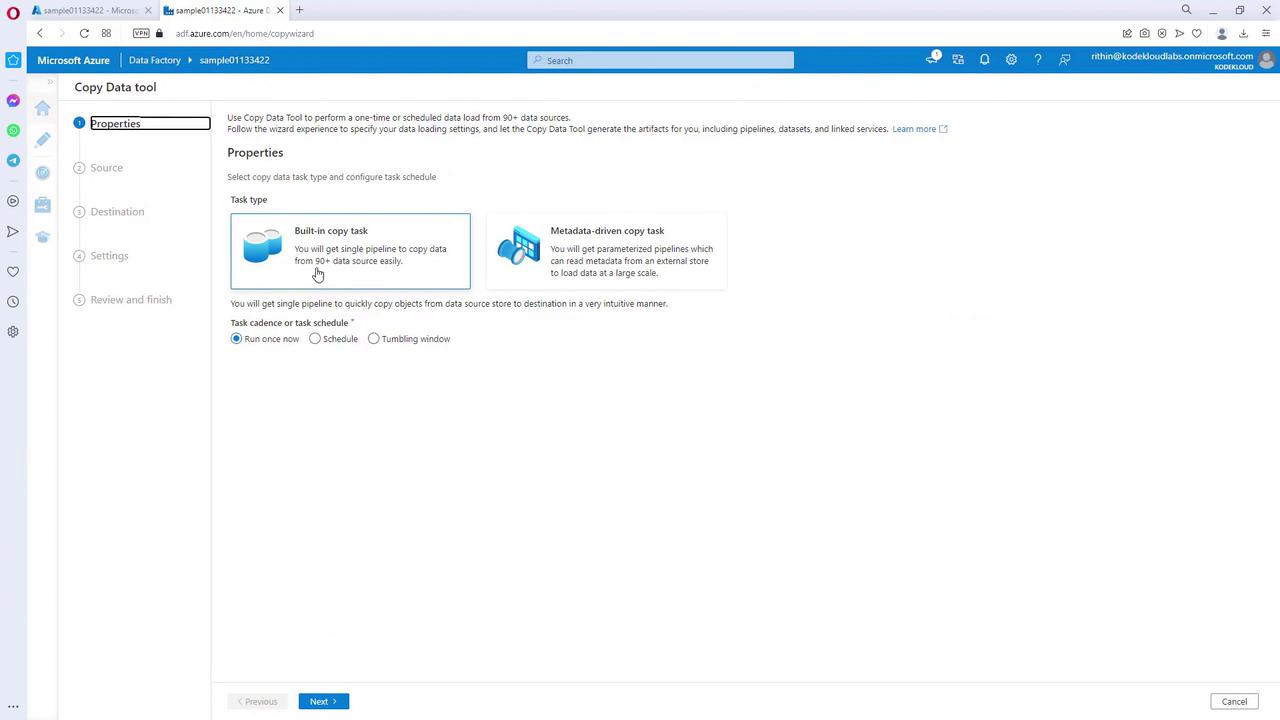
The Azure Data Factory Studio is the dedicated environment for managing and building your data-driven workflows. Here’s how to get started:- Click on the “Launch Studio” button to access ADF’s dedicated interface at ADF.azure.com.
- Within the studio, you can set up and manage workflows that handle data ingestion, orchestration, and transformation.