This article explores Private DNS Zones in Azure for resolving names to private IP addresses and managing internal resources across virtual networks.
In this guide, we explore Private DNS Zones—a key component for resolving names to private IP addresses and managing internal resources. Unlike public DNS zones used for websites or SharePoint sites, Private DNS Zones provide enhanced name resolution within your private network.
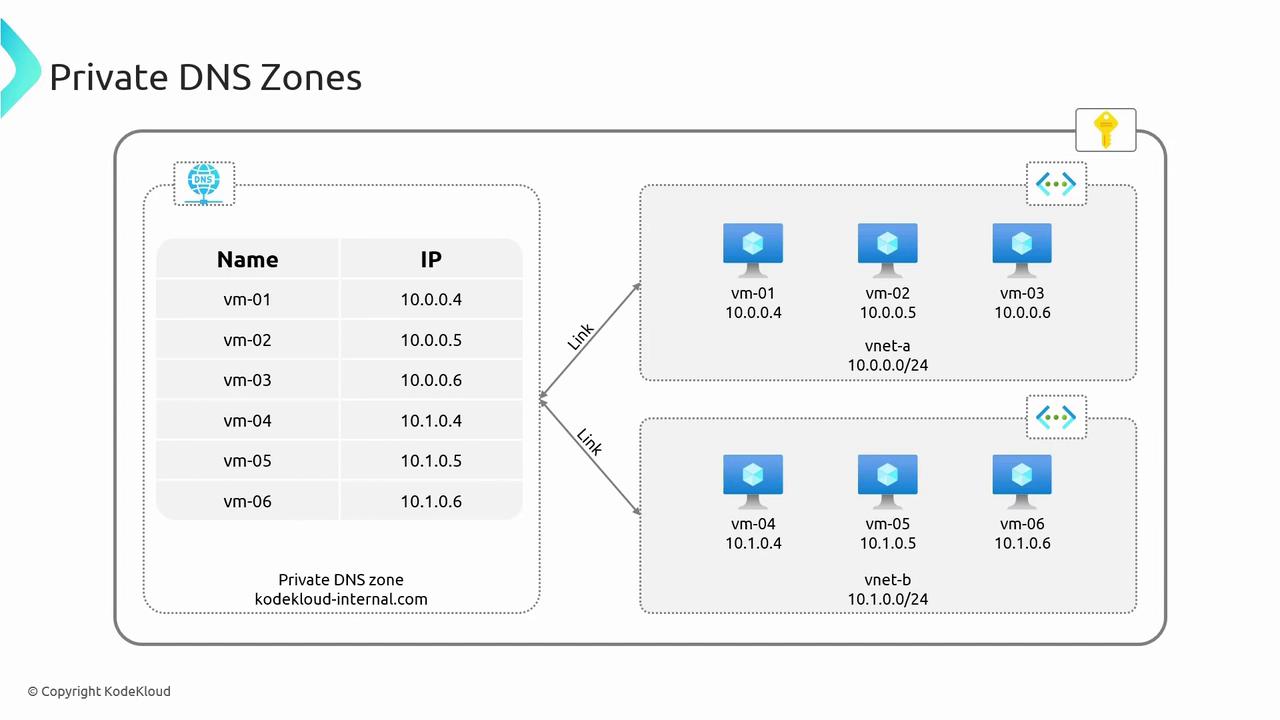
Imagine a scenario where your subscription contains two virtual networks (VNet A and VNet B), each with its own address space. Virtual machines (VMs) within a single VNet can automatically resolve names due to Azure’s internal domain configuration. For instance, VM01 in VNet A can easily resolve VM02 within the same network.However, when you need to resolve names across different VNets—such as resolving VM04 in VNet B from VM01 in VNet A—a standard VNet DNS configuration is insufficient. This is where Private DNS Zones become vital. By creating a Private DNS Zone (for example, kodekloudinternal.com) and linking it to relevant virtual networks, you enable automatic registration and resolution of DNS records across multiple VNets.An auto-registration feature can be optionally enabled so that any new VM added to the linked networks automatically registers its DNS record.
Once connected via virtual network links, VMs are able to resolve each other’s names across different networks. For example, VM1 can resolve VM5 and VM6, while VM4 can resolve VM3. Note that this configuration only ensures DNS resolution; actual communication between VMs requires additional settings, like Virtual Network Peering.
To get started, follow these steps in the Azure Portal:
Search for “Private DNS Zones.”
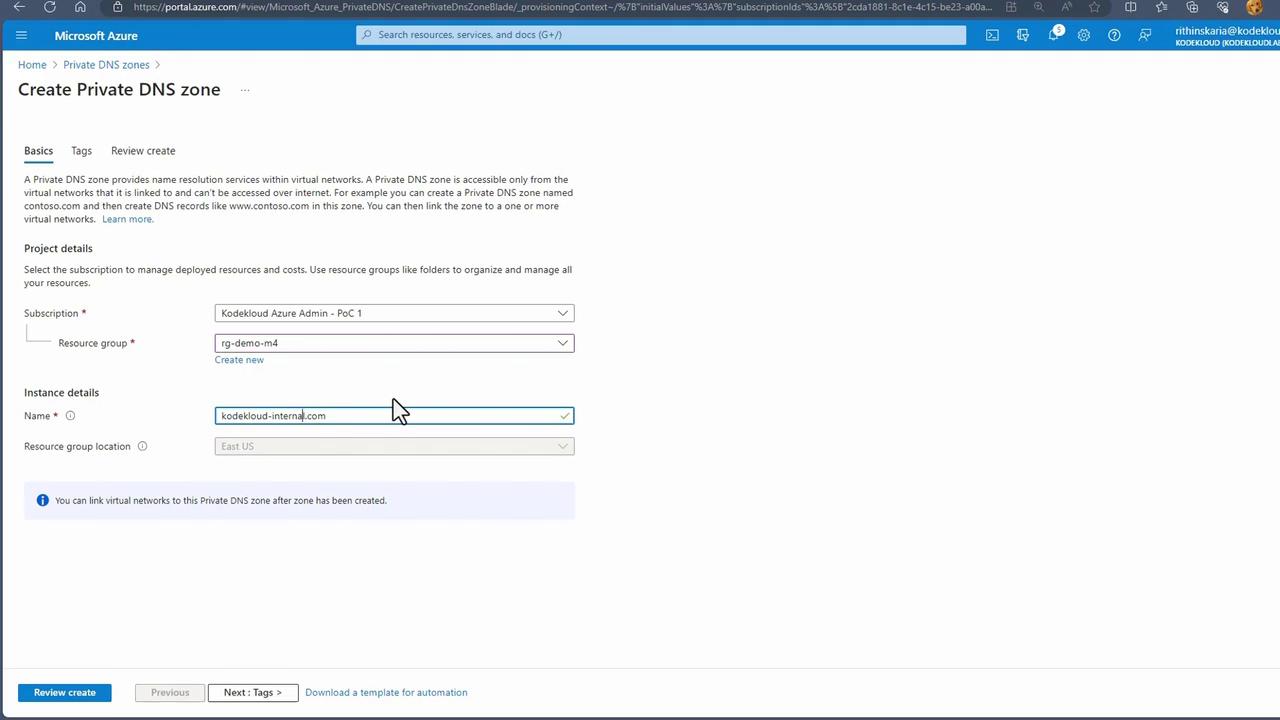
Create a new DNS zone within the appropriate resource group (e.g., kodecloudinternal.com, sometimes abbreviated as “int” for internal use).
Private DNS Zones are global resources. You do not need to specify a resource location since the zone’s metadata is stored in the resource group’s location.
After creating your DNS zone, you can begin managing virtual machines. For demonstration, we use pre-deployed VMs to verify name resolution using the nslookup command-line tool.
Upon logging into VM1, you will notice that the DNS configuration file (/etc/resolv.conf) automatically includes an Azure-provided search domain. Next, perform an nslookup to resolve another VM in the same network:
This successful resolution occurs because both VMs reside in the same VNet, utilizing Azure’s internal DNS. However, attempting to resolve a VM from a different VNet that isn’t registered in the internal domain results in a failure:
Copy
Ask AI
kodekloud@workload-a-vm-1:~$ nslookup dns-demo-vmServer: 127.0.0.53Address: 127.0.0.53#53** server can't find dns-demo-vm: SERVFAIL
At this point, Private DNS Zones are essential for enabling cross-VNet name resolution.
Next, create a resource group and deploy the new VM:
Copy
Ask AI
az group create -n dns-demo -l "East US"az vm create -g dns-demo -n dns-demo-vm --image Ubuntu2204 --admin-username kodekloud --admin-password 'WMP5$word12'
After deployment, the VM is assigned both private and public IP addresses. You can confirm its status in the “Virtual Machines” section of the Azure Portal.
The nslookup for dns-demo-vm fails because it is not yet registered in the internal domain. This gap is resolved by configuring Private DNS Zones for cross-VNet name resolution.
Creating Virtual Network Links for Private DNS Zones
To enable automatic DNS record registration across virtual networks, configure virtual network links within your Private DNS Zone:
Open your Private DNS Zone in the Azure Portal.
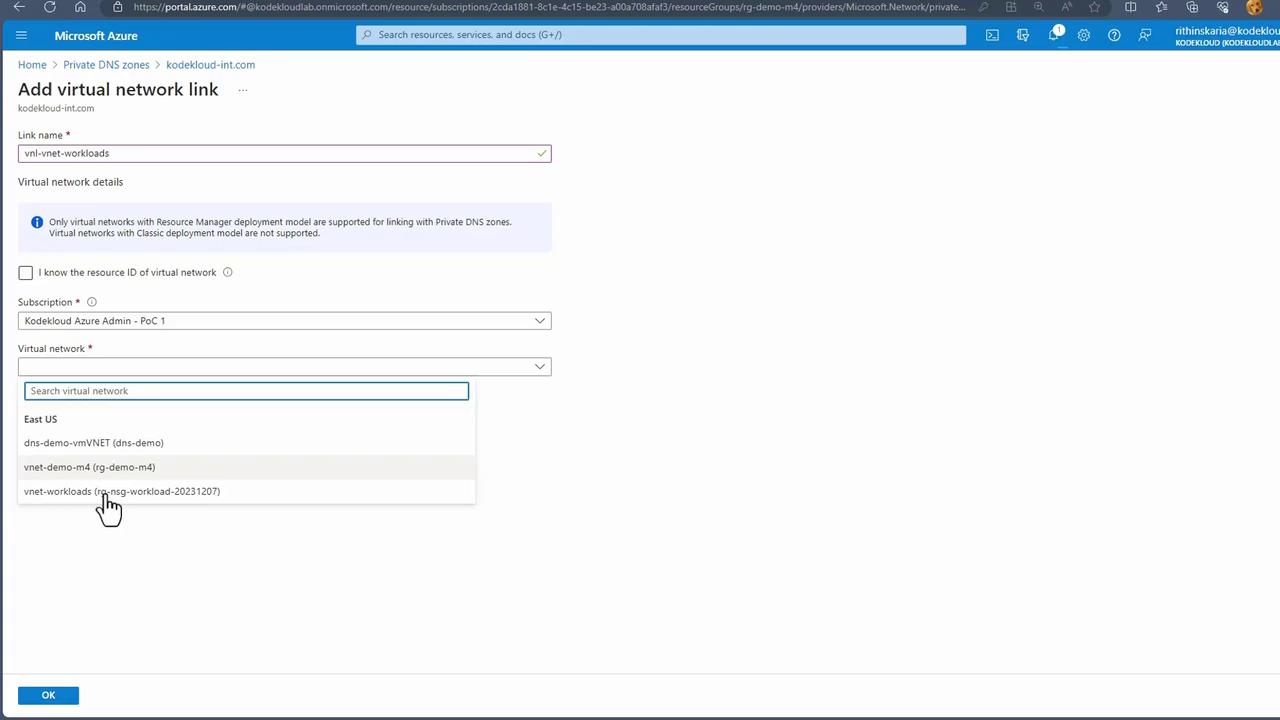
Click on “Add” to create a new virtual network link.
Provide a descriptive link name (e.g., dnsdemovm_vnet).
Select the appropriate virtual network.
Enable auto-registration to allow both new and existing VMs to automatically add their DNS records.
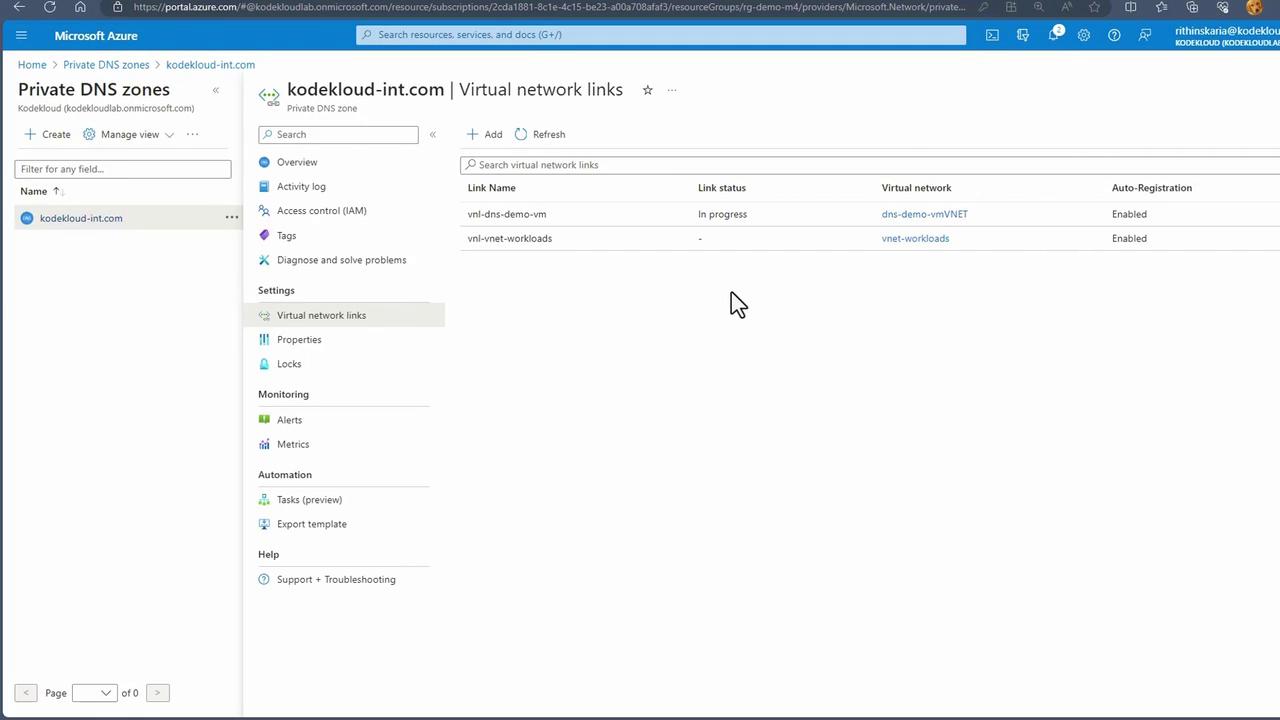
Repeat the process for a second virtual network (e.g., vnlvnetworkloads), linking it to your NSG workload VNet.
After creating the virtual network links, ensure that each displays a “Completed” status. With these links active, DNS records from all linked networks populate automatically in the Private DNS Zone.
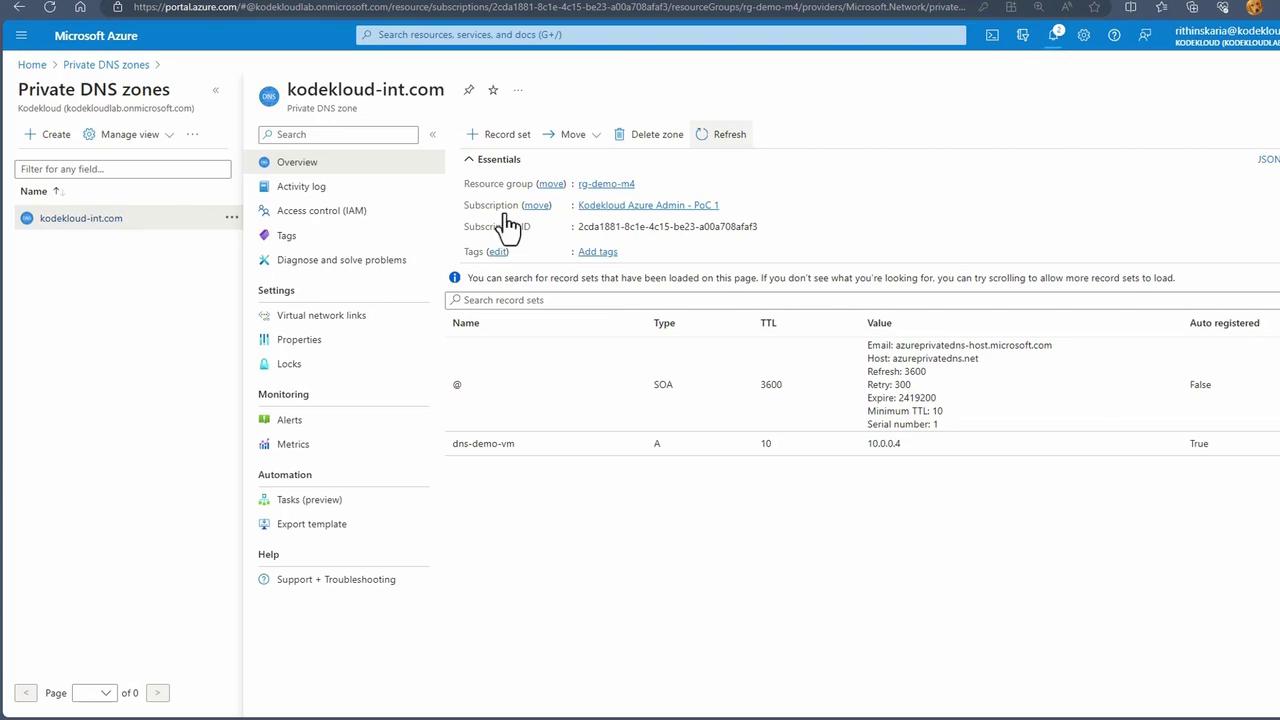
Now, the dns-demo-vm is successfully resolved within the Private DNS Zone, proving that VMs across linked VNets can discover each other’s DNS records. Remember, while DNS resolution is now improved, the actual inter-VM connectivity requires solutions like Virtual Network Peering.
Private DNS Zones are essential for managing internal name resolution and establishing secure links between virtual networks without exposing internal IP addresses publicly. In this article, we covered:
The core concept and benefits of Private DNS Zones.
How to create a Private DNS Zone using the Azure Portal.
Deploying a virtual machine via the Azure CLI.
Configuring virtual network links for automatic DNS registration.
Verifying improved DNS resolution across different VNets.
For further exploration, upcoming articles will delve into Virtual Network Peering, VPN connectivity, and routing with private endpoints—enhancing your overall understanding of hybrid connectivity in Azure.Happy learning!