

Types of User Accounts in Microsoft Entra ID
Cloud Identities
Cloud Identities are standalone accounts that exist solely in the cloud without any dependency on an on-premises directory. They are ideal for organizations fully embracing cloud technology, offering flexibility and secure access from anywhere. Note that these cloud identities can belong either to a home Entra ID tenant or to an external one.Guest Accounts
Guest Accounts are tailored for external users, such as partners or contractors, who need access to specific resources without being fully integrated into the internal directory. These accounts can include Microsoft, Live, or Gmail accounts and facilitate secure collaboration while maintaining organizational boundaries.If a user belongs to another company with its own Entra ID, they are treated as a cloud identity; however, if that user does not have an Entra ID, the account is considered a guest account.
Directory Synchronized Users
Directory Synchronized Users have identities synchronized from an on-premises Active Directory to the cloud through the Microsoft Entra ID Connect tool (formerly known as Azure AD Connect). Synchronization ensures a unified identity framework across on-premises and cloud environments, simplifying the management of access rights and security policies.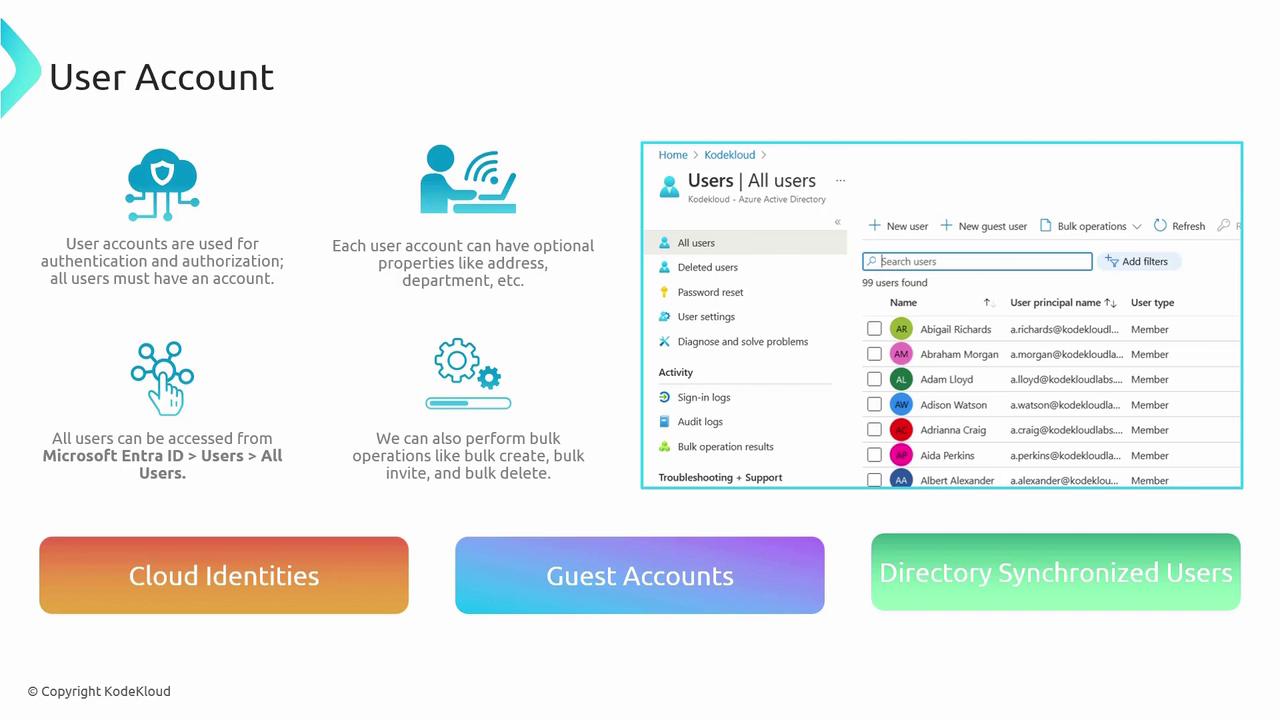
Managing User Accounts in the Azure Portal
The Azure Portal is your central hub for creating and managing both cloud identities and guest accounts. Follow these steps to manage your users effectively:-
Navigate to the Users Section:
Go to the Azure Portal, access Microsoft Entra ID, and click on “Users.” -
Search and Identify Account Types:
Use the search function to filter users by name or account type. For example, when you search for a given name, an account from another directory might appear. If that account exists solely within Microsoft Entra ID, it is classified as a cloud identity—even if it originates from an external source. Conversely, a Microsoft account created through an invitation is marked as a guest, even if related to Entra ID. -
B2B Collaboration:
When inviting an external user who does not have an Entra ID (e.g., Outlook or Gmail users), they will be designated as a guest user. -
On-Premises Synchronized Users:
Users synchronized from an on-premises Active Directory via Entra ID Connect appear as directory synchronized users. These accounts cannot be directly created from the portal; they are managed through your synchronization tasks.
Creating a New User
To add a new user:-
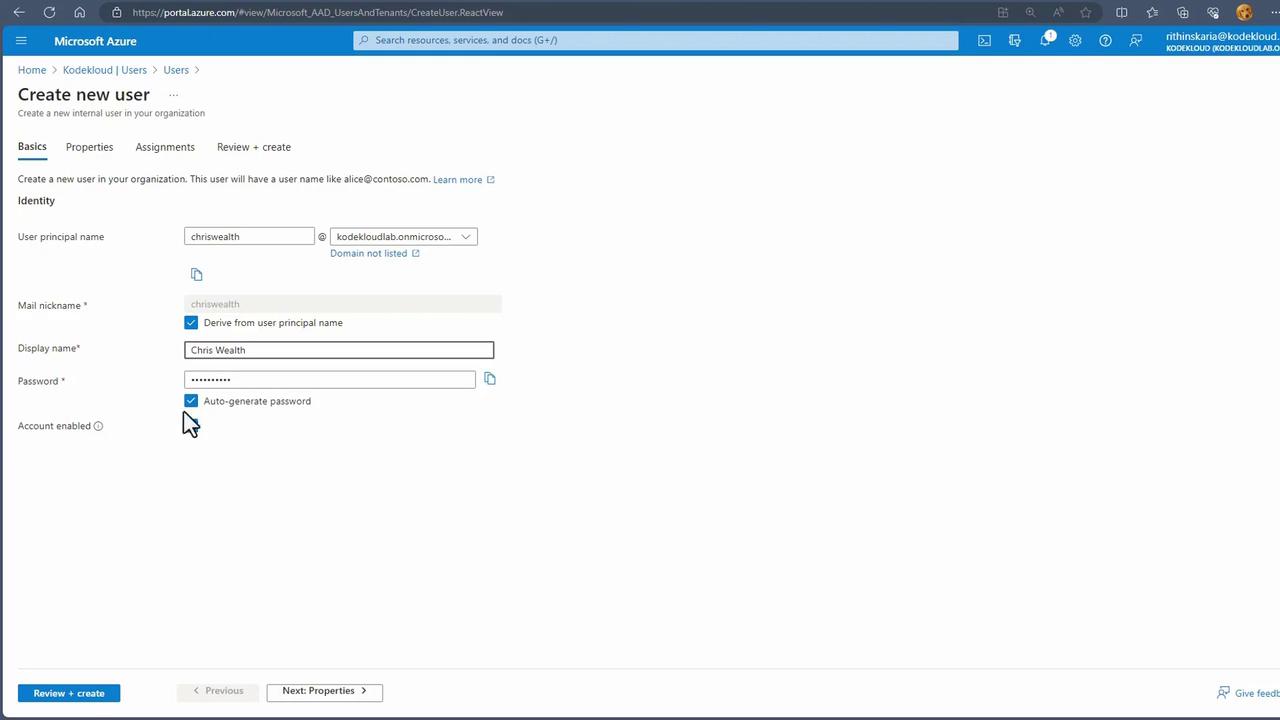
Click on “New User” to display two options:
- Create a new user (for internal accounts)
- Invite an external user (for guest accounts)
- For internal accounts, fill in the details such as user principal name, display name, and password. Additional attributes and role assignments can be configured as required.
Inviting Guest Users
To include external collaborators:- Enter the guest user’s email address (e.g., [email protected]) and send an invitation.
- Although the account appears as a guest, if the invited user belongs to another Microsoft Entra ID tenant, their underlying identity will still be classified as a cloud identity.
Working with Directory Synchronized Users
To focus on synchronized users from an on-premises Active Directory:- Apply the relevant filter to display only sync-enabled users.
- These accounts are identified by an “on-premises sync enabled” property, typically set to “Yes,” indicating their source.
Modifying and Deleting User Accounts
For ongoing account management:-
Editing:
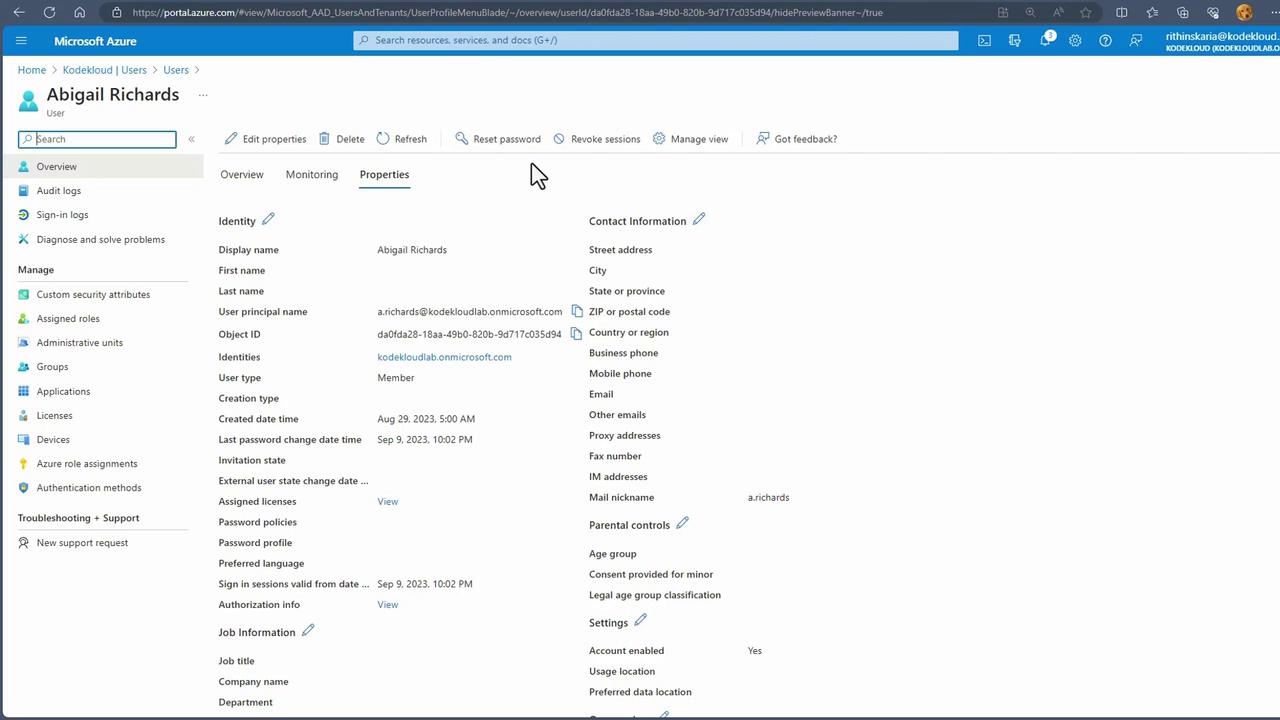
Select a user (e.g., Abigail’s account) and click “Edit Properties.” You can update details including name, user principal name, job information, and contact information. Global administrators or tenant owners also have the option to reset passwords. -
Deleting:
When you delete an account, it moves to the “Deleted Users” list. This provides a grace period of 30 days during which the account can be restored before permanent deletion occurs.
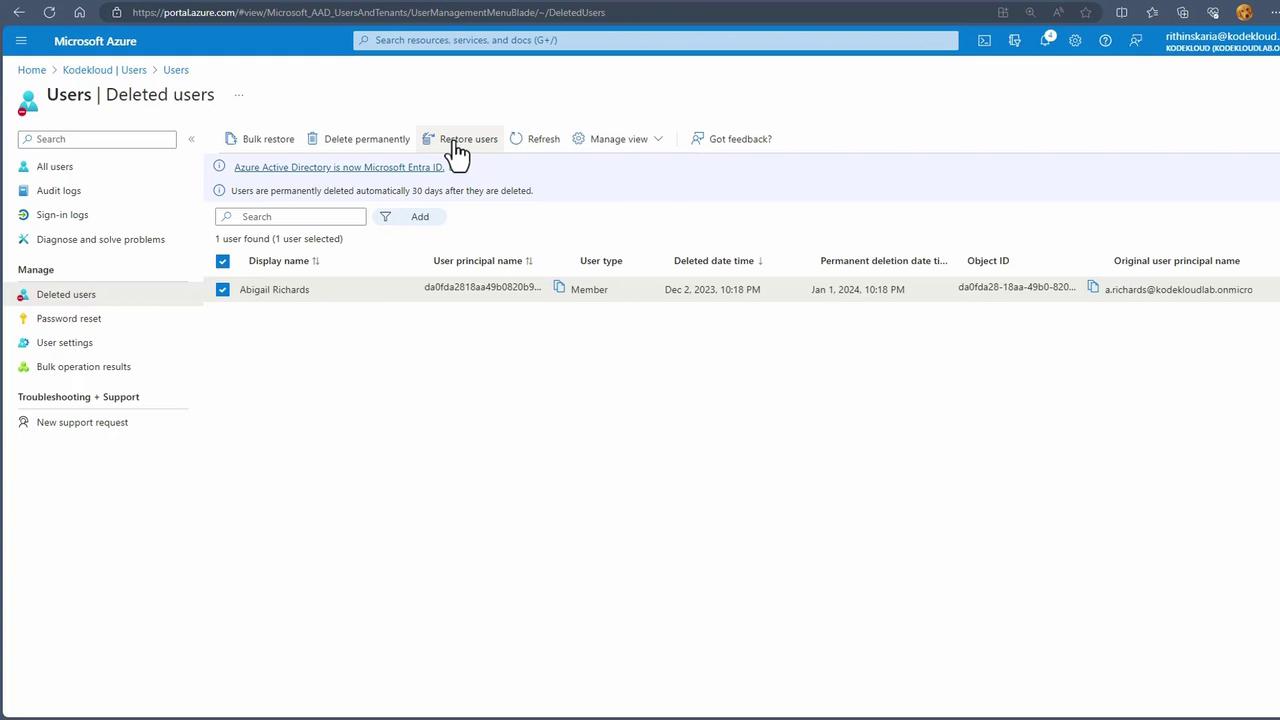
To restore a deleted user, click “Restore Users.” If the account is to be removed permanently, choose the deletion option.
Bulk Operations and Additional Features
While the steps above cover individual account management, Microsoft Entra ID supports bulk operations for scenarios involving large numbers of users. These bulk actions include:| Operation Type | Use Case | Example Command/Action |
|---|---|---|
| Mass Invitations | Inviting multiple external users simultaneously | Use the bulk invitation tool in the portal |
| Bulk Account Creation | Rapidly onboarding many internal users | Import user details through a CSV file |
| Bulk Deletion | Efficiently offboarding users during organizational changes | Select and delete multiple user accounts at once |
| Bulk Password Resets | Resetting passwords for groups of users to enhance security | Execute a batch password reset operation via PowerShell |