

- Protocol: Either
HTTPorHTTPS. - Storage Account Name: The unique name you have chosen for your account.
- Service: Represents the Azure service you are accessing (e.g., blob, queue, file, or table).
- Domain: All endpoints end with
core.windows.net, which is the default domain for Azure storage.
KodeKloud, the corresponding endpoints would be:
- Blob Service: kodekloud.blob.core.windows.net
- Queue Service: kodekloud.queue.core.windows.net
- File Service: kodekloud.file.core.windows.net
- Table Service: kodekloud.table.core.windows.net
If your preferred storage account name is already taken, consider modifying it by appending additional characters or using a custom domain. This approach can also reinforce your branding; for example, you might configure
blobs.codecloud.com to point to codecloud.blob.core.windows.net.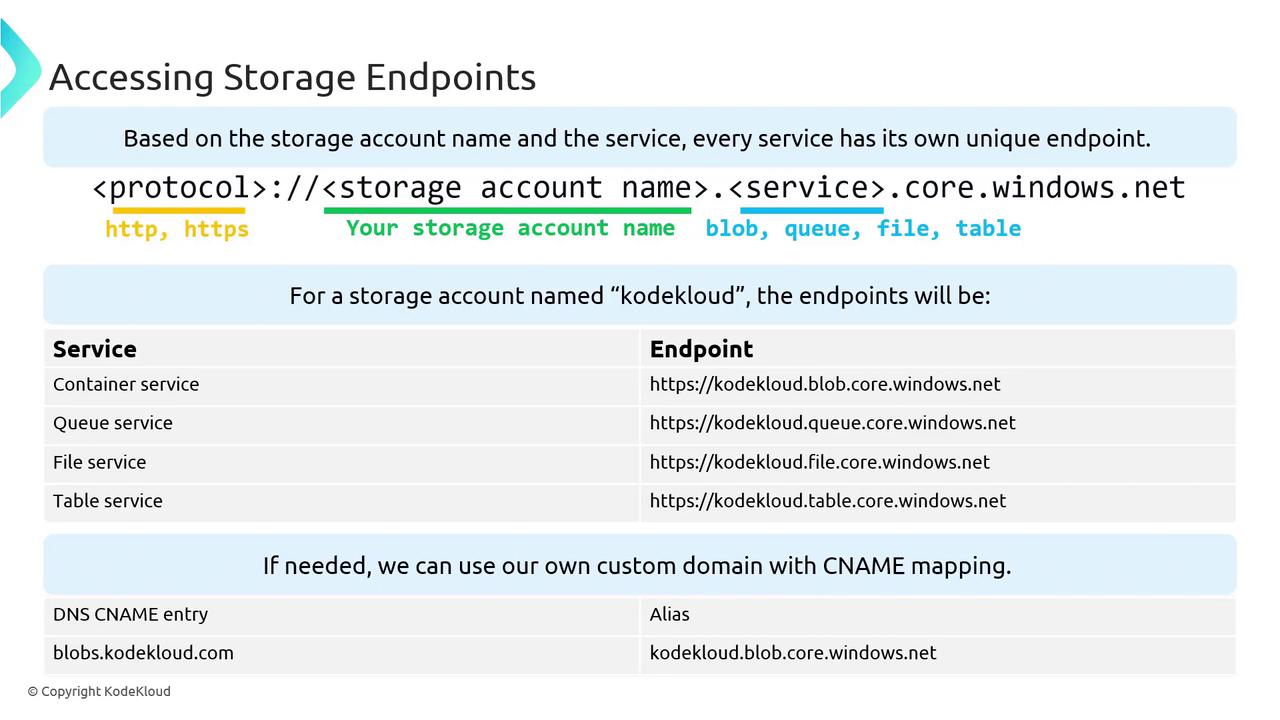
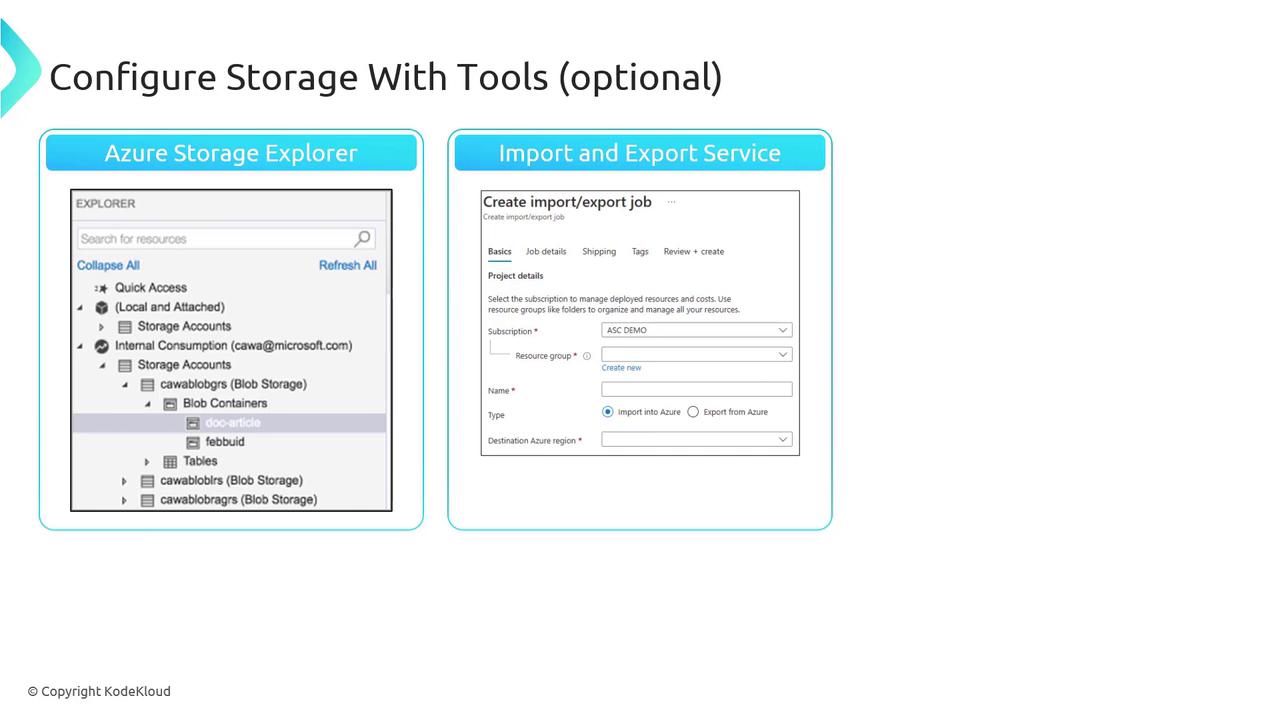
Azure Storage Management Tools
| Tool | Description | Example Command/Usage |
|---|---|---|
| Azure Storage Explorer | Desktop application that connects to your storage account, allowing you to drag and drop files, delete files, and manage data directly. | Launch the app and connect using your storage account credentials |
| Import Export Service | Service for transferring large quantities of on-premises data (terabytes or more) into Azure. It enables secure data transfer via pre-configured drives. | Prepare drives, copy, encrypt, and ship them to an Azure Data Center for upload |
| AZCopy | Command-line tool designed for fast and efficient data transfers within your storage account, and supports other cloud providers like GCP and AWS. | azcopy copy [source] [destination] [flags] This command can be automated to handle disaster recovery data transfers. |
For further reading on Azure storage, visit the Azure Storage Documentation and explore Kubernetes Basics for related containerized solutions.