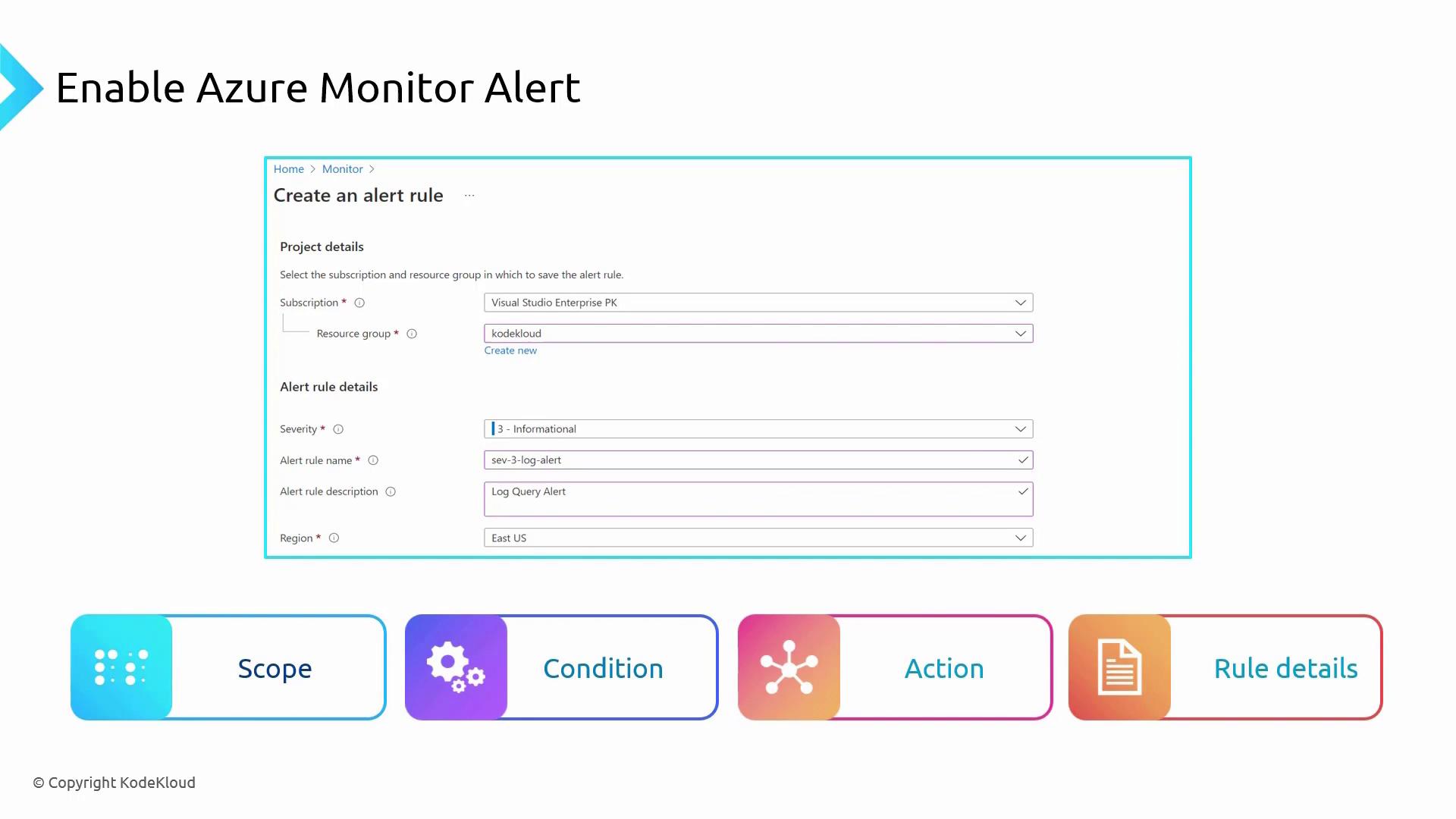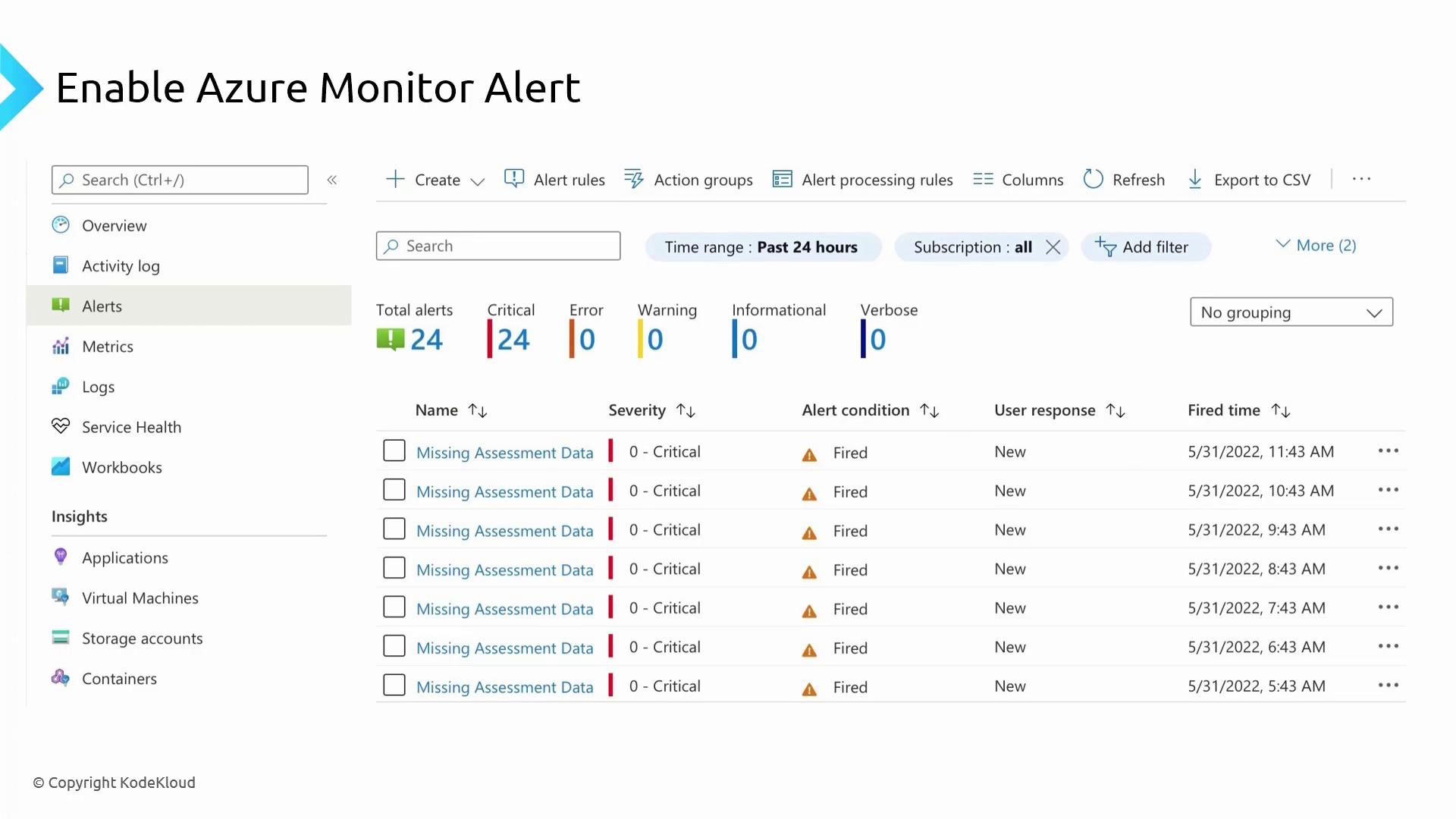
Using Azure Monitor Alerts ensures that you receive timely notifications, making it easier to manage and remediate issues before they impact your production workloads.
1. Scope
The Scope defines the resources that the alert will monitor. Similar to Azure RBAC or Azure Policy, you can include one or more resources in your alert. This flexibility is particularly useful when creating alerts for activity logs or log query results.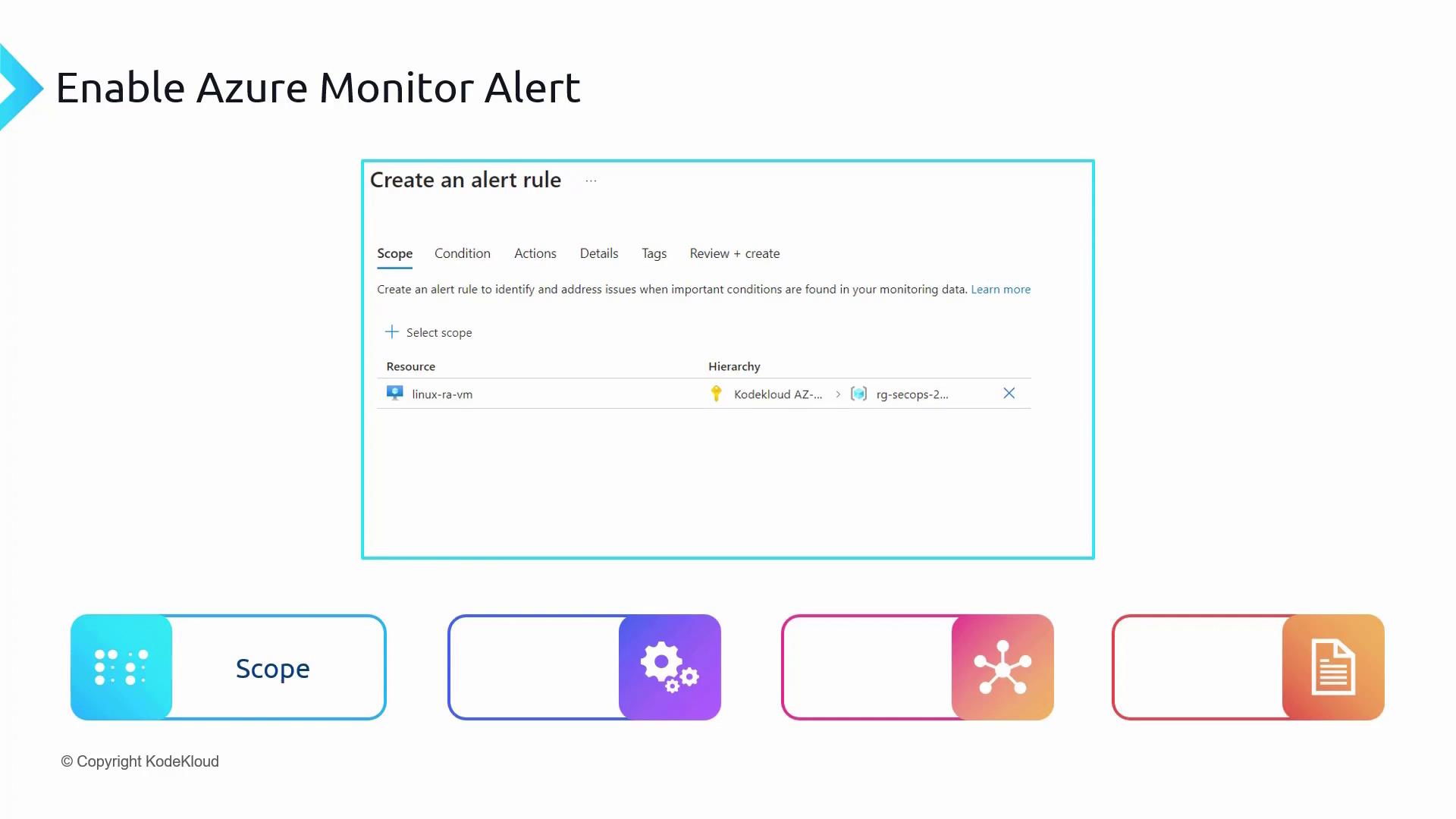
2. Condition
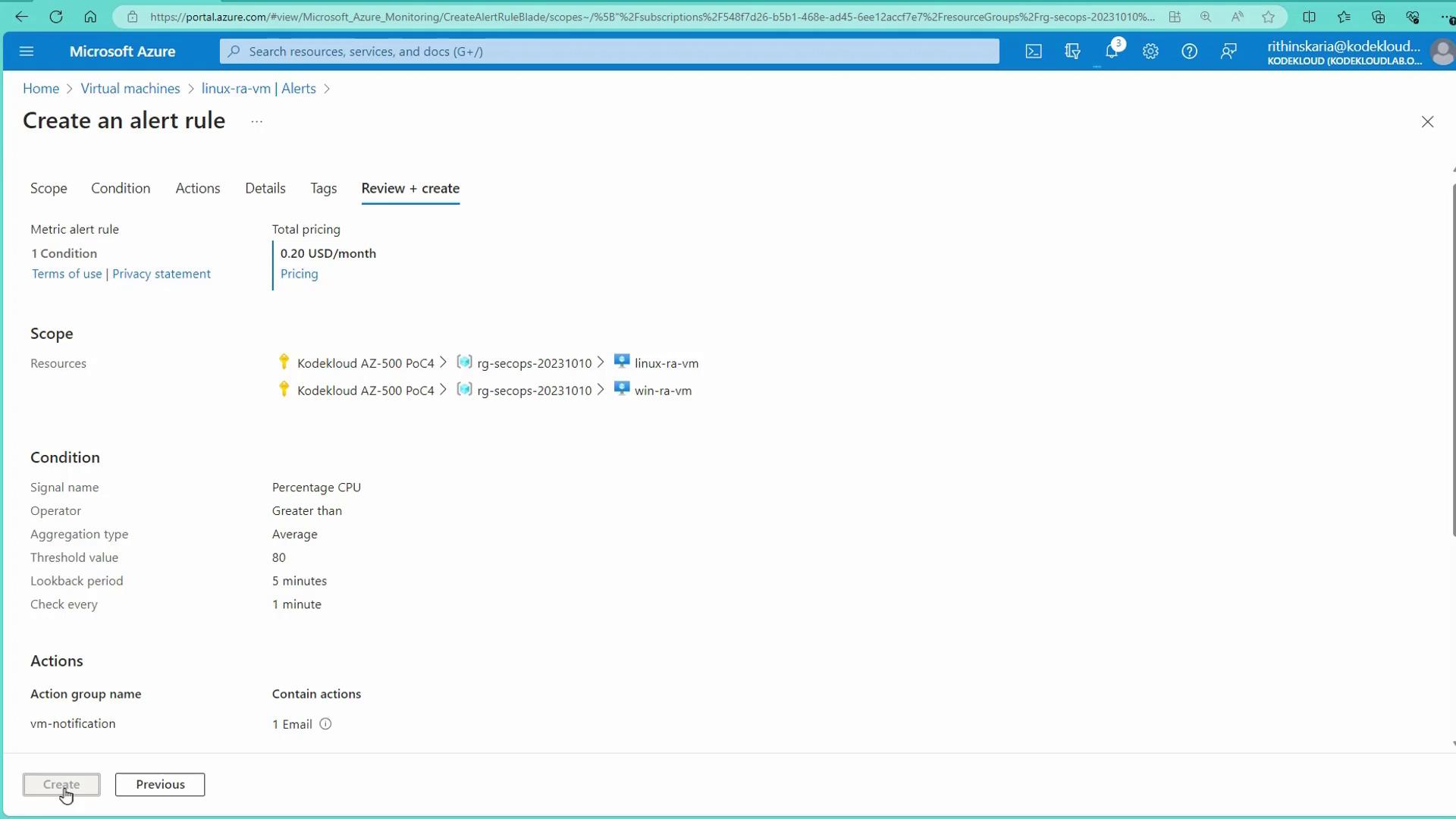
In the Condition step, you define the signal and the criteria that will trigger the alert. For example, you can set up a condition where an alert is fired if the percentage CPU utilization exceeds 80%.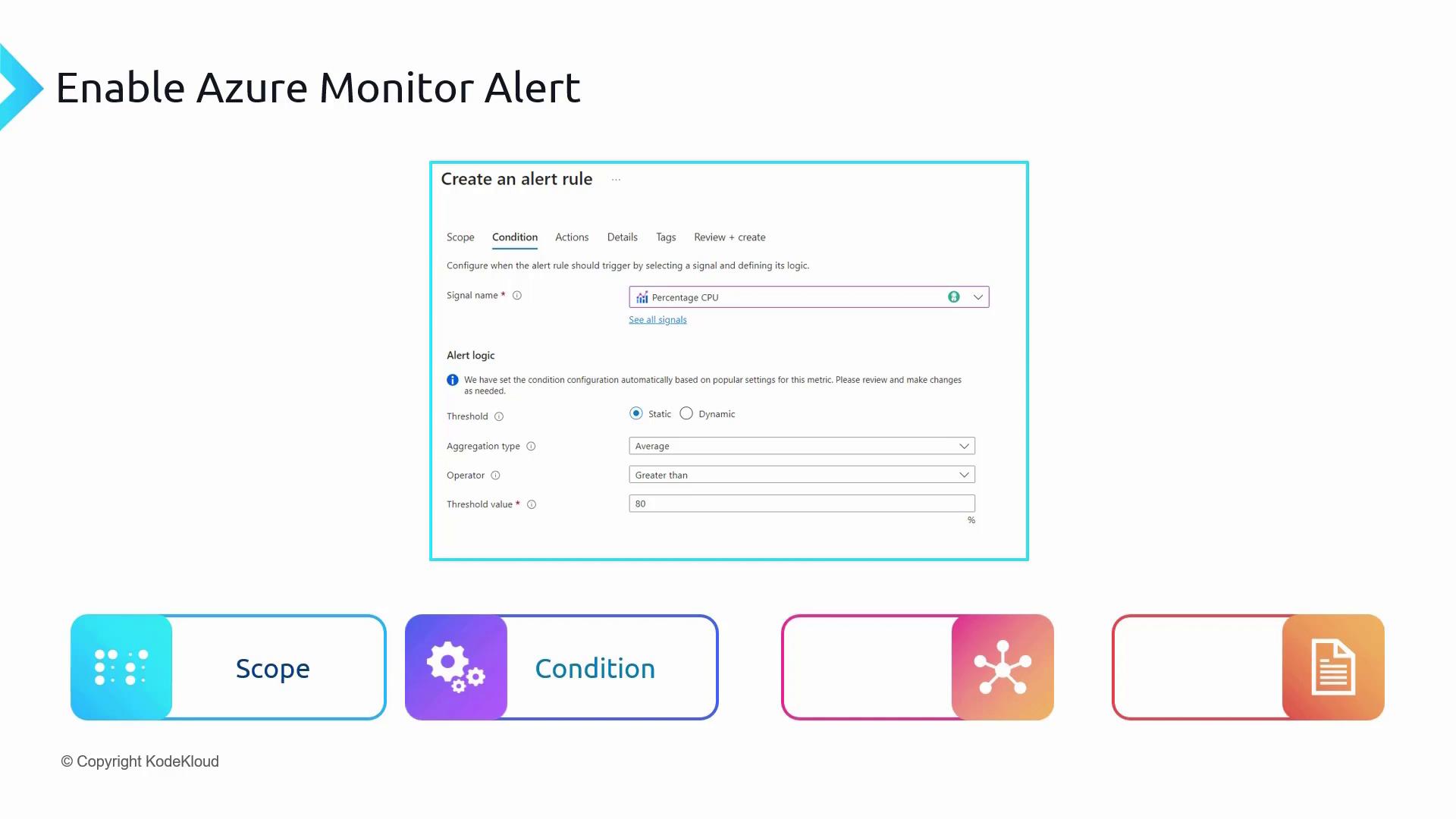
3. Action
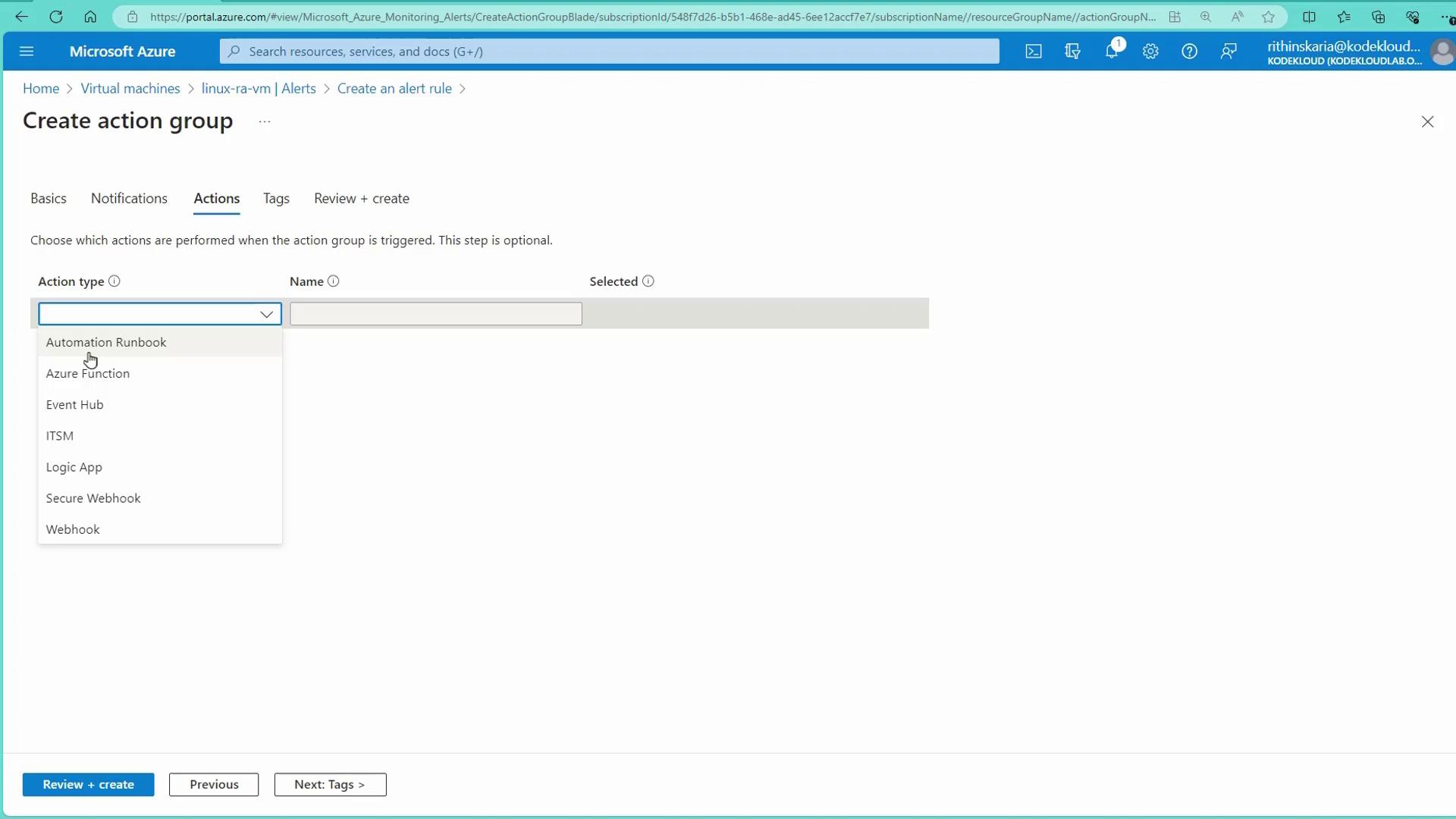
The Action stage involves selecting the action group that determines what happens when an alert fires. Action groups let you configure various notification options (such as email, SMS, push notifications, or voice calls) and automation options (including Automation Runbook, Azure Function, ITSM connectors, etc.). You can even set up multiple action groups for a single alert rule.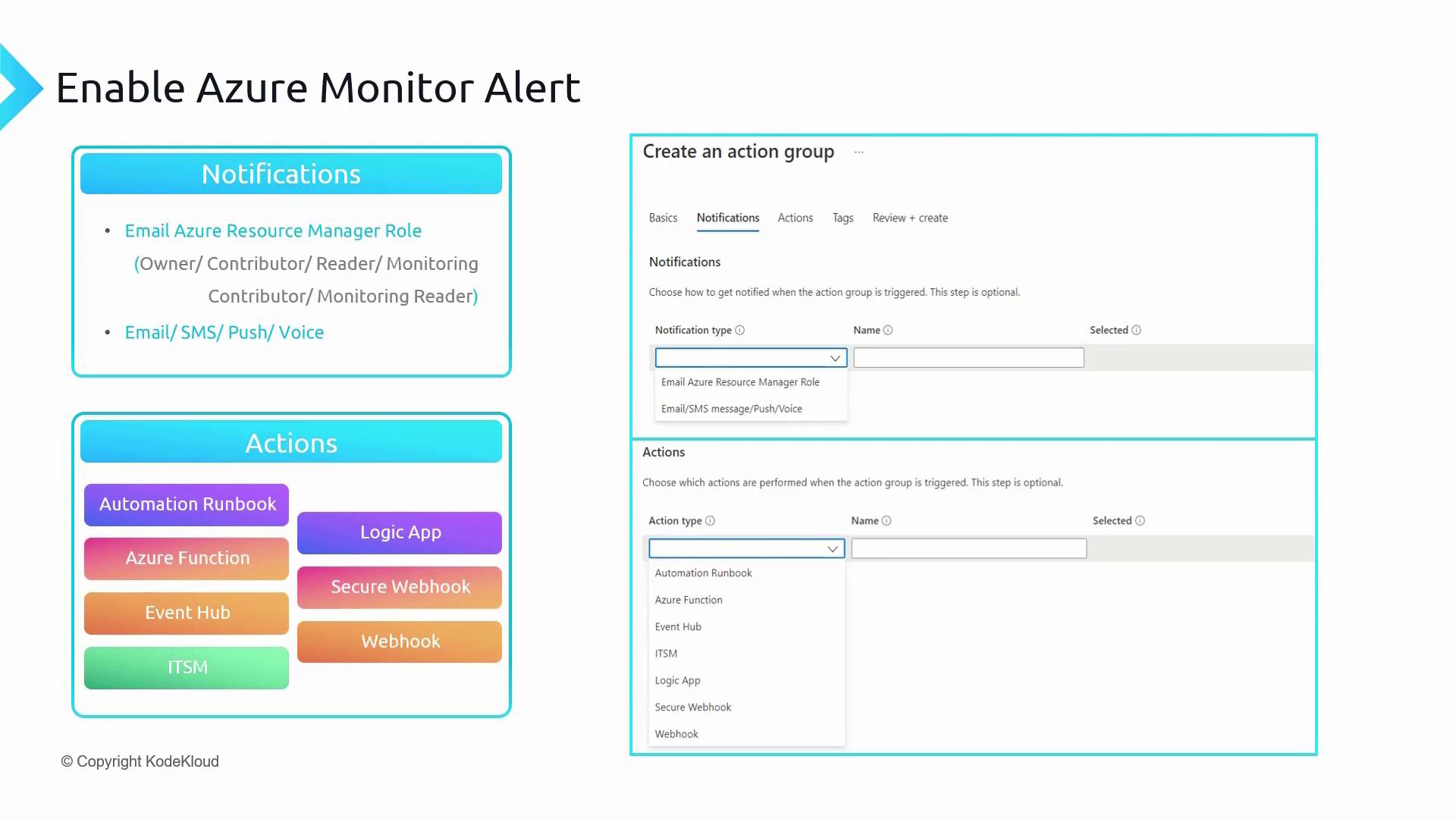
4. Rule Details
In the Rule Details step, you provide essential information such as the alert rule’s name, description, and severity. This metadata is used in notifications to help you prioritize and manage alerts effectively. Once configured, Azure Alerts integrates tightly with action groups, offering flexibility in notifying Azure Resource Manager roles (such as owner, contributor, or reader) or directing alerts to specific email addresses. You can also automate responses by invoking an Automation Runbook, calling a webhook, or integrating with ITSM systems.Creating an Alert Rule in the Azure Portal
Follow these steps to create an alert for a Log Analytics workspace:-
Open the Log Analytics Workspace:
Navigate to your Log Analytics workspace and select the Logs section. -
Run a Query:
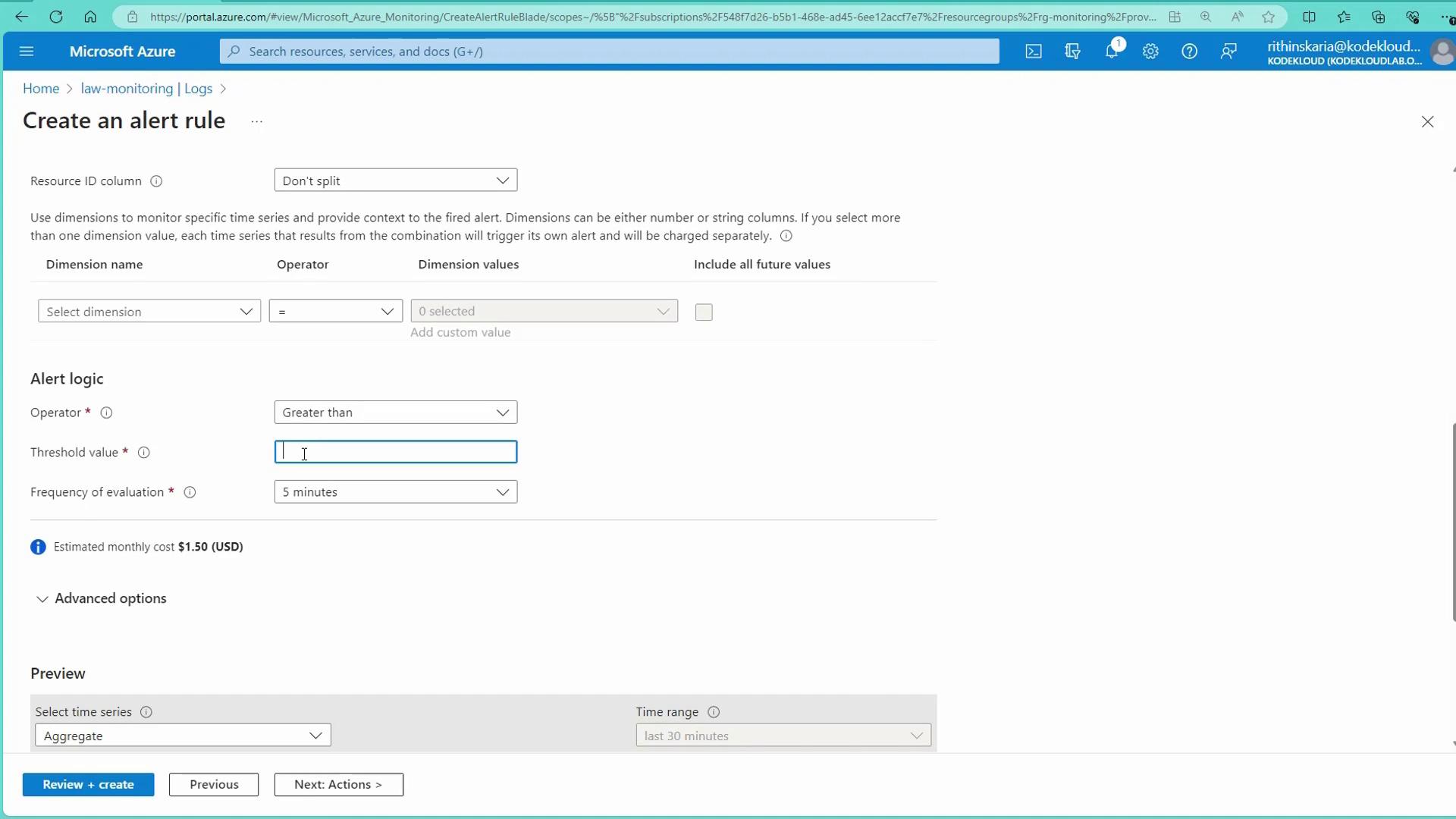
Execute a query, like the one below, to check App Service HTTP logs for the last 25 minutes:In this scenario, the scope (the Log Analytics workspace) is predefined. If your query returns a result (e.g., 51 requests), you can set a threshold (such as 100 requests in 25 minutes) to trigger the alert.
Creating Alerts for Virtual Machines
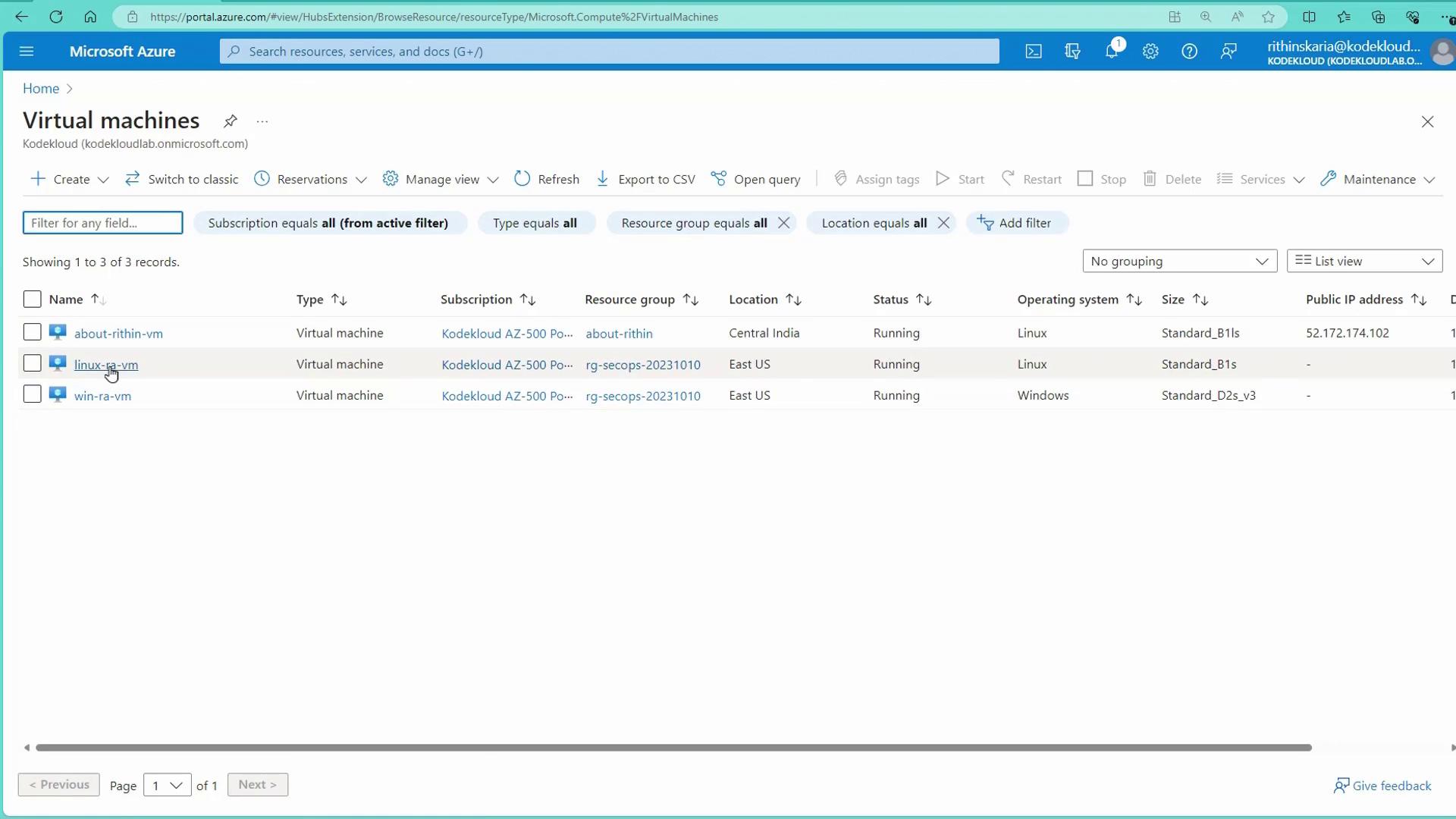
Setting up alerts for virtual machines is essential for monitoring production servers. The following instructions use CPU usage as an example metric:- Navigate to Virtual Machines:
In the Azure Portal, go to Virtual Machines and select a Linux machine.
-
Create the Alert Rule:
Click on the Alerts blade or select Create a custom alert rule. The system automatically selects the current resource; you can add resources, such as Windows machines if needed. -
Define the Condition:
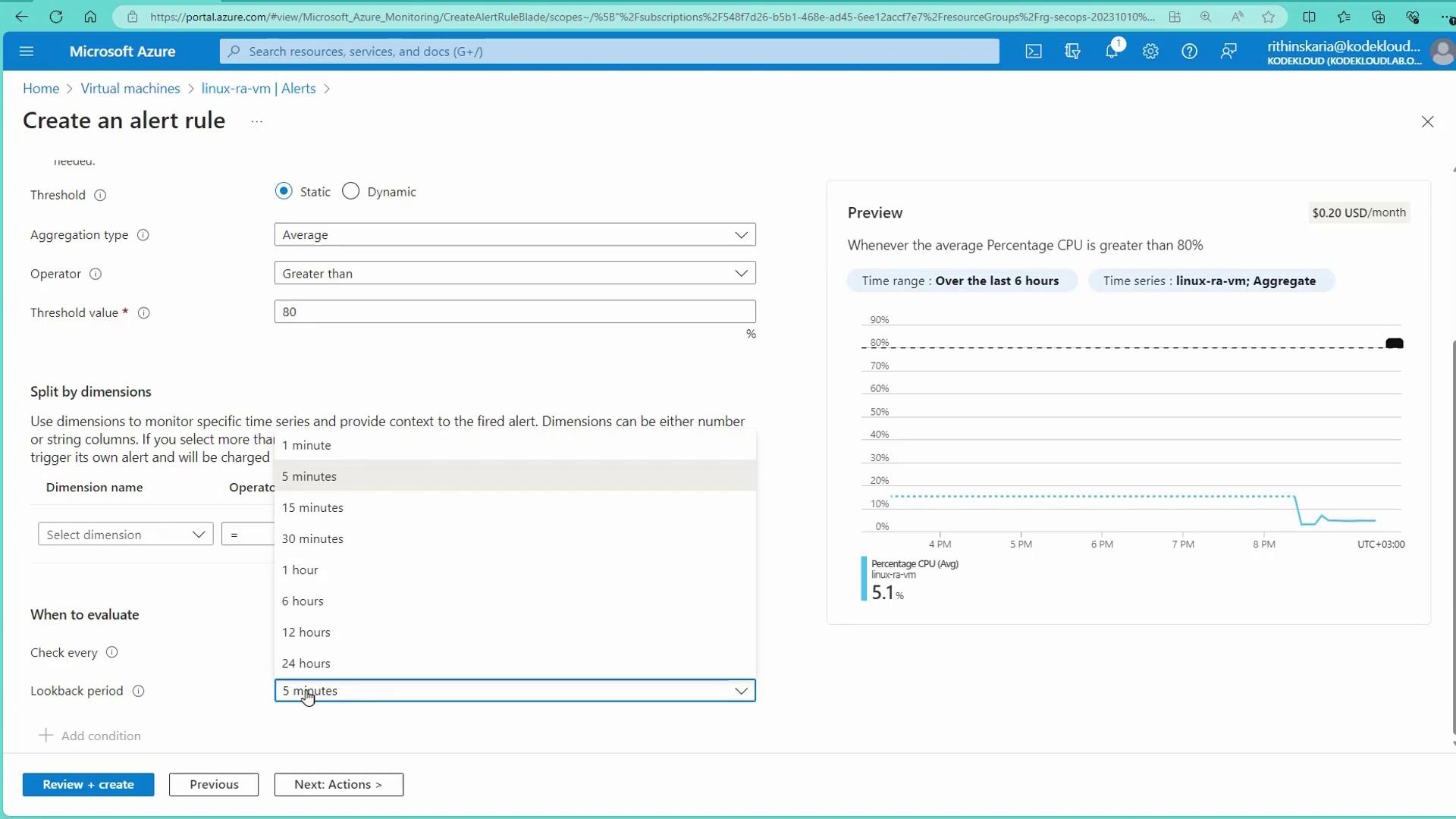
Under Condition, choose the appropriate metric, for instance, Percentage CPU. You can opt for static thresholds or dynamic ones—the latter adjusts to usage patterns to minimize false positives. For demonstration purposes, set a static threshold where the average CPU utilization over five minutes exceeds 80%.
- Configure the Action:
Under Action, either select an existing action group or create a new one (e.g., “VM notification”). This group should define how you want to be notified (email, SMS, push, voice) and any associated automation actions.
- Set Rule Details:
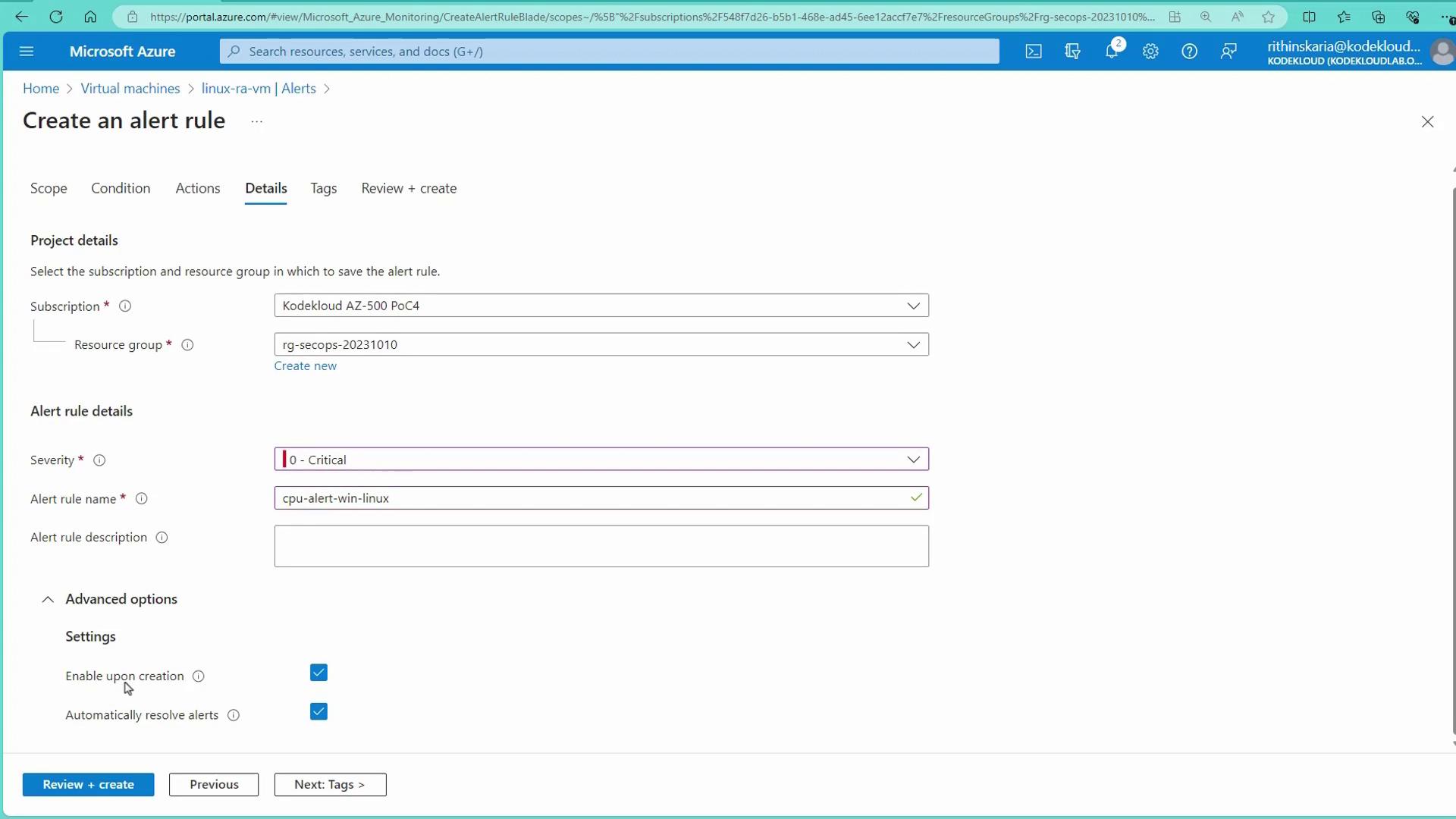
In the Rule Details section, provide a relevant name (for example, “CPU Alert Metrics - Linux”), choose the severity level (e.g., Critical), and configure any advanced settings like immediate rule enabling.
- Review and Create:
Click Review and Create to finalize your alert rule.
Before testing alerts in a production environment, ensure you understand the potential impact on system performance when applying stress tests.
Testing the Alert Using a Stress Program
To verify that your alert fires correctly, follow these steps:-
Connect to the Linux VM via SSH:
-
Update and Install the Stress Program:
Ensure your system is up-to-date and install the stress tool if it isn’t already installed. -
Run the Stress Test:
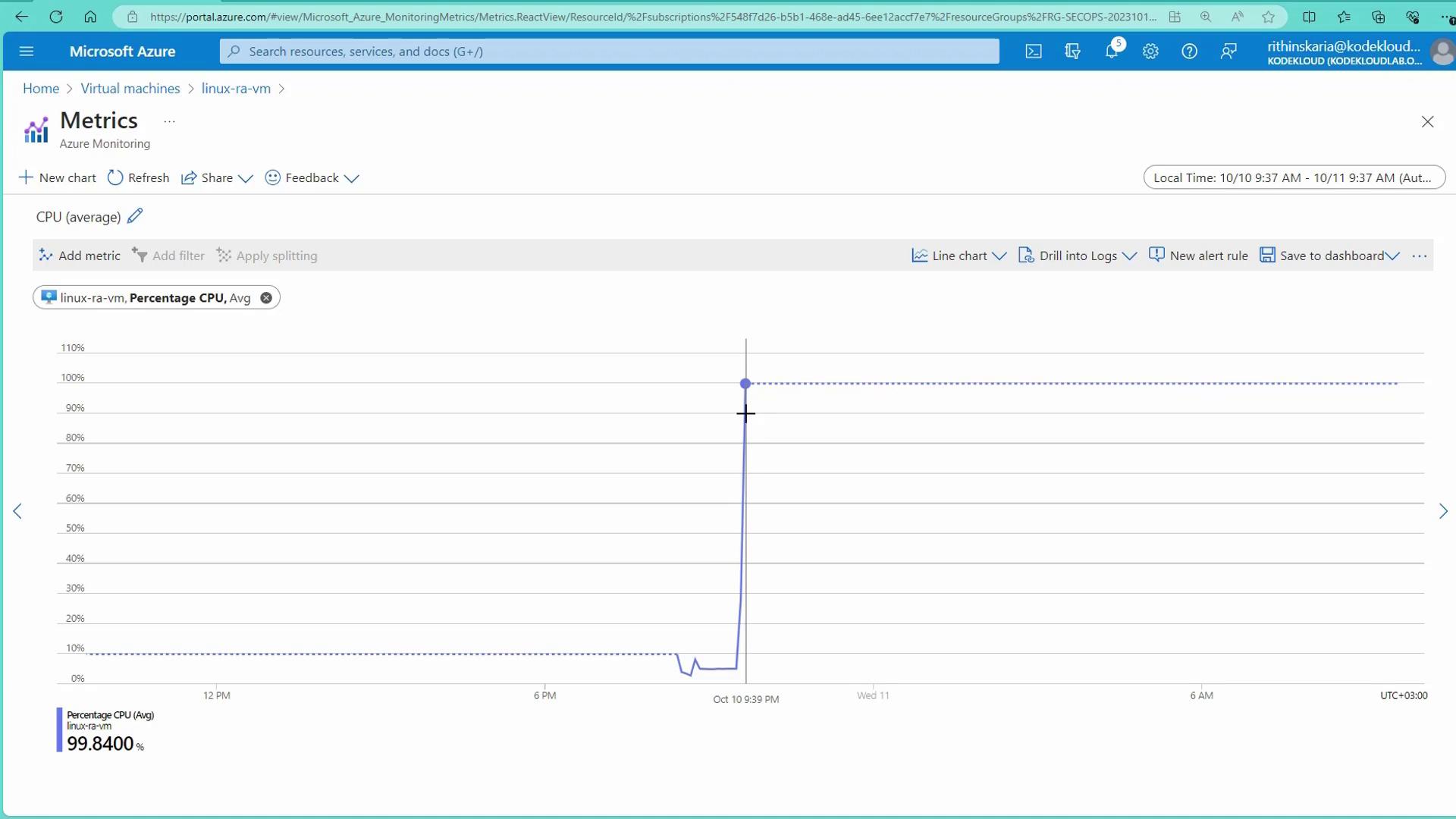
Open another terminal session and SSH into the same VM to run the stress command. For example, to stress 4 CPU cores for 1000 seconds, use:This command forces CPU usage to reach 100%. Monitor the CPU utilization dashboard in the Azure Portal to observe the increase.
- Alert Trigger:
As the CPU utilization surpasses the set threshold (e.g., the average over the last five minutes exceeds 80%), Azure Monitor will trigger the alert and send an email notification.
Verifying and Managing Alerts
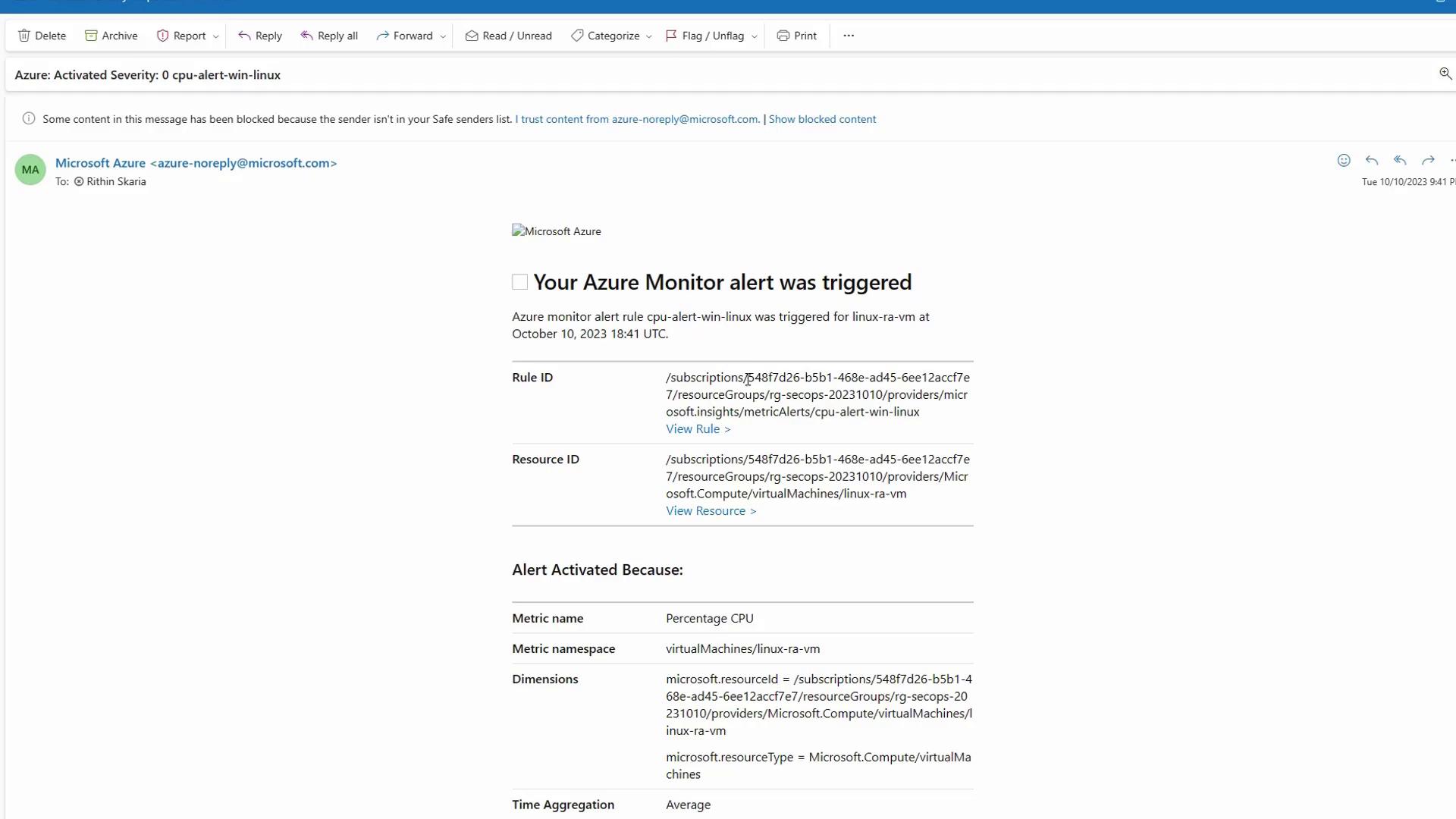
After an alert is triggered, you can take the following actions:- Check Email Notifications:
The email will include information such as the rule ID, resource ID, and metric details.
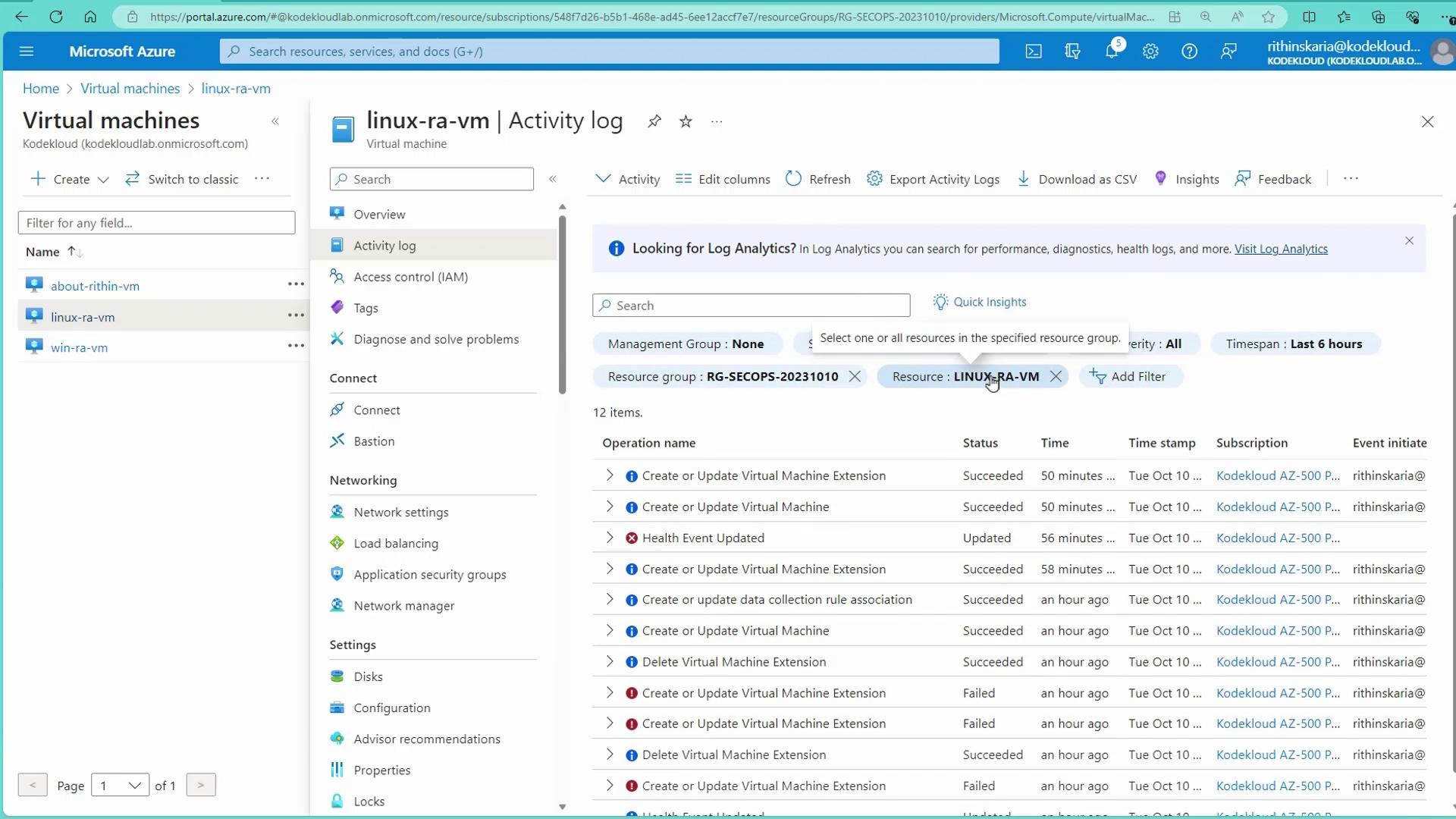
- Review Alerts in Azure Portal:
Examine the alert in the Azure Portal under the Alerts blade or check the activity logs for the specific resource.
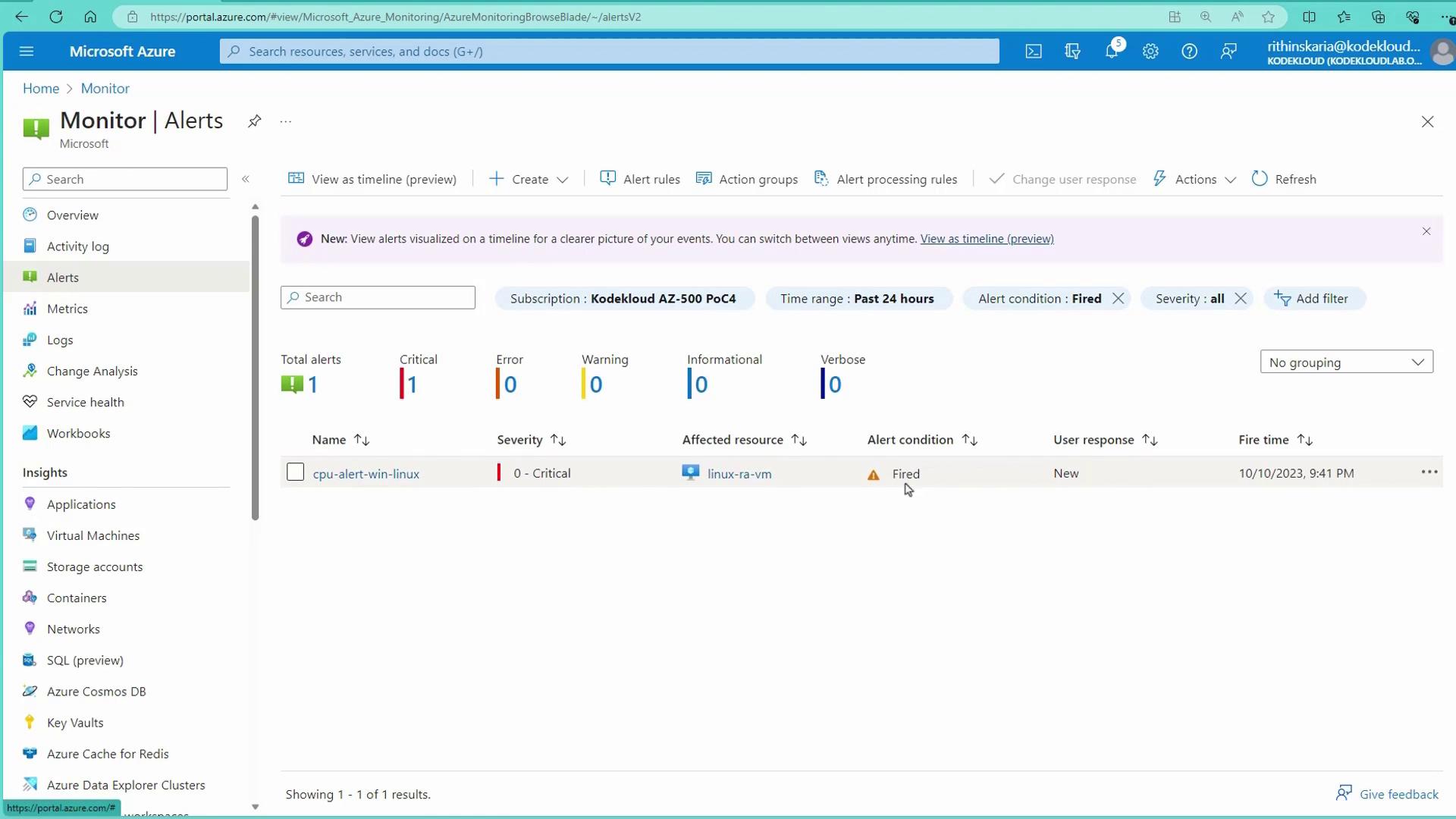
- Manage Alert Status:
Change the alert status from “Fired” to “Acknowledged” or “Closed” to track incident resolution.
With this lesson, you have learned how to configure and test Azure Monitor Alerts using the Azure Portal along with a practical stress test on a Linux VM. This approach ensures you are promptly notified and can take swift action when your critical resources experience high CPU usage.