

App Service Authentication
App Service Authentication adds a layer of protection by intercepting incoming requests and requiring valid credentials before allowing access. This built-in feature supports multiple identity providers such as Microsoft, Apple, Facebook, GitHub, Google, and Twitter. For providers that use OpenID Connect, Azure App Service leverages OAuth 2.0 protocols to ensure secure integration. By default, anonymous access is permitted. For example, navigating directly to your app’s URL will load the landing page without any authentication prompts. To secure your app, switch the default setting and enforce the authentication mechanism of your choice.Ensure that you select a provider that complements your application’s user base and security requirements.
Securing Data with SSL Certificates
Implementing SSL certificates is vital for encrypting the data exchanged between your application and its users. This encryption safeguards sensitive information during transit and builds trust with your end-users.Diagnostic Settings
Diagnostic settings are a key part of maintaining and troubleshooting your Azure App Service. By enabling detailed logging and monitoring, you can quickly identify and resolve potential performance issues or security vulnerabilities.Network Access Control Lists (ACLs)
Network ACLs further secure your App Service by specifying which IP addresses or networks are permitted to access your application. Configuring these rules minimizes the exposure of your web app to unauthorized traffic.Always evaluate your network access rules to ensure that only trusted sources can communicate with your App Service.
Key Vault Integration
Managing sensitive data such as API keys, connection strings, and other secrets is streamlined with Azure Key Vault. By integrating your App Service with Key Vault, you eliminate the risk of exposing secrets in your code or configuration files, ensuring that sensitive information remains secure.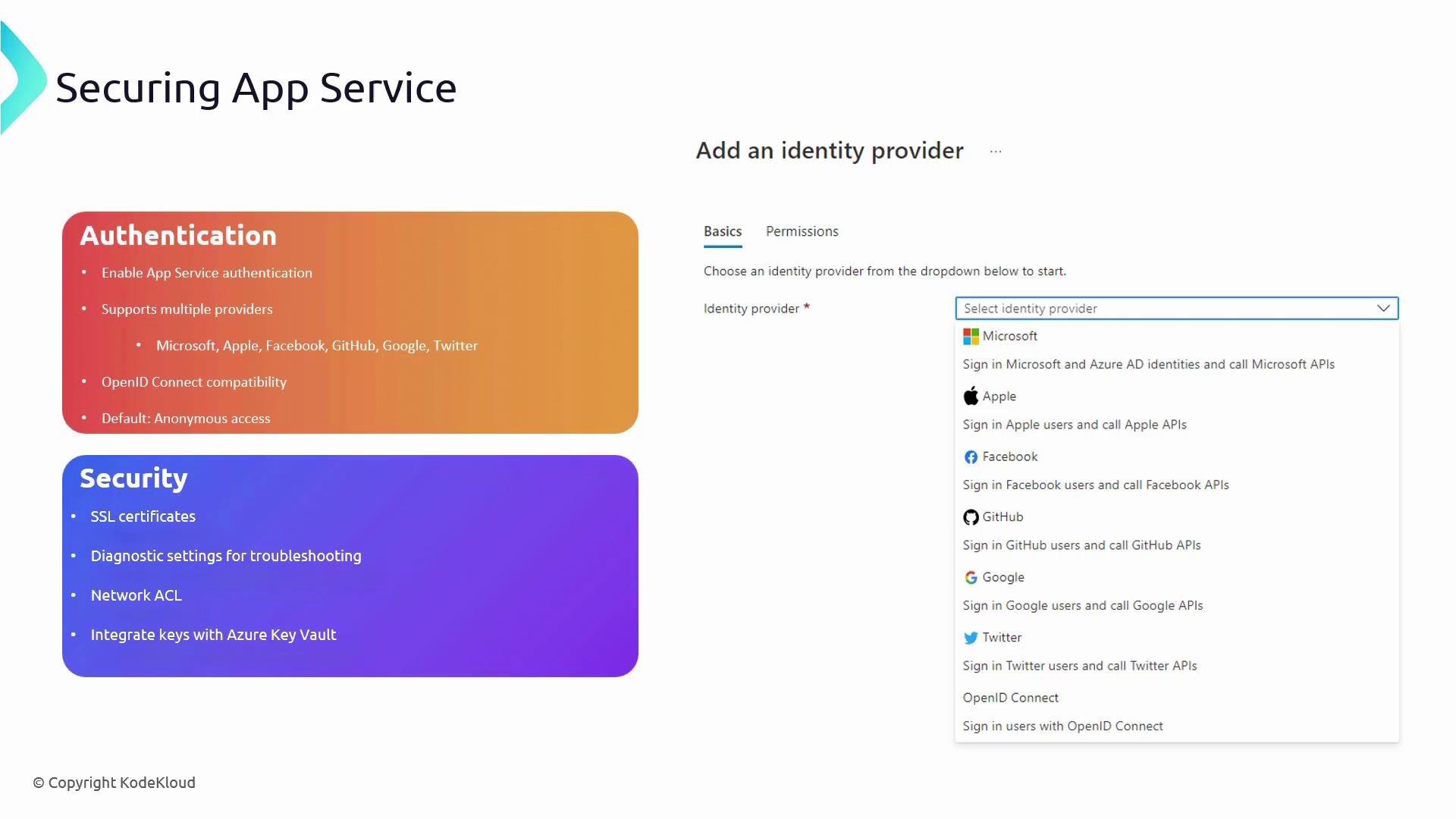
Deploying Code to Your App Service
After securing your service, the next step is deploying your application code. While there are multiple deployment methods available, this guide focuses on using Visual Studio Code. However, Visual Studio, FTP, and other techniques are equally effective.Deploying with Visual Studio Code
To deploy with Visual Studio Code, press Control+Shift+P and select “Deploy to Web App.” You will be prompted to choose your project folder and target web app. If you haven’t authenticated with your Azure account yet, follow the on-screen instructions. Once connected, the deployment process automatically begins. Below is an example of an HTML file deployed to the App Service:Securing Your Application with Authentication
By default, App Service does not enforce authentication. To enhance security, go to the Authentication section of your web app in the Azure Portal and add an identity provider. In this example, Microsoft Entra ID is used. After creating an app registration within Microsoft Entra ID, use the default configuration settings and click “Add.” With the identity provider active, open an incognito window and navigate to your app’s URL. A sign-in prompt confirms that authentication is now required to access your application.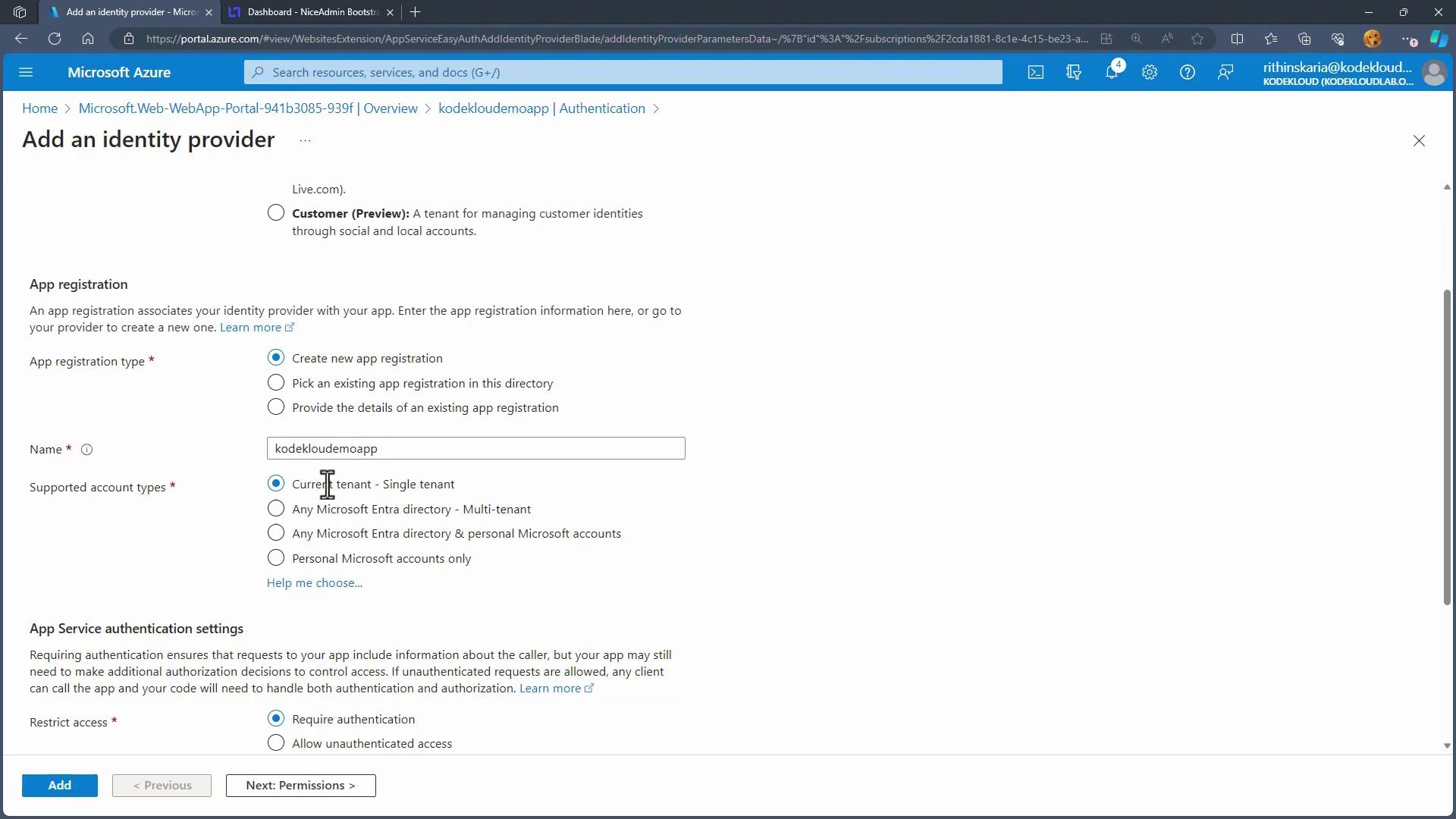
Additional Deployment Options
If Visual Studio Code is not your preferred deployment tool, consider these alternatives:- Deployment Center: A centralized hub to explore various deployment methods.
- FTPS Credentials: Retrieve your FTPS endpoint, username, and password to deploy files using any FTP client.
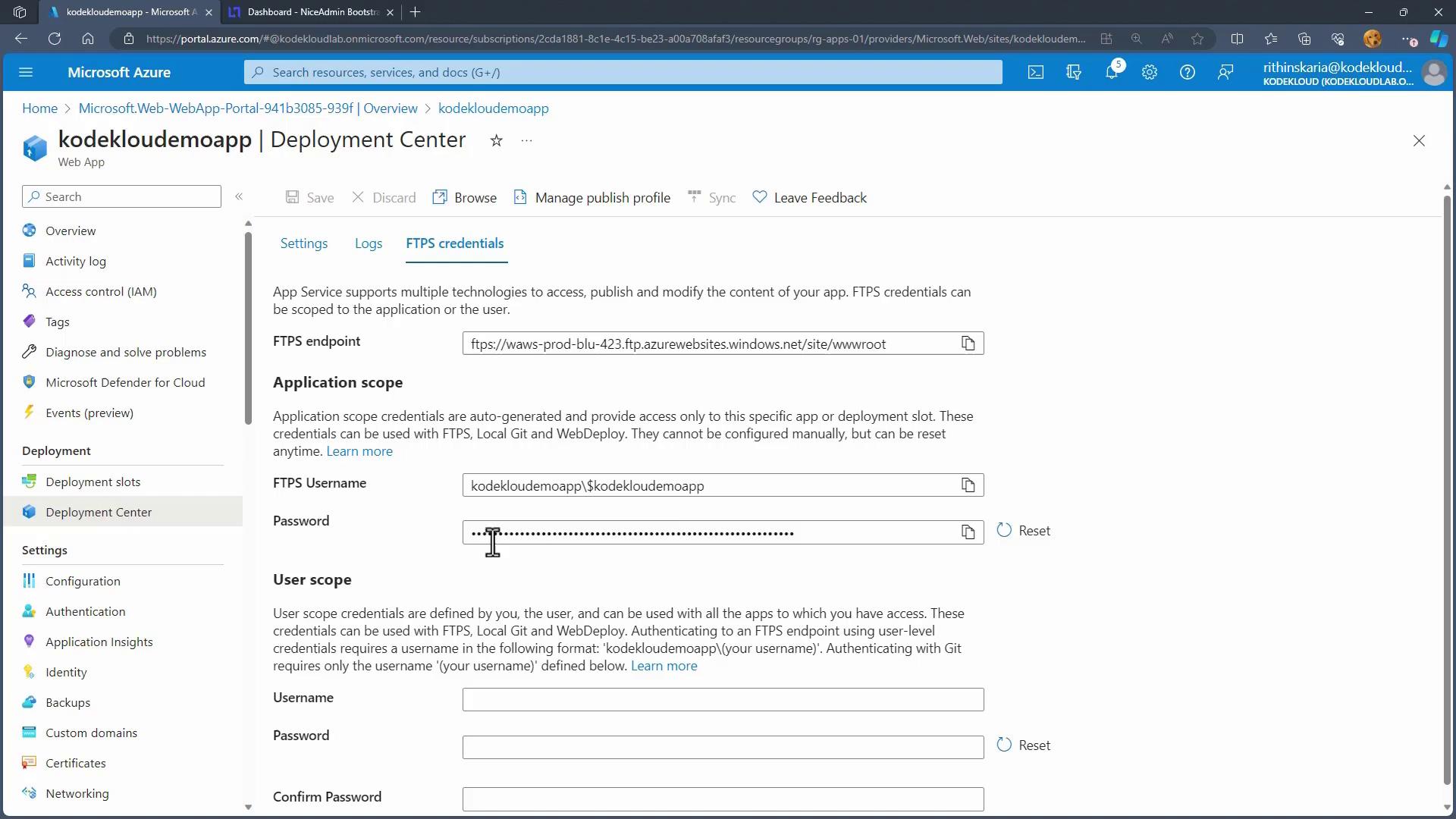
- Kudu Portal: A web-based interface for file management and uploads.
Implementing SSL Certificates
Azure provides various options for securing your web app with SSL certificates. You can either purchase a Managed Certificate directly from Azure or bring your own public key certificates, ensuring that all communication to and from your application is encrypted.Configuring Network Access Restrictions
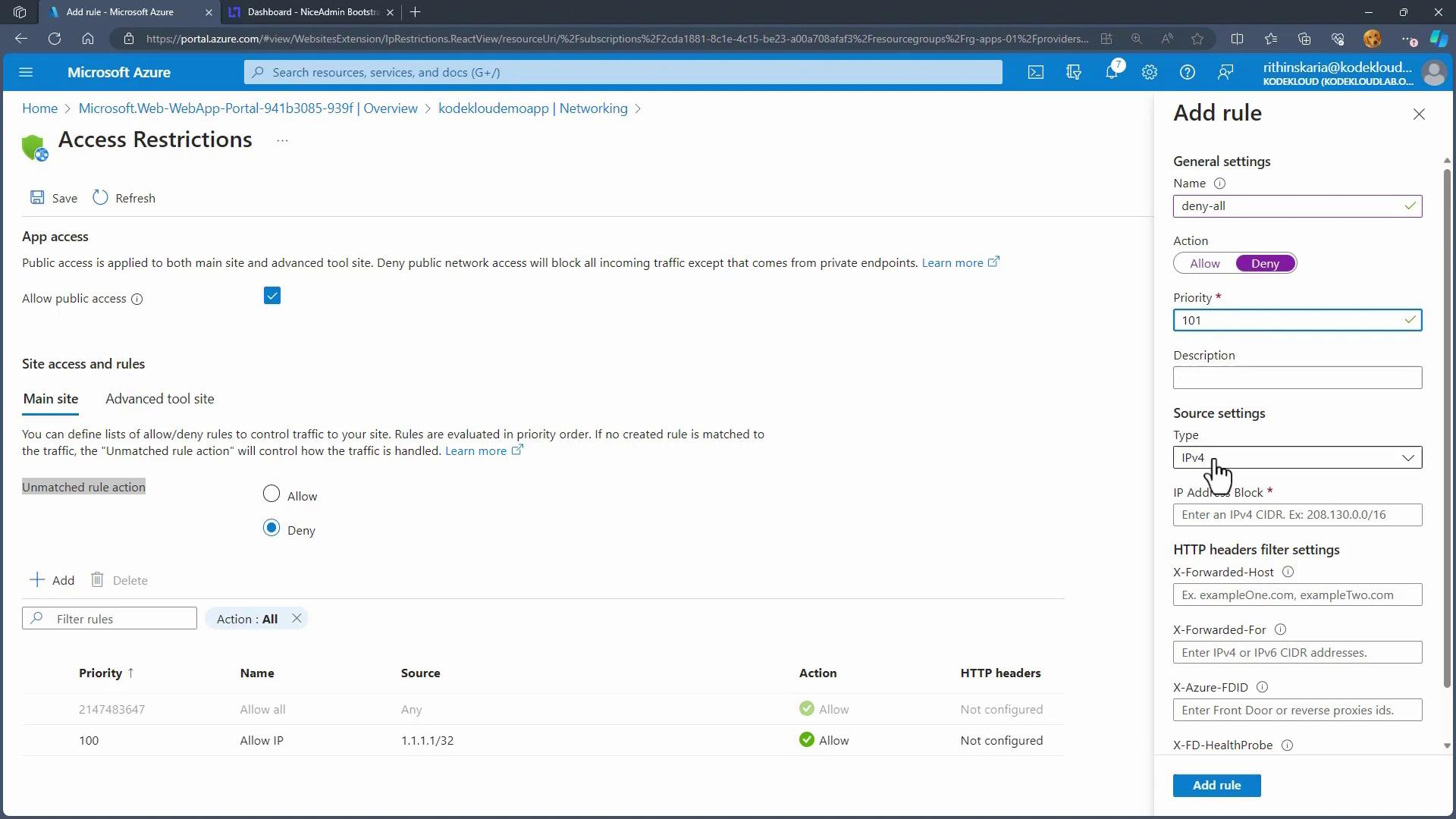
Control public access to your App Service via the Networking blade in the Azure Portal. Here, you can configure rules to restrict traffic to specific IP addresses. The process involves creating “Allow” rules for trusted sources and adding a “Deny All” rule to block unauthorized access. For instance, to allow a specific IPv4 address, set up a rule with:- Action: Allow
- Priority: 100
- Type: IPv4 (or IPv6/Virtual Network Service Tag)
- Source IP: [Your desired IP]
- Rule Name: Deny All
- Action: Deny
- Priority: 101
- Type: IPv4
Custom Domains
By default, your App Service is hosted under the azurewebsites.net domain. For branding or SEO purposes, you may configure a custom domain (e.g., kodecloud.com) in the Azure Portal to better align with your business identity.This guide has reviewed the key strategies for securing your App Service, deploying your application code, and enforcing robust authentication and network restrictions. Implement these best practices to safeguard your web applications and improve overall performance and security.