This article provides a step-by-step guide to installing CodeReady Containers for local OpenShift development on a single node.
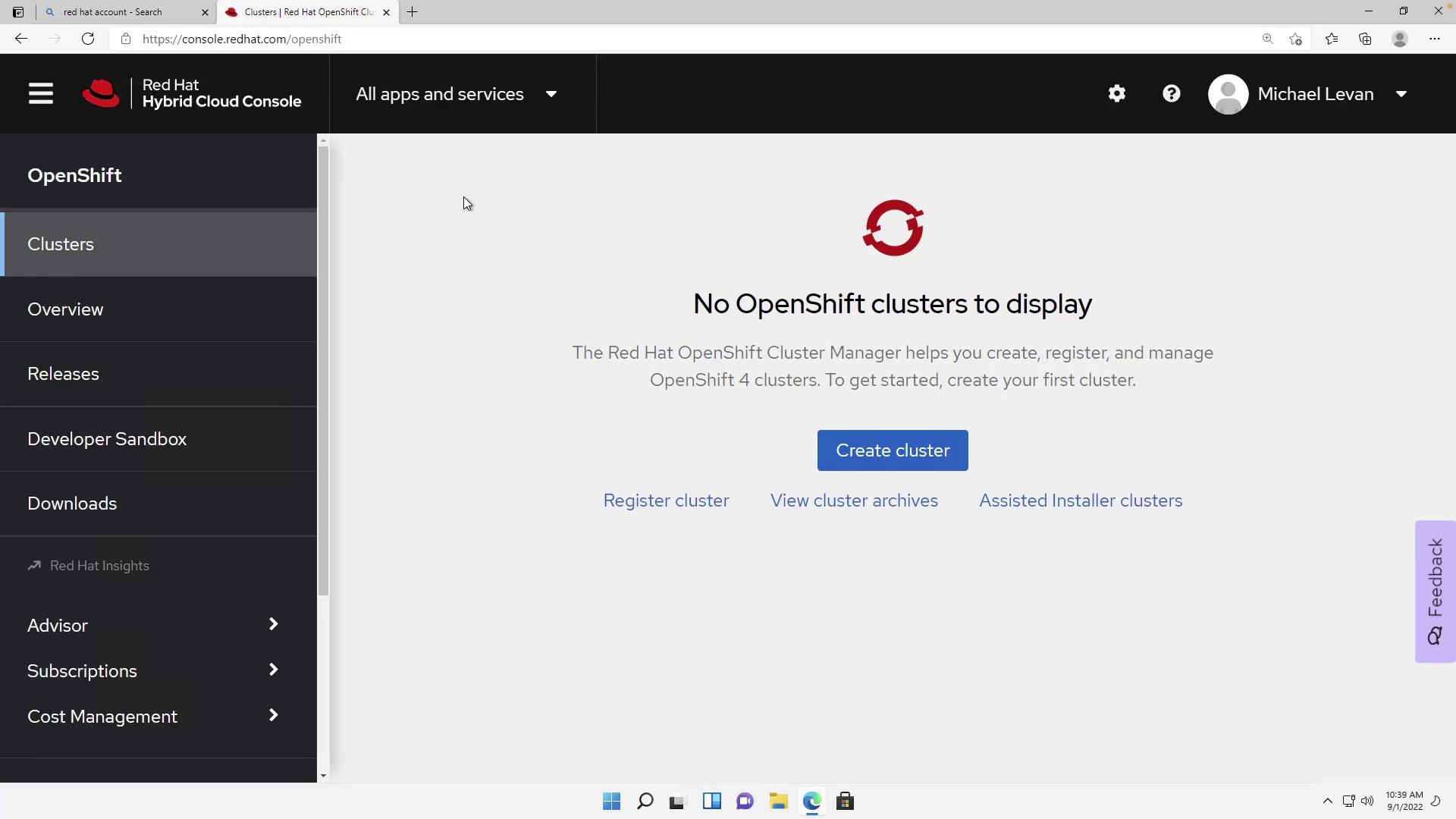
After configuring your Red Hat account, navigate to Red Hat OpenShift. You should see a page similar to the one below:
In this lesson, we will install CodeReady Containers (CRC), a tool that functions similarly to Docker Desktop by running a local OpenShift cluster. Once launched from your taskbar, CRC lets you use OpenShift for local development—comparable to Docker Desktop or Minikube.
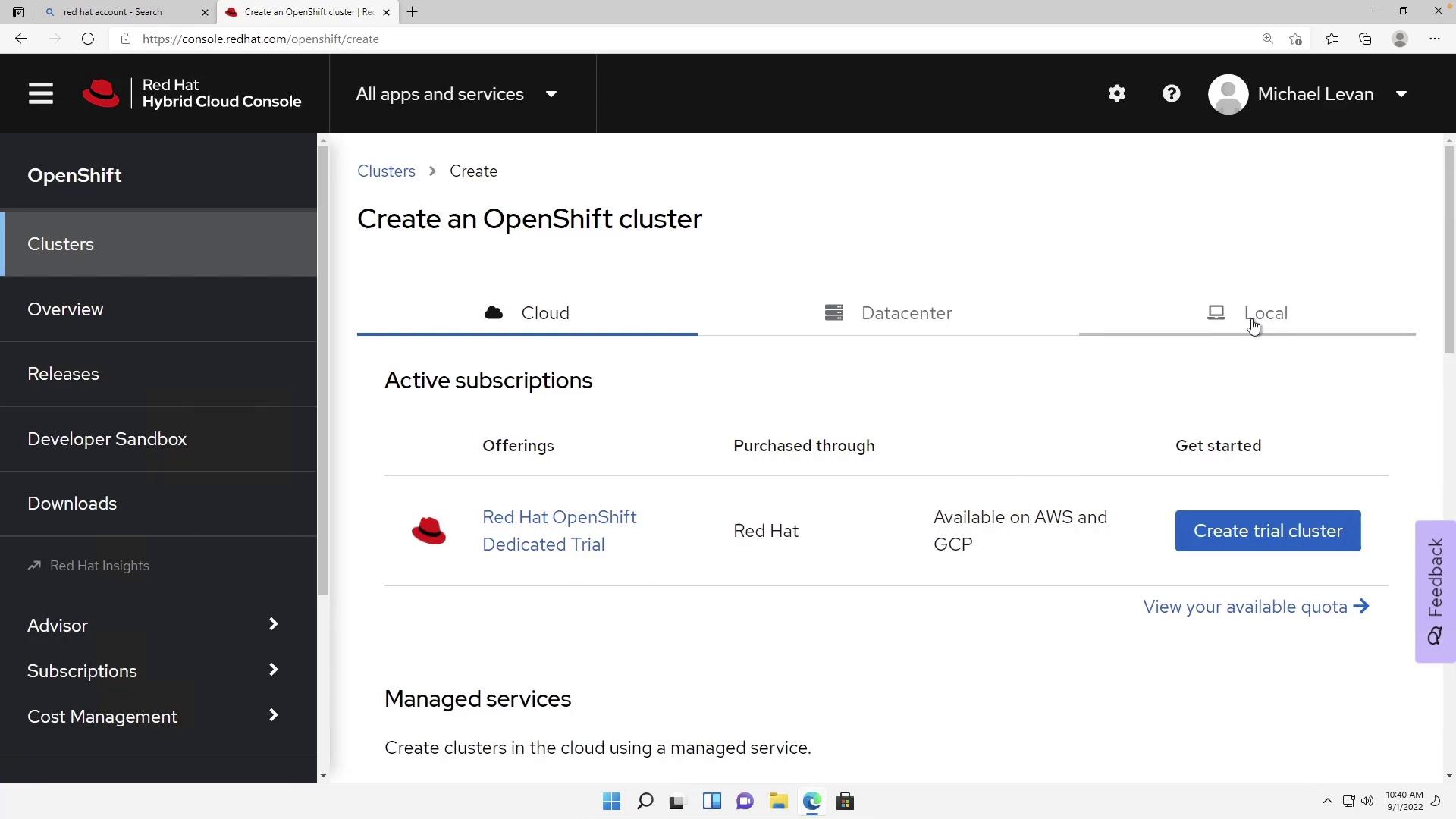
Begin by clicking on Create Cluster and select Local as your deployment option:
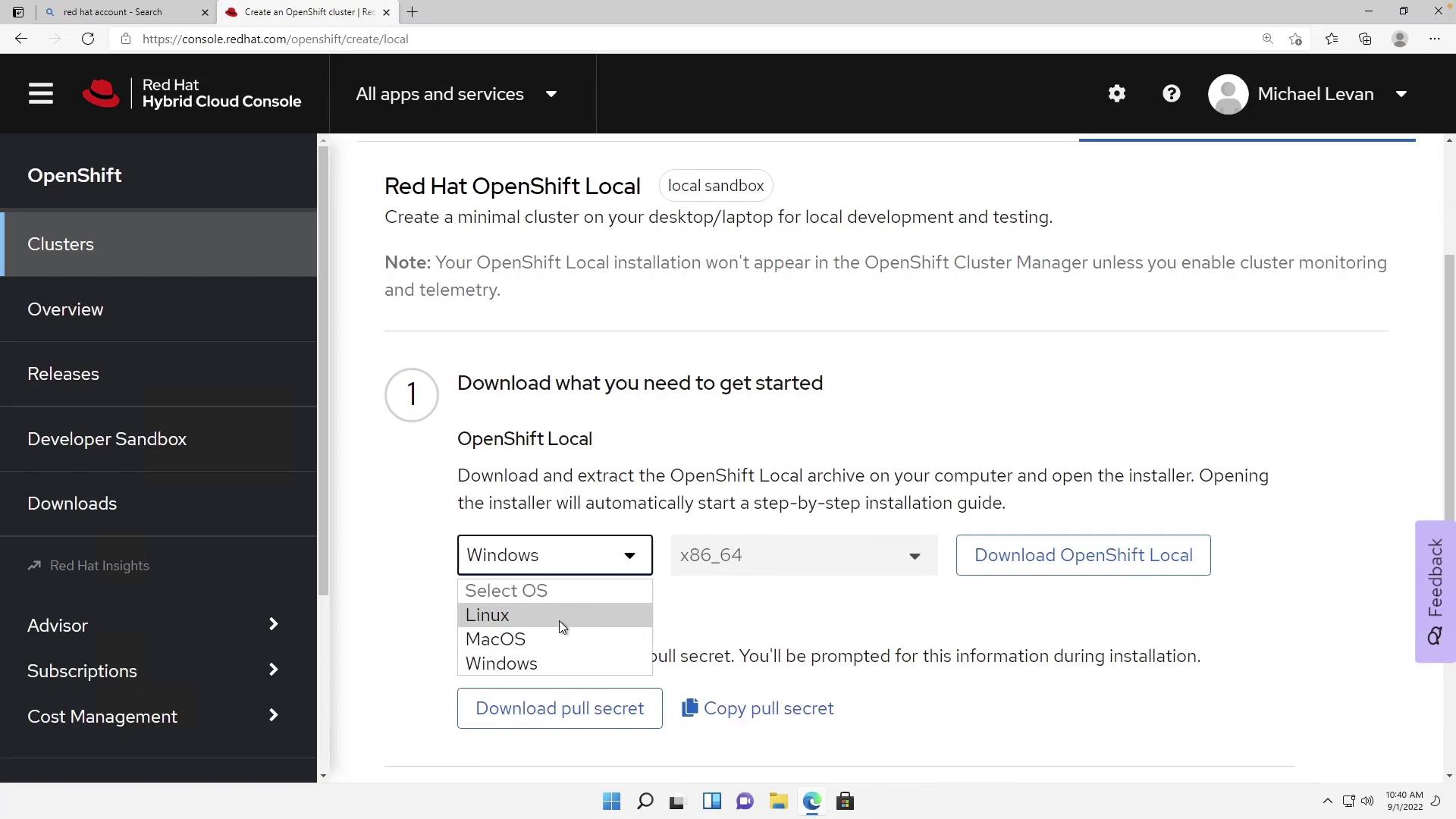
You will now see the “Red Hat OpenShift Local” page with a download button. Depending on your operating system (Linux, macOS, or Windows), click the appropriate download button:
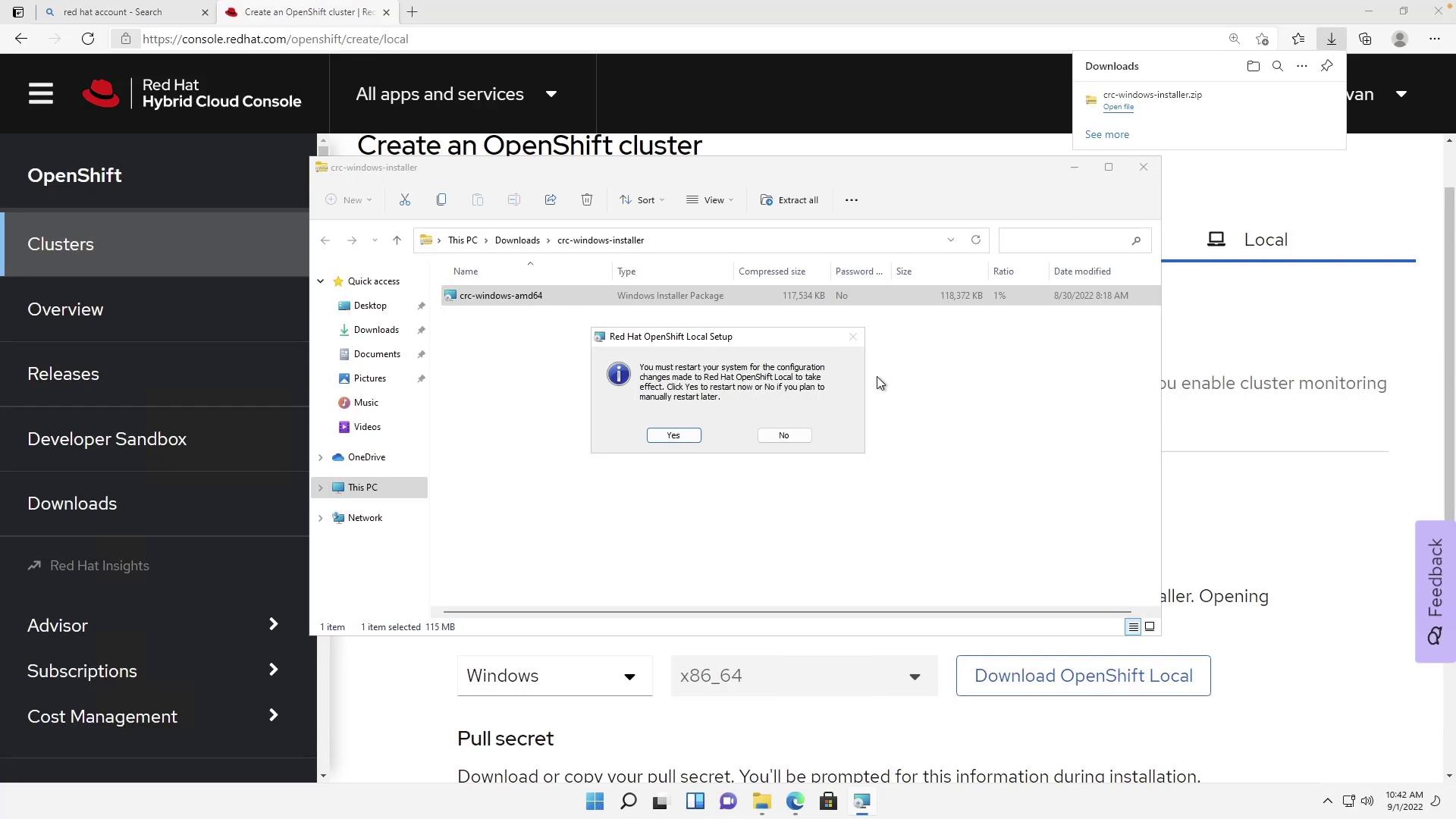
For Windows users, click Download OpenShift Local and run the installer. Follow the installation prompts by clicking Next until you reach the Install button. After installation, you will be prompted to restart your computer:
Click Yes to restart your system. After restarting, open PowerShell and maximize the window. You should see a prompt similar to the following:
Verify that the CRC CLI is installed by typing crc. Then, run the setup command to install all prerequisites:
Copy
Ask AI
crc setup
When prompted for anonymous usage statistics, type N to decline:
Copy
Ask AI
CRC is constantly improving and we would like to know more about usage (more details at https://developers.redhat.com/article/tool-data-collection)Your preference can be changed manually if desired using 'crc config set consent-telemetry <yes/no>'Would you like to contribute anonymous usage statistics? [y/N]: N
During the setup process, CRC configures several prerequisites. On Windows, CRC leverages Hyper-V for virtualization (similar to how Docker Desktop runs a virtual machine in the background). This process may download a large bundle (approximately 14 GiB) and configure multiple components, including:
Hyper-V settings (ensuring Hyper-V is enabled and that your user is in the required groups).
The CRC bundle for Hyper-V.
The daemon task (which installs and runs as needed).
The output will resemble the example below:
Copy
Ask AI
PS C:\Users\mike> crc setupINFO Using bundle path C:\Users\mike\.crc\cache\crc_hyperv_4.11.1_amd64.crcbundleINFO Checking if current user is in Hyper-V Admins groupINFO Checking if C:\Users\mike\.crc\cache\crc_hyperv_4.11.1_amd64.crcbundle existsINFO Getting bundle for the CRC executableINFO Downloading crc_hyperv_4.11.1_amd64.crcbundle3.24 GiB / 3.24 GiB [-------------------------------------] 100.00% 11.08 MiB p/sINFO Uncompressing C:\Users\mike\.crc\cache\crc_hyperv_4.11.1_amd64.crcbundlecrc.vhdx: 14.01 GiB / 14.01 GiB [-------------------------------------] 100.00%INFO Checking if the daemon task is installedINFO Installing the daemon taskINFO Checking if the daemon task is runningINFO Running the daemon taskINFO Checking admin helper service is runningYour system is correctly setup for using CRC. Use 'crc start' to start the instance
Ensure that Hyper-V is enabled on your Windows machine before running the setup command.
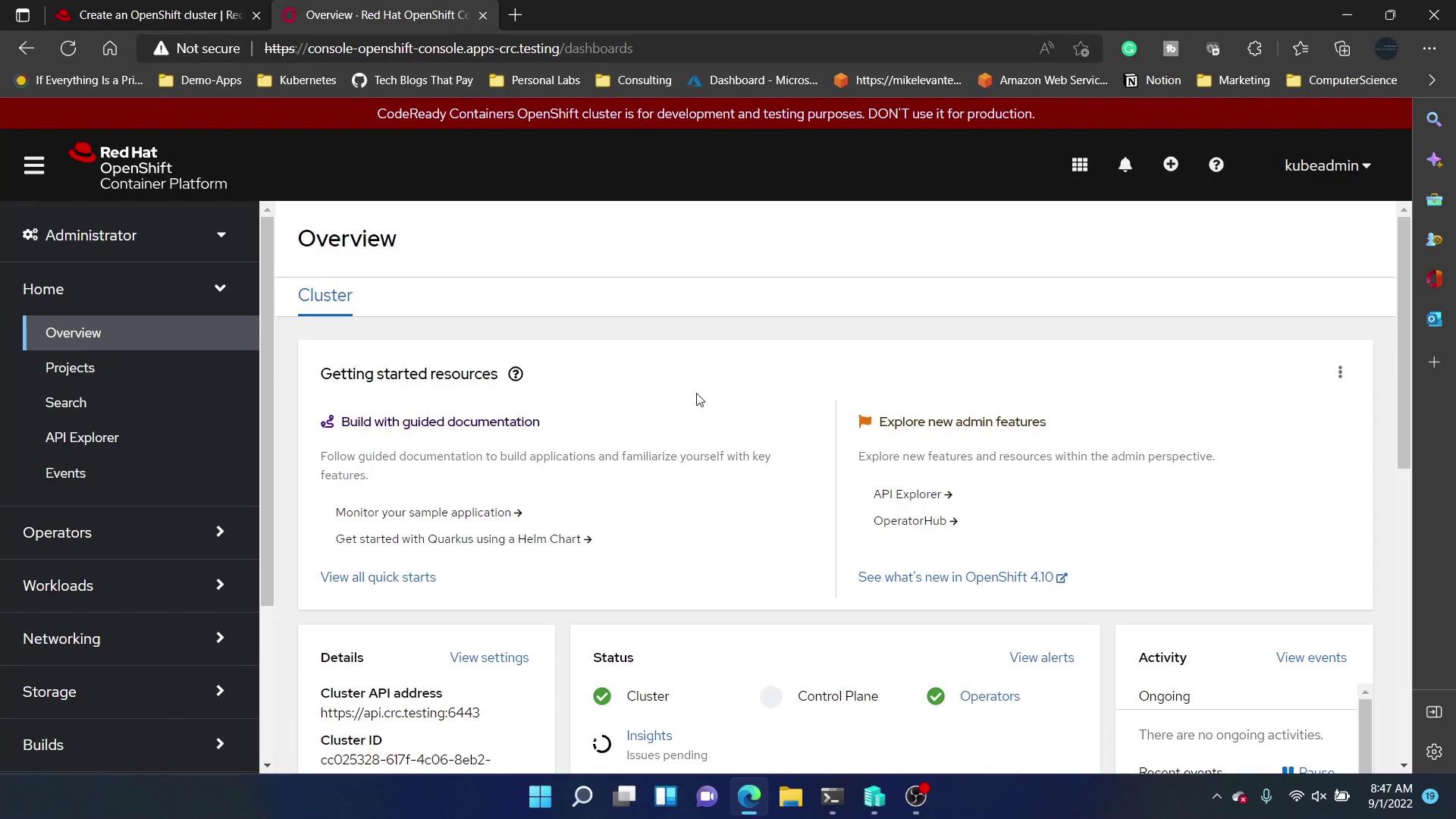
Starting the cluster may take around 15 minutes as the virtual machine fully initializes. Once the cluster is running, the CRC icon will appear in your Windows taskbar. Right-click the icon and select Open Console to view your CRC console credentials.Open a terminal and execute the command provided by the console to reveal your credentials. You might see output similar to this:
Copy
Ask AI
PowerShell 7.1.3Copyright (c) Microsoft Corporation.https://aka.ms/powershellType 'help' to get help.A new PowerShell stable release is available: v7.2.6Upgrade now, or check out the release page at:https://aka.ms/PowerShell-Release?tag=v7.2.6
The output displays credentials for both the administrator and developer users. For example:
Copy
Ask AI
INFO 2 operators are progressing: kube-apiserver, openshift-controller-managerINFO 2 operators are progressing: authentication, openshift-controller-manager...Started the OpenShift cluster.The server is accessible via web console at:https://console-openshift-console.apps-crc.testing/Log in as administrator:Username: kubeadminPassword: IxAvf-CKLZp-aqT8d-niTJVLog in as user:Username: developerPassword: developerUse the 'oc' command line interface:PS> & crc oc-env | Invoke-ExpressionPS> oc login -u developer https://api.crc.testing:6443PS C:\Users\mleva>
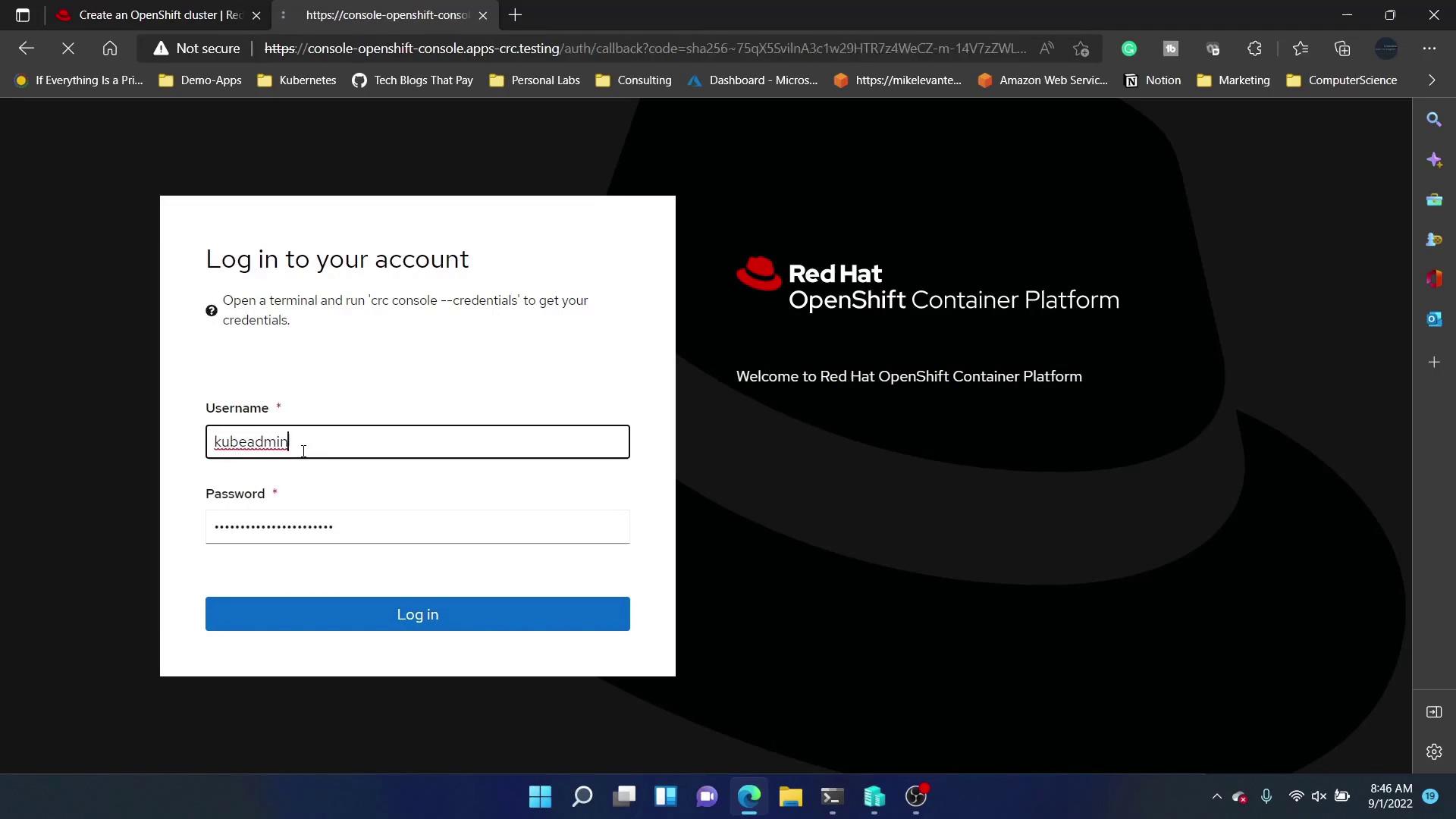
Copy the password provided for the “kubeadmin” account to log in as the administrator.