This article provides a step-by-step guide to setting up a local GitLab instance on a CentOS virtual machine using Oracle VirtualBox and Docker.
Welcome to this comprehensive guide on setting up a local GitLab instance on your laptop. In this article, you’ll learn how to deploy a CentOS-based virtual machine using Oracle VirtualBox, configure a static IP address, and install GitLab through Docker. This step-by-step guide is perfect for developers looking to create a local development environment.
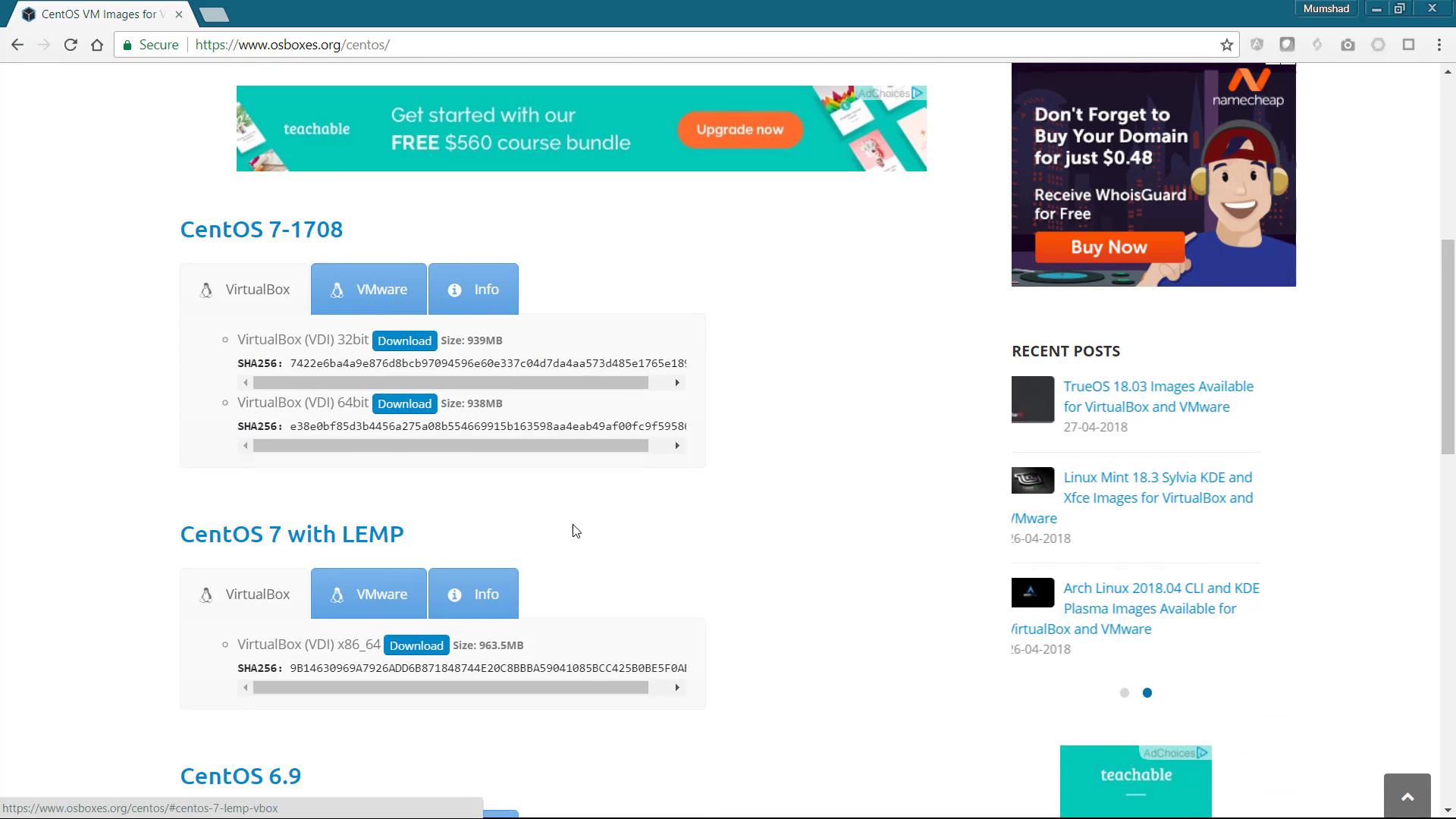
Begin by downloading the CentOS VirtualBox image from osboxes.org. Browse the list of available operating systems and select the 64-bit CentOS VirtualBox image. After downloading the VDI file, extract it to a folder on your computer.
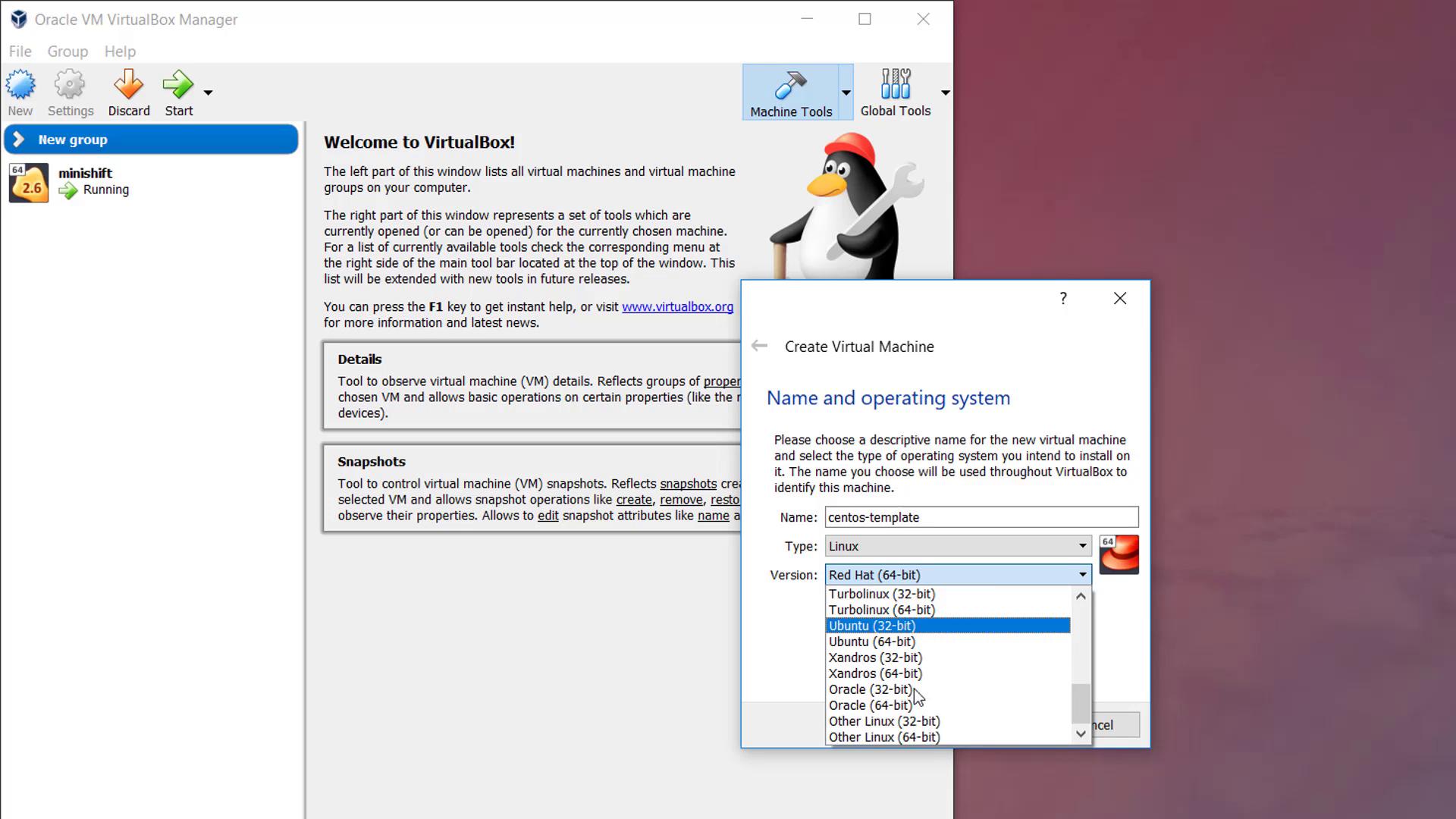
Next, open Oracle VirtualBox and click the “New” button to create a new virtual machine. Choose “Other Linux (64-bit)” as the operating system and allocate at least 2 GB of memory. When prompted for the hard disk, select the “Use existing” option and locate the extracted VDI file.
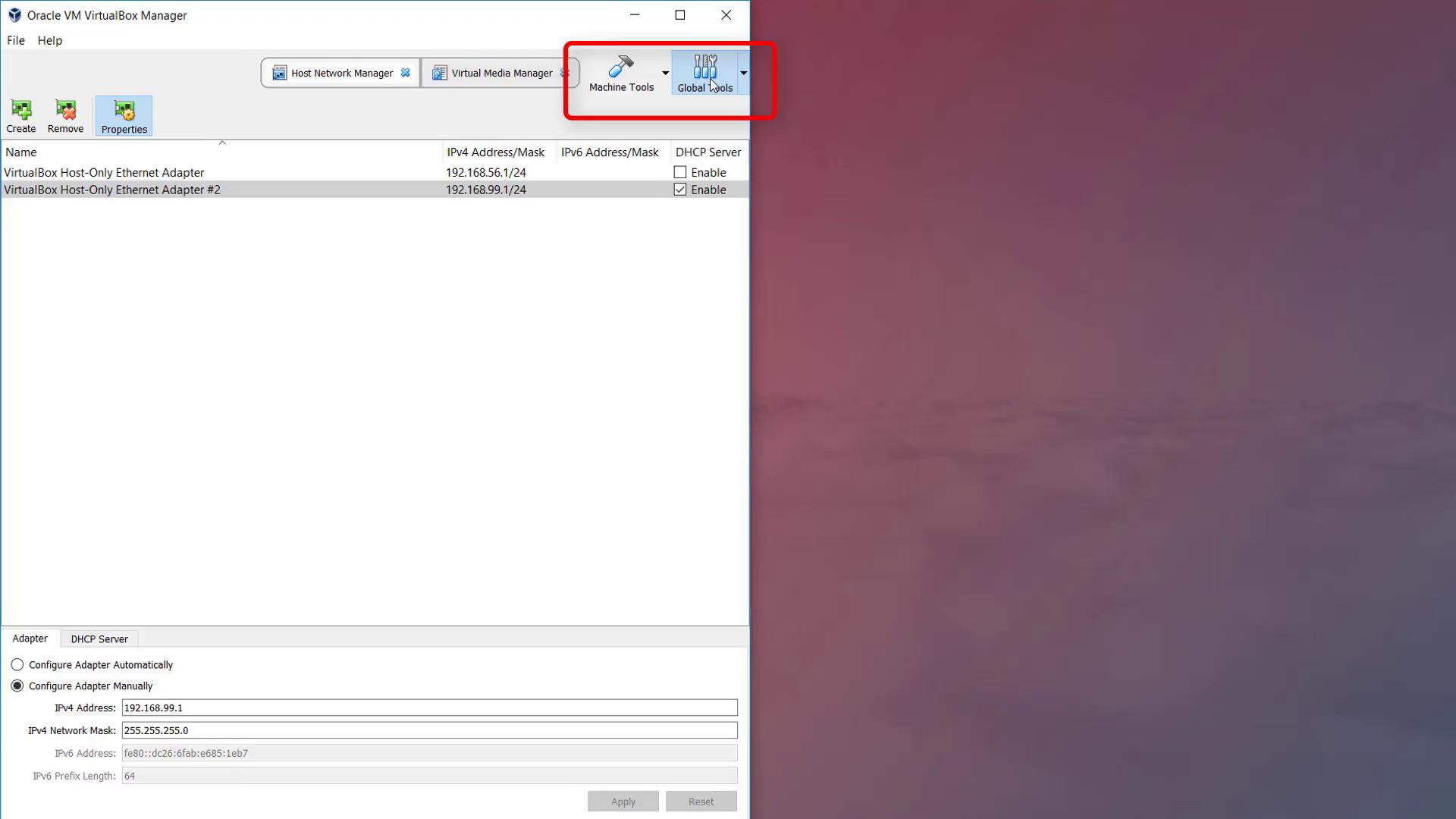
Before starting the virtual machine, you need to configure the networking settings to enable a static IP address. Since VirtualBox uses DHCP by default, create a host-only network adapter without DHCP support. Open the global settings, navigate to the Host Network Manager, add a new adapter, and uncheck the “Enable DHCP Server” option. Take note of the configured IP address and range.
Then, adjust the CentOS template settings:
Increase the CPU count to two.
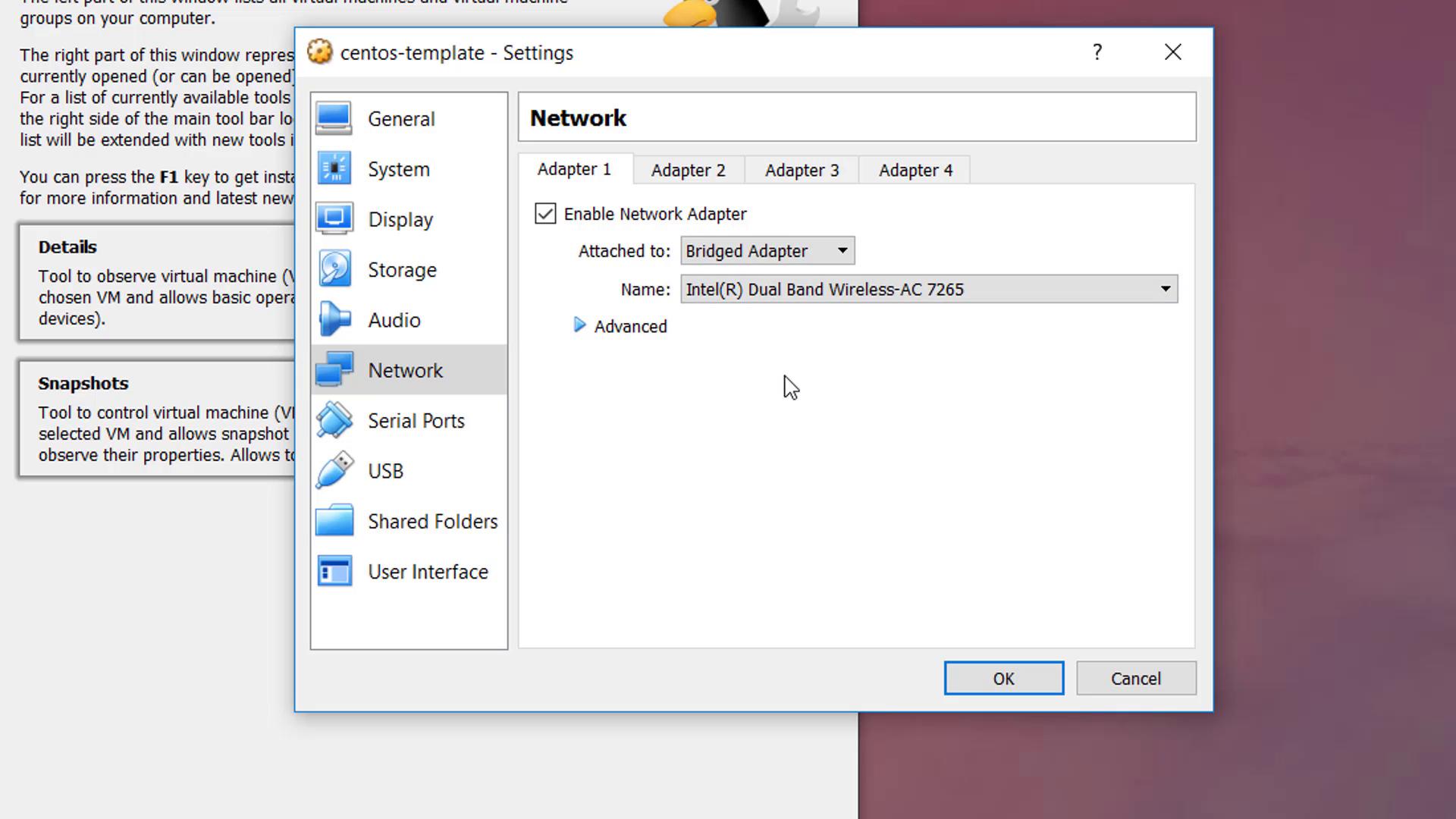
Set the first network adapter to “Bridged Adapter” to access the Internet through your wireless router.
Attach the second adapter to the previously created host-only network to allow for a static IP assignment.
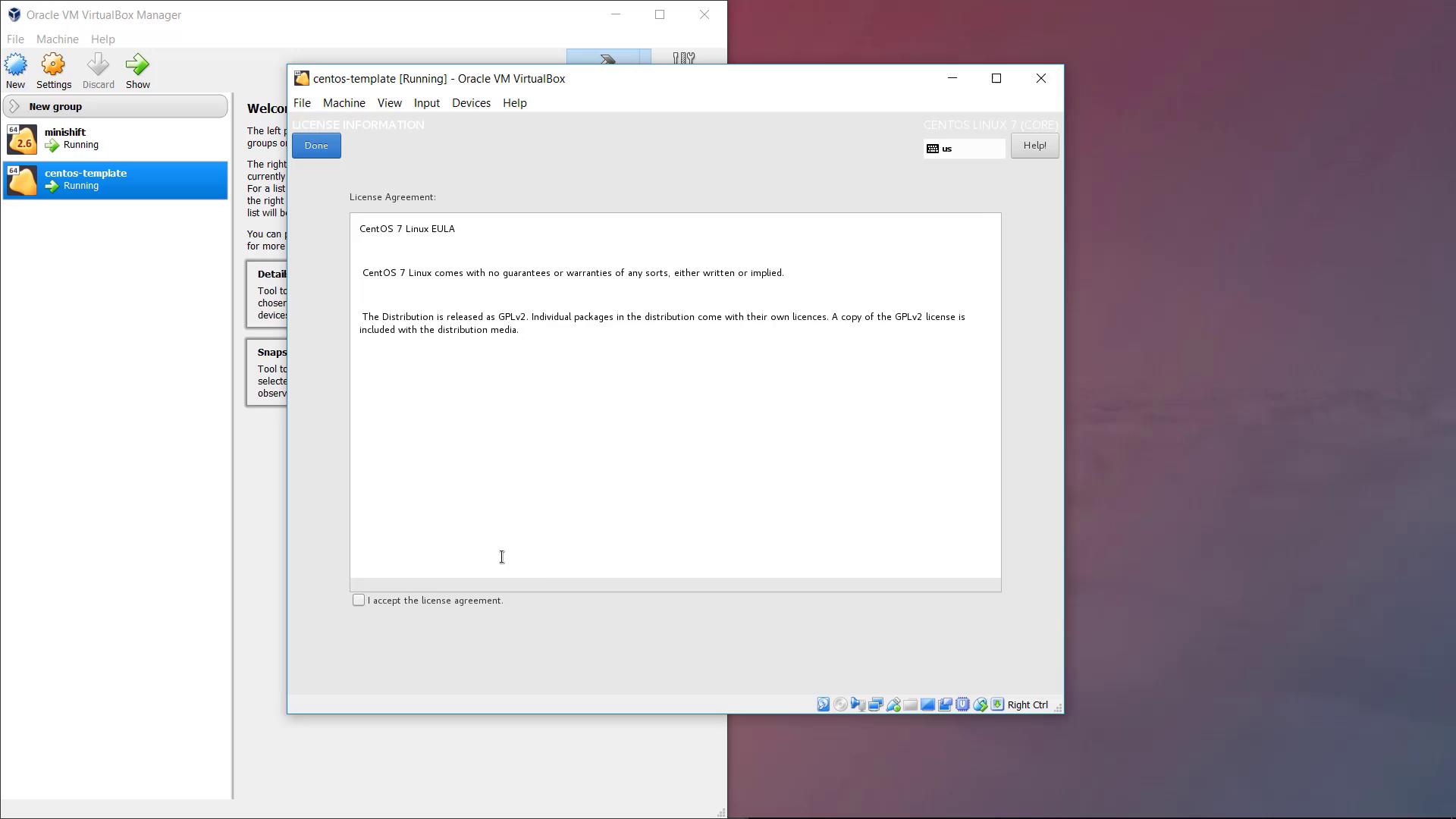
Power on the CentOS template. During boot-up, you’ll be prompted to accept the license agreement. Log in for the first time using the credentials provided on osboxes.org (the default password is “osboxes.org”).
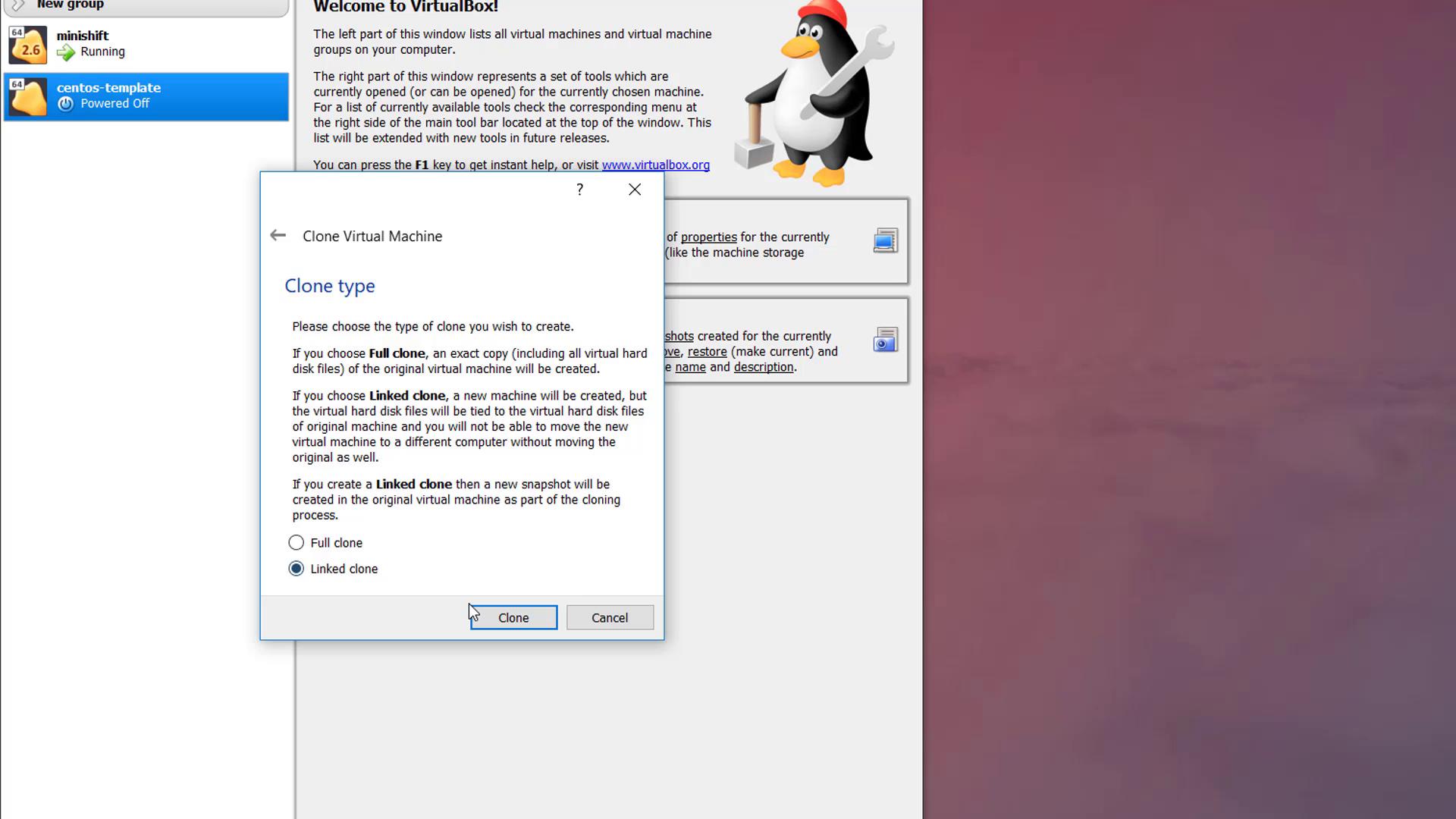
Once the initial configuration is complete, shut down the virtual machine. Right-click on the CentOS template and select “Clone” to create a new linked clone named “GitLab.” Ensure you check the “Reset MAC address” option so that the clone receives a unique MAC address. Power on the cloned “GitLab” VM and log in again using the “osboxes.org” password.
After logging into the GitLab VM, open a terminal and run the command ifconfig to view the network interfaces. You might observe that the host-only adapter (commonly named enp0s8) does not have an IP address assigned. To assign a static IP, create a new network script for that interface.
Navigate to the network scripts directory:
Copy
Ask AI
cd /etc/sysconfig/network-scripts
Copy the default loopback script as a template for the host-only adapter:
Copy
Ask AI
sudo cp ifcfg-lo ifcfg-enp0s8sudo vi ifcfg-enp0s8
Update the file with the following configuration (replace IP values as desired):
Deploy GitLab using Docker. If Docker is not installed, use the official Docker installation script:
Copy
Ask AI
curl -fsSL get.docker.com -o get-docker.shsudo sh get-docker.sh
Once Docker is installed, start the Docker service and deploy the GitLab container using one of the following commands. Use the first command for standard systems or the second if SELinux is enabled.Standard deployment:
Make sure that the hostname reflects the fully qualified domain name (FQDN) or the static IP address of your CentOS virtual machine.Allow a few minutes for GitLab to initialize. You can monitor the initialization process using:
Copy
Ask AI
sudo docker logs -f gitlab
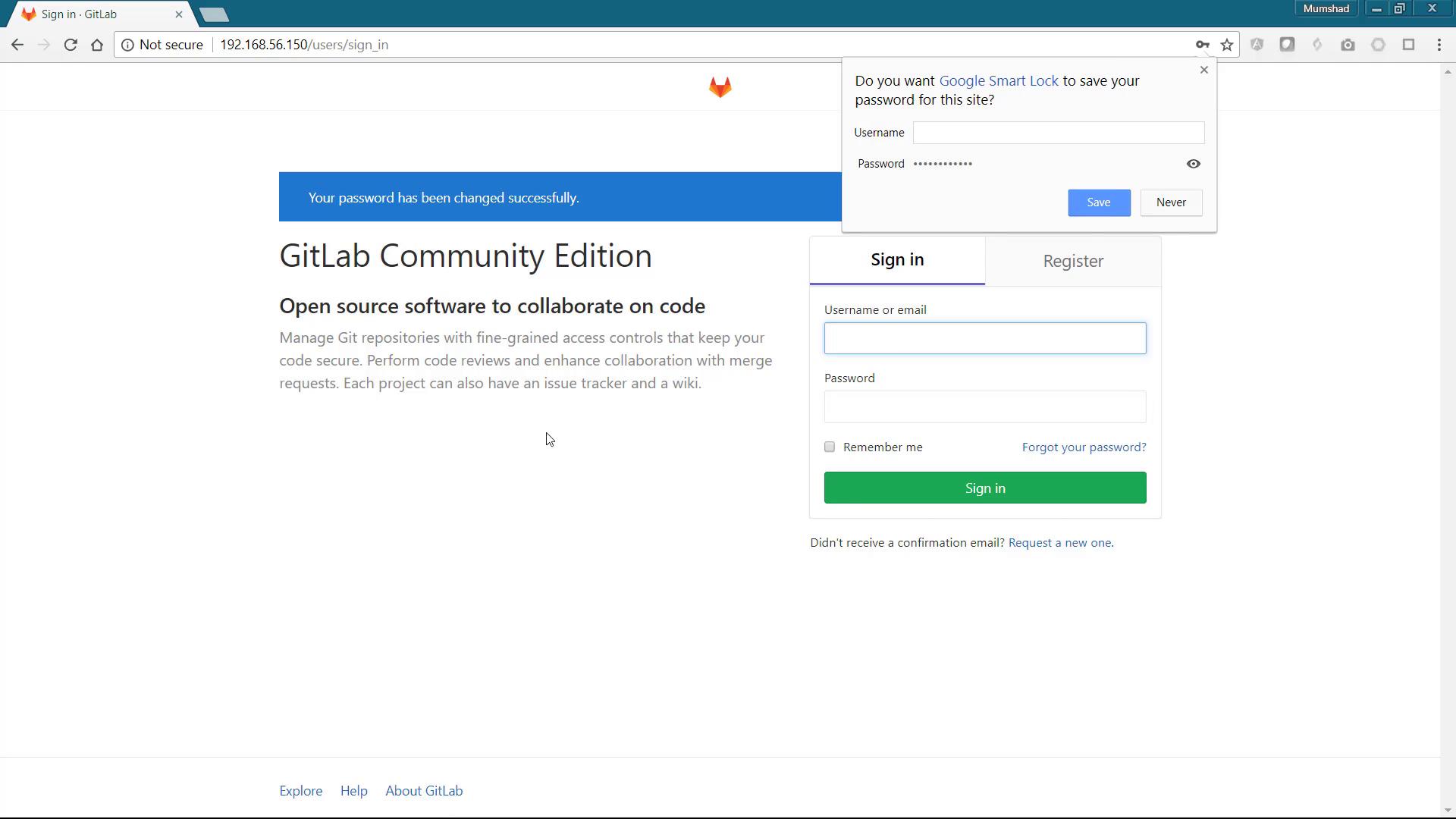
When GitLab prompts you to change the default password at first login, update it to secure your access. Log in with the username “root” and your new secure password.
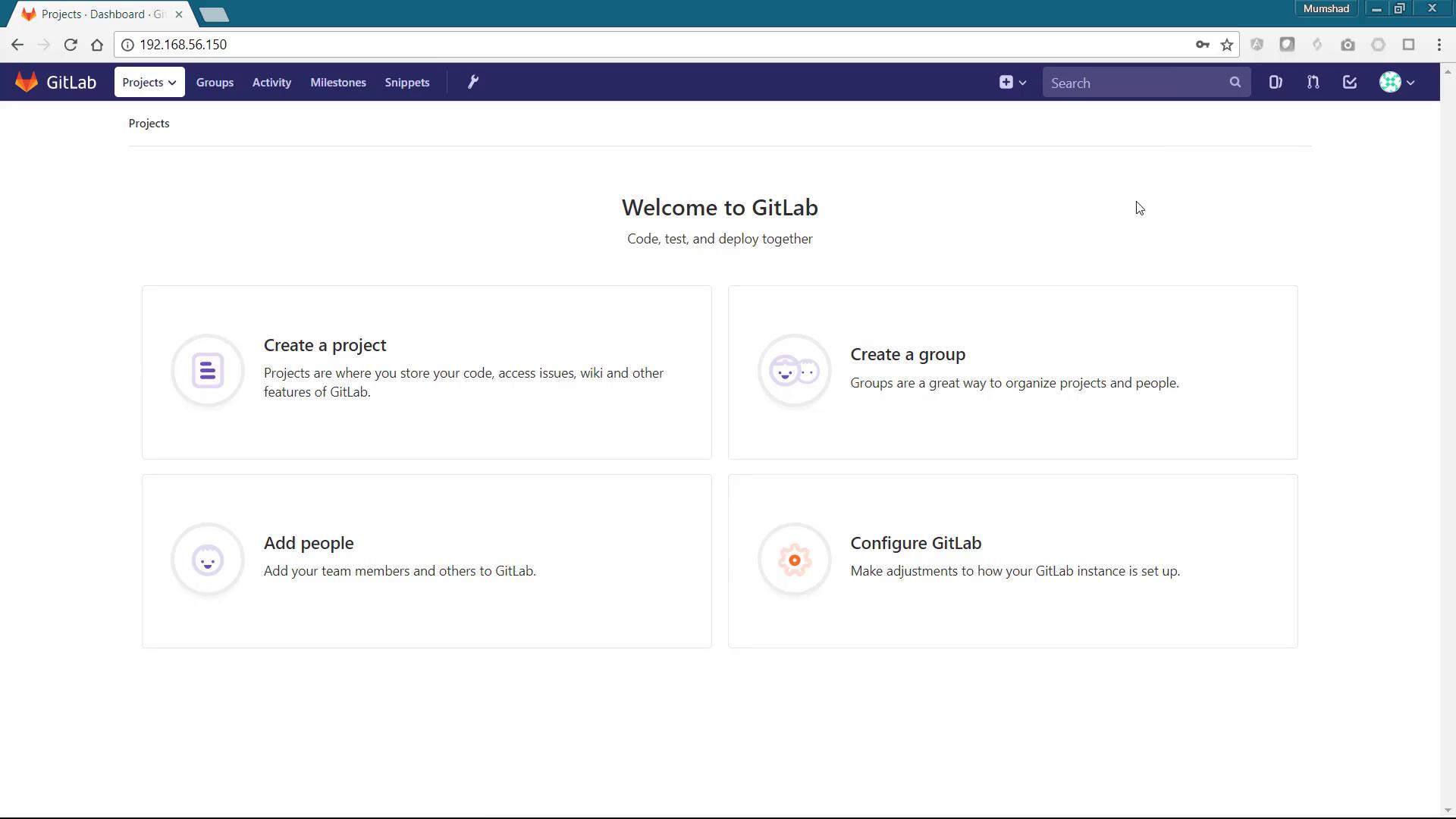
After successful configuration, the GitLab dashboard will be displayed, allowing you to create projects, manage groups, and configure additional settings.
Be sure to update the default credentials as soon as you log in to enhance the security of your GitLab installation.
Congratulations! You have now set up a fully functional local GitLab environment on your laptop. Enjoy your new development setup and happy coding!