

- A Slack workspace with appropriate permissions
- A GitLab project with repository access
1. Create a Slack Channel
- In Slack, click the + next to Channels.
- Name it
gitlab-notifications(or GitLab Notifications). - Optionally set it to Private to restrict access.
- Skip adding members for this demo.
Use a clear, descriptive name (like
gitlab-notifications) so team members know exactly where to find CI/CD alerts.2. Install GitLab for Slack
In your GitLab project:- Navigate to Settings → Integrations.
- Scroll to GitLab for Slack and click Install.
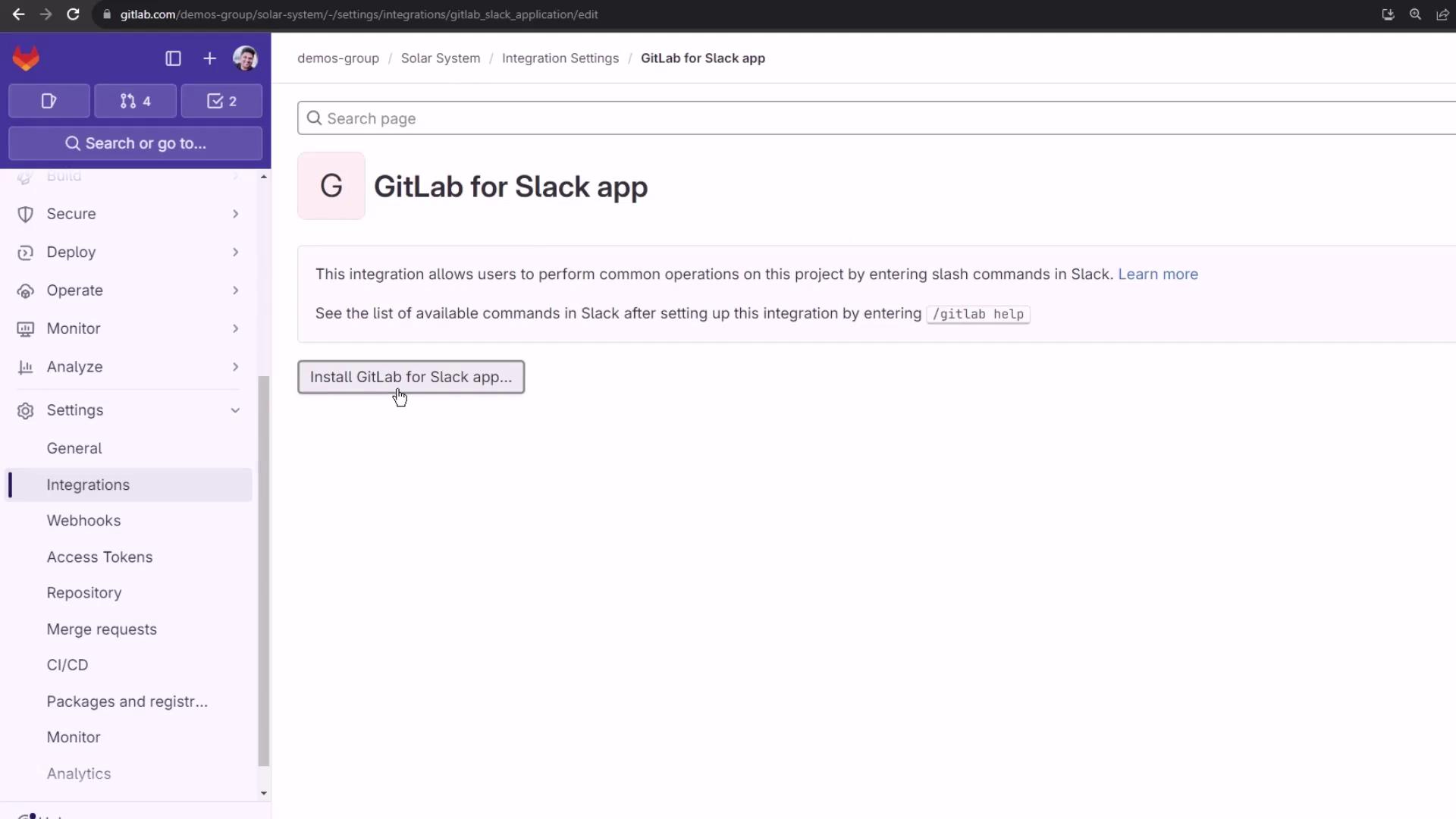
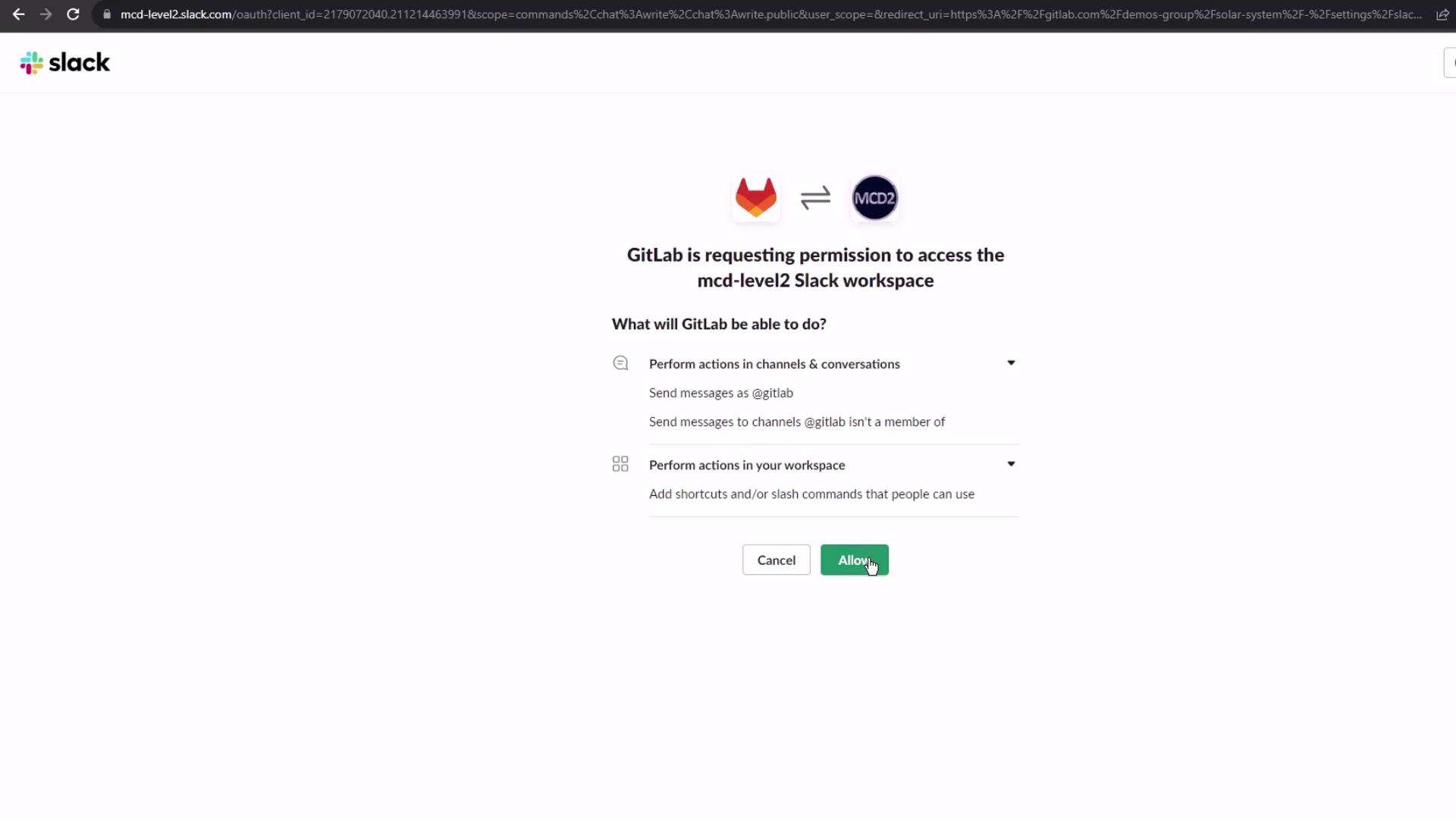
Ensure you have admin privileges in Slack. Without proper scope, GitLab cannot post notifications.
3. Configure Notification Triggers
Back in GitLab’s integration settings:- Verify or edit the Project alias (e.g.,
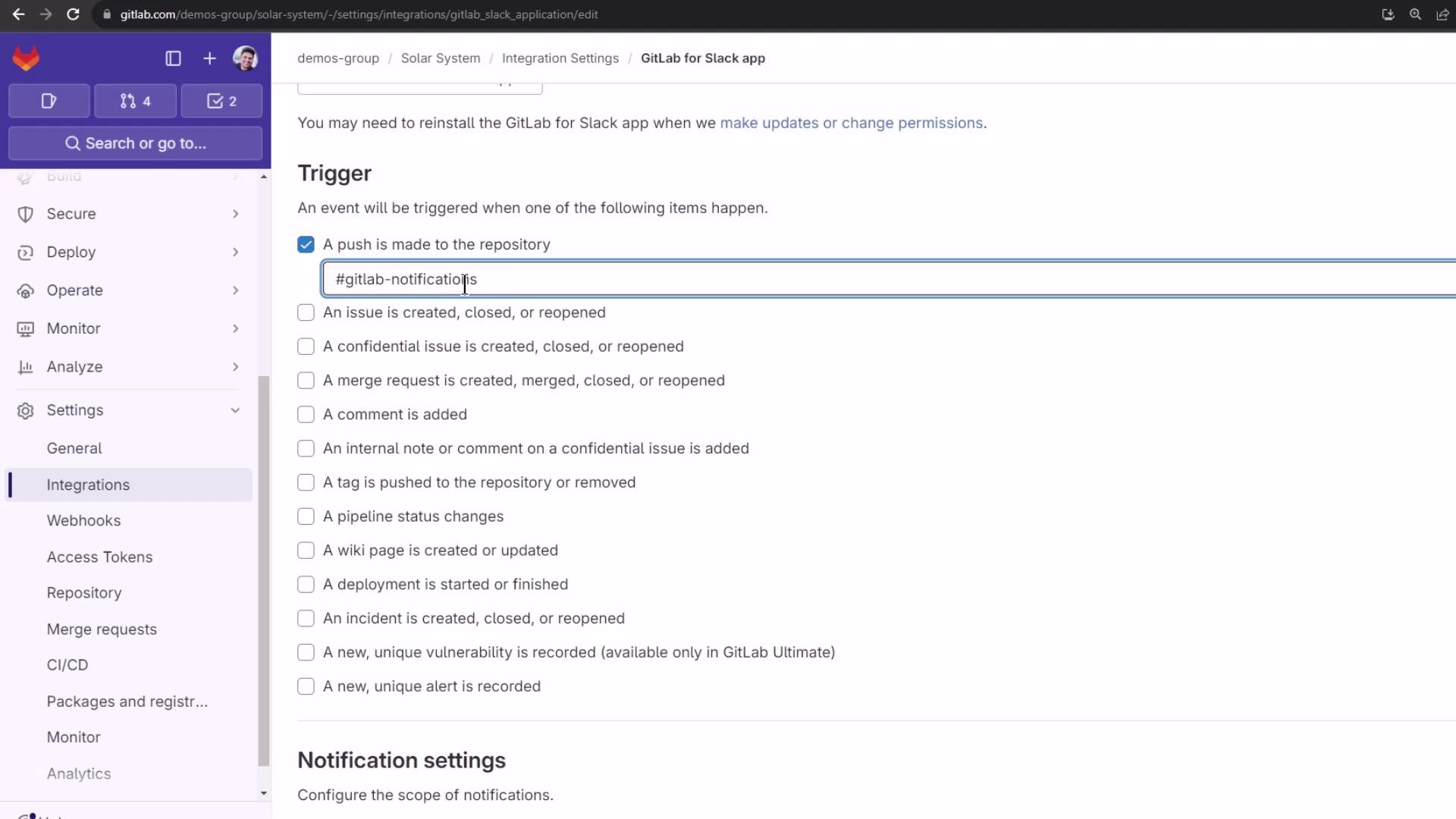
group/project@timestamp). - Under Triggers, select Push events.
- Enter your Slack channel name:
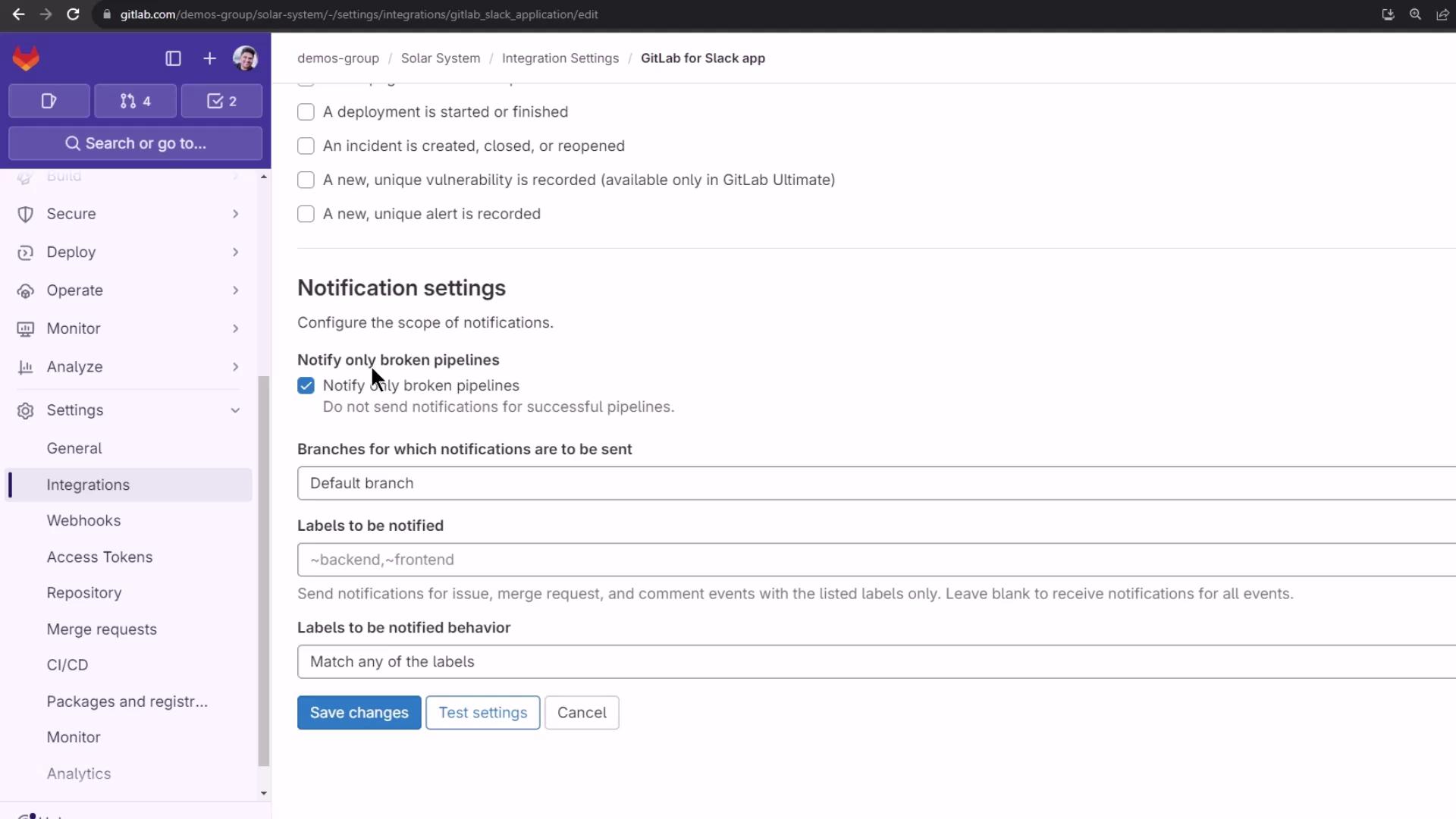
gitlab-notifications. - In Notifications, deselect Notify only for broken pipelines if you want updates on all statuses.
- Under Branches, choose All branches (or specify a subset).
- Click Test settings to send a sample alert.
- Finally, click Save changes.
| Trigger Event | Description |
|---|---|
| Push events | Notify on every repository push in the project. |
| Merge requests | (Optional) Alerts when a merge request is created or updated. |
| Pipeline | Stream pipeline status changes to Slack. |
4. Commit Changes to Trigger Notifications
To test notifications, add or update your.gitlab-ci.yml:
5. Review the Slack Notification
In the#gitlab-notifications channel, you’ll see a message containing:
- Who pushed the changes
- Target branch
- Project alias (group/project)
- Commit ID and summary
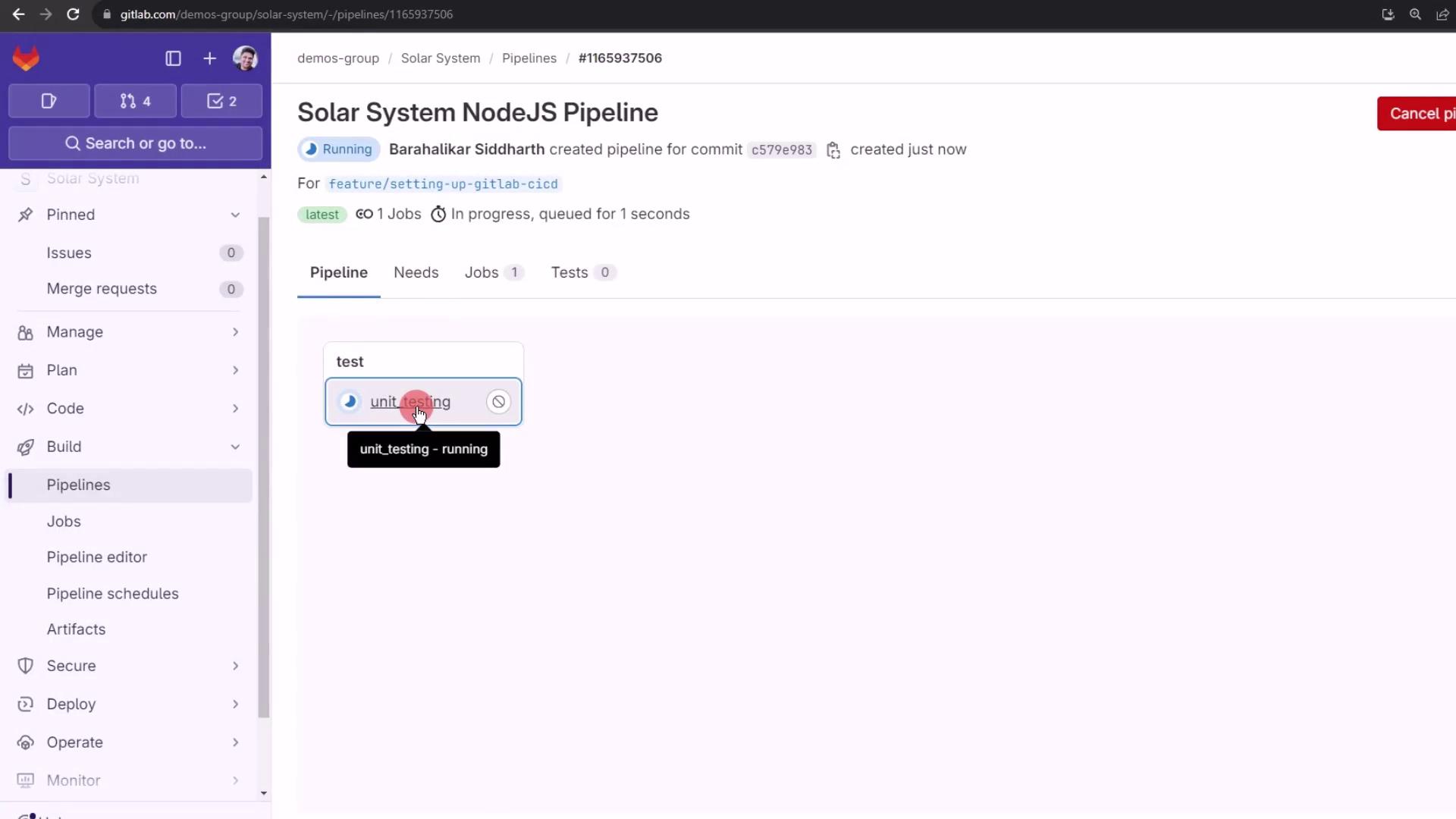
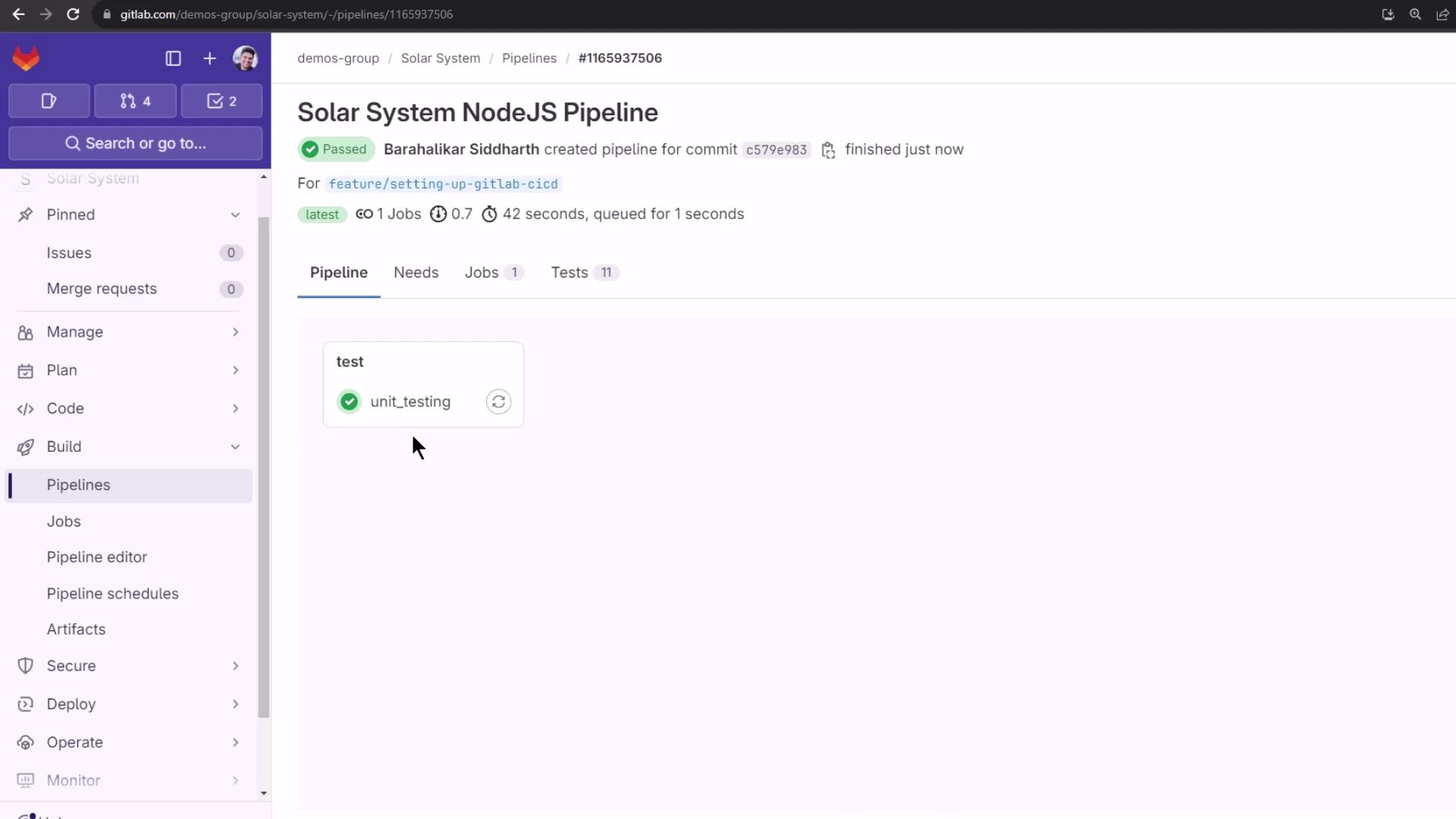
6. Monitor the Pipeline in GitLab
While Slack delivers alerts, you can still manage your pipeline in GitLab. For example, adocker_push job might look like:
Next Steps
- Use slash commands in Slack to trigger pipelines and view statuses.
- Explore additional event triggers (merge requests, pipeline updates, issue events).