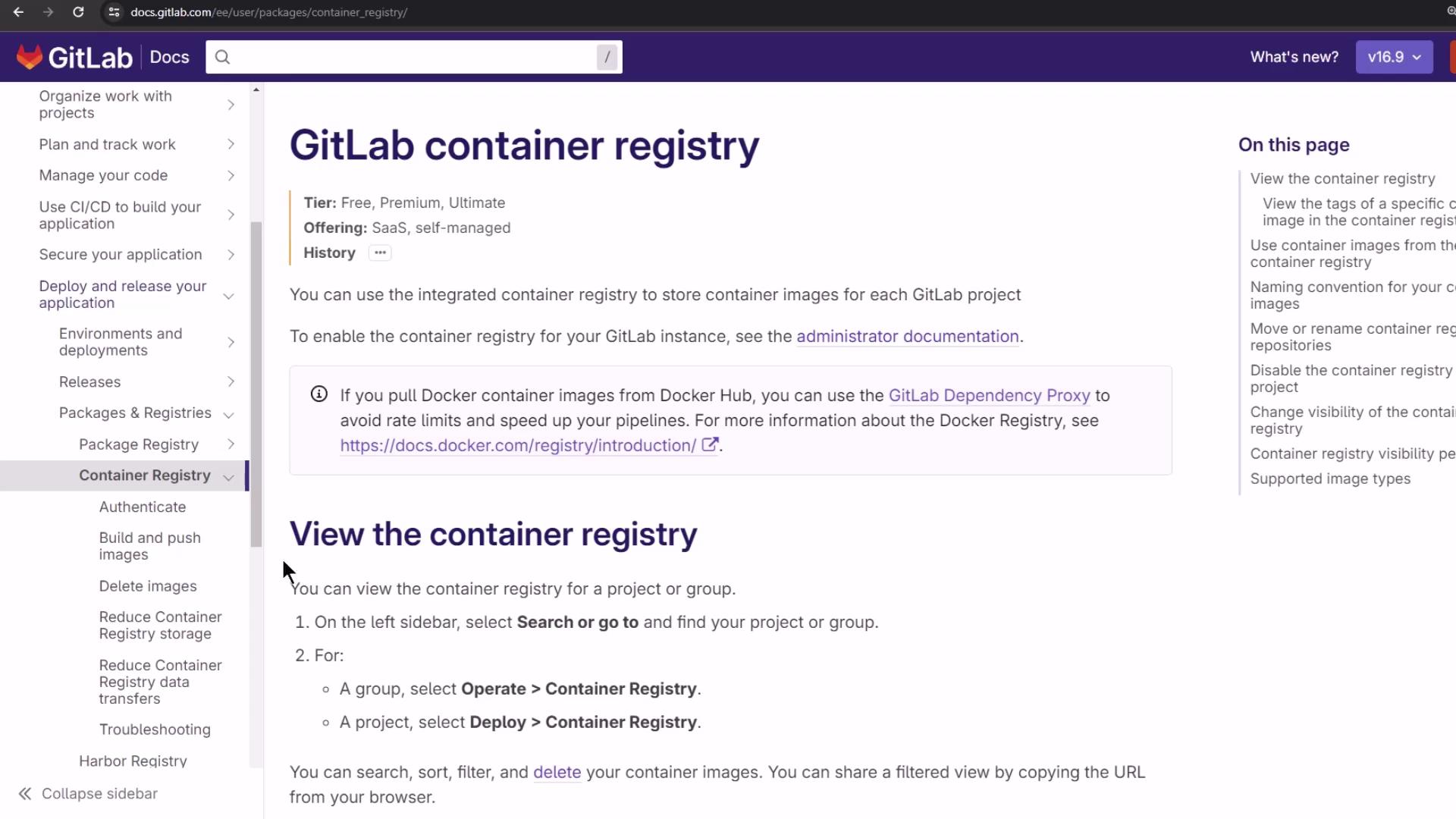
In this guide, you’ll learn how to authenticate with GitLab’s integrated Container Registry and publish your Docker images—both manually and via GitLab CI/CD pipelines. The Container Registry is available for every GitLab project, offering a secure, private registry alongside your code.
Authentication Methods GitLab supports several registry authentication methods:
Personal Access Tokens Deploy Tokens Project Access Tokens Group Access Tokens
Refer to the official GitLab Container Registry guide for details on creating and managing tokens.
Logging in with a Token Locally, you can log in using any valid token:
TOKEN =< your_token > docker login registry.example.com -u < usernam e > --password-stdin <<< " $TOKEN "
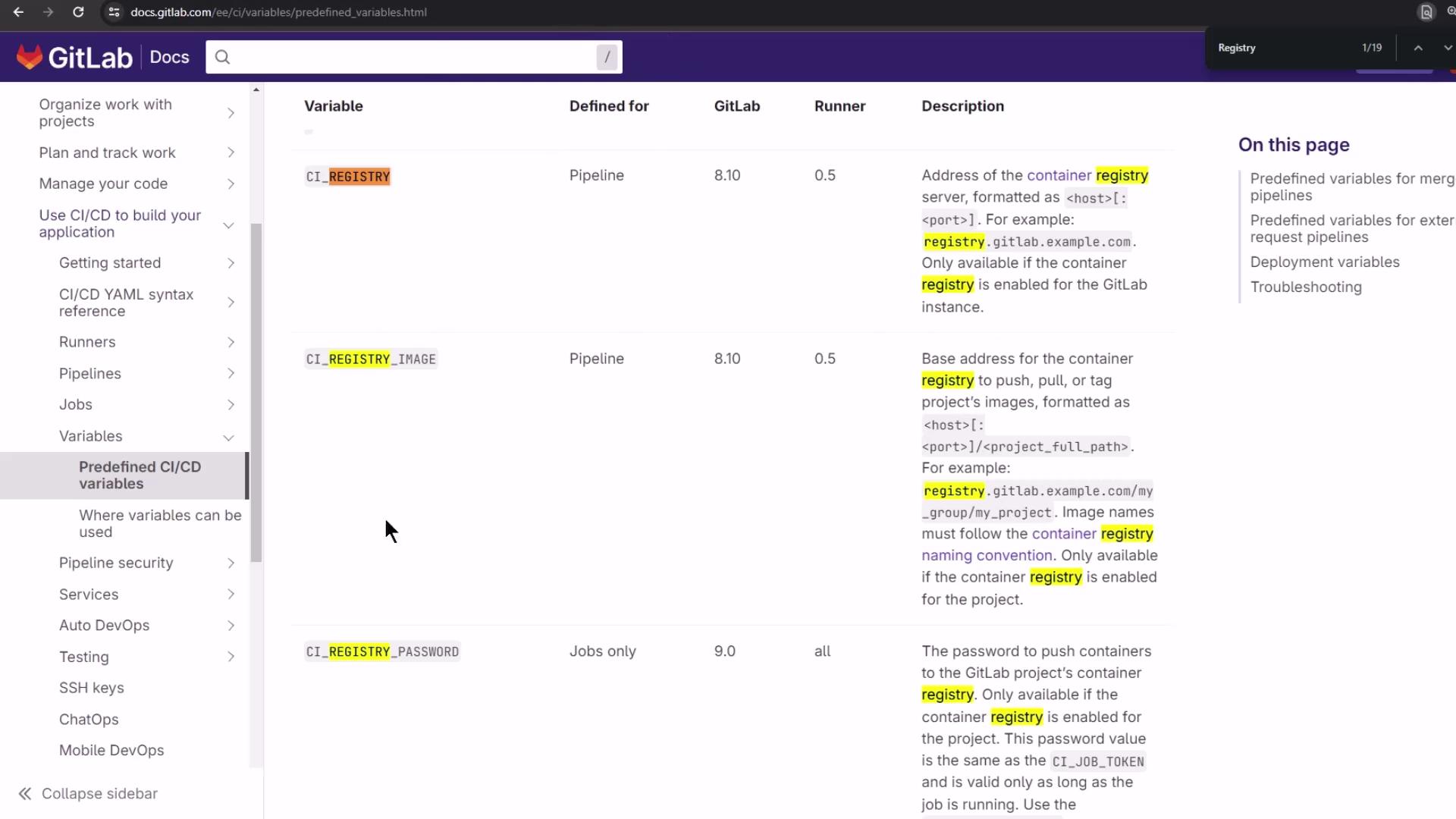
Within a GitLab CI/CD job, leverage predefined variables for seamless authentication:
docker login $CI_REGISTRY -u $CI_REGISTRY_USER --password-stdin <<< " $CI_REGISTRY_PASSWORD " docker login $CI_REGISTRY -u $CI_REGISTRY_USER --password-stdin <<< " $CI_JOB_TOKEN " docker login $CI_REGISTRY -u $CI_DEPLOY_USER --password-stdin <<< " $CI_DEPLOY_PASSWORD "
Always keep your tokens secure. GitLab’s predefined variables (e.g., CI_JOB_TOKEN) expire automatically, reducing exposure risk.
Building and Pushing Images Manually If you prefer to build and push outside of CI/CD, follow these steps:
docker build -t registry.gitlab.com/ < grou p > / < projec t > / < image-nam e > . docker push registry.gitlab.com/ < grou p > / < projec t > / < image-nam e >
Replace <group>, <project>, and <image-name> with your specific values.
GitLab CI/CD Job: publish_gitlab_container_registry Below is an example publish_gitlab_container_registry job that:
Loads a prebuilt image archive
Authenticates to the registry
Tags the image
Pushes it upstream
publish_gitlab_container_registry : stage : containerization needs : - docker_build - docker_test image : docker:24.0.5 services : - docker:24.0.5-dind script : - docker load -i image/solar-system-image-$CI_PIPELINE_ID.tar - echo "Registry : $CI_REGISTRY | User : $CI_REGISTRY_USER | Repo : $CI_REGISTRY_IMAGE" - docker login $CI_REGISTRY -u "$CI_REGISTRY_USER" -p "$CI_REGISTRY_PASSWORD" - docker tag $DOCKER_USERNAME/solar-system:$IMAGE_VERSION $CI_REGISTRY_IMAGE/ss-image:$IMAGE_VERSION - docker images - docker push $CI_REGISTRY_IMAGE/ss-image:$IMAGE_VERSION
Predefined CI/CD Variables Variable Description Example CI_REGISTRY Hostname of the container registry registry.gitlab.comCI_REGISTRY_USER Username for Docker login (typically a CI job token) $CI_REGISTRY_USERCI_REGISTRY_PASSWORD Password or token for authentication $CI_REGISTRY_PASSWORDCI_REGISTRY_IMAGE Full path to the project’s image repo registry.gitlab.com/group/project
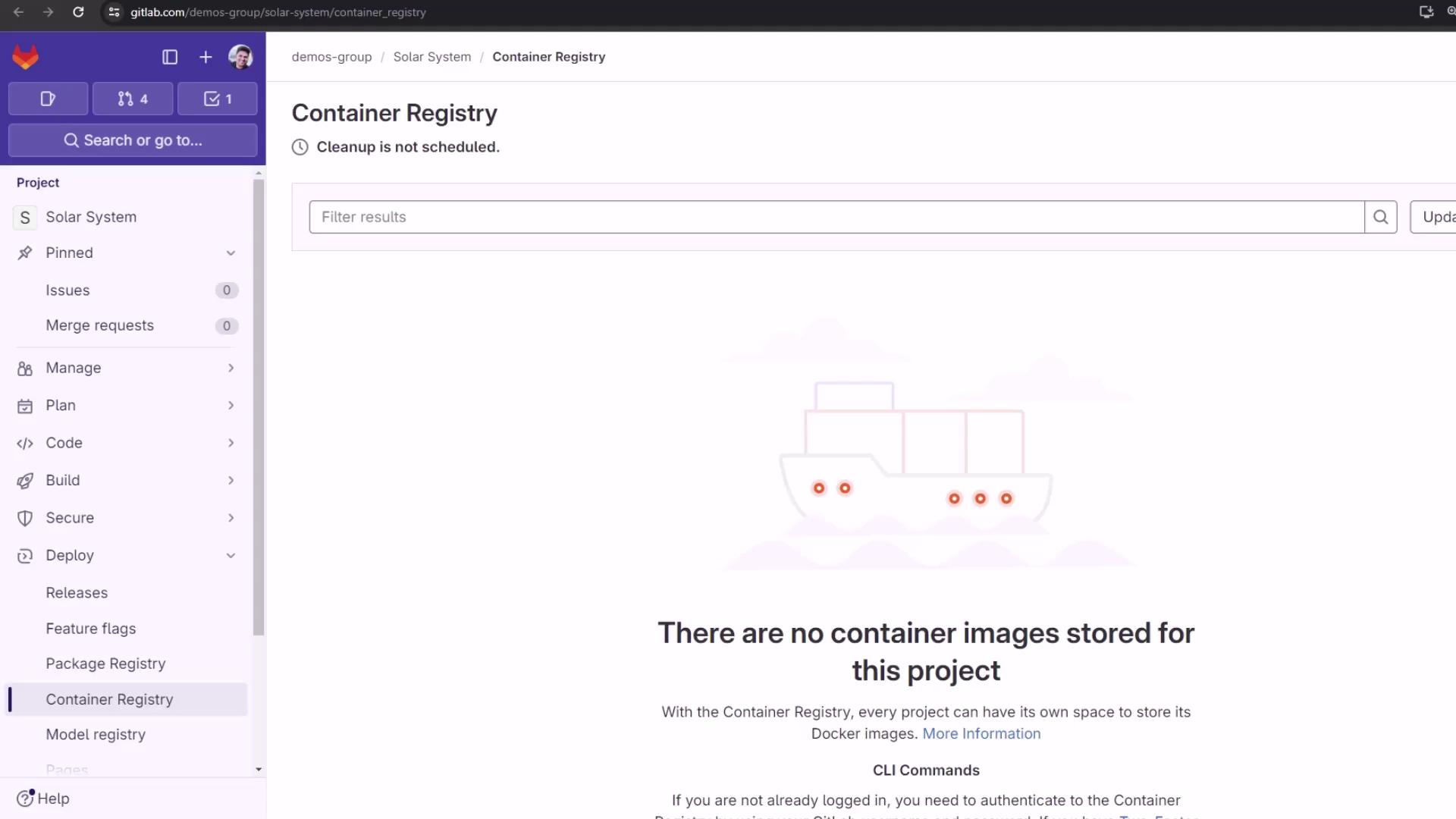
Viewing the Registry Before and After Push Before any push, the Container Registry is empty:
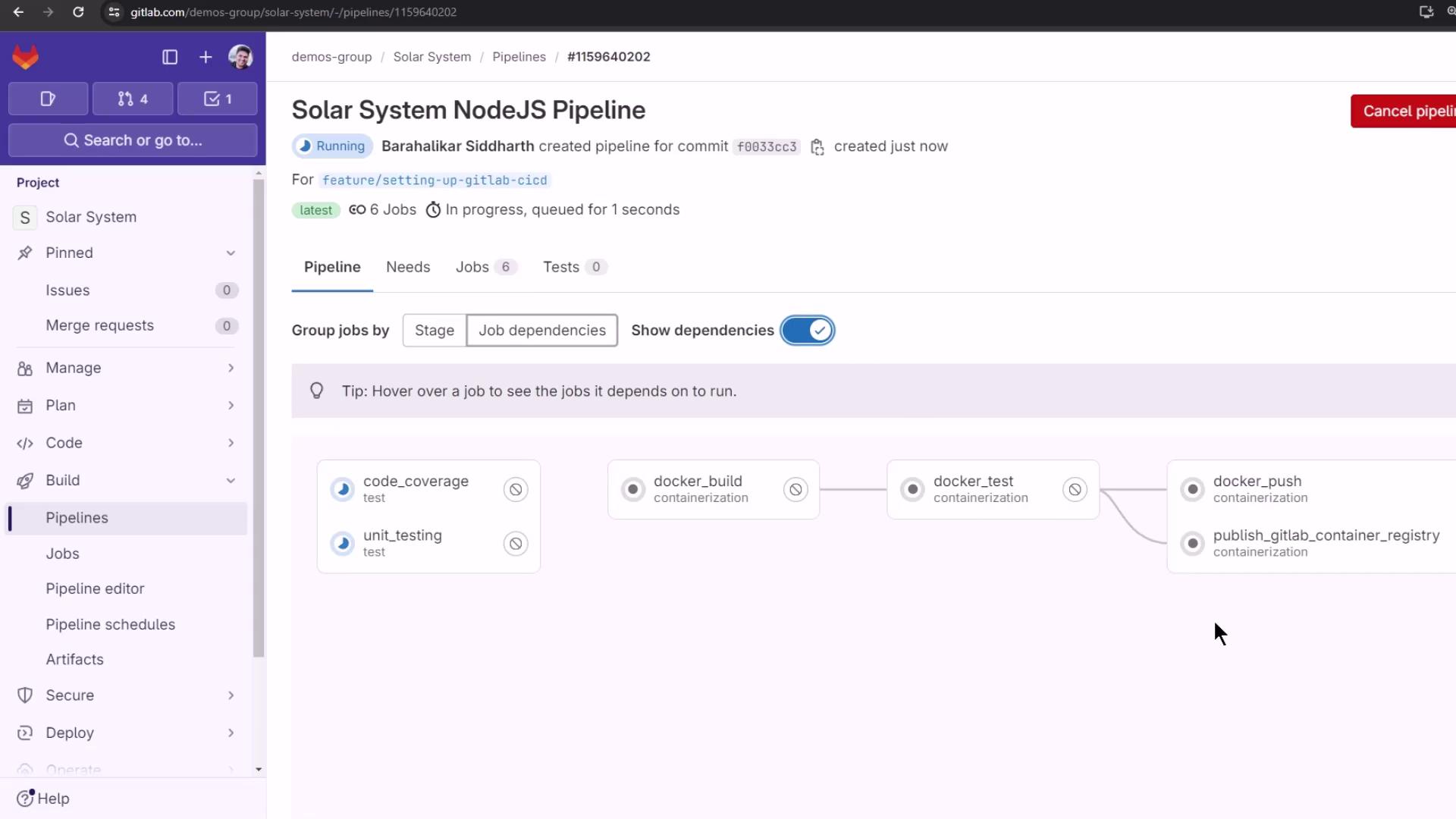
After committing your .gitlab-ci.yml and running the pipeline, the publish_gitlab_container_registry job executes in parallel with other containerization steps:
Troubleshooting Login Errors If you encounter a syntax error using --password-stdin, switch to the -p flag:
-script:
-  - docker login $CI_REGISTRY -u "$CI_REGISTRY_USER" --password-stdin <<< "$CI_REGISTRY_PASSWORD"
+script:
+  - docker login $CI_REGISTRY -u "$CI_REGISTRY_USER" -p "$CI_REGISTRY_PASSWORD"
Passing passwords directly via -p can be insecure. Use --password-stdin where possible, and ensure your CI logs are protected.
Verifying a Successful Push Once the job completes, your logs should look like this:
$ docker load -i image/solar-system-image- $CI_PIPELINE_ID .tar $ echo "Registry: $CI_REGISTRY = $CI_REGISTRY_USER = $CI_REGISTRY_IMAGE " $ docker login $CI_REGISTRY --username= " $CI_REGISTRY_USER " --password= " $CI_REGISTRY_PASSWORD " WARNING! Using --password via the CLI is insecure. Use --password-stdin. $ docker tag $DOCKER_USERNAME /solar-system: $IMAGE_VERSION $CI_REGISTRY_IMAGE /ss-image: $IMAGE_VERSION $ docker images $ docker push $CI_REGISTRY_IMAGE /ss-image: $IMAGE_VERSION
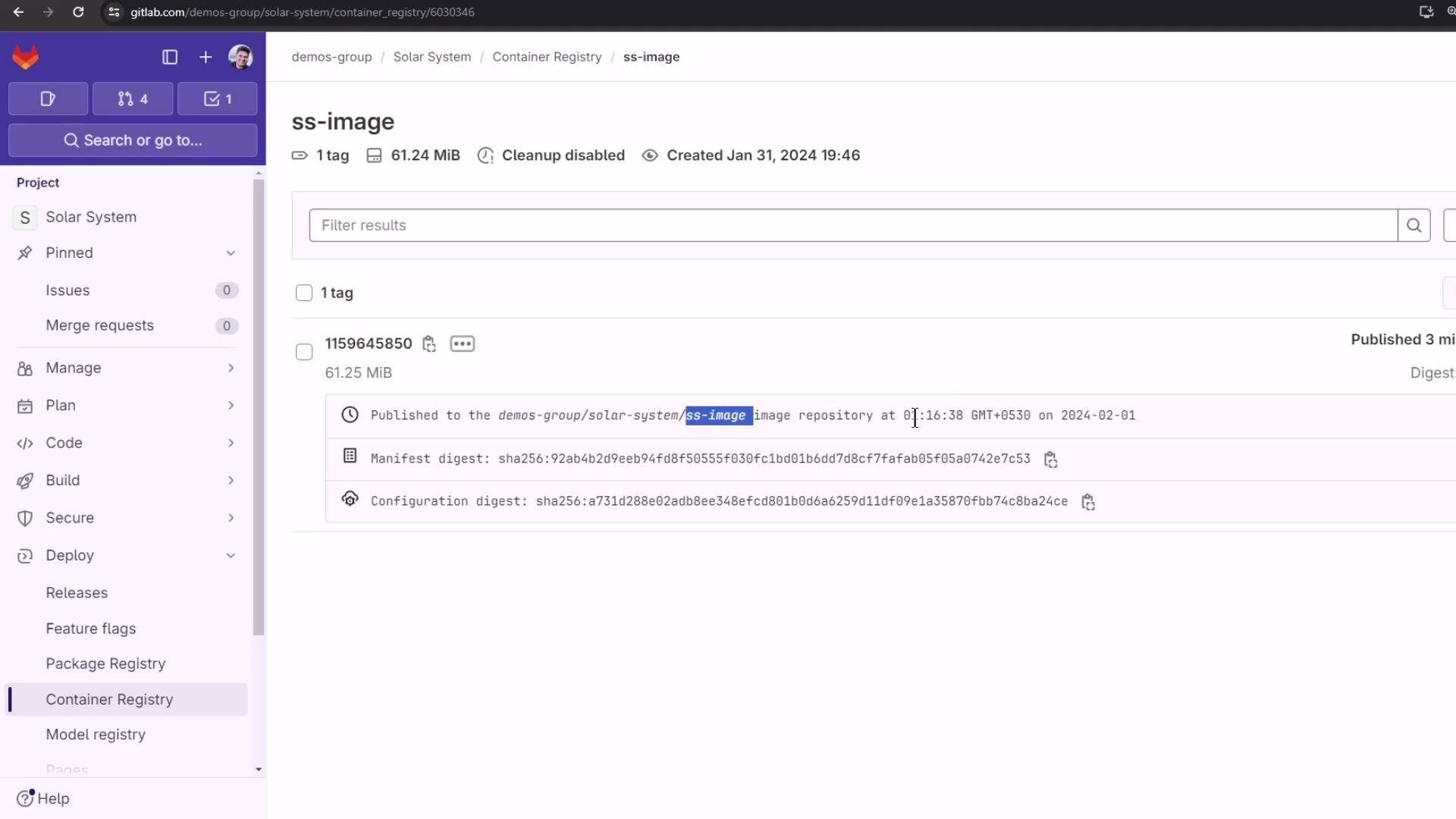
Returning to the Container Registry now reveals the newly published image:
Here you can inspect tags, image sizes, and manifest digests. You’ve successfully published your Docker image to GitLab’s Container Registry!