

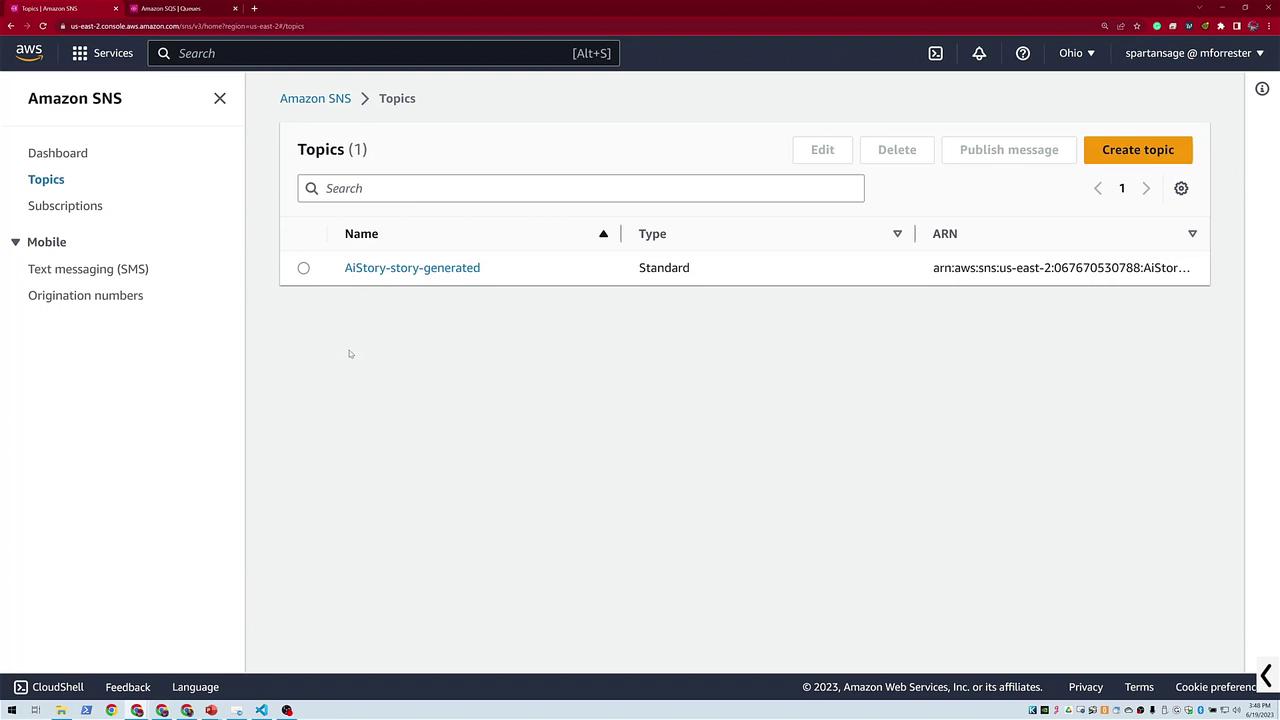
Step 1. Create an SNS Topic
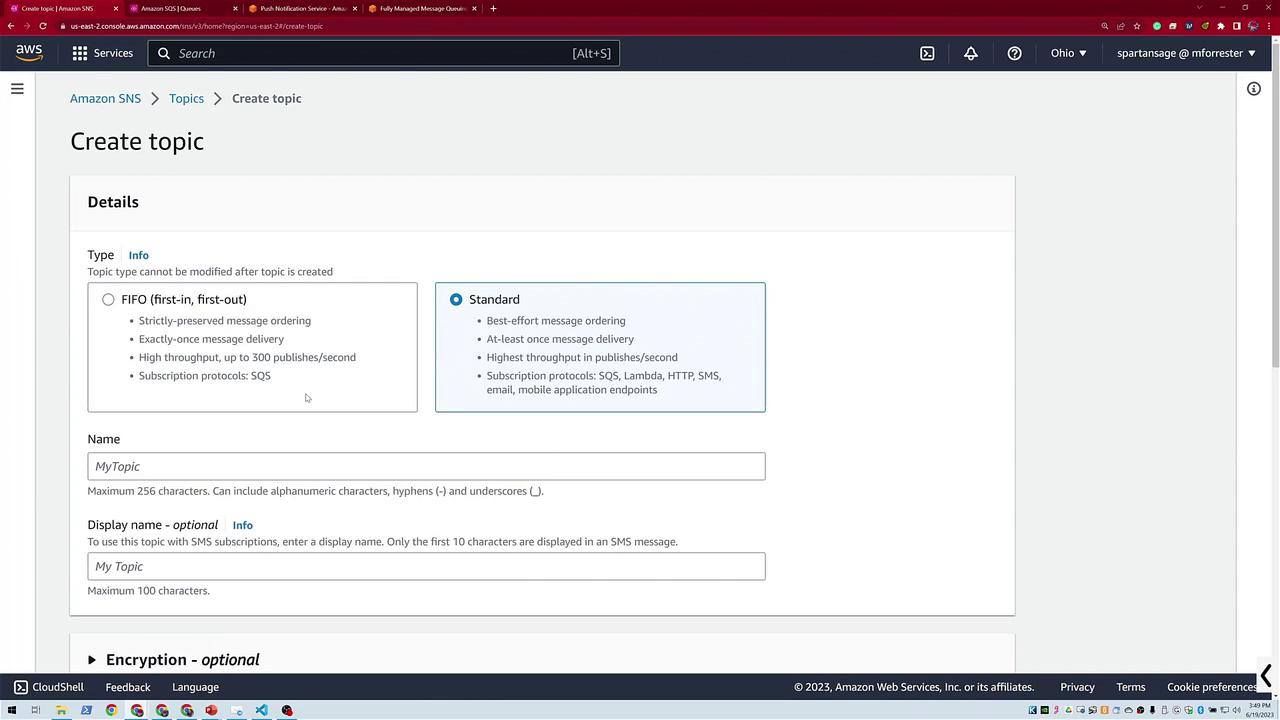
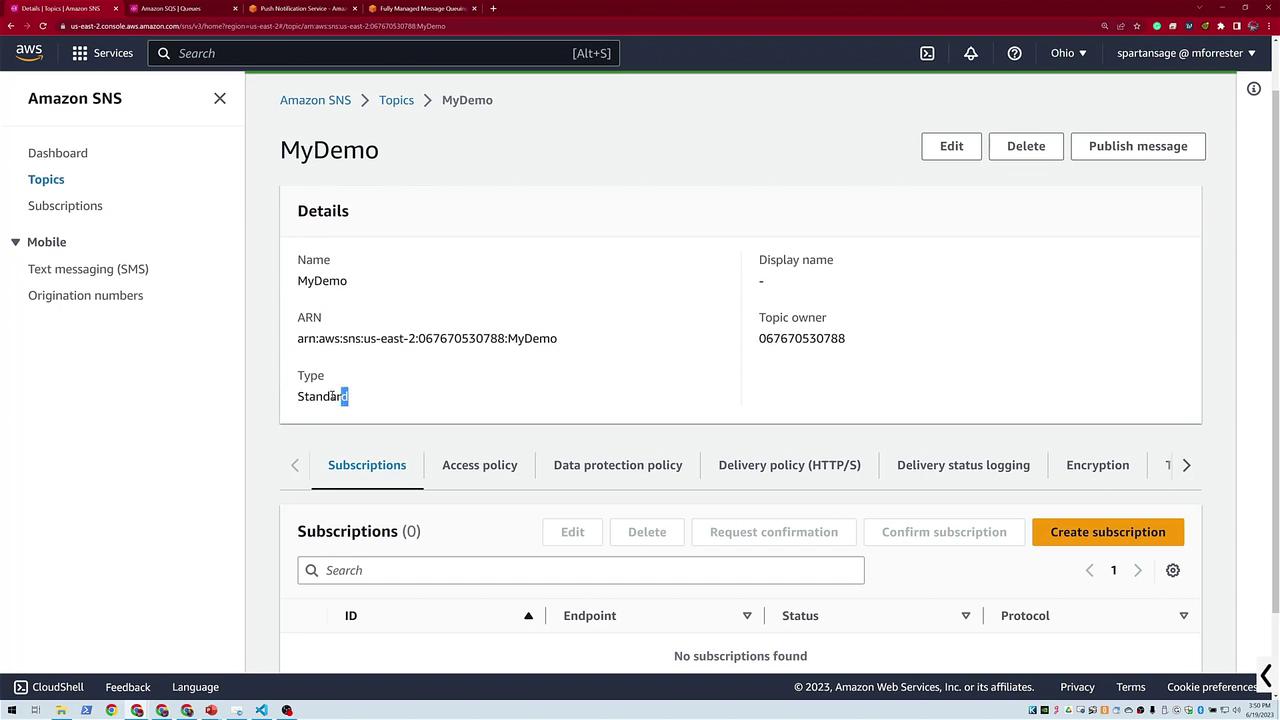
In this demo, we first create an SNS topic. Make sure you are operating in the Ohio region (as indicated in the upper right-hand corner) and notice the existing topic along with three existing subscriptions. Now, click the “Create topic” button to start a new topic setup.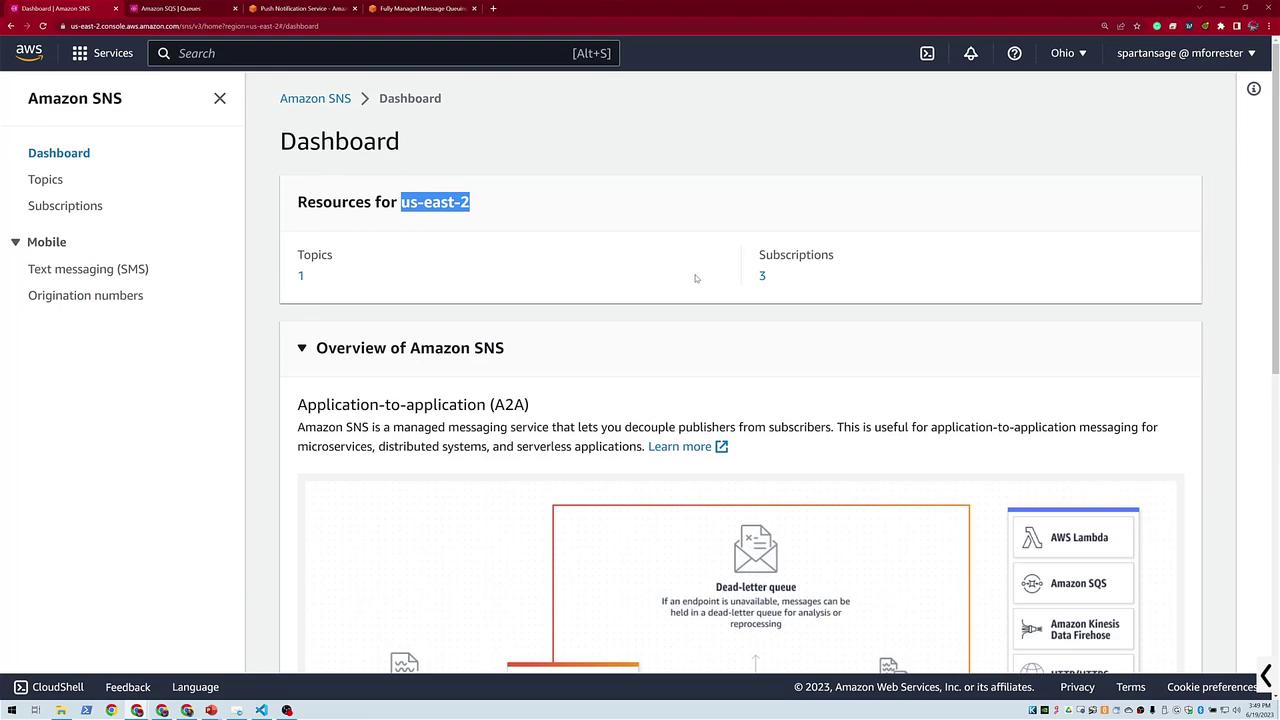
Step 2. Add Subscriptions to Your SNS Topic
Email Subscription
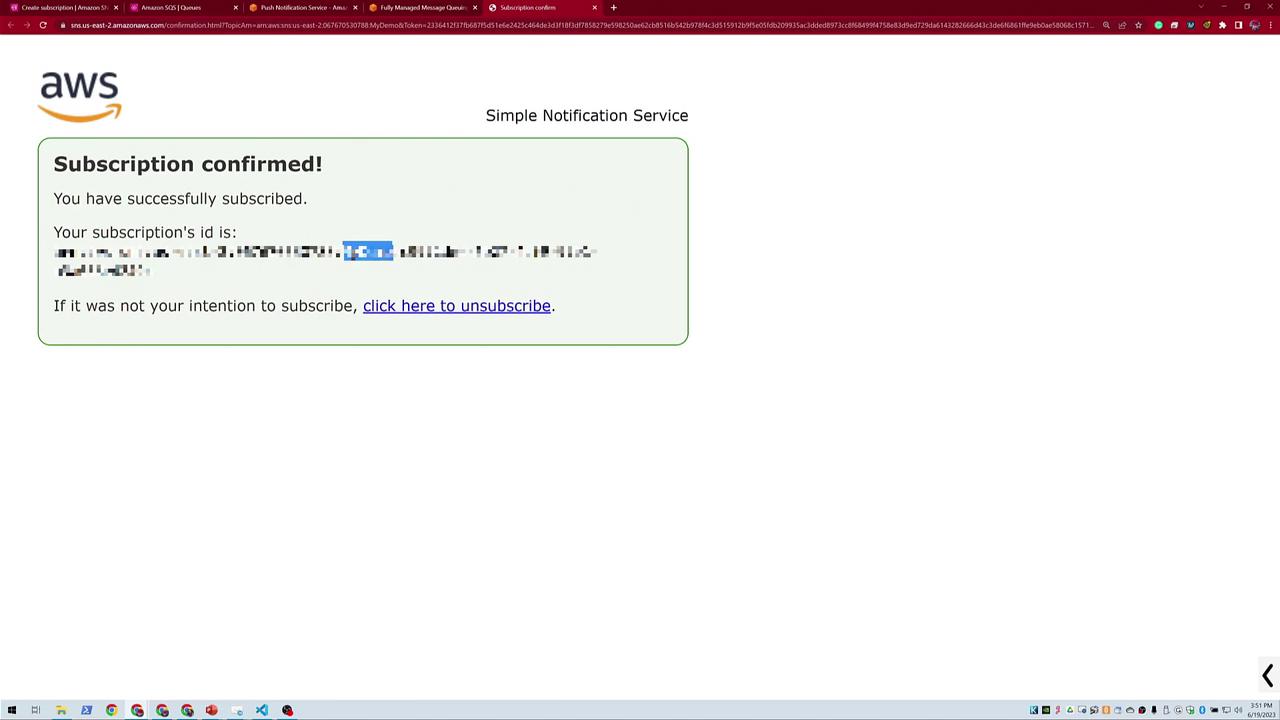
- Click on the Subscription button.
- Enter your email address (for example, Michael Forrester at KodeKloud.com) and create the subscription.

SQS Queue Subscription
Next, subscribe an SQS queue to the SNS topic:- Return to the topic page.
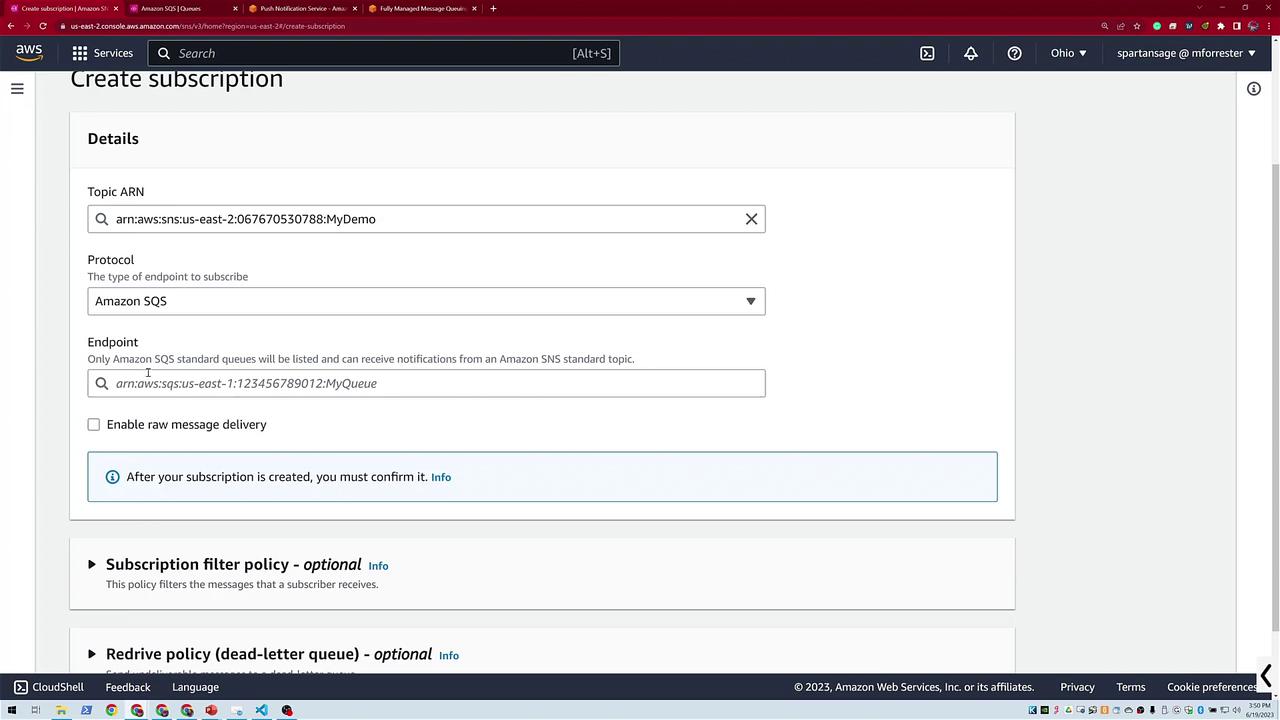
- Choose to create another subscription and select Amazon SQS as the endpoint.
- When prompted, paste the ARN of your SQS queue.
Step 3. Set Up an SQS Queue and Complete the Integration
Create the SQS Queue
- In the SQS console, create a new standard queue named My Simple Queue using default settings. Although options like visibility timeout, delivery delay, and encryption are available, you can leave them as is for this demo.
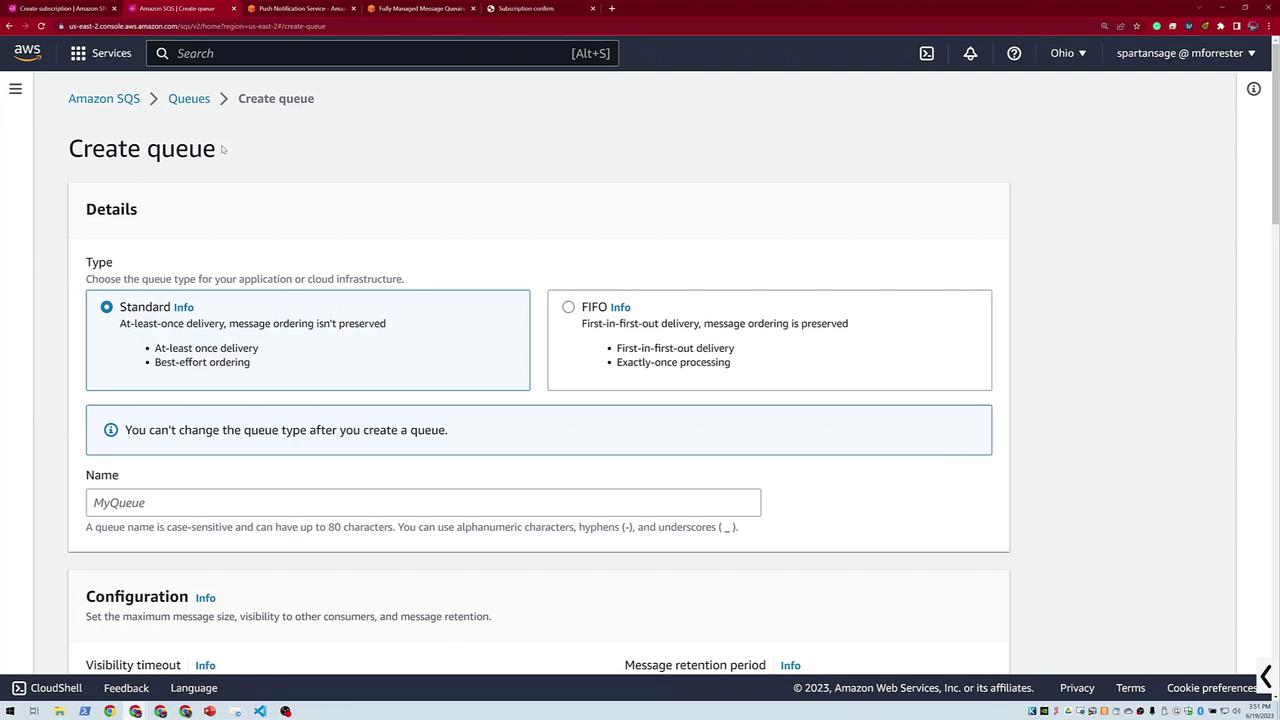
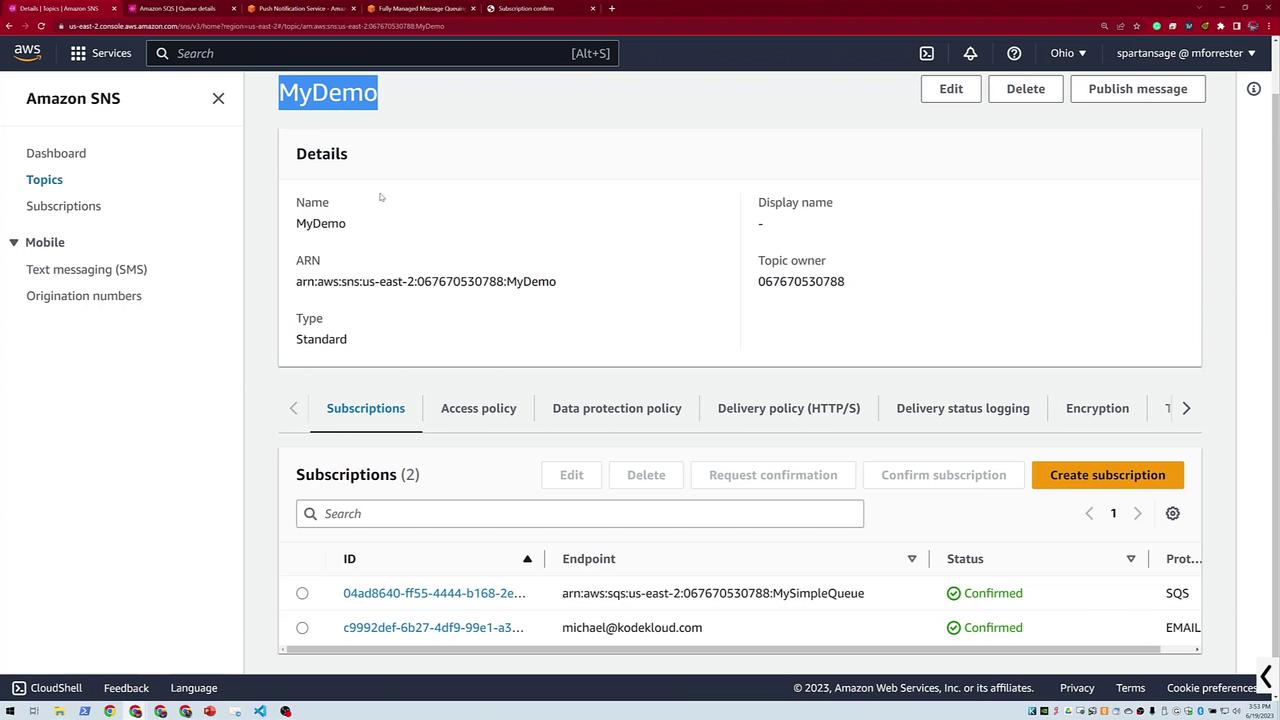
- Copy the queue’s ARN and use it to complete the SNS subscription process.
- Enable raw message delivery and then click Create Subscription. Now, “My Demo Topic” will have two subscriptions: one for email notifications and one for the SQS queue. When a new message is published to the topic, both endpoints will receive it.
Update the SQS Queue’s Access Policy
Before sending any messages, update the SQS access policy to allow SNS to send messages to your queue.- In the SQS console, locate the Access Policy section.
- Replace the default IAM principal with a service declaration for SNS.
NOTE: Correct Policy Configuration
Update the policy to grant SNS exclusive permission using its service principal:
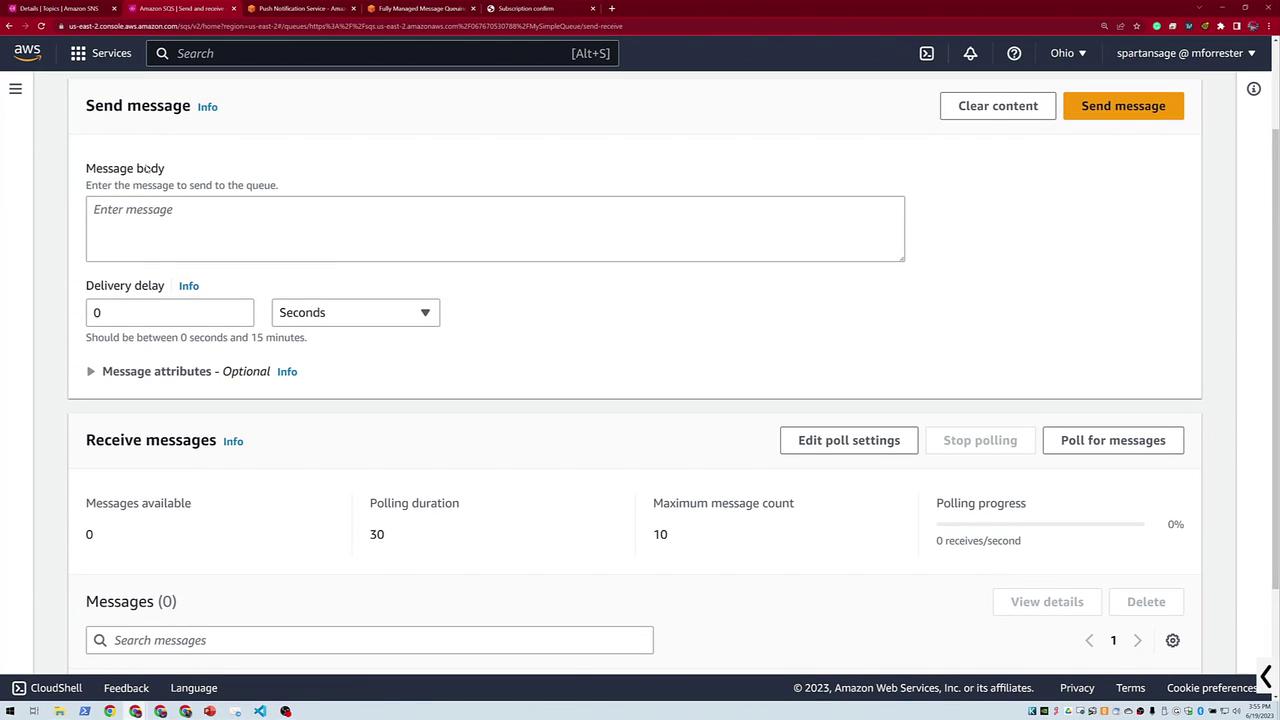
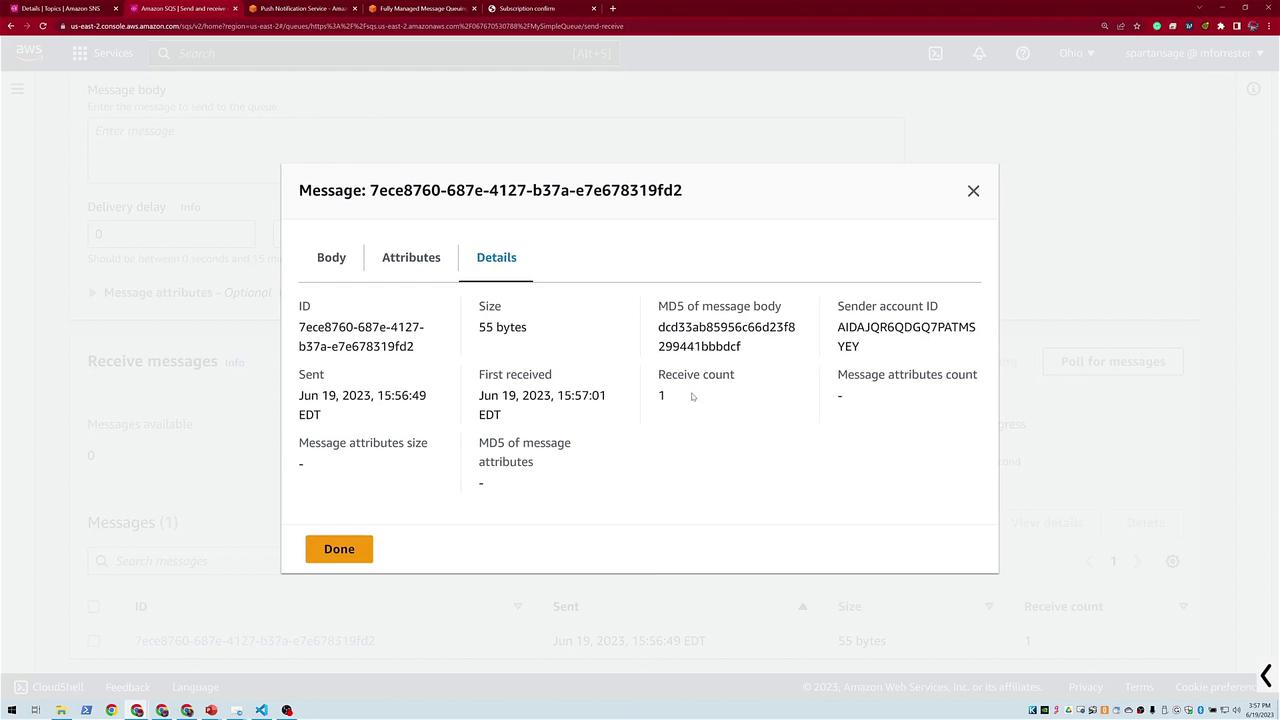
- Navigate to your SQS queue and use the “Send and receive messages” option to verify that messages are being received. Initially, the queue may show no messages because it uses a sliding mechanism (approximately a 30-second delay) while polling for new messages.
Step 4. Test the Integration by Publishing a Message
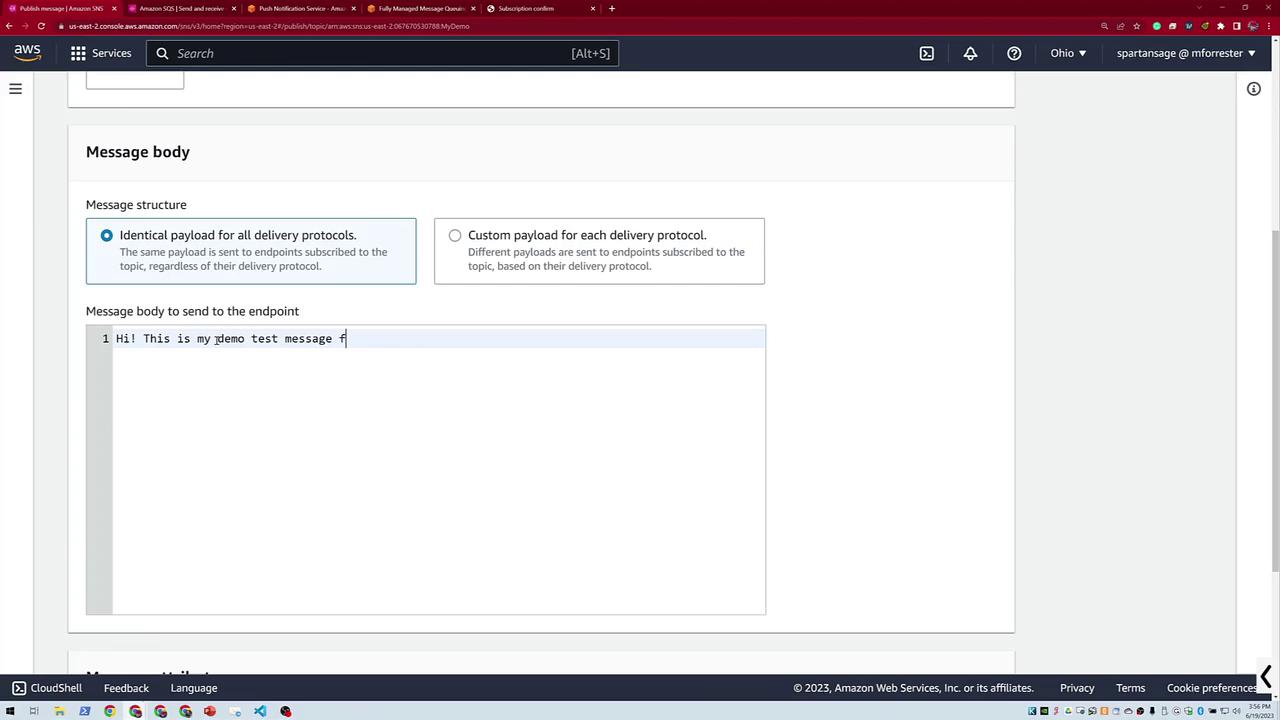
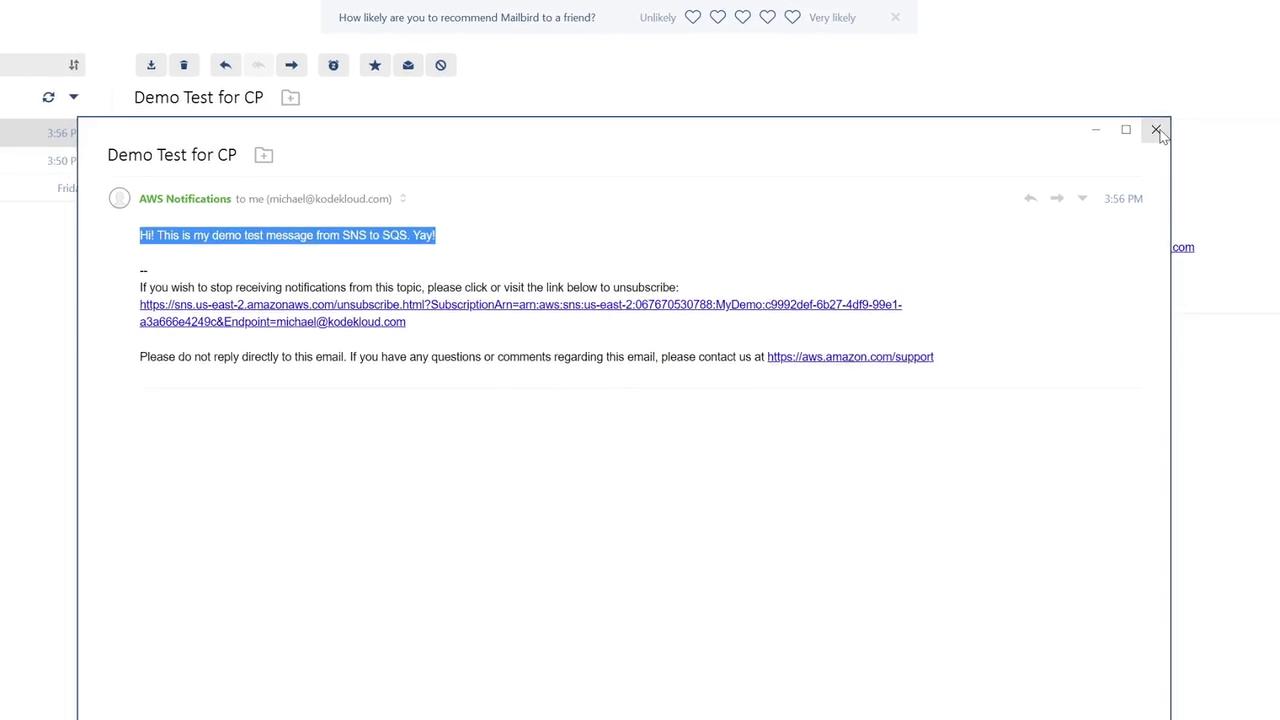
Return to the SNS console where your SQS subscription is linked, then publish a message to the “My Demo Topic” using the following details:- Message Title: Demo Test for CP (Cloud Practitioner)
- Message Body: “Hi, this is my demo test message from SNS to SQS.”
- Payload Option: Select “Identical payloads for all” if prompted.
Summary
In this demonstration, you have successfully:- Created an SNS topic (“My Demo Topic”) and added two subscriptions: an email and an SQS queue.
- Configured an SQS queue (“My Simple Queue”) and updated its Access Policy to allow SNS to send messages.
- Tested the setup by publishing a message which was delivered to both endpoints.