This article provides a hands-on demonstration of using Amazon Athena to query data stored in S3 with CSV and Parquet formats.
Welcome to this detailed lesson on Amazon Athena. In this guide, you’ll learn how to leverage Athena—a serverless, in-memory SQL query engine—to quickly and cost-effectively query data stored in Amazon S3. Athena charges only for the data scanned (roughly $5 per terabyte), and using columnar file formats significantly boosts its performance.
In this demo, we will walk you through verifying your AWS account in Cloud Shell, copying sample CSV files from S3, and creating external tables in Athena—both for CSV and Parquet data formats. You’ll also learn about partitioning and how it can improve query performance by reducing the amount of data scanned.
Begin by opening Cloud Shell in the AWS Management Console. Make sure you are working in the correct AWS region (e.g., Ohio instead of Oregon). Once Cloud Shell is loaded, run the following commands to verify your credentials and copy necessary assets from S3:
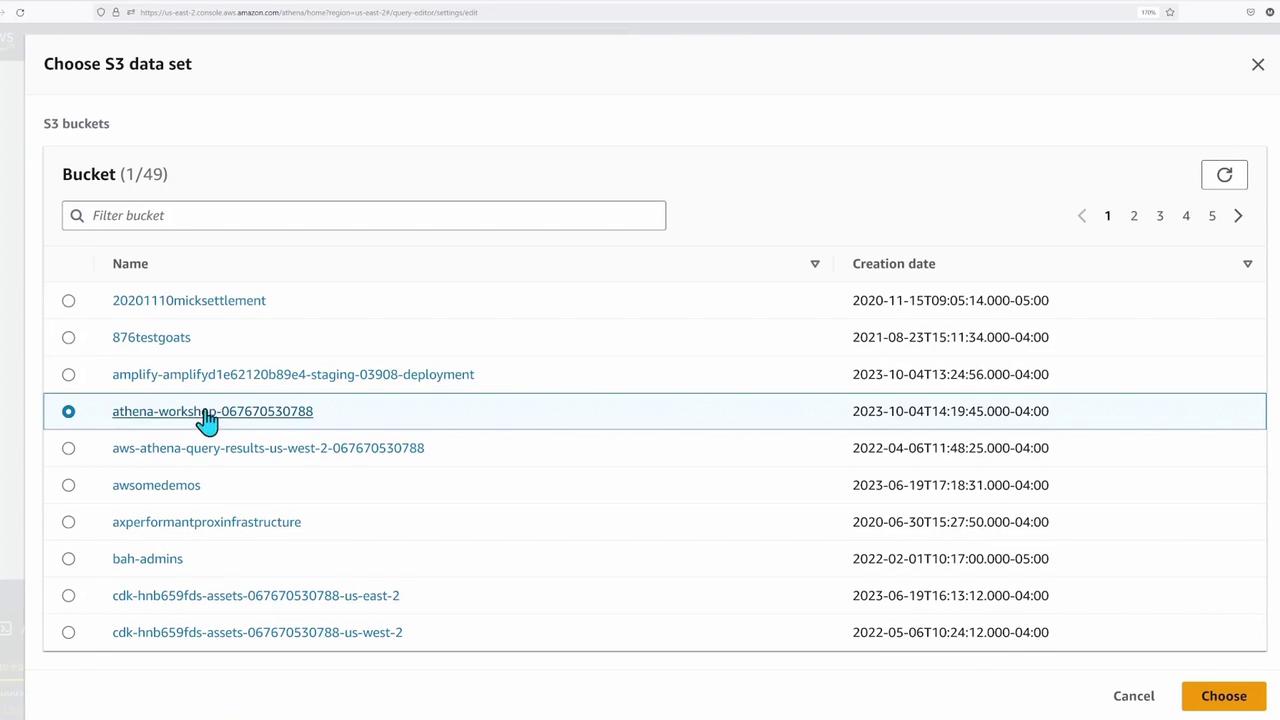
After copying the files, open the AWS Management Console to navigate to your S3 bucket. You should see an “Athena workshop” bucket with folders such as “basics” and subfolders for CSV and Parquet data, respectively. This folder structure helps organize customer and sales data efficiently.
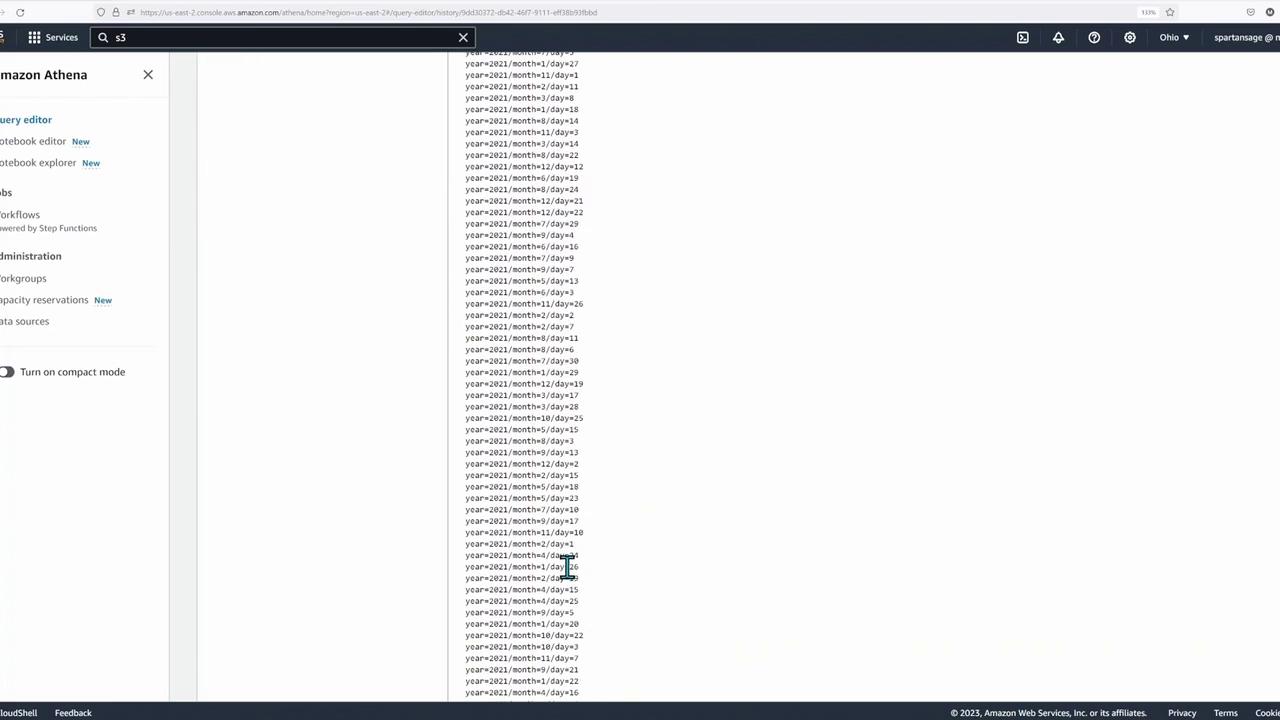
Additionally, note that the folders might be indexed by month or day based on your configuration.
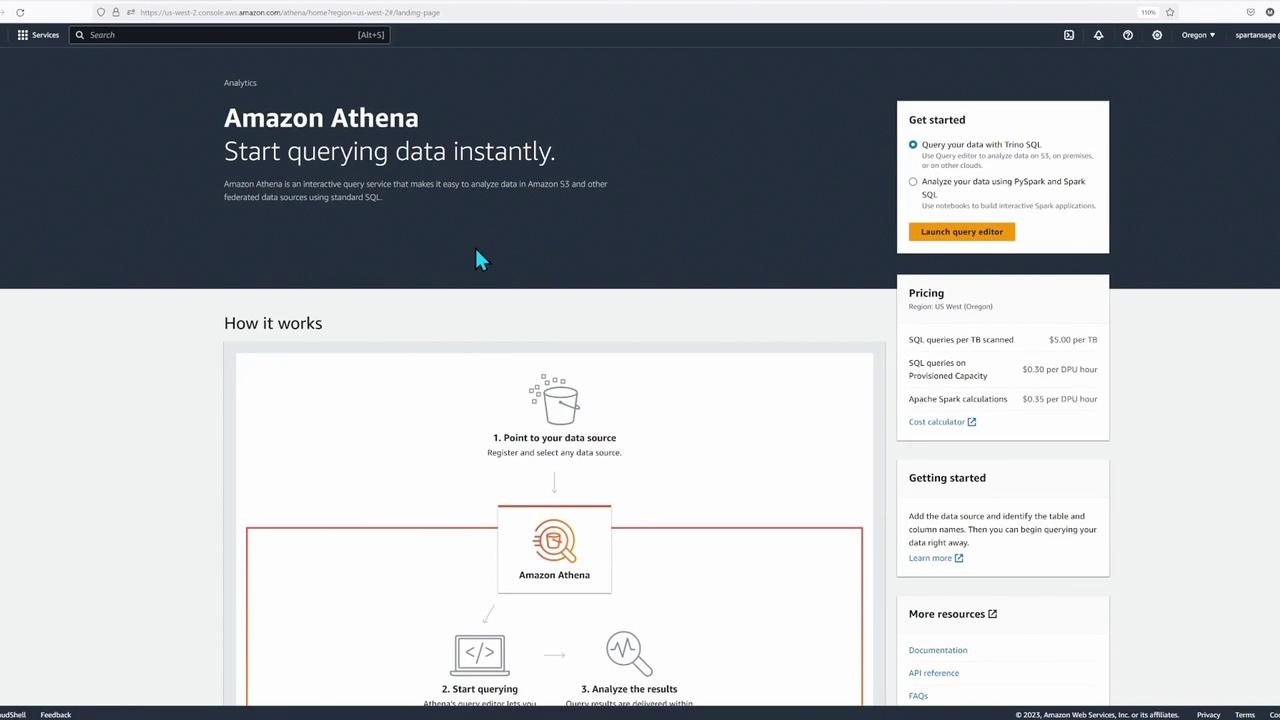
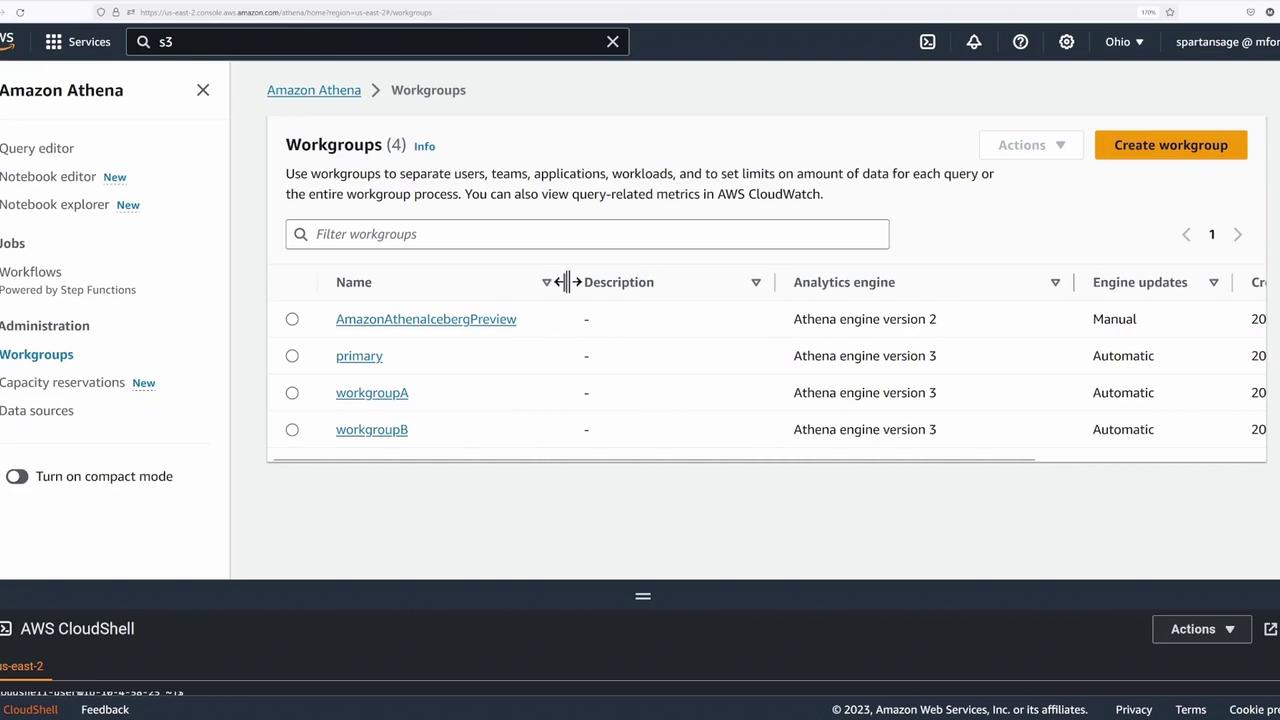
Before running any queries, open the Athena console and click the hamburger icon to access the workgroups. Follow these steps:
Select the Primary Workgroup: Click on the primary workgroup and then click the Edit button.
Enable Metrics: Scroll down to the settings section, enable “Publish query metrics into CloudWatch,” and save your changes.
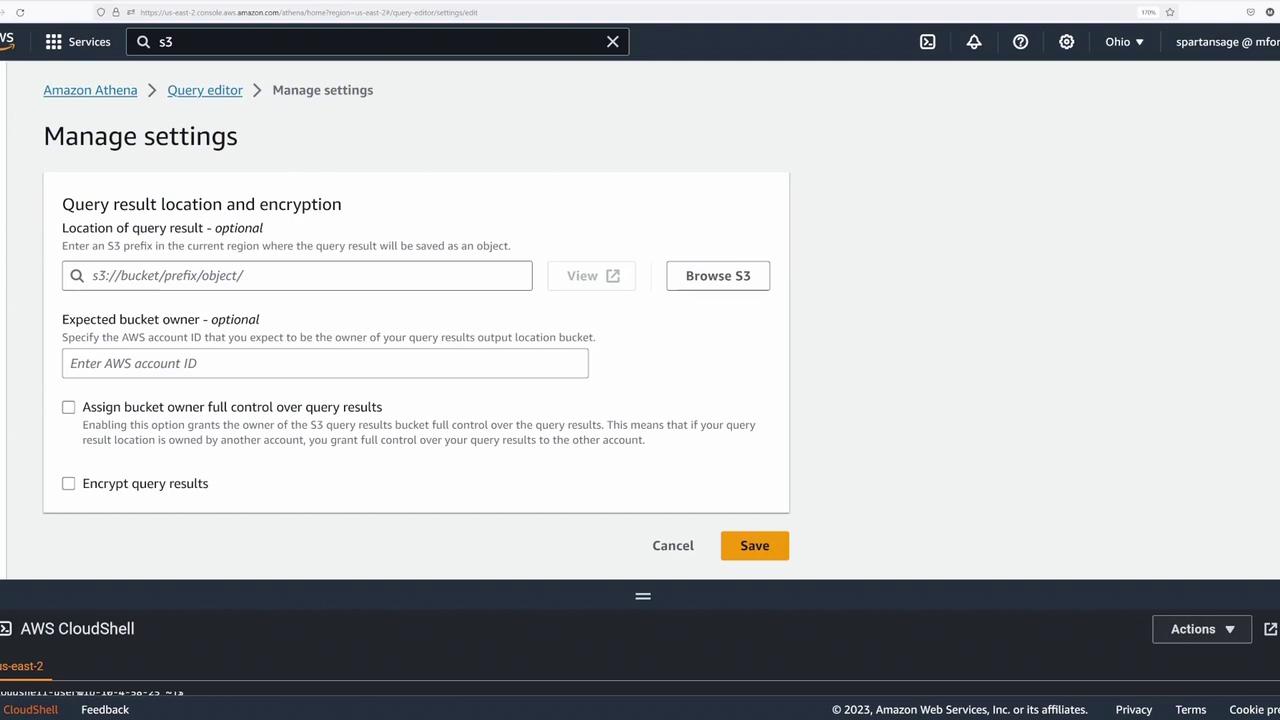
Next, click the hamburger icon again to return to the query editor. Under settings, select Manage to set your query result location by browsing for the Athena workshop bucket. Choose the correct bucket (and optionally a folder like “basics”) and save the S3 location.
If you need to verify the bucket details further, refer back to the S3 bucket listing:
In the Athena query editor, ensure the database is set to “default.” If you do not see the default database immediately, you can refresh the catalog by executing:
Copy
Ask AI
CREATE DATABASE default;
If you receive an error indicating that the database already exists, refresh the view until it appears.
Partitioning in Athena reduces the amount of data scanned during queries, thus lowering costs and improving performance. Tables can be partitioned by date, time, or other relevant criteria.
Query the top 10 products from Australia using CSV-based tables:
Copy
Ask AI
SELECT c.country, s.product_id, COUNT(s.timestamp) AS total_transactionsFROM customers_csv c JOIN sales_csv s ON c.customer_id = s.customer_idWHERE c.country = 'Australia'GROUP BY c.country, s.product_idORDER BY total_transactions DESCLIMIT 10;
And then using Parquet-based tables:
Copy
Ask AI
SELECT c.country, s.product_id, COUNT(s.timestamp) AS total_transactionsFROM customers_parquet c JOIN sales_parquet s ON c.customer_id = s.customer_idWHERE c.country = 'Australia'GROUP BY c.country, s.product_idORDER BY total_transactions DESCLIMIT 10;
This lesson provided a hands-on demonstration of using Amazon Athena to query data directly from S3 in both CSV and Parquet formats. We covered essential steps including verifying your AWS identity with Cloud Shell, setting up S3 buckets, configuring query results, and creating external tables. Finally, we compared performance differences between file formats and highlighted the benefits of partitioning and columnar storage.