

For installation instructions, visit the AWS CLI Installation Guide. Once installed, you can begin using it with just a few terminal commands.
Introduction to AWS CLI
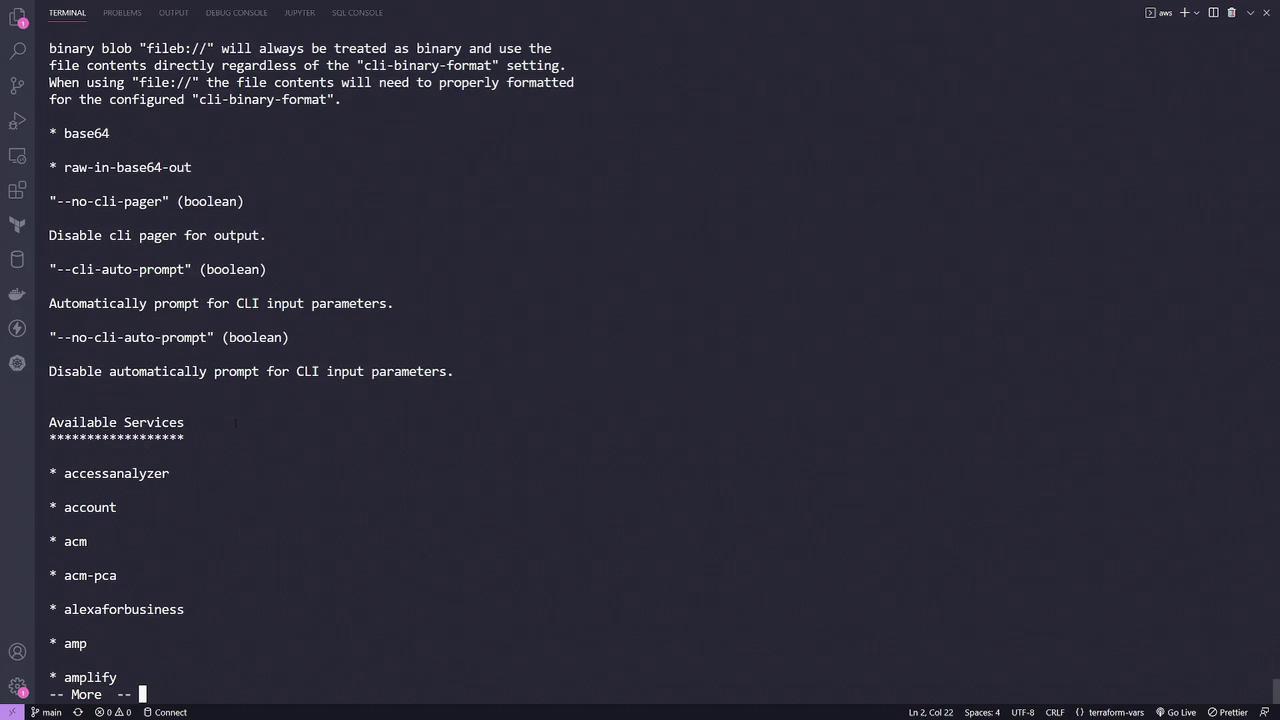
The AWS CLI comes with built-in help functionality. By appending the wordhelp to any command, you can access detailed documentation, including descriptions, synopses, and available global options. For example, to access the CLI help documentation, run:
--region <region-name> flag, eliminating the need to manually configure it through the console.
Below is an image that demonstrates a terminal window displaying the AWS CLI documentation:

Command Structure and Service Exploration
AWS CLI commands follow a simple structure:- Start with the keyword
aws - Include any global options (e.g.,
--region) - Specify the primary service (such as
s3) - Provide subcommands or additional parameters/flags
To view detailed information about S3 commands (or any command), append
help to your command. For example, to learn more about the mb (make bucket) command, execute:Creating and Managing S3 Buckets
Themb command allows you to create a new S3 bucket. Running the following command creates a bucket named mybucket:
kodekloud-cli-demo by running:
Additional S3 Commands
Here are a few more AWS S3 commands useful for various tasks:| Command | Description | Example |
|---|---|---|
| Sync | Synchronize local files with an S3 bucket | aws s3 sync /tmp/foo s3://bucket/ |
| Copy | Recursively copy files, excluding specific patterns | aws s3 cp /tmp/foo s3://bucket/ --recursive --exclude ".git/*" |
| Copy | Recursively copy files while excluding files that start with specific characters | aws s3 cp /tmp/foo s3://bucket/ --recursive --exclude "ba*" |