

Copy
Ask AI
Having installed Ollama and run your first LLaMA 3.2 model locally, it’s time to explore Ollama’s full model registry and try a vision-capable model. In this guide, we’ll:
- Browse and filter models on the Ollama website
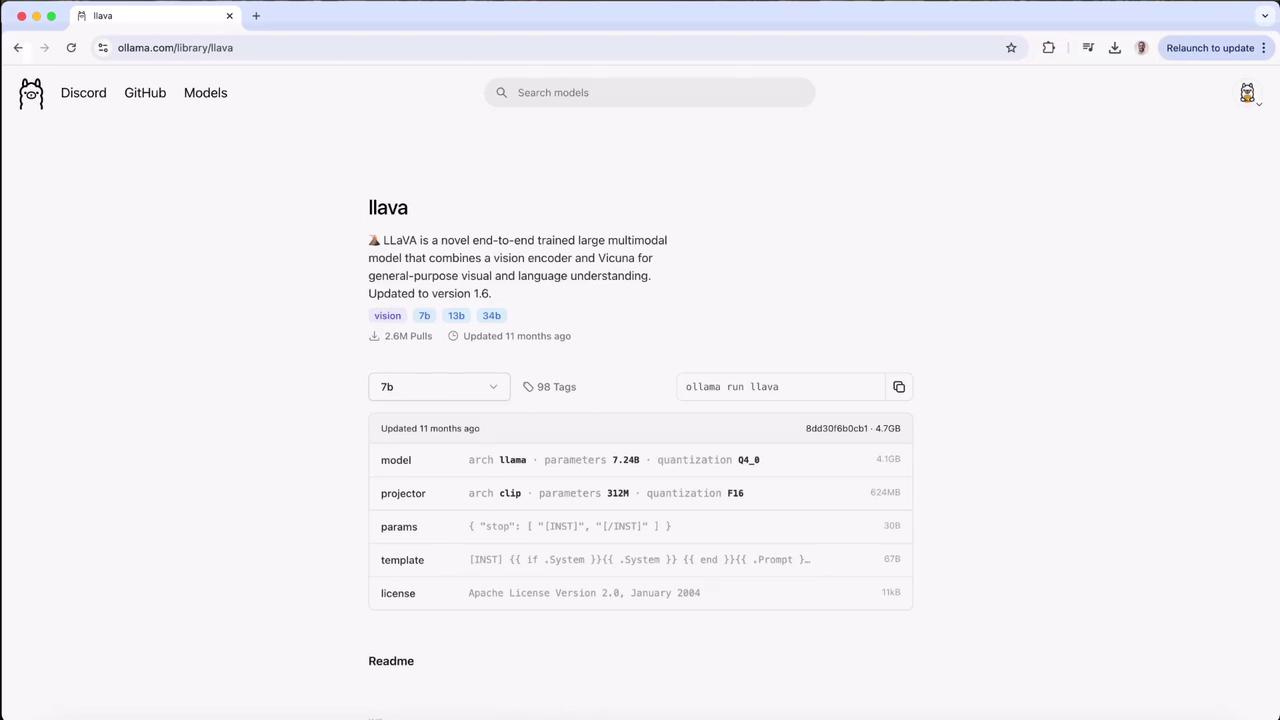
- Examine a LLaVA multimodal model’s specs
- Run vision-enabled models locally via CLI and API
- Compare other image-capable options
---
## 1. Browse Ollama’s Model Registry
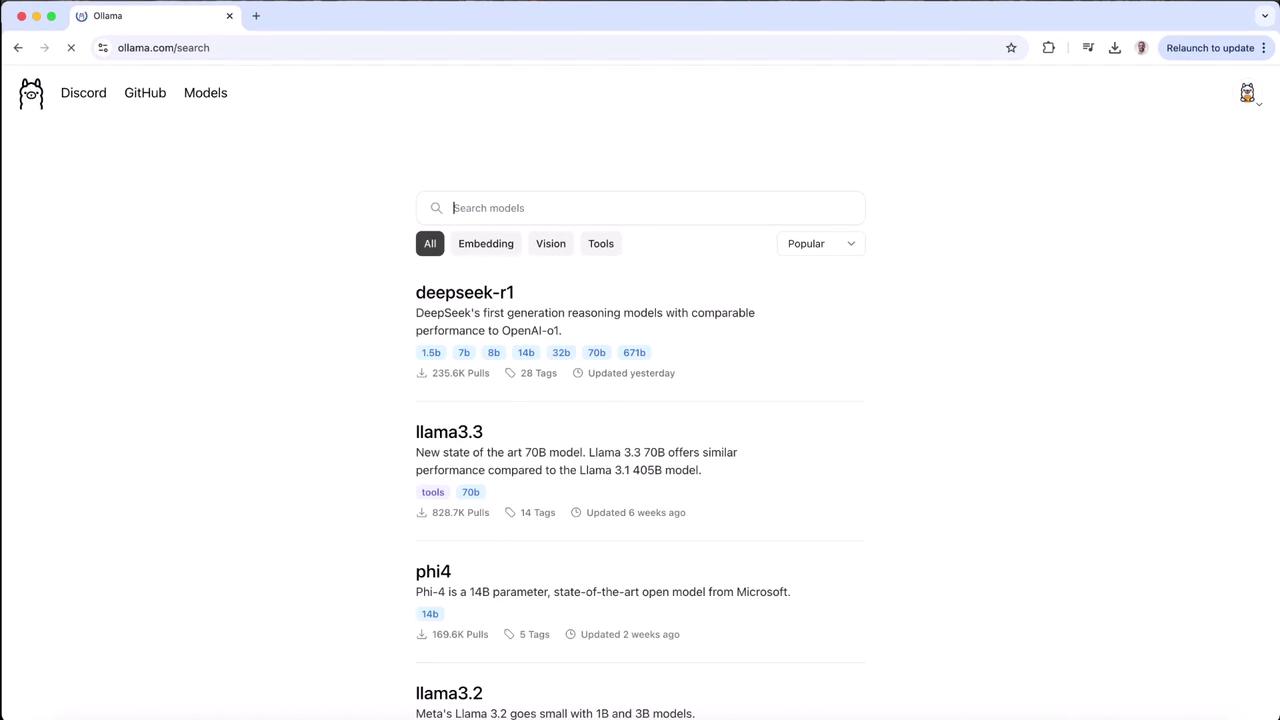
Head over to the [Ollama website](https://ollama.com) and click **Models** in the navigation bar. You’ll see a list of supported AI models complete with architecture, parameter count, and quantization settings:
<Frame>
</Frame>
Scroll down and select the **Vision** category. The top entry is a LLaMA-based vision model (LLaVA). Click it to view its details.
---
## 2. Inspect the Vision Model Specification
On the model detail page, you’ll find:
| Model | Parameters | Quantization | Use Case |
|---------|------------|--------------|------------------------|
| LLaVA | 7.24 B | Q4_0 (text) | Image understanding |
| CLIP | 312 M | F16 | Vision encoder support |
Below is the YAML metadata for LLaVA:
```yaml
model:
arch: llama
parameters: 7.24B
quantization: Q4_0
projector:
arch: clip
parameters: 312M
quantization: F16
params:
stop: ["[INST]", "[/INST]"]
template: "[INST] {{ if .System }}{{ .System }} {{ end }}{{ .Prompt }}…"
license: "Apache License Version 2.0, January 2004"
```text
<Callout icon="lightbulb" color="#1CB2FE">
You can pass images to this model in your prompts and receive detailed descriptions. Below we’ll cover both the interactive CLI and the local API approach.
</Callout>
---
## 3. Using CLI and Local API
### Interactive CLI
```bash
# Launch LLaVA in interactive mode
$ ollama run llava
>>> send a message (/1 for help)
>>> What's in this image? /Users/jmorgan/Desktop/smile.png
The image features a yellow smiley face, which is likely the central focus of the picture.
```text
### Local API Call
```bash
# Send a base64-encoded image via curl
$ curl http://localhost:11434/api/generate -d '{
"model": "llava",
"prompt": "What is in this picture?",
"images": ["iVBORw0KGgoAAAANSUhEUgAAAGAAABmCAYAAABxVAAAAAElFTkSuQmCC"]
}'
```text
---
## 4. Run the Model Locally
If you haven’t pulled LLaVA yet, Ollama will download it when you first run:
<Frame>
</Frame>
```bash
$ ollama run llava
>>> send a message (/1 for help)
```text
Once the prompt appears, test it with your own image—here’s an example using a local `logo.jpeg` file:
```bash
$ ollama run llava
>>> what is there in this image? ./logo.jpeg
Added image './logo.jpeg'
The image features a logo with the text "KodeKloud" in lowercase letters. Above it, there’s an icon representing a cloud or hosting service. To the left of the text "KodeKloud," there’s a stylized cube symbol suggesting programming or technology.
```text
You can continue the conversation:
```bash
>>> what colors are there in the image?
The image features:
1. Blue for the cloud icon and part of the cube.
2. Black or dark gray for the "KodeKloud" text.
3. White/light gray for the background.
>>> /bye
5. Explore Other Image-Capable Models
Ollama’s registry includes smaller or specialized vision models—like a compact LLaVA fine-tuned from Phi 3 Mini: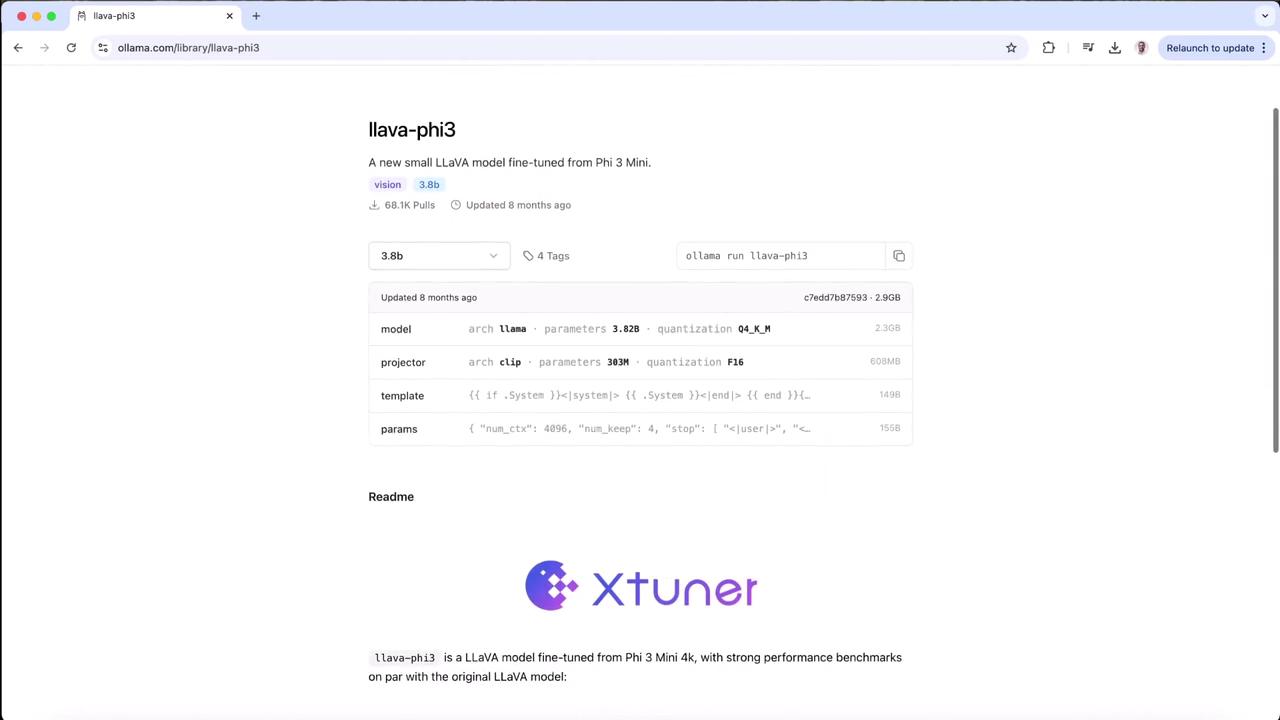
Next Steps
- Try different models under the Vision category
- Experiment with batch API calls for automated workflows
- Review Ollama CLI Documentation for advanced usage