

1. Downloading Ollama
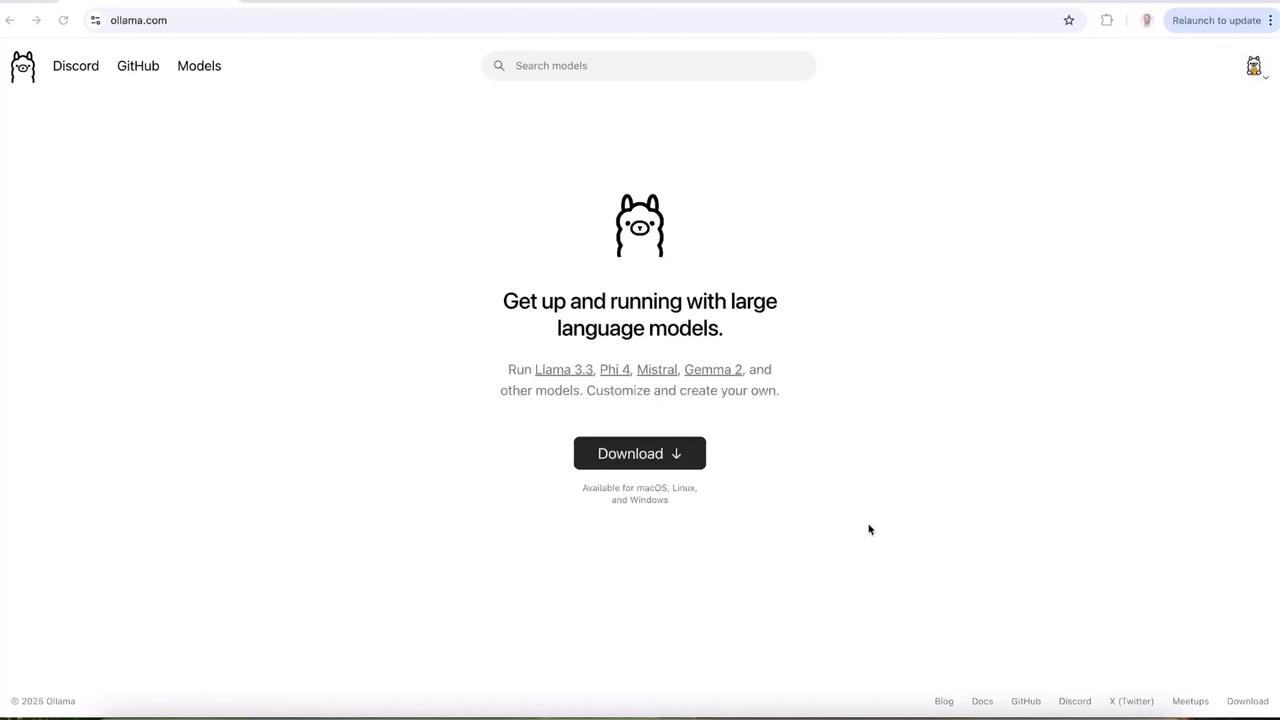
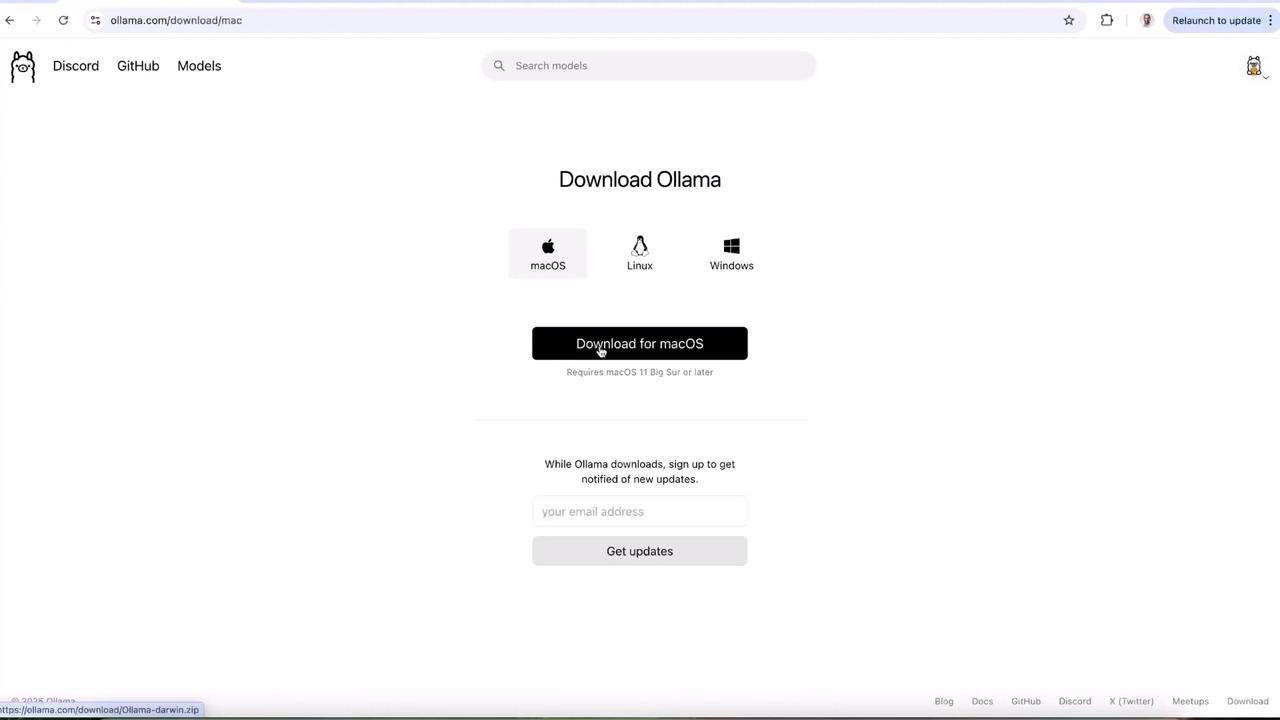
Visit the Ollama website and choose your operating system. Below is a quick reference for each platform:| Operating System | File Format | Action |
|---|---|---|
| macOS | .zip | Download, unzip, and move to Applications |
| Linux | .tar.gz | Download and extract |
| Windows | .exe | Download and run installer |
2. Installing on macOS
Once the.zip file has finished downloading:
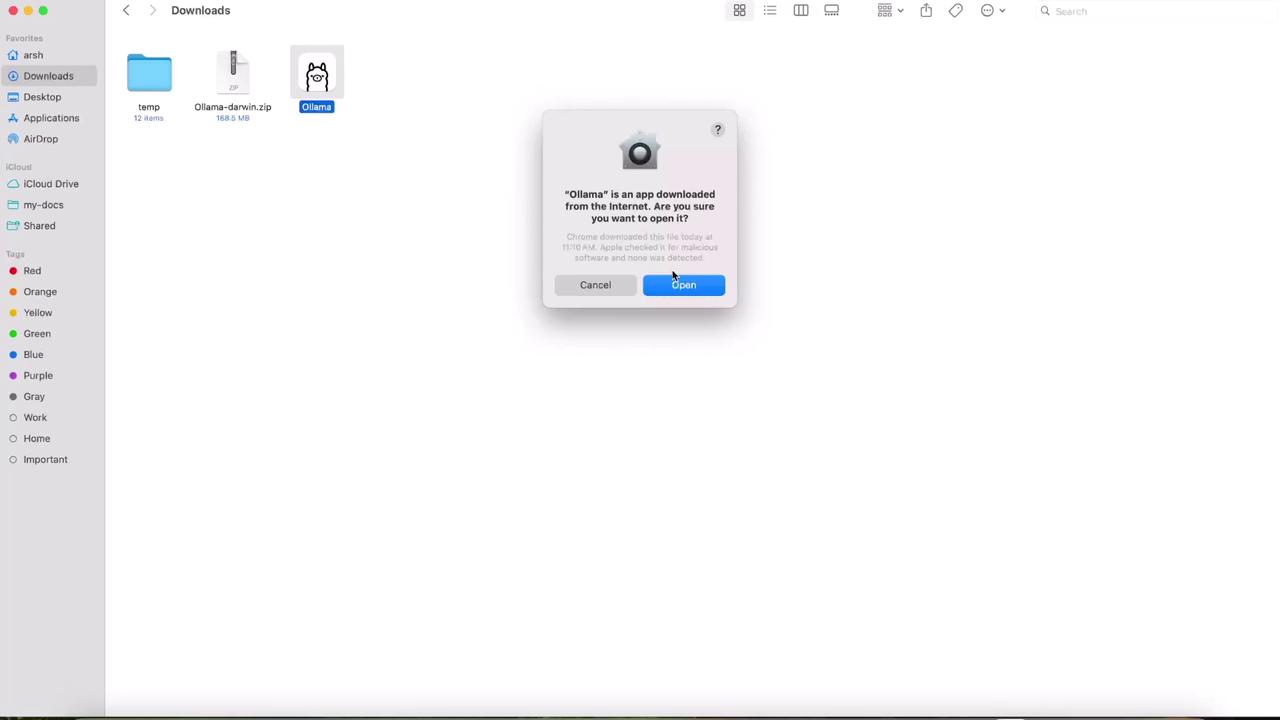
- Open Finder and navigate to your Downloads folder.
- Unzip the archive and double-click Ollama.app.
- When prompted, click Open.
- macOS will ask to move the app to Applications—confirm to complete the install.
If you see a security prompt about an unidentified developer, go to System Preferences > Security & Privacy and allow the app to run.
3. Verifying the CLI
Launch your terminal. On first run, you may be asked to install the Ollama CLI—type yes to proceed. Once installed, confirm everything is set up by running:If you don’t see the above output, ensure your PATH includes the Ollama binary or restart your terminal session.
4. Next Steps
To get started, try running Meta’s LLama 3.2 model:ollama help or check out the official documentation to learn how to create and manage your own models.