

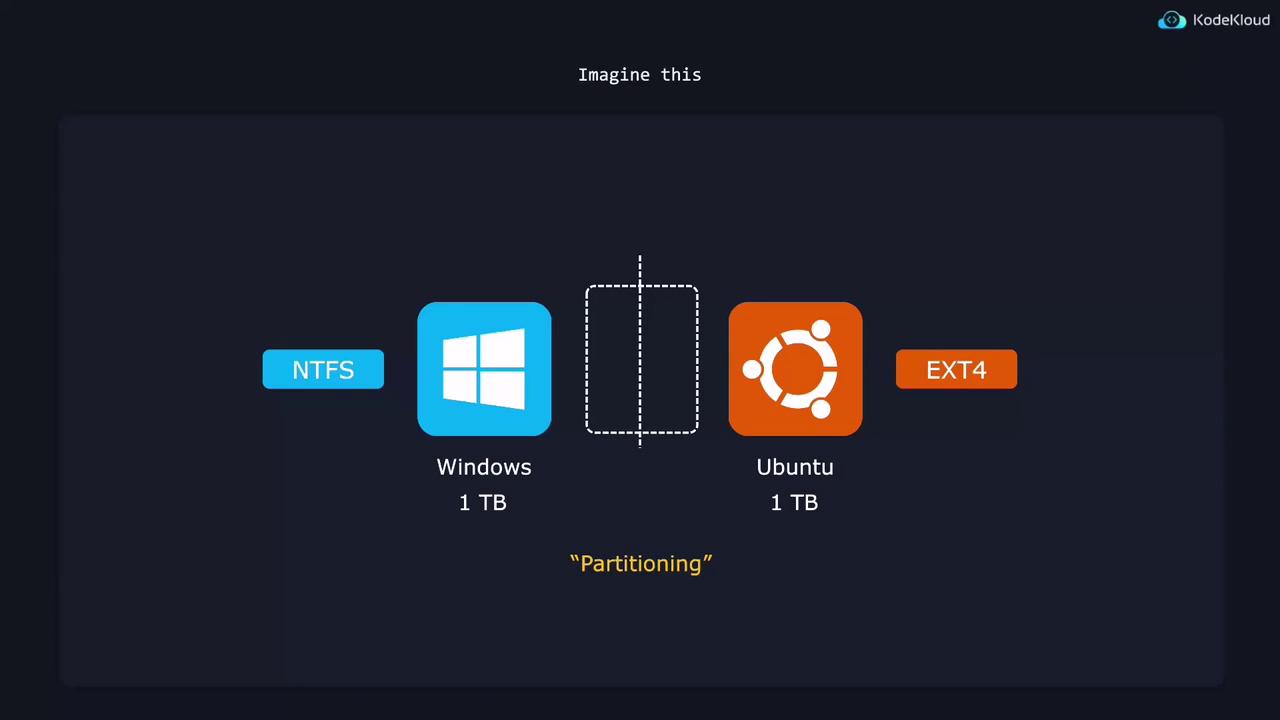
Inspecting Partitions with lsblk
Thelsblk command is an essential tool in Linux for listing block devices and their partitions. Running lsblk displays all disks and partitions on your system:
sda comprises three partitions (sda1, sda2, sda3). Note that Logical Volume Manager (LVM) entries are handled separately. On physical machines, you commonly see disk names like sda1, sda2, etc., while virtual environments may use different naming conventions. For example, a sample layout might be:
sda) and the partition number indicate the order and location of partitions. In Linux, every partition is treated as a file in the /dev directory, as shown below:
Viewing Detailed Partition Information with fdisk
Thefdisk utility offers a detailed view of disk partitions. To display the partition table for /dev/sda, use:
The partition table divides a storage device into sectors. For instance, with a sector size of 512 bytes, starting at sector 2048 means the partition begins after 512 × 2048 = 1,048,576 bytes (1MB). Adjust the calculation based on your disk’s sector size if it is different.
Partitioning Using cfdisk
For users who prefer a more interactive graphical interface,cfdisk is an excellent tool for creating and modifying partitions. Suppose you’ve added a second storage device and want to partition /dev/sdb. Launch cfdisk with:
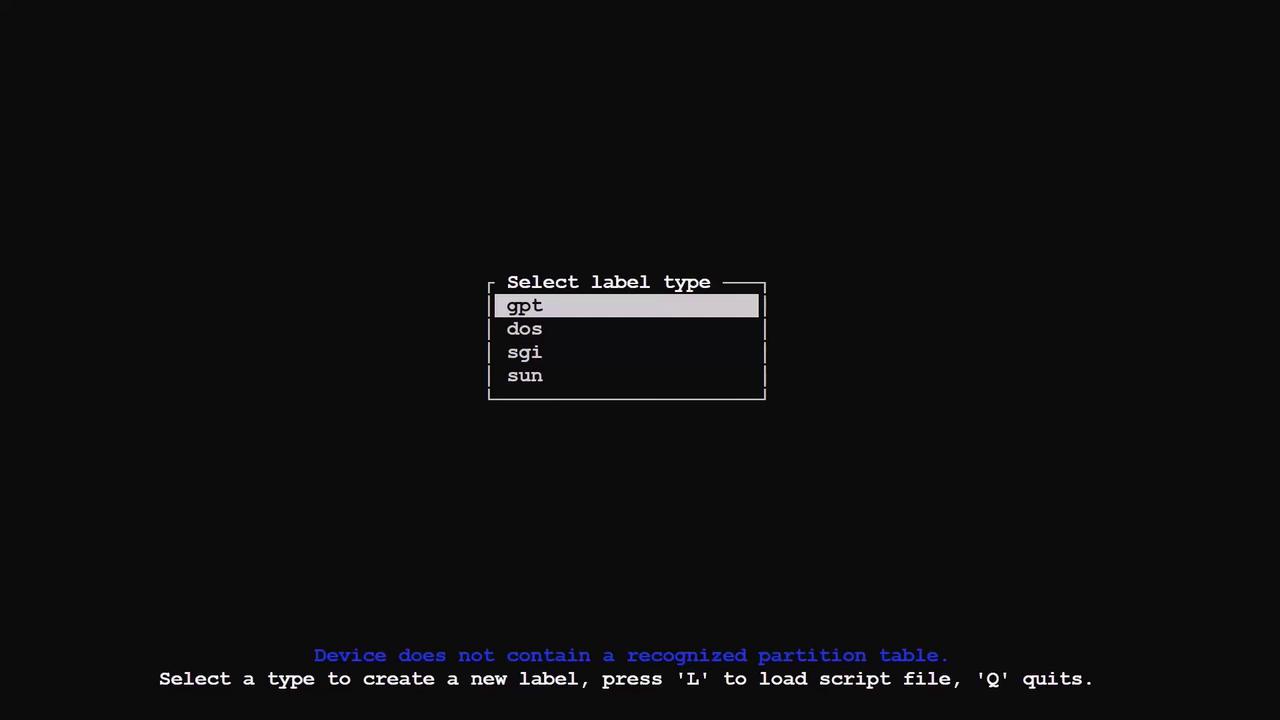
Example: Partitioning a 10 GiB Drive
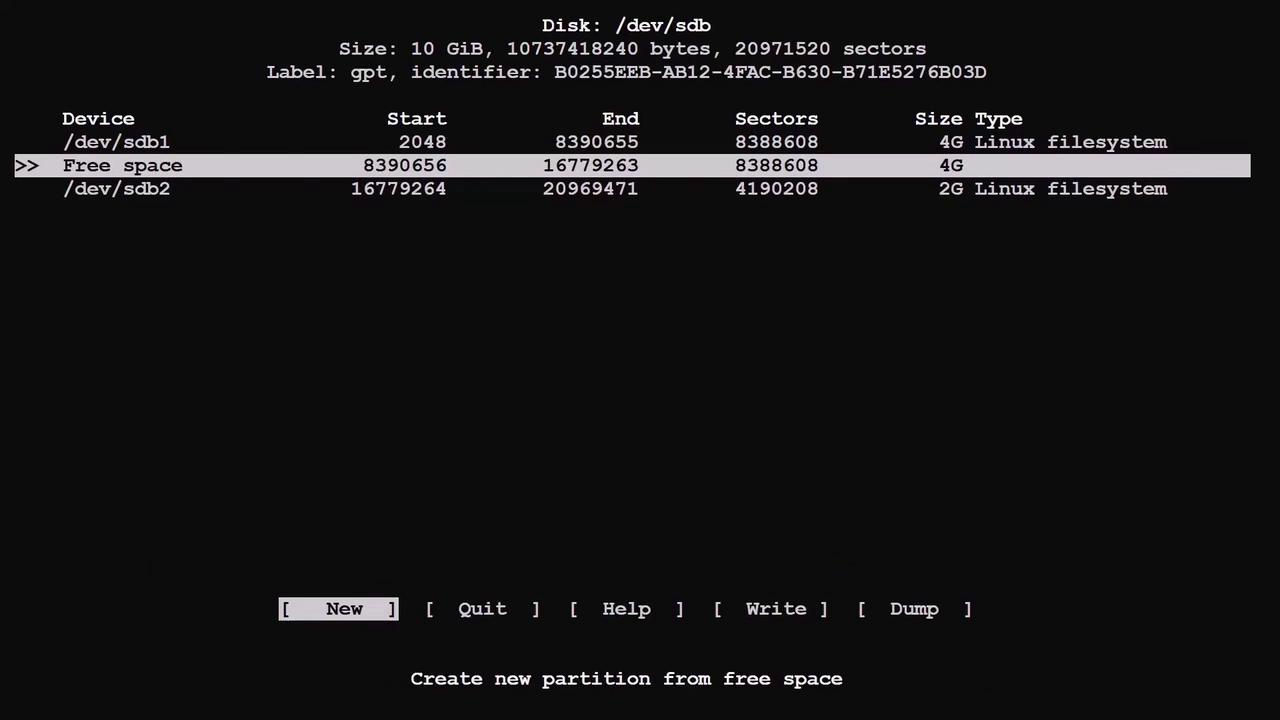
Imagine you have a 10 GiB drive that needs to be partitioned into an 8 GiB partition for an operating system and a 2 GiB partition for swap. Follow these steps in the cfdisk interface:- Navigate to the free space and press the New button. Adjust the partition size to “8G” for the first partition.
- Use the remaining free space to create a second partition of 2 GiB.
- If needed, modify partition sizes later using the Resize option. For instance, you can shrink the first partition to “4G” to free up space for an additional partition.
Partitions in cfdisk are numbered in the order of creation rather than by physical location. In other words, a partition created later may appear as SDB2 even if it’s located at the end of the disk. Use the Sort option in cfdisk to reorder partitions naturally.
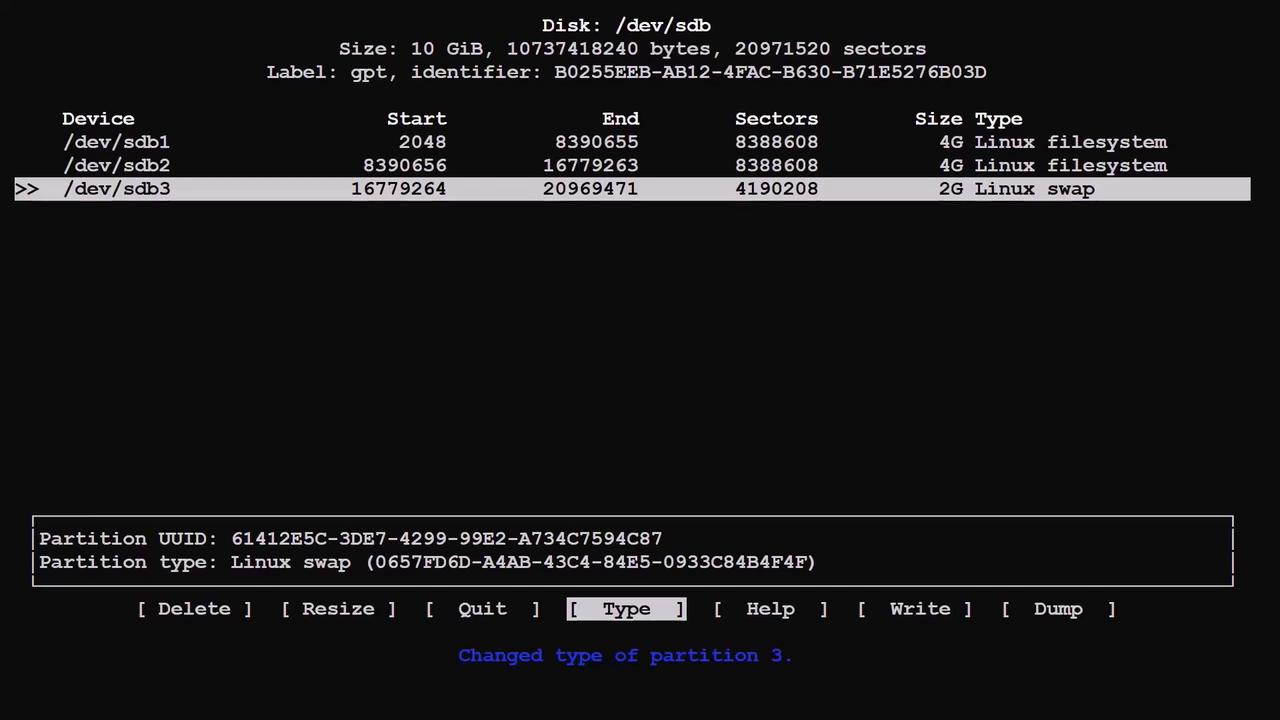
Committing Your Changes in cfdisk
Remember that cfdisk only plans the changes until you commit them. Here’s how to proceed:- Review all changes and use Quit to undo any unintended modifications.
- Once you are satisfied, press the Write button. Confirm your changes by typing “Yes” when prompted.
- Finally, exit cfdisk by selecting Quit and verify the new partition layout using the
lsblkcommand.
Summary
This guide has walked you through the process of listing, creating, deleting, and modifying physical storage partitions using tools likelsblk, fdisk, and cfdisk. By understanding these fundamental partitioning techniques, you can efficiently manage disk resources and optimize your Linux system installations.
For further reading and advanced partition management strategies, explore our related articles and documentation.
Happy partitioning!