Set and Synchronize System Time Using Time Servers
This article explains how to set and synchronize system time using NTP servers on Ubuntu.
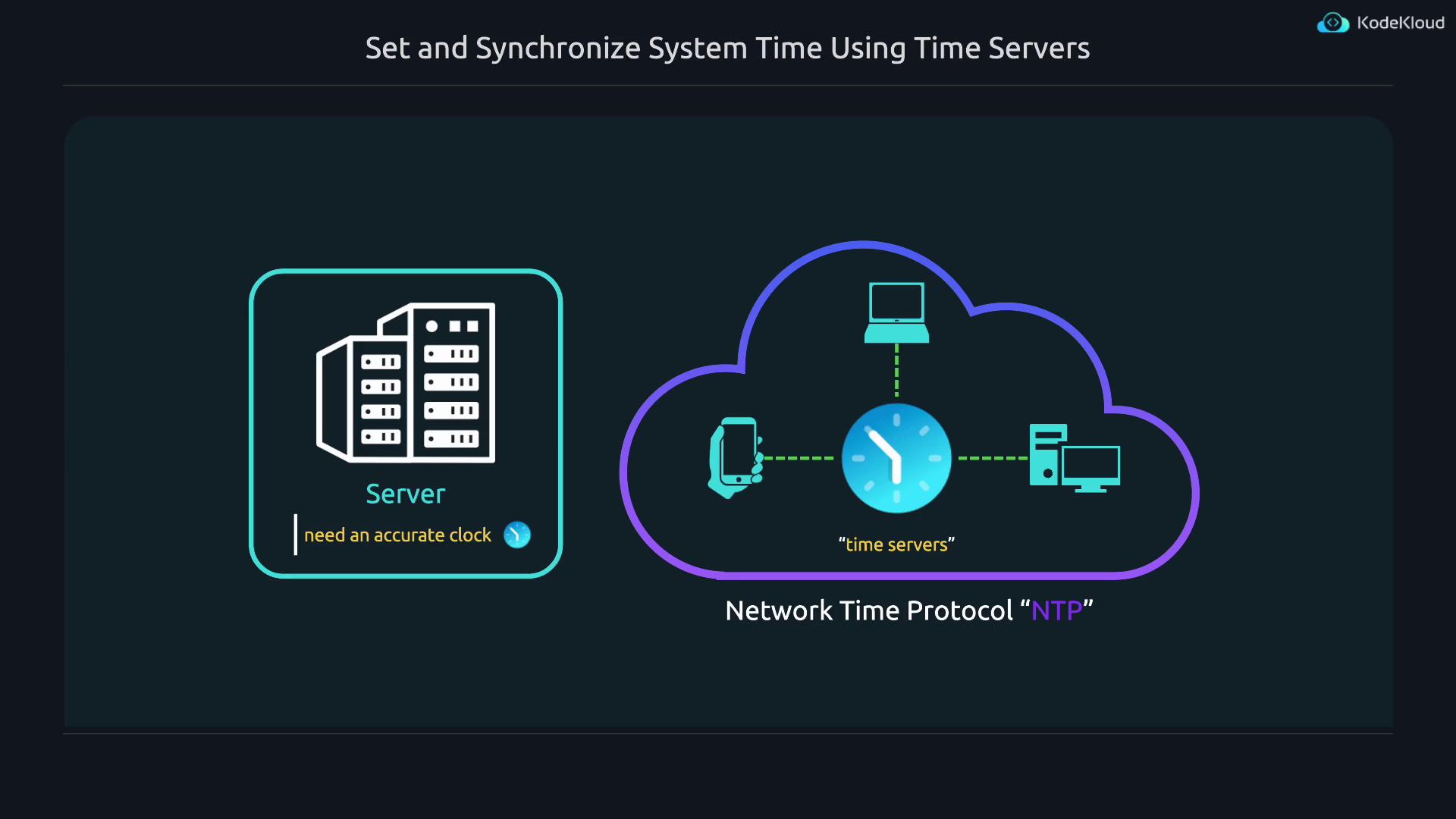
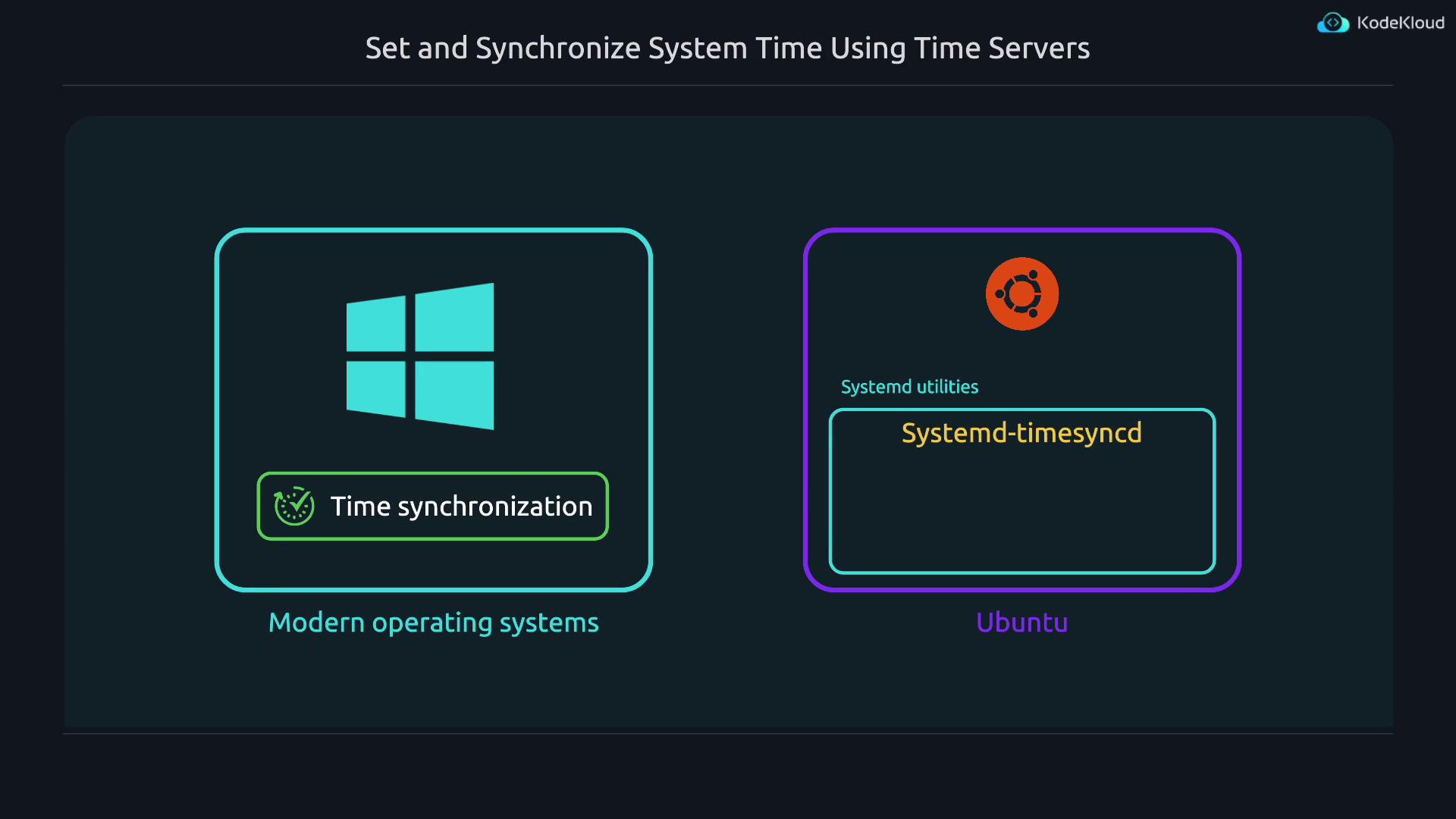
Accurate timekeeping is critical for server operations. Hardware clocks in computers are not perfect and may gradually drift from the actual time. For instance, if the real time is 12:00:05, a server might display 12:00:06—a one-second drift ahead. Fortunately, most devices today automatically synchronize their clocks over the Internet using the Network Time Protocol (NTP).Most modern operating systems include time synchronization software by default. In Ubuntu, the default utility is systemd-timesyncd, which is part of the systemd suite.
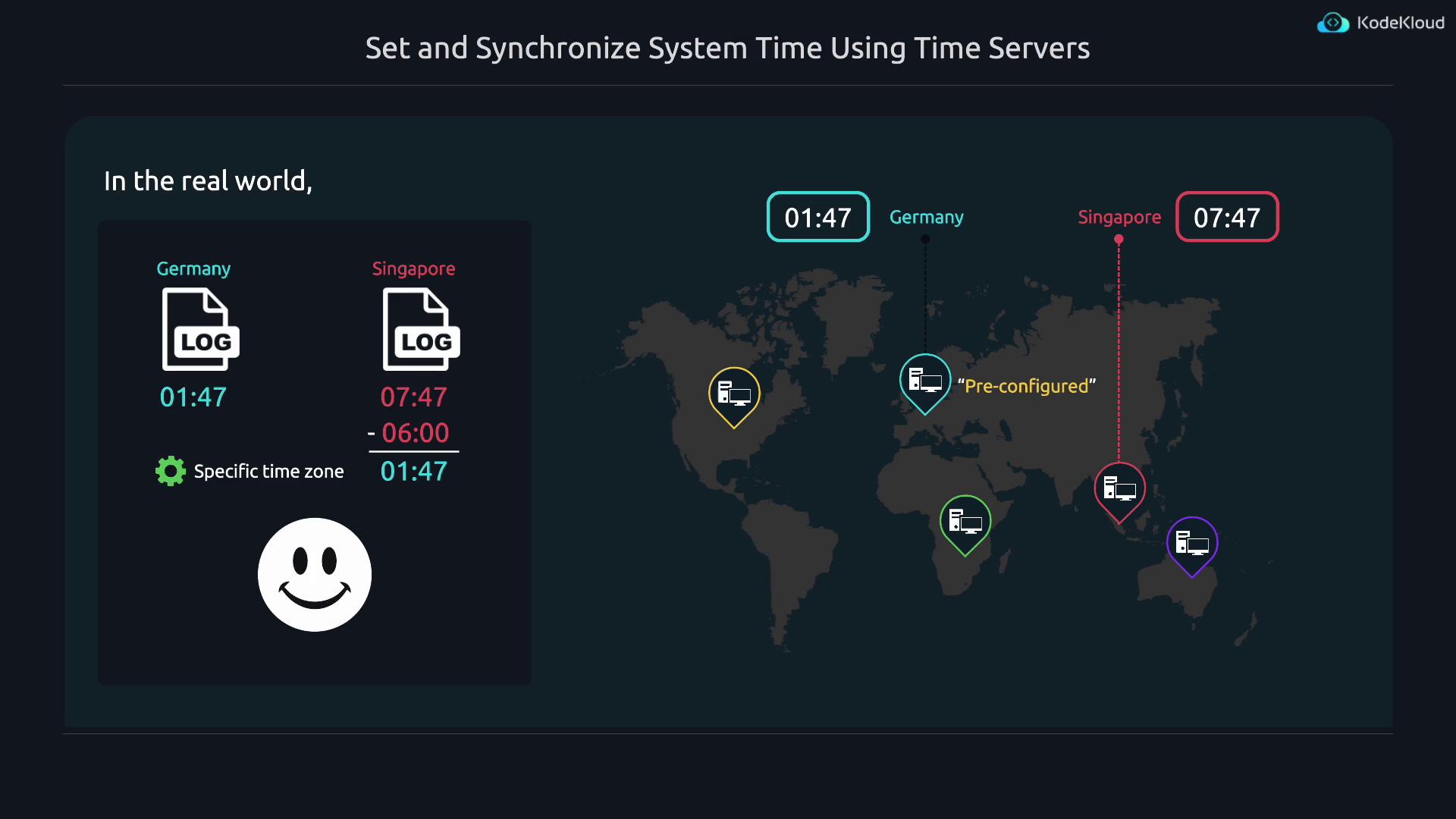
In addition to time synchronization, it is important to correctly set the time zone. Incorrect time zones can lead to confusion, especially when managing logs from servers located in different regions. For example, when it is 1:47 in Germany, it is 7:47 in Singapore. It is advisable to set your server’s time zone to your local zone or to that of your company’s main office.
Time-related operations can be managed using the timedatectl utility. To view the list of available time zones, run:
If you find that the NTP service is not active, follow these steps to ensure proper time synchronization:
Install systemd-timesyncd (if not already installed):
Copy
Ask AI
sudo apt install systemd-timesyncd
Enable synchronization with NTP servers:
Copy
Ask AI
sudo timedatectl set-ntp true
Verify the status:
Copy
Ask AI
timedatectl
To check the status of the systemd-timesyncd service, run:
Copy
Ask AI
systemctl status systemd-timesyncd.service
A typical output is:
Copy
Ask AI
● systemd-timesyncd.service - Network Time Synchronization Loaded: loaded (/usr/lib/systemd/system/systemd-timesyncd.service; enabled; preset: enabled) Active: active (running) since Wed 2024-05-22 17:23:17 PDT; 1h 24min ago Docs: man:systemd-timesyncd.service(8) Main PID: 809 (systemd-timesyncd) Status: "Contacted time server 91.189.91.157:123 (ntp.ubuntu.com)." Tasks: 2 (limit: 9442) Memory: 1.4M (peak: 2.2M) CPU: 198ms CGroup: /system.slice/systemd-timesyncd.service └─809 /usr/lib/systemd/systemd-timesyncdMay 22 17:23:21 kodekloud systemd-timesyncd[809]: Network configuration changed, trying to establish connection...May 22 17:23:22 kodekloud systemd-timesyncd[809]: Network configuration changed, trying to establish connection...May 22 17:24:25 kodekloud systemd-timesyncd[809]: Contacted time server 91.189.91.157:123 (ntp.ubuntu.com).May 22 17:24:25 kodekloud systemd-timesyncd[809]: Initial clock synchronization to Thu 2024-05-23 00:2...
Use tab completion in your terminal by typing timedatectl and then pressing tab twice to explore additional commands such as show-timesync and timesync-status.
This configuration sets four NTP servers from the US pool. Notice that underscores are used in city names or when naming a server with multiple words.After saving your changes, restart the service to apply the new configuration:
Copy
Ask AI
sudo systemctl restart systemd-timesyncd
To verify that the newly specified NTP servers are in use, run:
You can also check the detailed time synchronization status using:
Copy
Ask AI
timedatectl timesync-status
This command provides comprehensive information including the poll interval, root distance, offset, delay, and other relevant NTP details. A sample output might be:
This guide covered how to configure both the time zone and NTP synchronization on Ubuntu using systemd-timesyncd. You learned how to view available time zones, set the correct zone, enable time synchronization, modify NTP settings, and verify the synchronization status. Maintaining accurate system time is essential for log management and other time-sensitive operations.See you in the next lesson!