This article covers creating, managing, and running Docker containers, including practical examples with Nginx and building custom images.
Docker containers have become immensely popular due to their portability and ease of management. To illustrate their usefulness, let’s compare a traditional MariaDB database setup with one running inside a Docker container.Traditionally, to install MariaDB on a Linux system, you would run:
Copy
Ask AI
$ sudo apt install mariadb-server
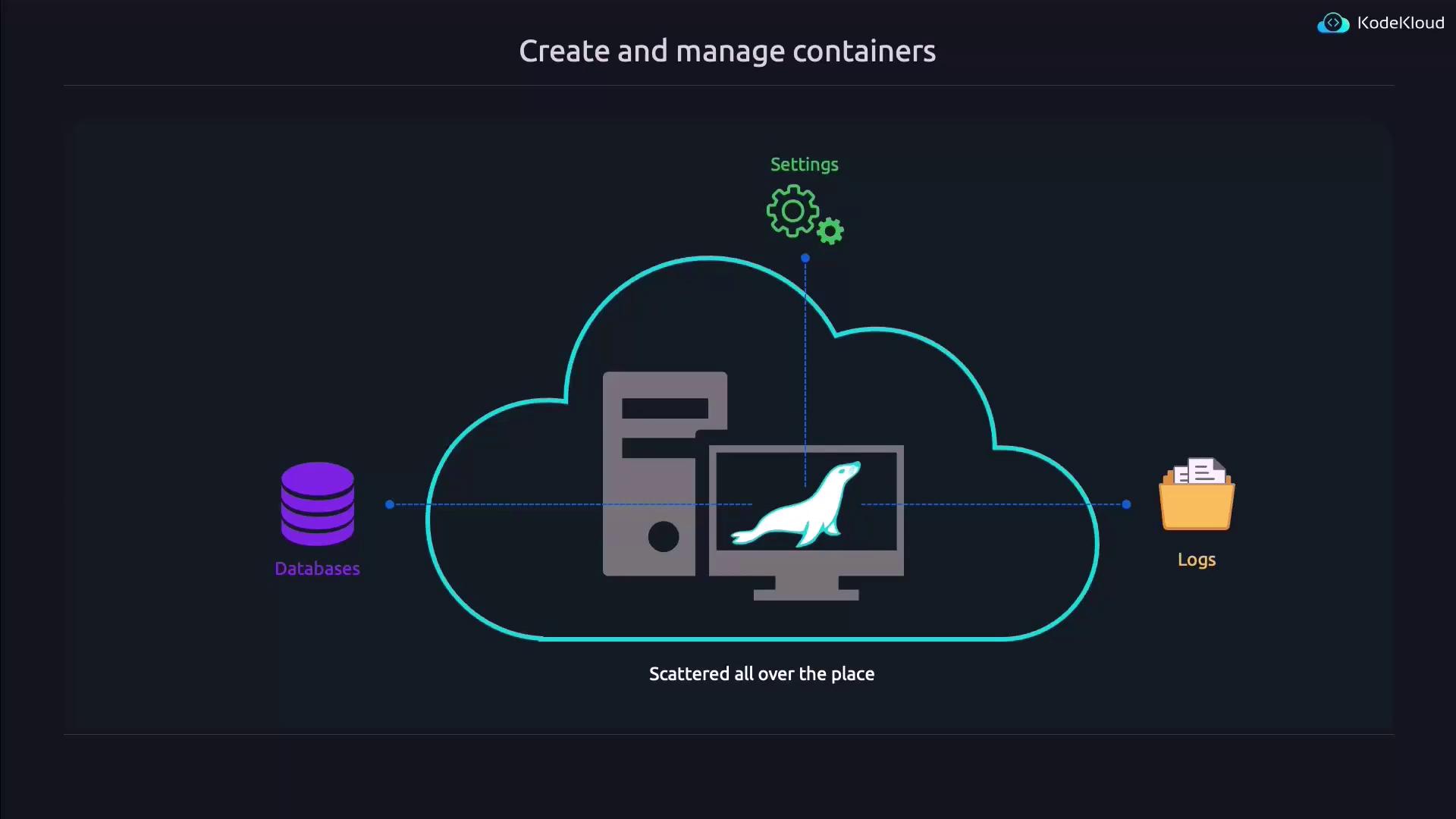
After the installation, you would need to adjust configurations in the /etc/mysql directory, create databases, configure users, assign privileges, and manage log files. When it comes time to migrate this multi-component setup to a cloud server, the scattered pieces across various directories can make the process cumbersome.
By containerizing your application, such as setting up your MariaDB inside a Docker container, every component—including the daemon, configuration files, logs, and databases—resides within a single container. This makes migration as simple as copying one file.
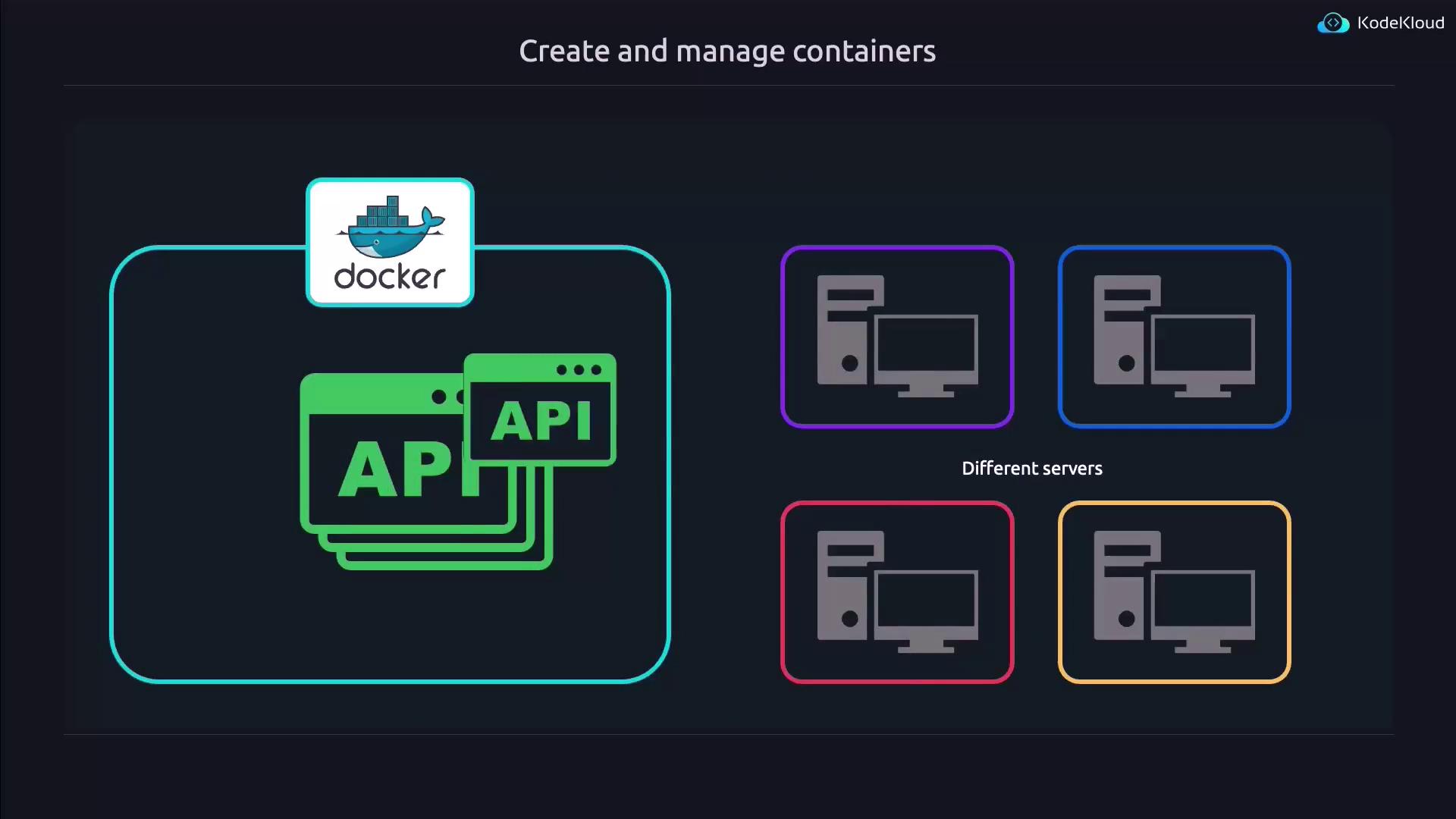
Imagine moving your entire database within a single container to a cloud server or scaling it across multiple servers effortlessly.
Containers are designed to encapsulate applications, making them highly portable and scalable. Essentially, they are like copying and pasting an entire application setup in one go.
In this article, we will explore practical examples of how to work with Docker by running an Nginx web server within a container.
Before diving into running containers, note that you can often execute Docker commands without sudo if your Linux user is added to the docker group. If you encounter permission errors, you can either prepend sudo to your commands or add your user to the Docker group and then log out and back in.For example, you might see an error like this:
Copy
Ask AI
aaron@kodekloud:~$ docker imagesGot permission denied while trying to connect to the Docker daemon socket at unix:///var/run/docker.sock: Get "http://%2Fvar%2Frun%2Fdocker.sock/1.24/images/json": dial unix /var/run/docker.sock: connect: permission denied
By using sudo, the command runs successfully:
Copy
Ask AI
aaron@kodekloud:~$ sudo docker images[sudo] password for aaron:REPOSITORY TAG IMAGE ID CREATED SIZEjohn/custom nginx 1.0 ed97200c0c18 3 hours ago 187MBcustomnginx 1.0 ed97200c0c18 3 hours ago 187MBnginx latest 021283c8eb95 3 weeks ago 187MB
If you’re new to Docker, you can display all available commands by running:
Copy
Ask AI
$ docker --help
This command provides the following overview:
Copy
Ask AI
Usage: docker [OPTIONS] COMMANDA self-sufficient runtime for containersCommon Commands: run Create and run a new container from an image exec Execute a command in a running container ps List containers build Build an image from a Dockerfile pull Download an image from a registry push Upload an image to a registry images List images login Log in to a registry logout Log out from a registry search Search Docker Hub for images version Show the Docker version information info Display system-wide informationManagement Commands: builder Manage builds container Manage containers context Manage contexts image Manage images manifest Manage Docker image manifests and manifest lists network Manage networks plugin Manage plugins system Manage Docker
One useful subcommand is search which allows you to find images like Nginx:
Copy
Ask AI
$ docker search nginx
The output lists available images, and the top result is usually the official image:
Copy
Ask AI
NAME DESCRIPTION STARSnginx Official build of Nginx. 19922unit Official build of NGINX Unit: Universal Web … 31nginx/nginx-ingress NGINX and NGINX Plus Ingress Controllers fo… 92nginxinc/nginx-unprivileged Unprivileged NGINX Dockerfiles 152nginxinc/nginx-prometheus-exporter NGINX Prometheus Exporter for NGINX and NGIN… 41... (additional entries)
The term latest at the end of the image name is known as the image tag—it functions similarly to a version label. For instance, latest corresponds to the newest version, while a tag like 1.24.0 indicates a specific version. To pull an older version, run:
After pulling images, it’s a good practice to remove any that are no longer needed. To list available images, run:
Copy
Ask AI
$ docker imagesREPOSITORY TAG IMAGE ID CREATED SIZEubuntu/nginx latest cd238b5026e 3 days ago 128MBnginx latest dde0cca083bc 2 weeks ago 188MBnginx 1.22.1 0f8498f13f3a 14 months ago 142MB
To delete a specific image, such as the nginx:1.22.1 image, use the rmi command. When multiple images share the same repository name, remember to specify the tag:
Running a container is as easy as issuing the docker run command. For instance, to run an Nginx container:
Copy
Ask AI
$ docker run nginx
This command creates a new container and starts the Nginx daemon. However, running the container this way attaches you to its output, making it challenging to run additional commands simultaneously.The output may look similar to:
Copy
Ask AI
$ docker run nginx/docker-entrypoint.sh: /docker-entrypoint.d/ is not empty, will attempt to perform configuration/docker-entrypoint.sh: looking for shell scripts in /docker-entrypoint.d//docker-entrypoint.sh: Launching /docker-entrypoint.d/10-listen-on-ipv6-by-default.sh...2024/06/14 02:40:53 [notice] 1#1: using the "epoll" event method2024/06/14 02:40:53 [notice] 1#1: nginx/1.27.0...
Pressing Ctrl-C will detach you from the container but will also stop it. To run the container in the background, publish ports, and assign it a descriptive name, use the following command:
Copy
Ask AI
$ docker run --detach --publish 8080:80 --name mywebserver nginx
This command does the following:
--detach: Runs the container in the background.
--publish 8080:80: Maps port 8080 on the host to port 80 in the container.
--name mywebserver: Assigns the name “mywebserver” to the container.
To view currently running containers, use:
Copy
Ask AI
$ docker ps
You might see output like:
Copy
Ask AI
CONTAINER ID IMAGE COMMAND NAMES34ef97c0c6a5 nginx "/docker-entrypoint..." mywebserver
Remember that docker ps only shows running containers. Use docker ps --all to list both active and stopped containers.
To start a stopped container, reference its container ID or name:
Copy
Ask AI
$ docker start 833adf46106a833adf46106a
And validate its status with:
Copy
Ask AI
$ docker ps
If you need to stop a running container, simply run:
After running your container with port mapping, it’s important to verify that it’s accessible. You can do this by connecting to the published port on your host using a tool like netcat (nc):
Copy
Ask AI
$ nc localhost 8080
Type the HTTP request:
Copy
Ask AI
GET /
You should receive the HTML response of the Nginx index page:
Copy
Ask AI
<!DOCTYPE html><html><head><title>Welcome to nginx!</title><style>html { color-scheme: light dark; }body { width: 35em; margin: 0 auto;font-family: Tahoma, Verdana, Arial, sans-serif; }</style></head><body><h1>Welcome to nginx!</h1><p>If you see this page, the nginx web server is successfully installed and working. Further configuration is required.</p><p>For online documentation and support please refer to<a href="http://nginx.org/">nginx.org</a>.<br/>Commercial support is available at<a href="http://nginx.com/">nginx.com</a>.</p><p><em>Thank you for using nginx.</em></p></body></html>
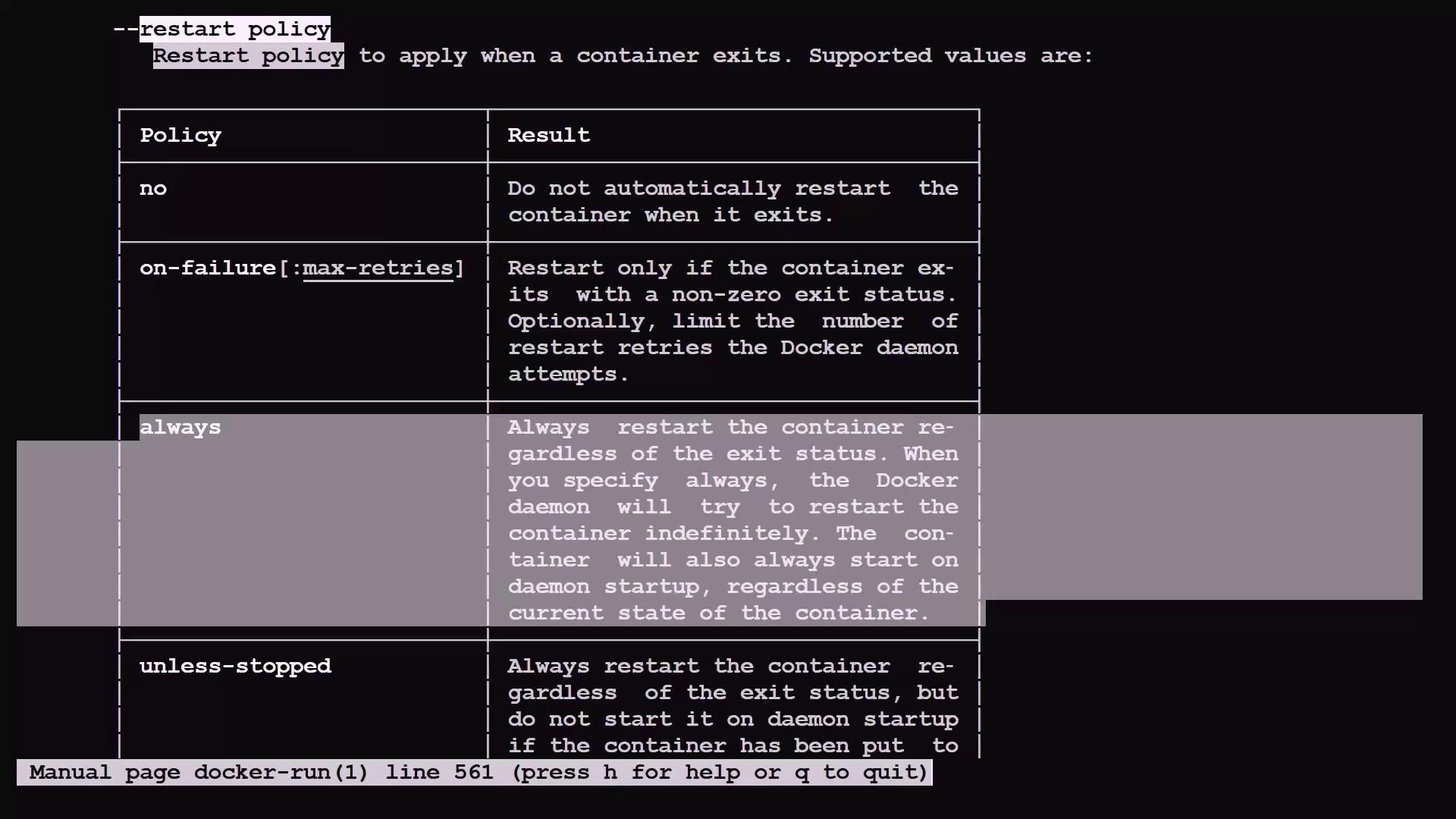
For scenarios where you need your Nginx container to restart automatically after errors or system reboots, you can add a restart policy. The basic command:
Copy
Ask AI
$ docker run --detach --publish 8080:80 --name mywebserver nginx
Can be enhanced with the --restart always option to ensure continuous operation:
Sometimes, public images may not meet your exact needs, prompting you to build a custom image. Here’s how you can create your own image based on the Nginx image:
Create a directory for your project and navigate into it:
Copy
Ask AI
$ mkdir myimage$ cd myimage
Create a simple index.html file to serve as your custom HTML content:
Copy
Ask AI
$ vim index.html
(Insert a line of text as a placeholder for your custom HTML content.)
Create a Dockerfile (note the capital D), which provides instructions for building your image:
Copy
Ask AI
$ vim Dockerfile
Add the following content to the Dockerfile:
Copy
Ask AI
FROM nginxCOPY index.html /usr/share/nginx/html/index.html
This tells Docker to use the official Nginx image as the base and copy your custom HTML file into the appropriate directory inside the container.
Other commonly used Dockerfile instructions include:
RUN: Executes commands during the image build (e.g., installing additional utilities).
CMD: Specifies the default command to run when the container starts (which can be overridden).
ENTRYPOINT: Ensures a command is always executed upon container initialization (and is less easily overridden).
Build your custom image using the following command (replace “jeremy” with your Docker Hub username if applicable):
This article has covered the essentials of creating, managing, running, and building Docker containers—from using public images to constructing your own custom container images. With Docker’s powerful features, deploying applications at scale becomes a seamless process.For further details and in-depth tutorials, consider exploring the following resources: