

Sorting File Content
Assume you have a file named file.txt with the following numbers:sort utility reads file.txt, sorts the numbers, and displays the sorted output on the screen:
Redirecting Output
Sometimes, you may prefer to save the output of a command to a file rather than simply displaying it. Output redirection allows you to achieve that. For instance, to save the sorted result to a file, use the greater-than sign (>):
sorted_file.txt does not exist, it will be created automatically. Note that using > will overwrite an existing file. Consider this example using the date command:
date output is redirected, any previous content in file.txt is overwritten.
To append output to a file instead of overwriting it, use the double greater-than sign (
>>):Standard Input, Standard Output, and Standard Error
Linux commands use three default data streams:- STDIN (Standard Input): The default source for input data.
- STDOUT (Standard Output): The default destination for regular output.
- STDERR (Standard Error): The default destination for error messages and warnings.
<), and output redirection employs the greater-than sign (>). Because there are two output streams, you may specify which one to redirect by prefixing the operator with a digit: 1 refers to STDOUT and 2 refers to STDERR.
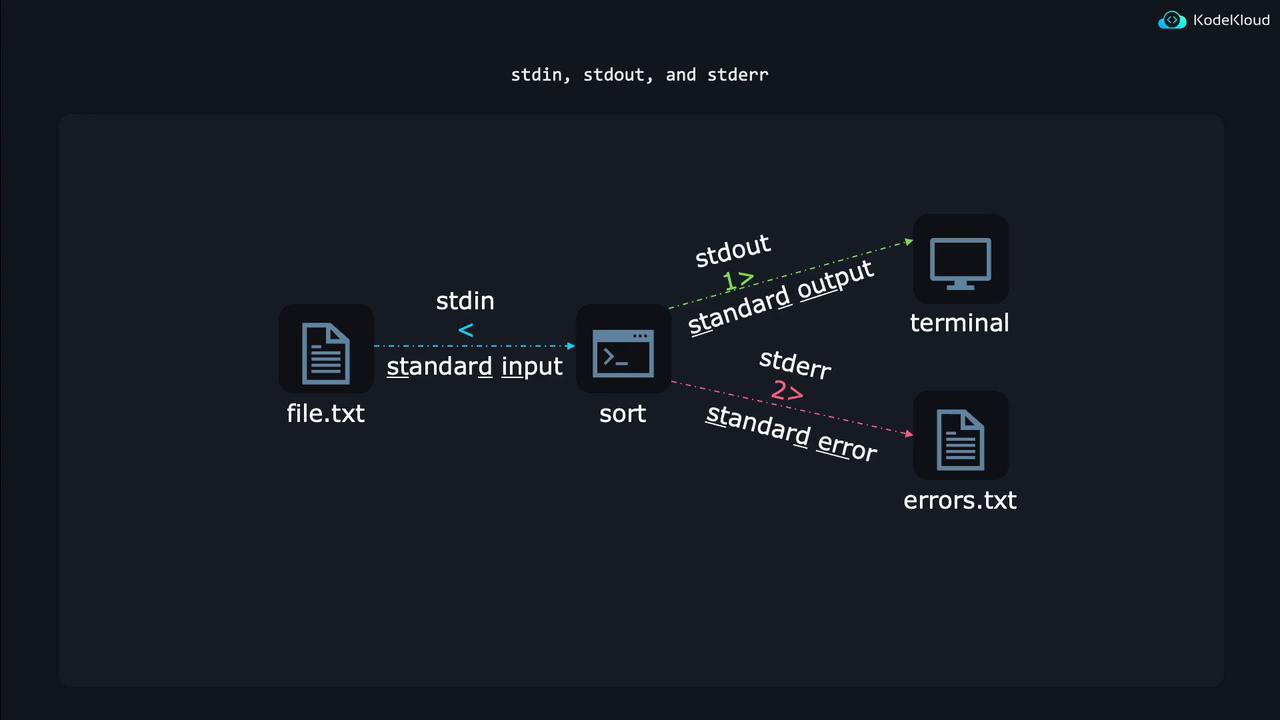
/dev/null, can be used to discard output completely. For example:
/dev/null effectively silences them.
Redirecting Both STDOUT and STDERR
There are times when you want to capture both regular output and error messages in a file. There are two common methods:-
Redirecting to Separate Files
You can redirect standard output and error messages to separate files:
To append to existing files rather than overwriting them, use:
-
Merging STDOUT and STDERR into One File
Use the syntax
2>&1to merge STDERR with STDOUT so both are redirected to the same file:
Input Redirection
Some commands do not allow you to specify an input file directly because they expect input from the keyboard. Input redirection solves this problem. Consider a hypothetical command,sendemail, that expects you to type an email message:
Here Documents and Here Strings
A here document (or “here doc”) allows you to pass multiple lines of text as input to a command. You denote the beginning and end of the text block with a delimiter (commonly EOF):<<<) is treated as input:
bc where you want to quickly evaluate a mathematical expression without entering an interactive session.
Piping Output Between Programs
Individual Linux utilities often perform a single task very well. However, by combining them with pipes, you can create powerful command chains to handle more complex operations. For example, suppose you want to extract configuration settings from/etc/login.defs, ignore comments, sort the settings alphabetically, and neatly format the output into columns. You can accomplish this by chaining commands together:
grep -v '^#' /etc/login.defsremoves commented lines.sortarranges the remaining lines in alphabetical order.column -taligns the output into well-formatted columns.
Piping is a powerful technique that lets you pass the output of one command directly as input to another. This not only simplifies complex tasks but also allows you to create efficient workflows.
By mastering these techniques for redirecting input, output, and error streams, as well as leveraging pipes, you can customize the behavior of Linux commands to suit a wide range of tasks. These methods not only simplify command-line operations but also enable you to automate processing within scripts effectively. For further learning, consider reviewing the Linux Command Line Basics and related technical guides.