

Building the Sample Application
Let’s begin by creating a sample application. Open your preferred text editor with the following command:echo statement logs an informational message that “MyApp” has started, while the second statement logs an error after a five-second delay to simulate a crash:
•
• The
• The
• The
systemd-cat sends messages directly to the system log.• The
-t option attaches a tag (MyApp) to every log message.• The
-p option sets the logging priority (using info for normal status and err for error).• The
sleep 5 command simulates a delay of five seconds before logging a crash.Understanding Systemd Service Options
Detailed explanations for service unit files and configuration options are available in the systemd manual pages. For example, you can learn more by using: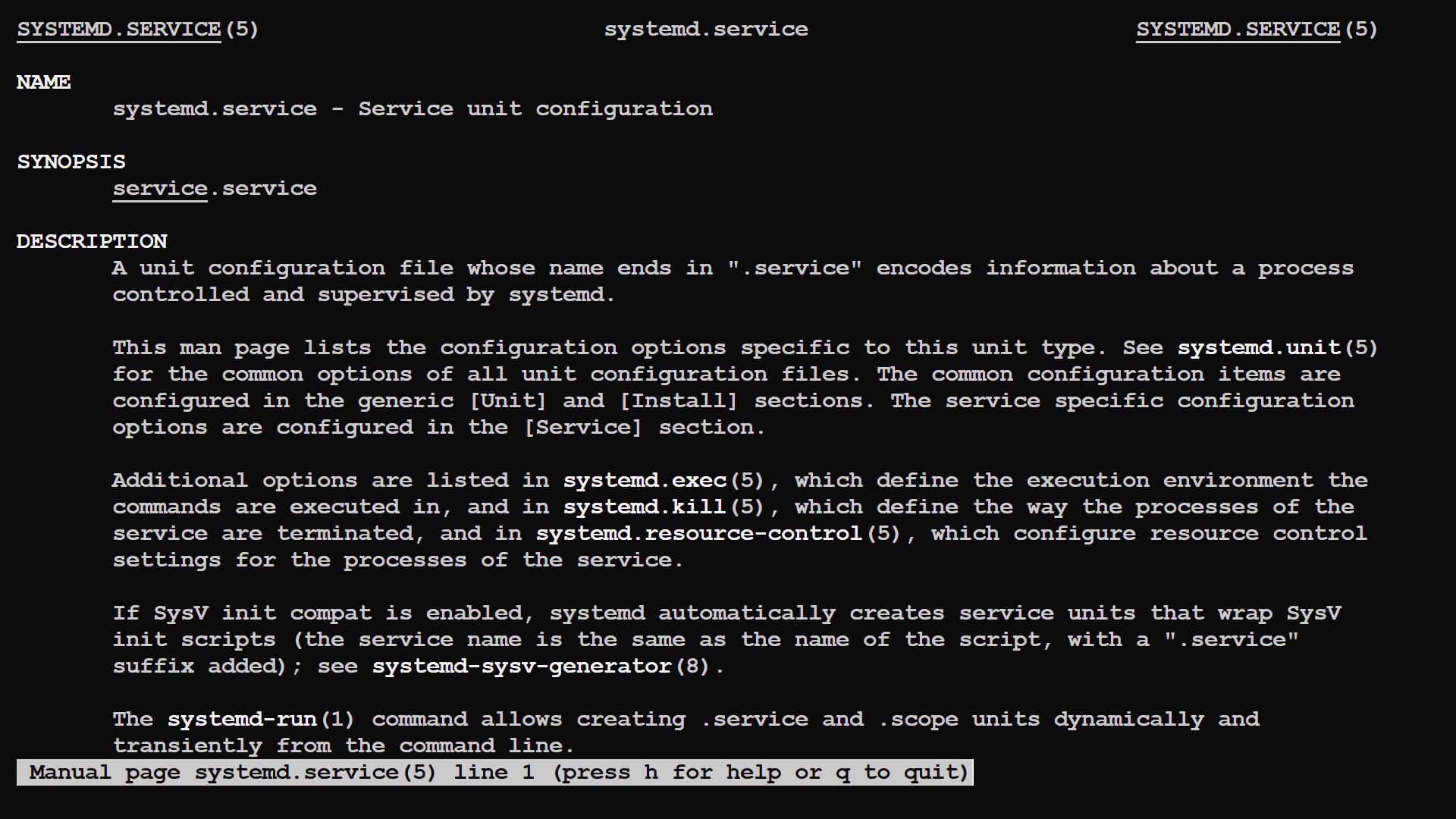
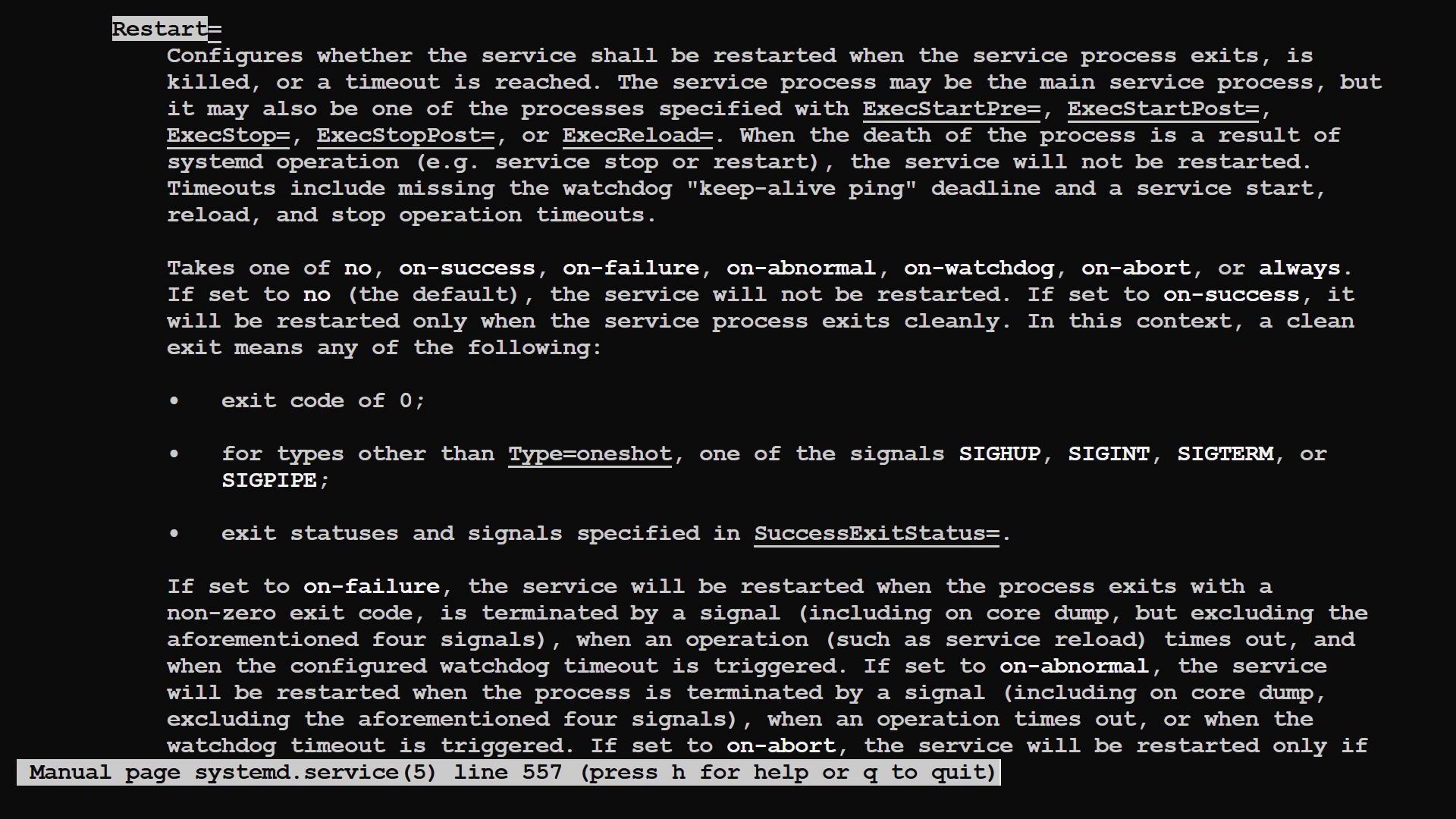
Restart option specifies under which conditions systemd will restart your application. Even if your application always returns a zero exit code, configuring it to restart every time it exits can be beneficial. Additionally, the RestartSec option introduces a delay before restarting, which helps avoid creating a rapid restart loop that can overwhelm the system.
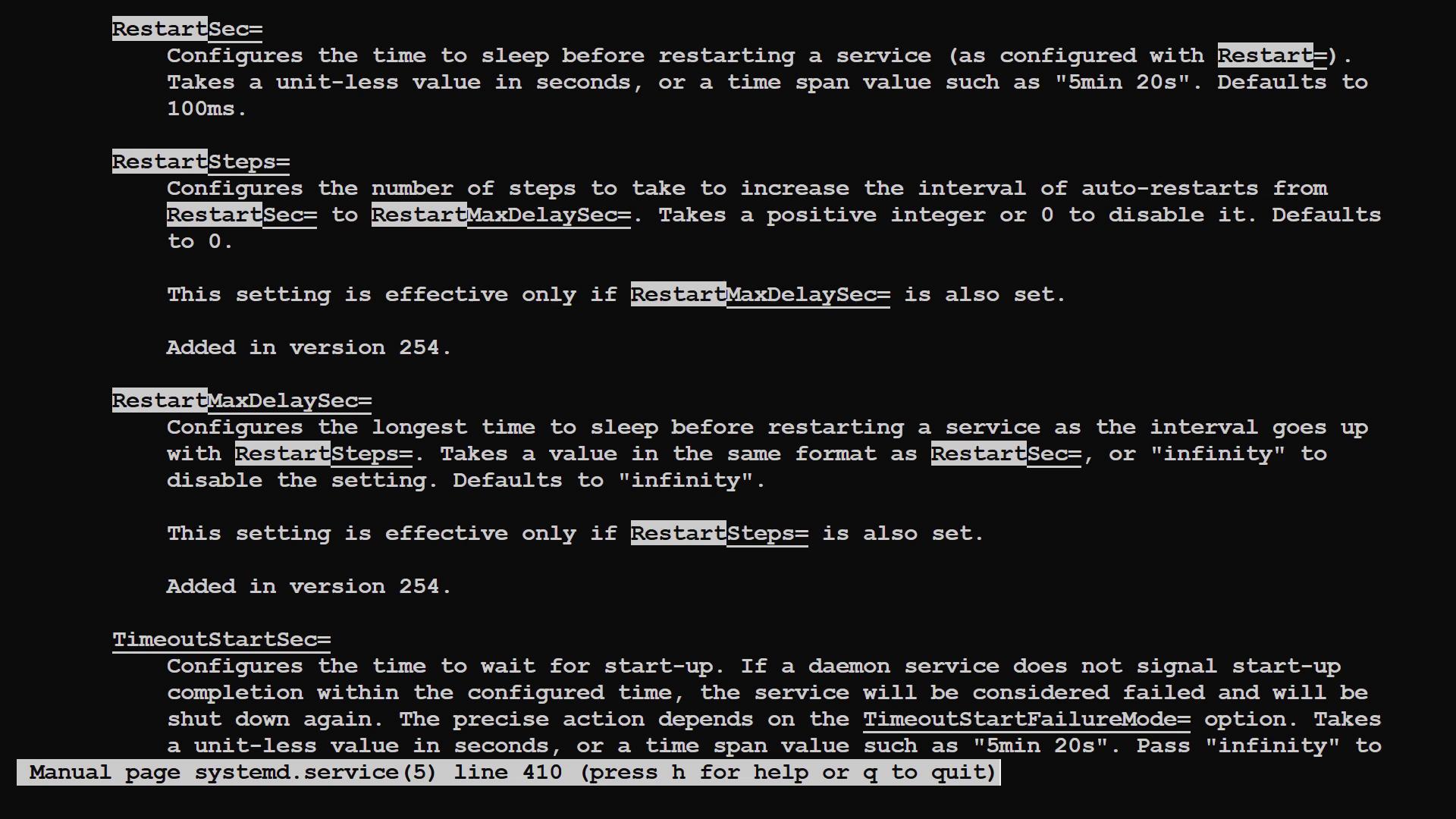
RestartSec, RestartSteps, RestartMaxDelaySec, and TimeoutStartSec, offer fine-tuned control over the timing and behavior of service restarts in different scenarios.
Creating a Service Template
Instead of starting from scratch, you can use an existing service file as a template. Pre-existing service files are typically stored in the/lib/systemd/system directory. List the contents of this directory with:
[Unit], [Service], and [Install].
Modifying the Unit Section
In the[Unit] section, update the description to better reflect your application. Additionally, adjust dependencies so the service starts only after critical services like networking and audit are available:
Some examples might include conditions like
ConditionPathExists=!/etc/ssh/sshd_not_to_be_run. This condition prevents the service from starting if the file exists. For our simple application, you can omit such conditions.Configuring the Service Section
In the[Service] section, define how systemd should manage your application’s lifecycle. Remove any settings that are irrelevant to a simple script, and insert a pre-start command that logs when systemd is about to start MyApp. Then specify your application script as the start command:
KillMode=process instructs systemd to terminate only the main process.•
Restart=always ensures that the service is restarted regardless of its exit status.•
RestartSec=1 sets a one-second delay before each restart.•
Type=simple is appropriate since the application does not send a readiness notification to systemd.
Setting Up the Install Section
The[Install] section controls how the service integrates with the system startup process. Typically, you would include the service in the multi-user.target to ensure it runs in a multi-user environment:
Activating the Service
After saving your service file in/etc/systemd/system/myapp.service, reload the systemd daemon so that it recognizes your new service:
Monitoring the Service Logs
To view your service’s logs in real time, use the journalctl command with the follow option:Further Exploration
To learn more about the systemd options we used in this lesson, consult the following manual pages:/lib/systemd/system directory to better understand various service configurations: