Using the Cat Command
Before diving into VI, let’s review a basic example using the cat command to read and write files. Although helpful for small tasks, cat lacks the rich features of dedicated text editors:Getting Started with VI Editor
The VI Editor is a powerful, console-based text editor perfect for editing files and writing code. To open a file for editing, simply invoke VI followed by the file name. For instance, to open a sample file from Michael’s home directory, use the following command:- Command Mode – Execute commands such as copying, pasting, deleting, and navigating.
- Insert Mode – Edit or add new text.
- Last Line Mode – Save, quit, or perform other file operations.
Opening Files in Command Mode
Every time you start VI, it opens in Command Mode. In this state, only commands are recognized. Navigate through the file using the arrow keys or by pressing H (left), J (down), K (up), and L (right). You may also use the mouse to select text. Below is another example of opening a file in VI, emphasizing its initial state in Command Mode:Switching to Insert Mode
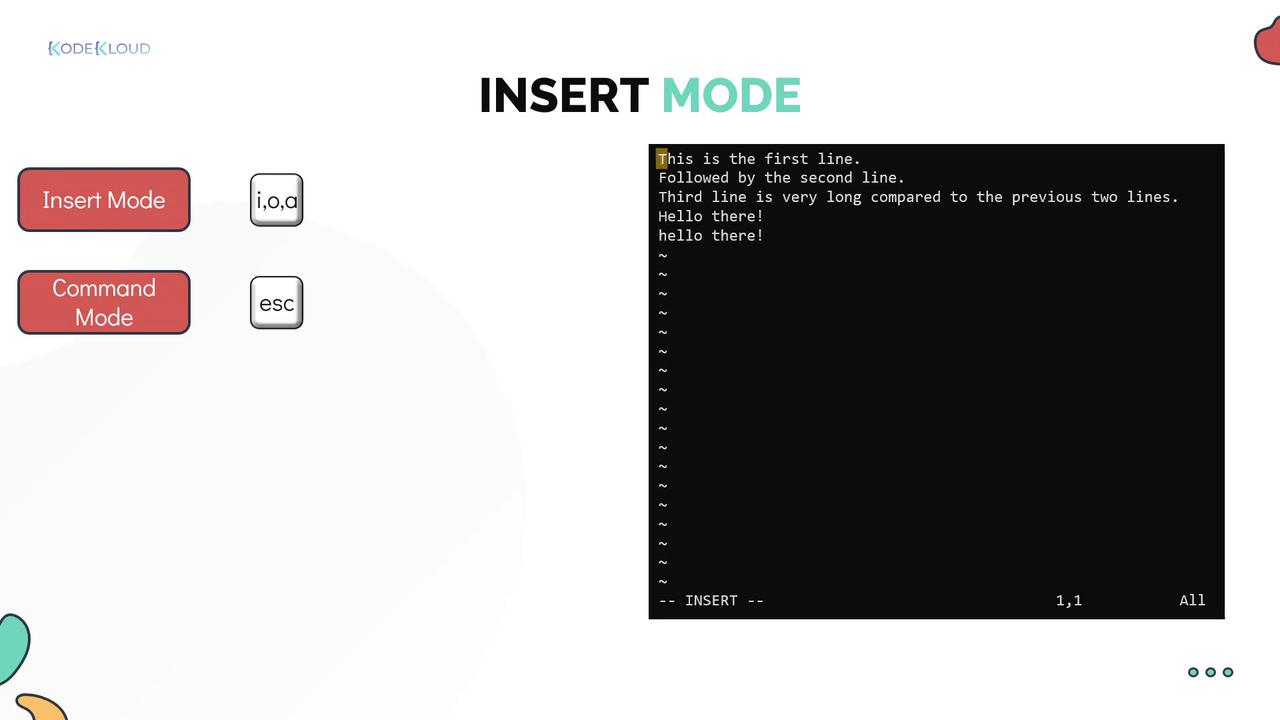
To make changes in your file, switch from Command Mode to Insert Mode by pressing the lowercase i. In Insert Mode, a blinking cursor and the indicator “— INSERT —” appear at the bottom of the screen, allowing you to add or modify text. Other keys such as a, o, I, A, or O may also be used to enter Insert Mode based on where you want to position the cursor.To exit Insert Mode and return to Command Mode, simply press the Esc key.
Working with VI Commands
Once back in Command Mode, you can perform a variety of operations:-
Copying Text: Place the cursor on a line and press
YYto copy it. To paste the copied line above the target line, move the cursor appropriately and pressP. -
Saving and Deleting:
- Save the file using uppercase
ZZ. - Delete a character by positioning on it and pressing
X. - Delete an entire line with
DD. - For multiple lines, use a command like
D3Dto delete three lines (replace 3 with any number).
- Save the file using uppercase
-
Undo and Redo Changes:
- Press
Uto undo an unintended change. - Use
Control-Rto redo a change that was undone.
- Press
Searching for Text
VI provides efficient search capabilities. Use the slash (/) to search downward from the current line or the question mark (?) to search upward. Typing/line will move the cursor to the first occurrence of the search term. Press n for the next match downward, or N for the previous match upward.
Last Line Mode: Saving and Quitting
Switch to Last Line Mode by pressing the colon (:) in Command Mode. This mode allows you to execute commands such as saving and quitting:- Save the changes with
:w. - Quit the editor with
:q. - Save and exit using
:wq. - Force quit without saving using
:q!.
Enhancing VI with VIM
VIM (“VI Improved”) builds upon the core features of VI by providing additional enhancements such as autocomplete, spell checking, plugins, and syntax highlighting. Often, the VI command on modern Linux distributions is actually a symbolic link to VIM (e.g., /usr/bin/vim.basic). To see the differences between VI and VIM, open a file in VIM and type:h vi-differences to view detailed comparisons.
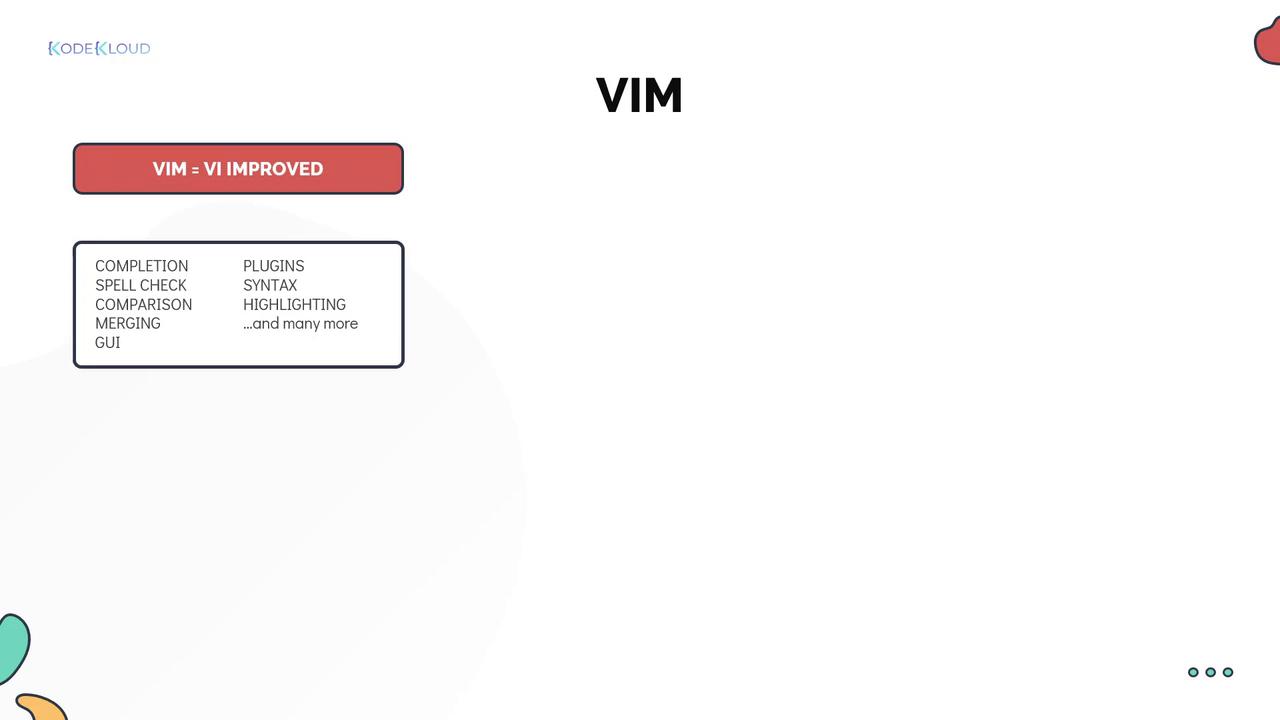
For more detailed information on command usage and advanced features, refer to the VIM documentation or use the built-in help command within VIM.
Practice Makes Perfect
Now that you have a solid understanding of the VI Editor’s modes and commands, it’s time to practice. Experiment with switching between modes, executing commands, and utilizing VI’s extensive feature set to streamline your text editing and coding workflow.