

Getting Started with the Command Line
The first chapter, “Working with the Shell, Part 1,” introduces the command line interface. Although graphical user interfaces (GUIs) can be visually appealing, the command-line shell offers enhanced functionality and flexibility—an essential tool for any Linux system administrator.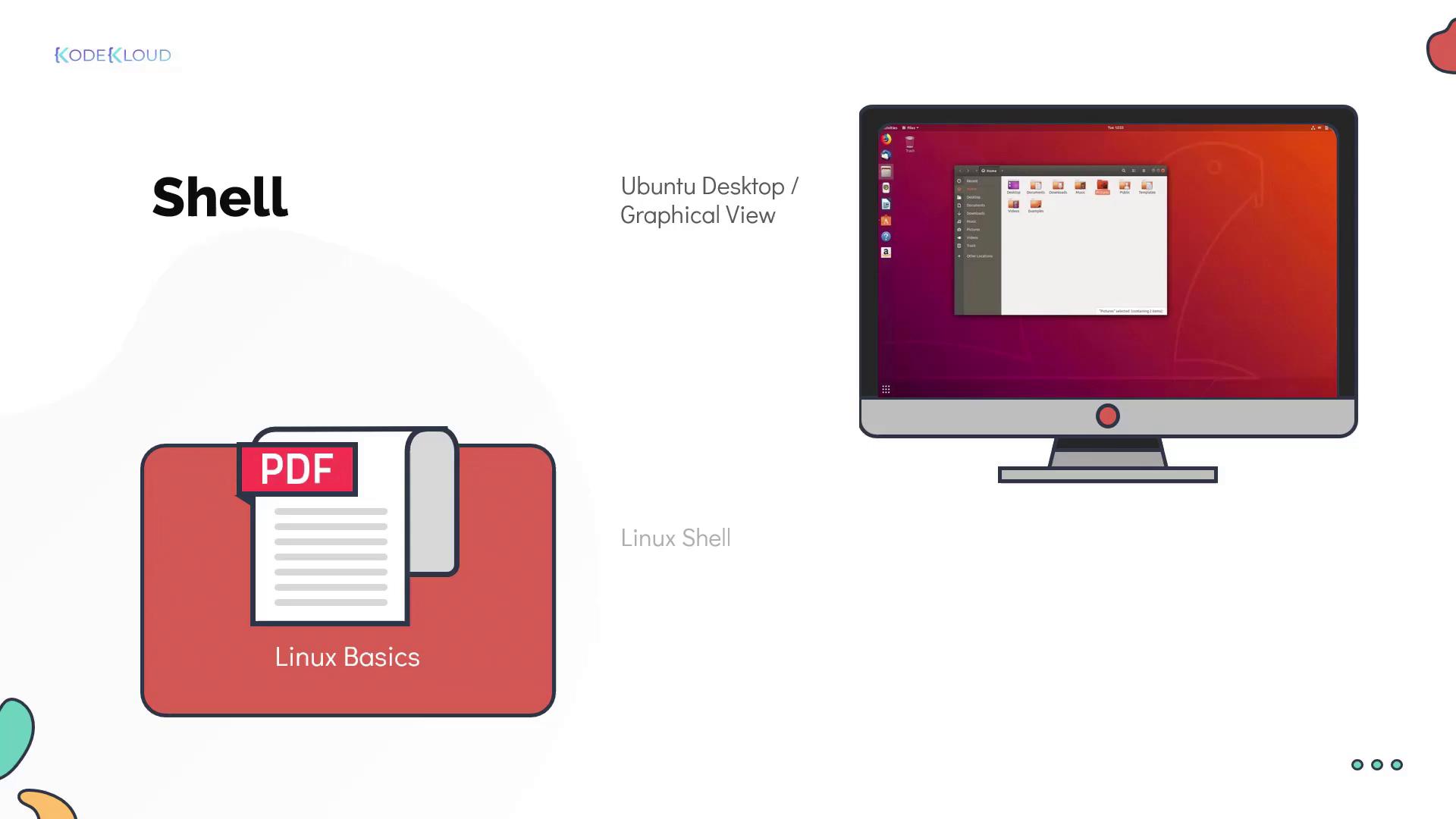
- A user named Michael will have a home directory at
/home/Michael. - Another user, Alan, will have a home directory at
/home/Alan.
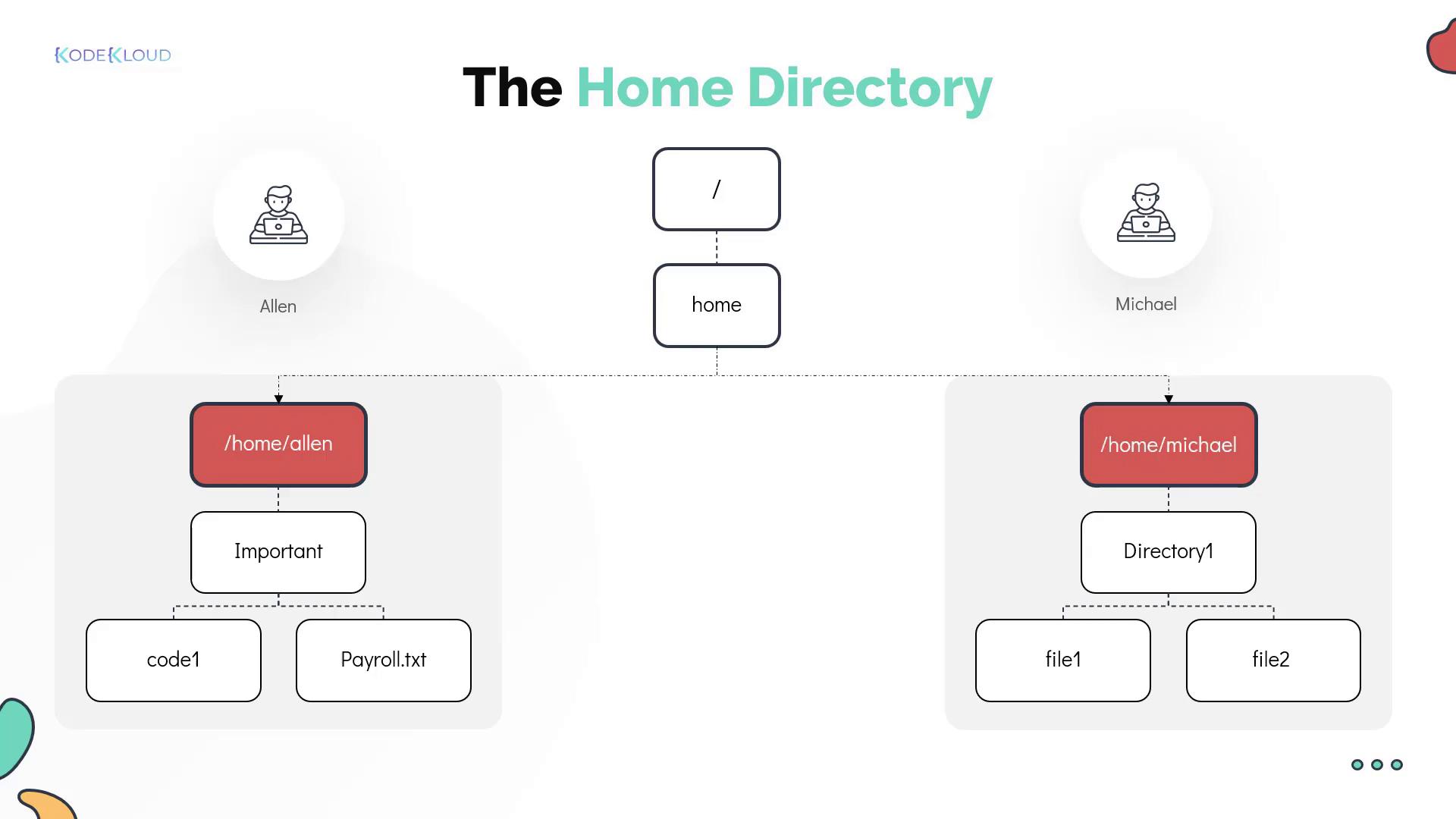
~). When you see ~ in your prompt, it indicates that you are currently in your home directory.
Always check your current directory by observing the prompt, and use the
pwd command for confirmation.Executing Commands
Interacting with Linux is as simple as typing a command into the shell. Each command usually corresponds to a program that performs a particular task. For example, theecho command prints text to the screen. Running echo without an argument produces no output:
Arguments and Options
Many commands support additional input in the form of arguments or options to modify their behavior. For instance, to print “Hello” without a trailing newline, use the-n option with echo:
uptime, which displays how long the system has been running along with load information:
If you are ever unsure about a command or its available options, refer to its help output (using
command --help) or consult the man pages.Understanding Command Types
Linux commands are broadly categorized into two types:-
Internal (Built-in) Commands
These commands are integrated into the shell. They include:cd(change directory)exportmkdir(make directory)pwd(print working directory)
-
External Commands
These are separate binary programs or scripts residing on the system and may be installed by default or added later. A common example is themv(move) command.
type command. For example, executing type echo shows that echo is a built-in command.