

Creating Directories
Begin by creating the continent directories. Themkdir (make directory) command can create one or more directories in a single command:
ls to verify that the directories have been created successfully.
Creating Country and City Directories
Next, create the country directories. For example, to add countries in Asia:- Change into the Asia directory:
- Confirm your current directory:
Expected output:
- Create country directories, such as China and India:
-p option:
Navigating the File System
To move up one level (for example, from the Asia directory back to/home/Michael), use:
cd without arguments will return you to your home directory:
/home/Bob).
Absolute vs. Relative Paths
When moving around the file system, you have two options: absolute paths and relative paths. For example, if you’re in/home/Michael and want to navigate to the Asia directory:
- Using an absolute path:
- Using a relative path:
/) and provides the full location, whereas a relative path is based on your current working directory.
For enhanced navigation, the
pushd command changes directories while saving your previous location in a stack. Later, you can return using popd:Example:Modifying the Directory Structure
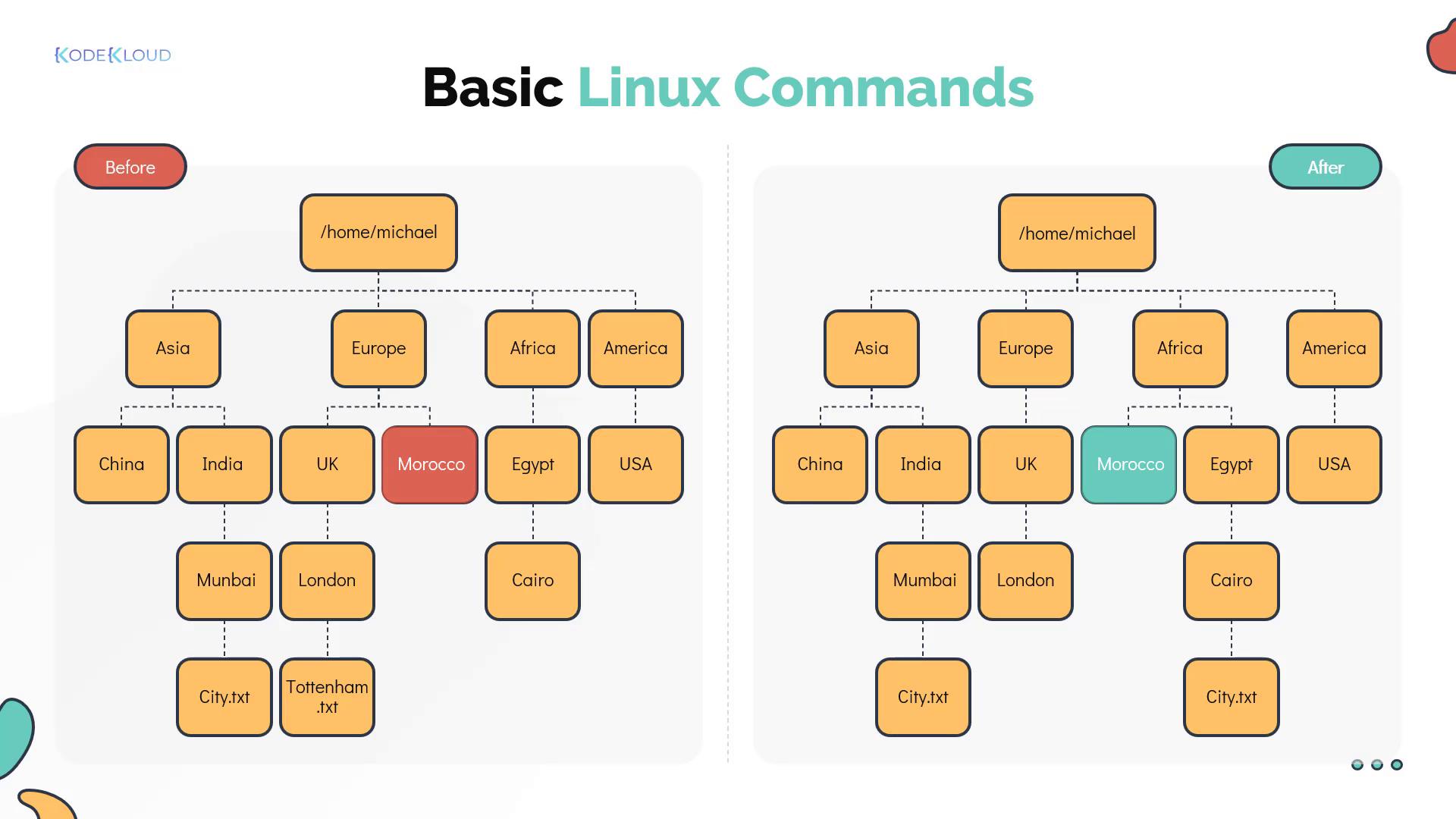
The exercise also involves modifying the directory layout to meet specific requirements. An earlier error involved creating the “Morocco” directory under Europe instead of Africa. The correct organization places Morocco under Africa. The image below illustrates the comparison between the original and the desired directory structures:
- Fixing a typo in the Mumbai directory name.
- Copying the file
city.txtfrom the Mumbai directory to the Cairo directory. - Removing the file
Tottenham.txtfrom the London directory.
Moving Directories
To relocate the Morocco directory from Europe to Africa, use themv command. When using absolute paths:
/home/michael, employ relative paths:
Renaming Directories
If the directory name “Mumbai” contains a typo, rename it using themv command:
Copying Files
To copy thecity.txt file from the Mumbai directory to the Cairo directory (located in Africa/Egypt), use:
Deleting Files
To remove the fileTottenham.txt from the London directory (in Europe), use:
Ensure you have the correct file paths when copying or deleting files. To copy or delete directories recursively, remember to include the
-r option with cp or rm.Working with Files
Reading File Contents
To display the contents of a file—such ascity.txt in the Mumbai directory—use the cat command:
Writing to Files
To replace the content of a file, like updating the Cairo version ofcity.txt, use redirection with cat:
Creating an Empty File
To create an empty file—such ascountry.txt in the China directory—use the touch command:
Viewing Files with Pagers
For a more manageable view of file contents, you can use pagers likemore and less.
Using more:
- Space: scrolls one screen.
- Enter: scrolls one line.
- b: scrolls back one full screen.
- /: begins a text search.
- q: quits the viewer.
less offers additional navigation controls:
- Up Arrow: scrolls up one line.
- Down Arrow: scrolls down one line.
- /: begins a text search.
- q: quits the viewer.
Listing Files
Thels command lists the contents of directories. For a basic listing, use:
-l option:
. refers to the current directory and .. to the parent directory.
To sort files by modification time (newest first), use: