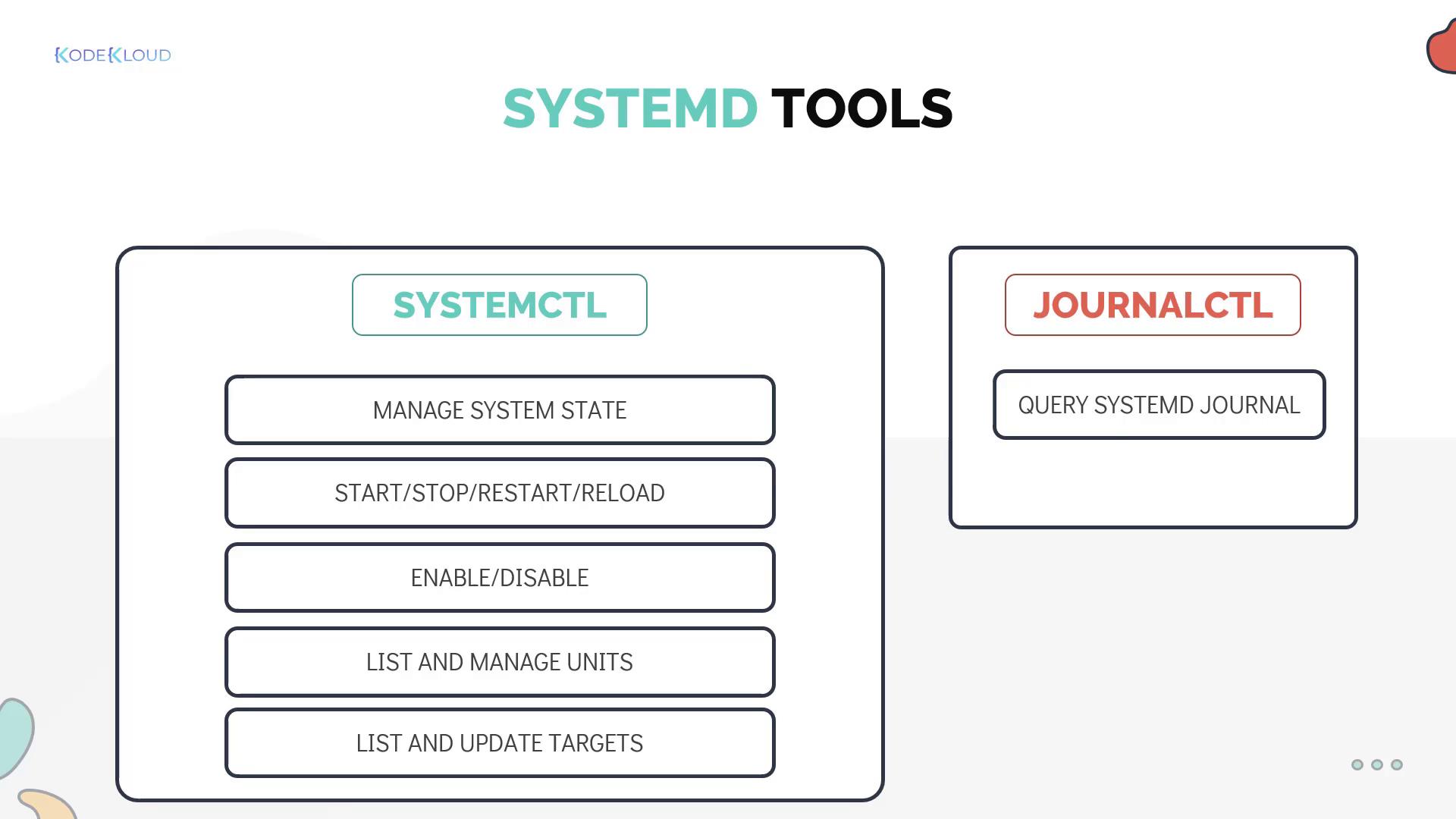
This article explores essential systemd tools for managing services, querying logs, and gathering system state information, focusing on systemctl and journalctl.
Now that your application is running as a service, let’s explore essential systemd tools that let you manage services, work with system targets, query logs, and gather overall system state information. In this guide, we focus on two primary utilities: systemctl and journalctl.
The systemctl command is the main utility for managing services on systems using systemd. You can start, stop, restart, reload, enable, disable, and check the status of any service. Previously, we demonstrated listing and changing the system’s default target. Now, we will use Docker as an example service.
To restart a service (this stops and then starts the service again):
Copy
Ask AI
[~]$ systemctl restart docker
To reload a service without interrupting its normal functionality:
Copy
Ask AI
[~]$ systemctl reload docker
To enable a service so that it starts automatically at boot:
Copy
Ask AI
[~]$ systemctl enable docker
To disable a service (preventing it from starting automatically at boot):
Copy
Ask AI
[~]$ systemctl disable docker
To check the status of a service:
Copy
Ask AI
[~]$ systemctl status docker
The output of systemctl status docker should indicate whether the service is running as expected. For example, an “active (running)” state confirms success. Below is a sample output:
Systemd targets (similar to runlevels) define the state of the machine. You can view or change the default target with systemctl.
To view the current default target:
Copy
Ask AI
[~]$ systemctl get-default
To change the default target (for example, to multi-user mode):
Copy
Ask AI
[~]$ systemctl set-default multi-user.target
Additionally, list all units (both loaded and attempted) using:
Copy
Ask AI
[~]$ systemctl list-units --all
A snippet of the output might appear as follows:
Copy
Ask AI
UNITnetwork.targetnss-lookup.targetnss-user-lookup.targetpaths.targetremote-fs-pre.targetremote-fs.targetrescue.targetshutdown.targetLOAD ACTIVE SUB JOB DESCRIPTIONloaded active active - Networkloaded active active - Host and Network Name Lookuploaded active active - User and Group Name Lookuploaded inactive dead - Pathsloaded active active - Remote File Systems (Pre)loaded inactive dead - Remote File Systemsloaded inactive dead - Rescue Modeloaded inactive dead - Shutdown
To view only active units, run systemctl list-units without the --all flag.
The journalctl command is an essential troubleshooting tool for querying the systemd journal logs. By default, running journalctl displays all log entries from the oldest to the newest.
With the commands and examples provided above, you now have a solid foundation in managing services with systemctl and troubleshooting them using journalctl. Bob’s working Project Mercury service on his laptop is just one example of how systemd can simplify system administration tasks.Practice these commands further by creating your own systemd service and applying these management and troubleshooting techniques.For additional resources, consider exploring: