This article explores how Linux detects and manages hardware devices, detailing command-line tools for listing devices and providing hardware information.
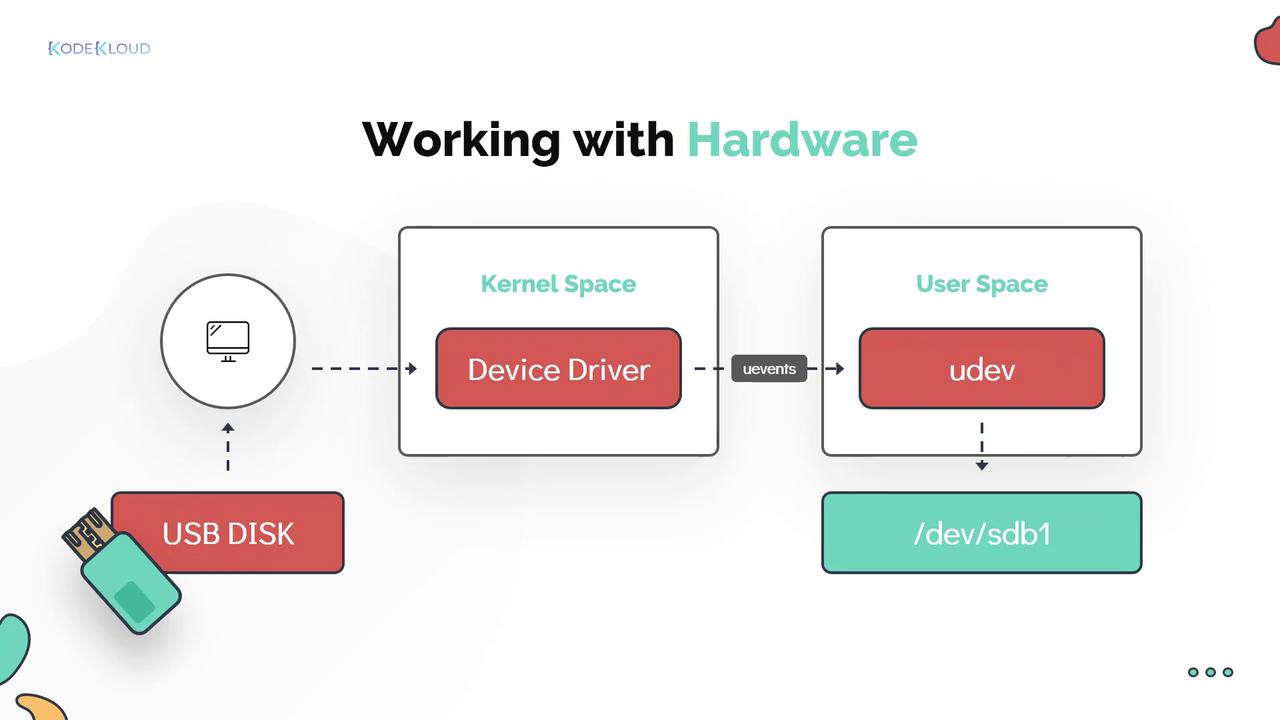
In this lesson, we explore how Linux detects and manages hardware devices connected to a system. You will learn about various command-line tools that list devices and provide detailed hardware information using the example of a USB disk. When a USB disk is attached, the corresponding device driver in the Linux kernel identifies the state change and generates a uEvent. This event is forwarded to the user-space device manager daemon, uDev, which then dynamically creates a device node under the /dev filesystem for the new drive.
Once this process completes, the new disk appears in the /dev filesystem.
Linux utilizes a series of powerful command-line tools to provide visibility into kernel messages, device events, and hardware configurations. These tools are essential for troubleshooting and system administration.
The dmesg tool displays messages from the kernel’s ring buffer, including extensive boot-time logs that reveal how hardware was detected and configured. You can pipe the output to utilities like less or filter it with grep to search for specific keywords.The udevadm utility is used to query and monitor device events related to uDev. For example, the following command queries the uDev database and returns the device path associated with a hard disk:
Copy
Ask AI
[~]$ udevadm info --query=path --name=/dev/sda5/devices/pci0000:00/0000:00:17.0/ata3/host2/target2:0:0/2:0:0:0/block/sda/sda5
Additionally, you can monitor kernel uEvents in real time with:
Copy
Ask AI
[~]$ udevadm monitormonitor will print the received events for:UDEV - the event which udev sends out after rule processingKERNEL - the kernel uevent
Use udevadm monitor to track details of newly attached or removed devices—for instance, when unplugging a USB mouse.
The lspci command lists all PCI devices configured in your system, such as Ethernet cards, RAID controllers, video cards, and wireless adapters. PCI stands for Peripheral Component Interconnect, representing devices directly attached to the motherboard.Below is an example output from the lspci command:
The lsblk command provides detailed information about block devices present on your system. It displays the physical disk (e.g., sda) along with its partitions (e.g., sda1 to sda5). The term “disk” refers to the entire physical disk, while each “partition” is a section of that disk. Devices are also linked with major and minor numbers—where the major number signifies the device driver type (for example, the number 8 indicates a block disk device) and the minor number distinguishes between individual devices handled by the same driver.Example output from the lsblk command:
Copy
Ask AI
[~]$ lsblkNAME MAJ:MIN RM SIZE RO TYPE MOUNTPOINTsda 8:0 0 119.2G 0 disk├─sda1 8:1 0 100M 0 part /boot/efi├─sda2 8:2 0 16M 0 part├─sda3 8:3 0 71.5G 0 part├─sda4 8:4 0 1G 0 part└─sda5 8:5 0 46.6G 0 part /
Another example showing the associated major numbers:
Copy
Ask AI
[~]$ lsblkNAME MAJ:MIN RM SIZE RO TYPE MOUNTPOINTsda 8:0 0 119.2G 0 disk├─sda1 8:1 0 100M 0 part /boot/efi├─sda2 8:2 0 16M 0 part├─sda3 8:3 0 71.5G 0 part├─sda4 8:4 0 1G 0 part└─sda5 8:5 0 46.6G 0 part /
The lscpu command offers detailed insights into the CPU architecture, such as the number of cores, threads per core, cache sizes, and more.For instance, the output below illustrates a 64-bit processor with one physical CPU socket, four cores per socket, and two threads per core—resulting in a total of 8 virtual CPUs:
Copy
Ask AI
[~]$ lscpuArchitecture: x86_64CPU op-mode(s): 32-bit, 64-bitByte Order: Little EndianCPU(s): 8On-line CPU(s) list: 0-7Thread(s) per core: 2Core(s) per socket: 4Socket(s): 1NUMA node(s): 1Vendor ID: GenuineIntelCPU family: 6Model: 142Model name: Intel(R) Core(TM) i5-8265U CPU @ 1.60GHzStepping: 12CPU MHz: 700.060CPU max MHz: 3900.0000CPU min MHz: 400.0000BogoMIPS: 3600.00Virtualization: VT-xL1d cache: 32KL1i cache: 32KL2 cache: 256KL3 cache: 6144KNUMA node0 CPU(s): 0-7
Key points from the output include:
The CPU architecture is 64-bit.
There is 1 socket with 4 cores each and 2 threads per core, totaling 8 virtual CPUs.
To retrieve memory configuration details, use the lsmem command. When combined with the --summary flag, it delivers a brief overview of the system’s memory:
For a more detailed view, run lsmem without any flags.Alternatively, the free command shows memory usage statistics, including total, used, and free memory. The -m flag displays the information in megabytes:
Copy
Ask AI
[~]$ free -m total used free shared buff/cache availableMem: 7824 2518 541 525 4764 4481Swap: 2047 0 2047
You can also use -k for kilobytes and -g for gigabytes as needed.
The lshw command extracts comprehensive details about the system’s hardware configuration. This includes memory setup, firmware version, motherboard information, CPU, cache settings, and bus speeds. Note that running lshw without root privileges may generate warnings about incomplete or inaccurate output.For example, if Bob runs lshw without root, he might see a warning. Dave explains that certain commands require root privileges for complete output. To run lshw with elevated privileges, use sudo:
Dave further explains that each user must enter their own password when using sudo. After proper authentication, the command output is displayed without warnings. The sudo mechanism logs all superuser command activity for auditing purposes. Below is another example of the sudo lshw output:
Linux offers a wide range of tools to monitor and manage hardware devices, system configuration, and resource usage. Understanding these commands and interpreting their outputs is crucial for effective system administration and troubleshooting. Regularly using these tools enhances your ability to manage Linux environments efficiently and securely.Happy learning!