This article provides a practical guide for managing Kubernetes services, including listing, inspecting, and exposing a web application using a NodePort service.
In this article, we walk through a practical lab solution for managing Kubernetes services. We cover listing services, inspecting service details, reviewing deployments, and exposing a web application using a NodePort service. This guide is ideal for Kubernetes administrators and developers looking to understand service management in-depth.
Review the labels configured on the Kubernetes service by examining its description. You will see two labels:
component: apiserver
provider: kubernetes
These labels confirm that this service is associated with the Kubernetes API server. For more detailed insights, especially in preparation for the Certified Kubernetes Application Developer (CKAD) exam, further examination of the API server is recommended.
Endpoints are dynamically determined based on the labels and selectors defined in a service specification. When a service is created, it monitors Pods that match its specified selector. If there is a misconfiguration, the service could unintentionally attach extra endpoints, or conversely, none at all if labels are mismatched.In our example, the service directs traffic to a single endpoint.
Attempting to access the web application UI may result in a “bad gateway” error. This occurs because there is no service defined to expose the web application.
Without a proper service configuration, your web application will remain inaccessible externally.
To resolve this, you need to create a new service using a service definition file.
Now, you can access the web application using the newly created service. In future lessons, we will also explore imperative commands to create services. For example, try the following commands:
Copy
Ask AI
kubectl expose pod redis --port=6379 --name=redis-service --dry-run=client -o yaml
Copy
Ask AI
kubectl create service clustip redis --tcp=6379:6379 --dry-run=client -o yaml
Copy
Ask AI
kubectl expose pod nginx --type=NodePort --port=80 --name=nginx-service --dry-run=client -o yaml
Copy
Ask AI
kubectl create service nodeport nginx --tcp=80:80 --node-port=30080 --dry-run=client -o yaml
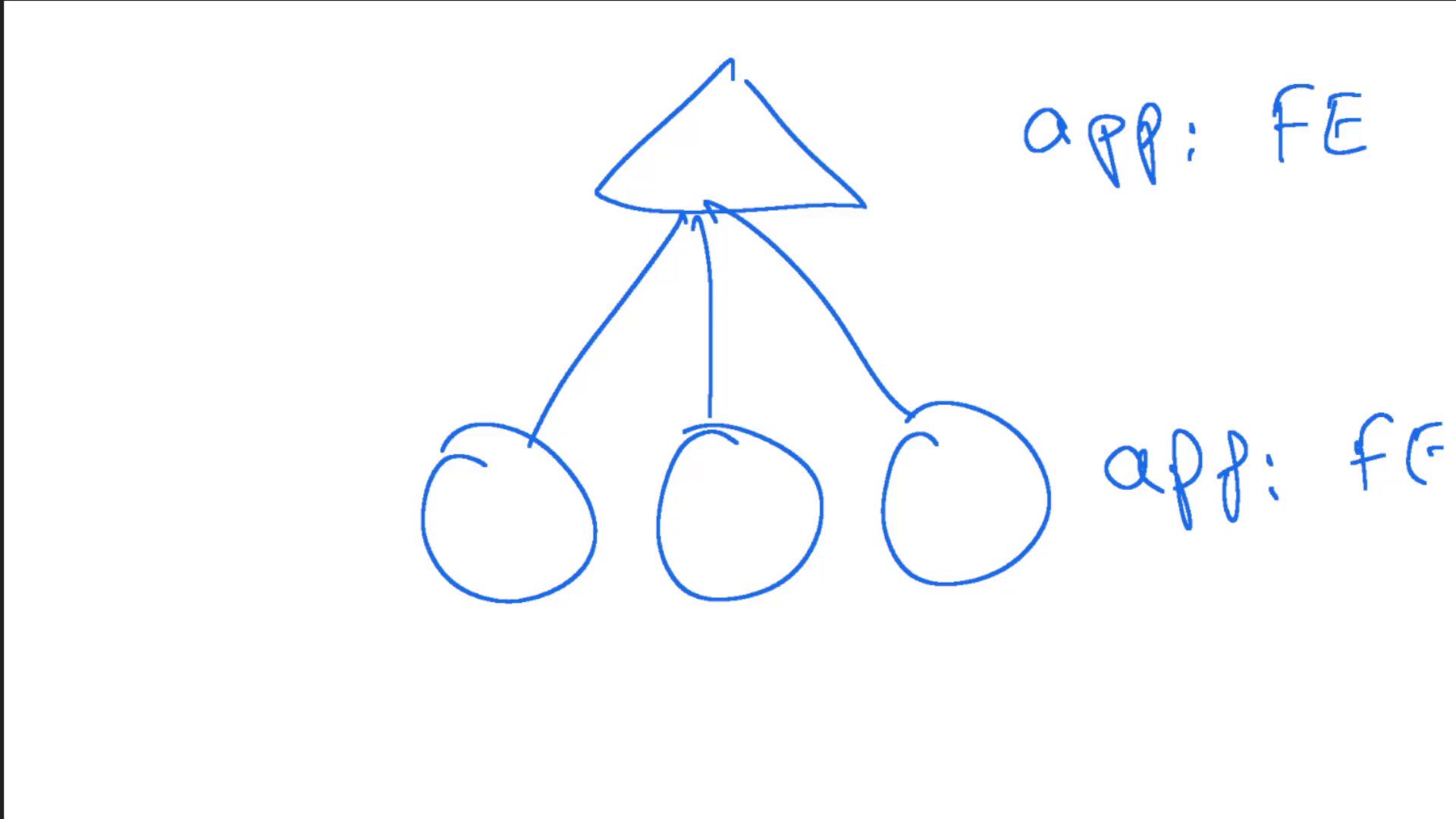
For a better understanding of how services direct traffic to Pods, consider the following hand-drawn diagram. It illustrates a service directing traffic to three distinct Pods labeled “app: FE” and “app: FG”:
This visual representation reinforces how the service uses endpoints to direct incoming traffic to the correct Pods.That concludes this lab. By following these steps, you now know how to list services, inspect service configurations and endpoints, review deployments, and expose a web application via a NodePort service in Kubernetes.