This guide explores kubeconfig files in Kubernetes, focusing on authentication and context management for kubectl to enhance workflow efficiency.
Welcome to this guide on kubeconfig files in Kubernetes. In this article, we will explore how kubeconfig files streamline authentication and context management for kubectl, enhancing your workflow by reducing repetitive command-line options.So far, you learned how to generate a certificate for a user and how a client can use the certificate file and key to query the Kubernetes REST API. For example, assume your cluster is named “my kube playground.” You can send a curl request to the Kubernetes API server with the client certificate, key, and CA certificate:
Typing these options every time can become tedious. To simplify your workflow, you can move the connection details into a configuration file known as a kubeconfig file. By default, kubectl looks for a file named config under the .kube directory in your home directory. If the kubeconfig file is in its default location, you don’t have to specify connection options for each command:
Copy
Ask AI
kubectl get pods
Using a kubeconfig file saves you time by automatically applying connection settings, which means you no longer have to repeatedly supply options like --client-key and --certificate-authority.
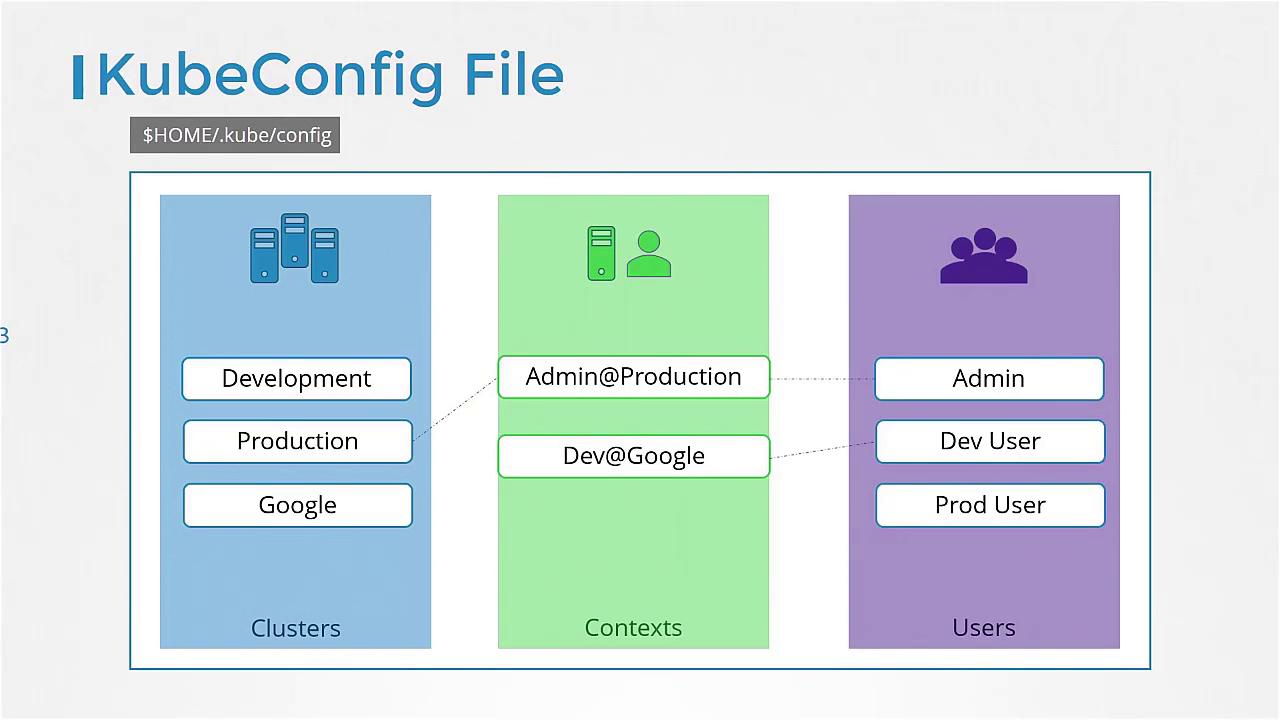
The kubeconfig file is organized into three primary sections:
Clusters: Define the various Kubernetes clusters you need access to. You might have separate clusters for development, testing, production, or different cloud providers.
Users: Define the user accounts holding credentials (such as client certificates and keys) needed to access these clusters.
Contexts: Link clusters and users together. A context specifies which user credentials should be used to access a particular cluster. For example, you could have a context called “admin@production,” which uses the admin user’s credentials for the production cluster.
These components work together to streamline connectivity and authentication in your Kubernetes environment.
In our example, the server address and CA certificate information belong in the clusters section, while the admin user’s keys and certificates go in the users section. A context then binds these settings together. Below is a sample kubeconfig file in YAML format:
Note that you do not create Kubernetes objects for these configurations. Instead, kubectl reads this file to obtain the necessary connection details.kubectl selects a context from the kubeconfig based on the current-context field. For example, if you set:
Copy
Ask AI
current-context: my-kube-admin@my-kube-playground
kubectl will default to that context. Alternatively, you can specify a different kubeconfig file from the command line using the --kubeconfig flag:
To switch your current context—for example, changing from the my-kube-admin account on the playground cluster to the prod-user account on the production cluster—use the kubectl config use-context command:
Copy
Ask AI
kubectl config use-context prod-user@production
After running this command, your current-context in the kubeconfig file updates to prod-user@production. You can verify the change by viewing the configuration:
Each Kubernetes cluster can span multiple namespaces. You can designate a default namespace within a context so that switching contexts automatically sets the working namespace. For example, here is a configuration for the production cluster that sets “finance” as the default namespace:
The kubeconfig file typically references certificate file paths. For clarity and robustness, it is best practice to use the full path to each certificate. Alternatively, you can embed the certificate data directly into the file by base64-encoding the certificate. For instance, instead of defining:
Copy
Ask AI
apiVersion: v1kind: Configclusters:- name: production cluster: certificate-authority: /etc/kubernetes/pki/ca.crt
you can embed the certificate data:
Copy
Ask AI
apiVersion: v1kind: Configclusters:- name: production cluster: certificate-authority-data: LS0tLS1CRUdJTiBDRVJU...
If you encounter certificate data in base64 format and need to decode it, use the following command:
Copy
Ask AI
echo "LS0t...bnJ" | base64 --decode
This command will output the certificate in its standard PEM format:
In this article, we covered how kubeconfig files simplify connection management for Kubernetes by consolidating user credentials, cluster details, and context settings into a single file. Use this knowledge to streamline your kubectl commands and manage multiple Kubernetes environments effectively.Next, apply these concepts by creating and troubleshooting your kubeconfig files to enhance your Kubernetes workflow.For further reading, check out the following resources: