In this guide, we will walk you through solving a Kubernetes mock exam with step-by-step instructions on creating deployments, services, configuring taints, tolerations, node affinity, ingress resources, readiness and liveness probes, jobs, multi-container pods, and persistent volumes. Follow along to apply these configurations in your Kubernetes environment.
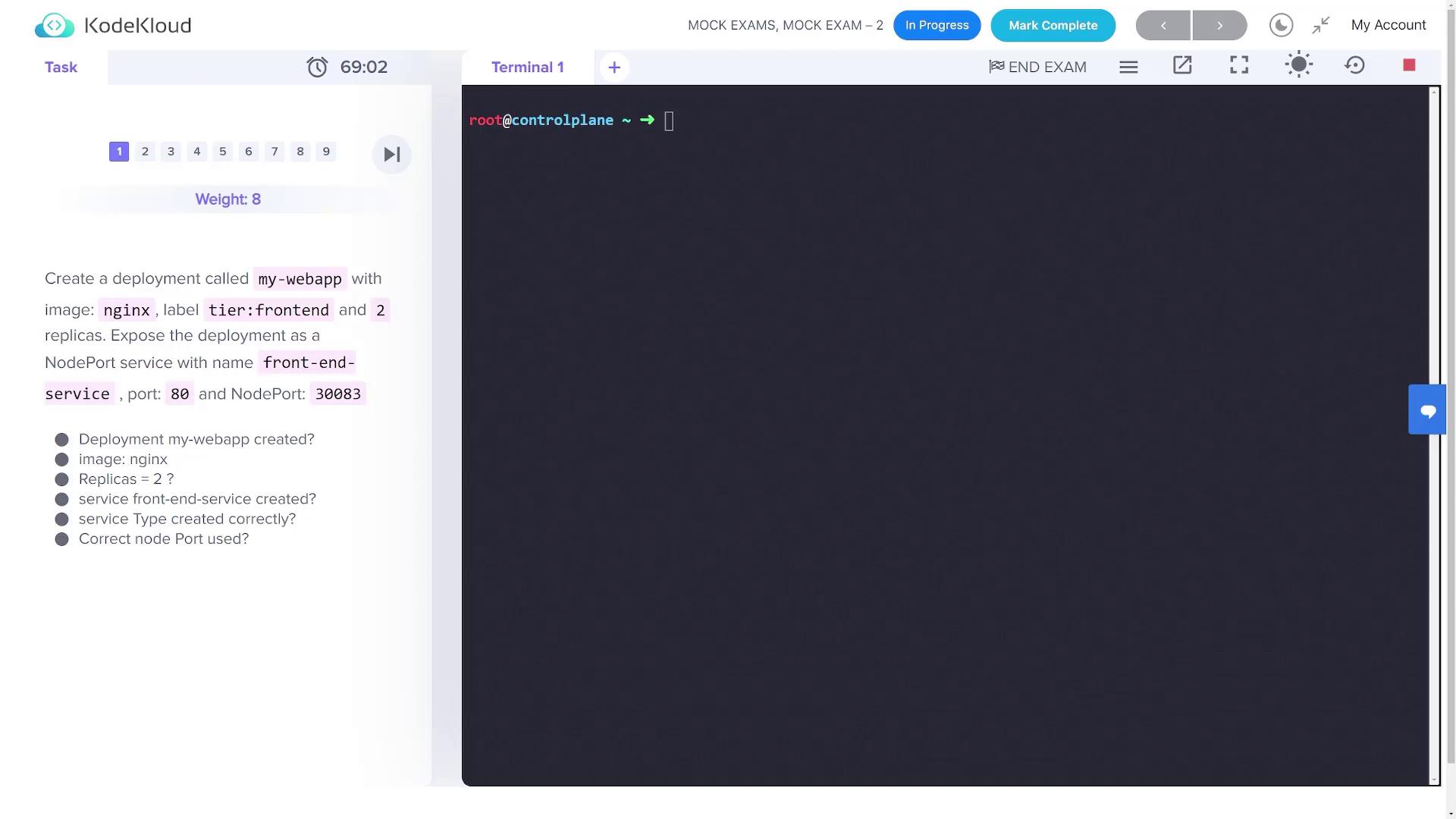
1. Create a Deployment and Expose It as a NodePort Service Creating the Deployment First, create a deployment named my-webapp with the following parameters:
Image: nginxReplicas: 2Label: tier=front end (as implied)
Generate a YAML configuration using a dry run and save it to my-webapp.yaml:
kubectl create deployment my-webapp --image=nginx --replicas=2 --dry-run=client -o yaml > my-webapp.yaml
Review the file if necessary, then apply the configuration:
kubectl apply -f my-webapp.yaml
Verify the deployment:
Exposing the Deployment as a Service Next, expose the my-webapp deployment as a NodePort service with these settings:
Service Name: front-end-serviceService Type: NodePortPort: 80Node Port: 30083 (to be set manually in the YAML)
Generate the service configuration using a dry run:
kubectl expose deployment my-webapp --name front-end-service --type NodePort --port 80 --dry-run=client -o yaml > front-end-service.yaml
Open front-end-service.yaml and add the node port configuration (30083) under the appropriate section. Then, apply the updated configuration:
kubectl apply -f front-end-service.yaml
Verify the service:
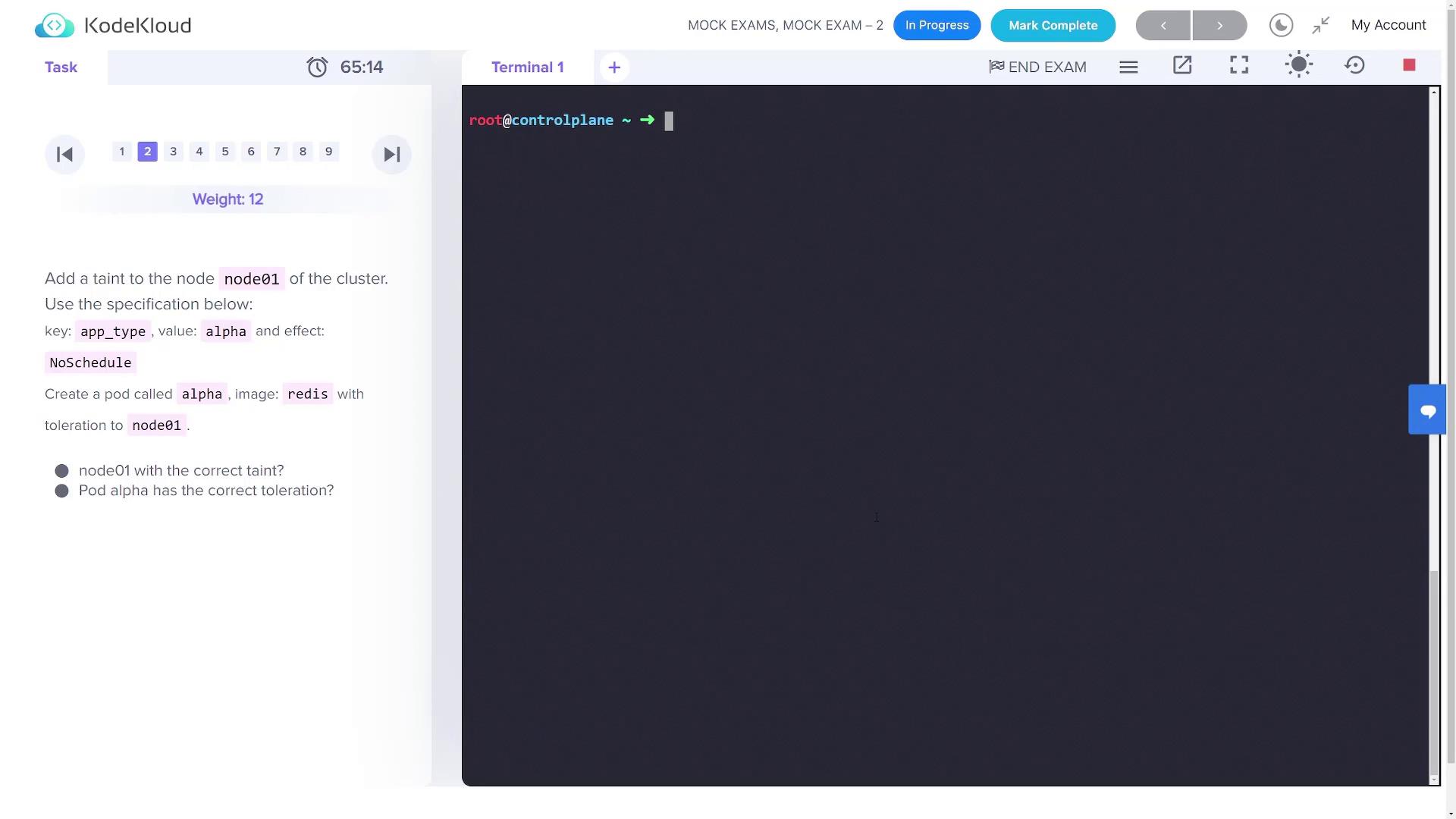
2. Add a Taint to a Node and Create a Pod with a Toleration Tainting the Node Check the nodes in your cluster:
Apply a taint on the node named node01 with key app_type, value alpha, and effect NoSchedule:
kubectl taint node node01 app_type=alpha:NoSchedule
Confirm the taint by describing the node:
kubectl describe node node01
Creating the Pod with Toleration Create a pod named alpha using the redis image. First, generate the pod’s YAML configuration:
kubectl run alpha --image=redis --dry-run=client -o yaml > alpha.yaml
Edit the alpha.yaml file to include the following toleration under the pod spec:
tolerations : - key : app_type operator : Equal value : "alpha" effect : NoSchedule
A complete sample configuration should look like this:
apiVersion : v1 kind : Pod metadata : name : alpha labels : run : alpha spec : tolerations : - key : app_type operator : Equal value : "alpha" effect : NoSchedule containers : - name : alpha image : redis restartPolicy : Always
Apply the configuration:
kubectl apply -f alpha.yaml
Verify that the pod is running on node01 :
3. Label the Control Plane Node and Create a Deployment with Node Affinity Labeling the Node List your nodes to find the control plane node:
Label the control plane node (assumed to be named controlplane ) with app_type=beta:
kubectl label node controlplane app_type=beta
Confirm the label is applied:
kubectl get node --show-labels
Creating the Beta-Apps Deployment with Node Affinity Create a deployment named beta-apps with the following settings:
Generate the YAML configuration:
kubectl create deployment beta-apps --image=nginx --replicas=3 --dry-run=client -o yaml > beta-apps.yaml
Edit the file to add a node affinity section under the pod spec:
spec : affinity : nodeAffinity : requiredDuringSchedulingIgnoredDuringExecution : - matchExpressions : - key : app_type operator : In values : - beta
A complete version of the edited deployment YAML will be:
apiVersion : apps/v1 kind : Deployment metadata : name : beta-apps labels : app : beta-apps spec : replicas : 3 selector : matchLabels : app : beta-apps template : metadata : labels : app : beta-apps spec : affinity : nodeAffinity : requiredDuringSchedulingIgnoredDuringExecution : - matchExpressions : - key : app_type operator : In values : - beta containers : - name : nginx image : nginx resources : {}
Apply the deployment:
kubectl apply -f beta-apps.yaml
Verify that the pods are scheduled on the control plane node:
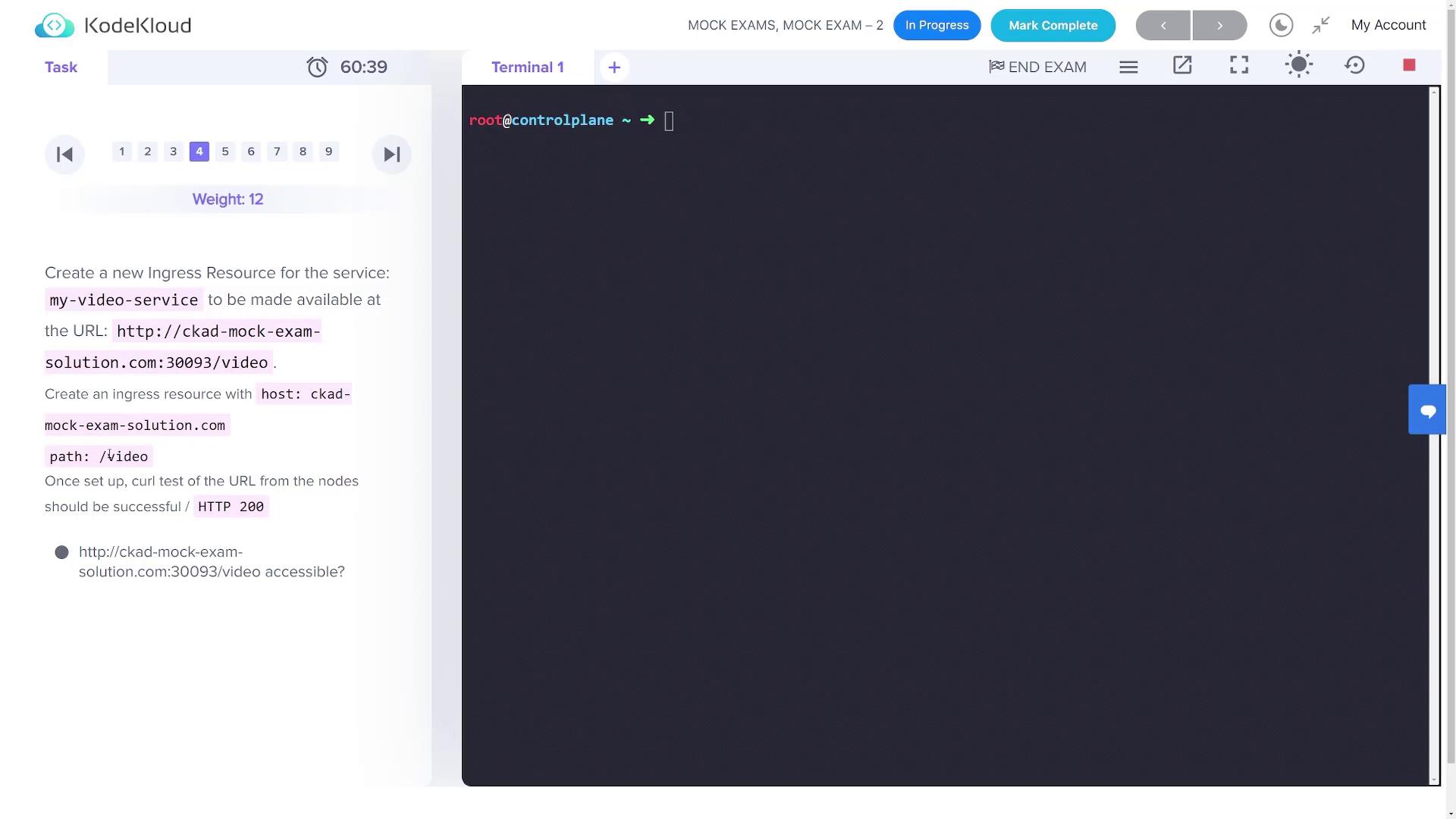
4. Create an Ingress Resource for the My-Video Service First, verify the my-video-service details (it listens on port 8080):
You should see output similar to:
NAME TYPE CLUSTER-IP EXTERNAL-IP PORT ( S ) AGE front-end-service NodePort 10.101.45.50 < non e > 80:31242/TCP 8m4s kubernetes ClusterIP 10.96.0.1 < non e > 443/TCP 23m my-video-service ClusterIP 10.97.57.28 < non e > 8080/TCP 2m54s
Create an ingress resource so that my-video-service is reachable via the URL ckad-mock-exam-solution.com at the path /video.
Generate the ingress configuration imperatively:
kubectl create ingress ingress --rule= "ckad-mock-exam-solution.com/video= my-video-service:8080" --dry-run=client -o yaml > ingress.yaml
Then, adjust the YAML to ensure it follows the proper format. The final configuration should be:
apiVersion : networking.k8s.io/v1 kind : Ingress metadata : name : ingress spec : rules : - host : ckad-mock-exam-solution.com http : paths : - path : /video pathType : Prefix backend : service : name : my-video-service port : number : 8080 status : loadBalancer : {}
Apply the ingress resource:
kubectl apply -f ingress.yaml
Verify the ingress configuration:
5. Update a Pod with a Readiness Probe Update a pod (named pod-with-rprobe ) to include a readiness probe. First, retrieve its current configuration:
kubectl get pod pod-with-rprobe -o yaml > pod.yaml
Edit pod.yaml and insert the following snippet under the container spec (before the ports section):
readinessProbe : httpGet : path : /ready port : 8080
An updated container section should resemble:
containers : - name : pod-with-rprobe image : kodekloud/webapp-delayed-start env : - name : APP_START_DELAY value : "180" readinessProbe : httpGet : path : /ready port : 8080 ports : - containerPort : 8080 protocol : TCP
After saving your changes, force replace the existing pod:
kubectl replace -f pod.yaml --force
Verify the update:
kubectl get pod pod-with-rprobe
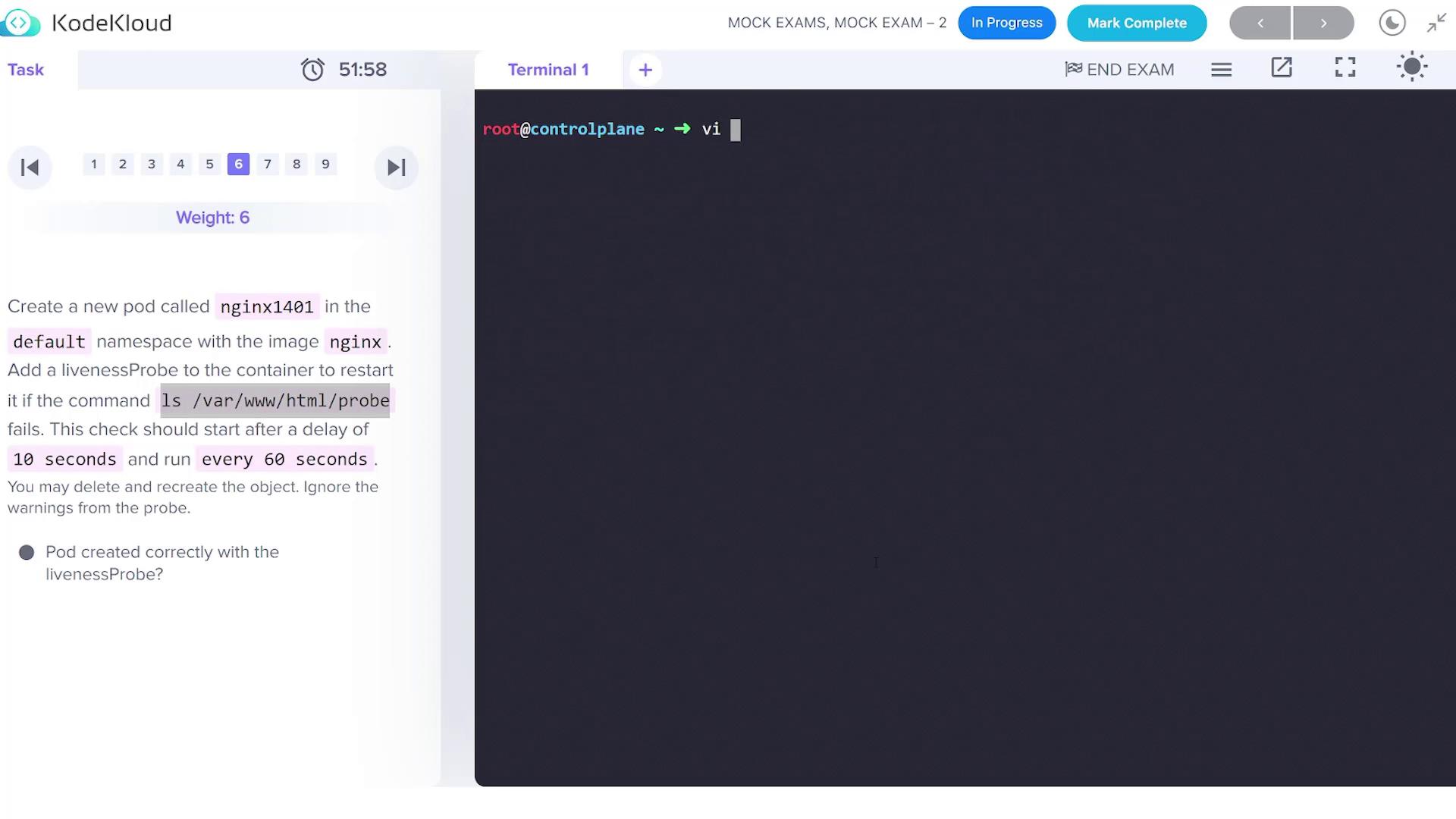
6. Create a Pod with a Liveness Probe Create a new pod named nginx1401 in the default namespace using the nginx image. This pod will have a liveness probe that executes a command to check /var/www/html/probe. The probe has an initial delay of 10 seconds and executes every 60 seconds.
Create a file called nginx1401.yaml with the following content:
apiVersion : v1 kind : Pod metadata : name : nginx1401 namespace : default spec : containers : - name : nginx1401 image : nginx livenessProbe : exec : command : [ "ls" , "/var/www/html/probe" ] initialDelaySeconds : 10 periodSeconds : 60
Apply the configuration:
kubectl apply -f nginx1401.yaml
If validation errors occur, verify the YAML formatting and ensure the liveness probe is directly placed under the container.
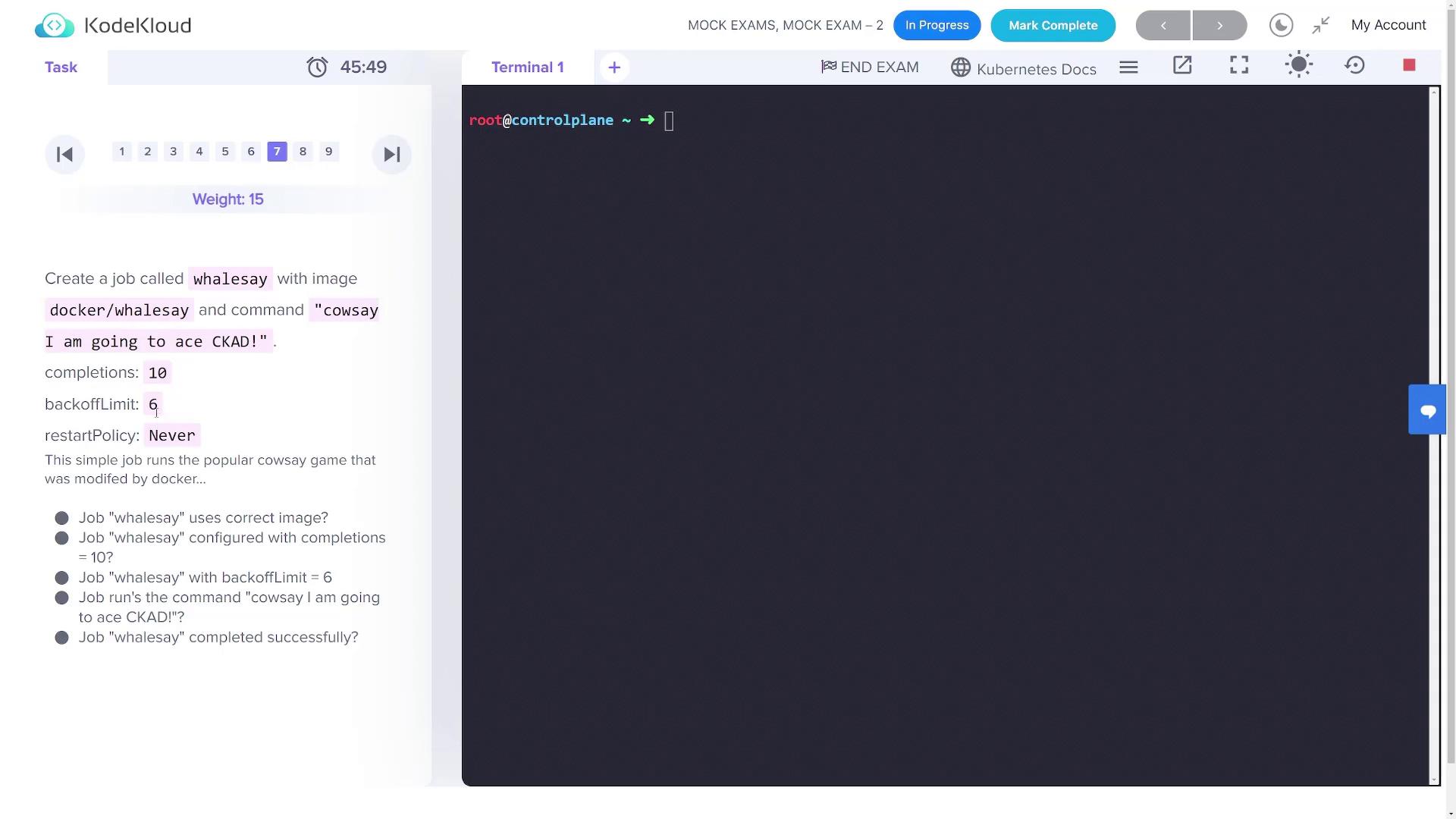
7. Create a Job Called Whalesay Create a Kubernetes Job named whalesay using the docker/whalesay image. This job will execute a command to display “I am going to ace CKAD!”, with 10 completions, a backoff limit of 6, and a restart policy set to Never.
Generate the job configuration using a dry run:
kubectl create job whalesay --image=docker/whalesay -- /cowsay "I am going to ace CKAD!" --dry-run=client -o yaml > whalesay.yaml
Edit the whalesay.yaml file to include the completions and backoffLimit fields. The finalized YAML should be:
apiVersion : batch/v1 kind : Job metadata : name : whalesay spec : completions : 10 backoffLimit : 6 template : spec : containers : - name : whalesay image : docker/whalesay command : - sh - -c - "/cowsay 'I am going to ace CKAD!'" restartPolicy : Never
Apply the job configuration:
kubectl apply -f whalesay.yaml
Monitor the job progress until all 10 completions succeed:
8. Create a Multi-Container Pod Create a pod named multi-pod containing two containers with the configurations below:
Container 1:
Name: jupiter
Image: nginx
Environment Variable: type=planet
Container 2:
Name: europa
Image: busybox
Command: /bin/sh -c "sleep 4800"
Environment Variable: type=moon
Create a file called multi-pod.yaml with the following content:
apiVersion : v1 kind : Pod metadata : name : multi-pod spec : containers : - name : jupiter image : nginx env : - name : type value : "planet" - name : europa image : busybox command : [ "/bin/sh" , "-c" , "sleep 4800" ] env : - name : type value : "moon"
Apply the configuration:
kubectl apply -f multi-pod.yaml
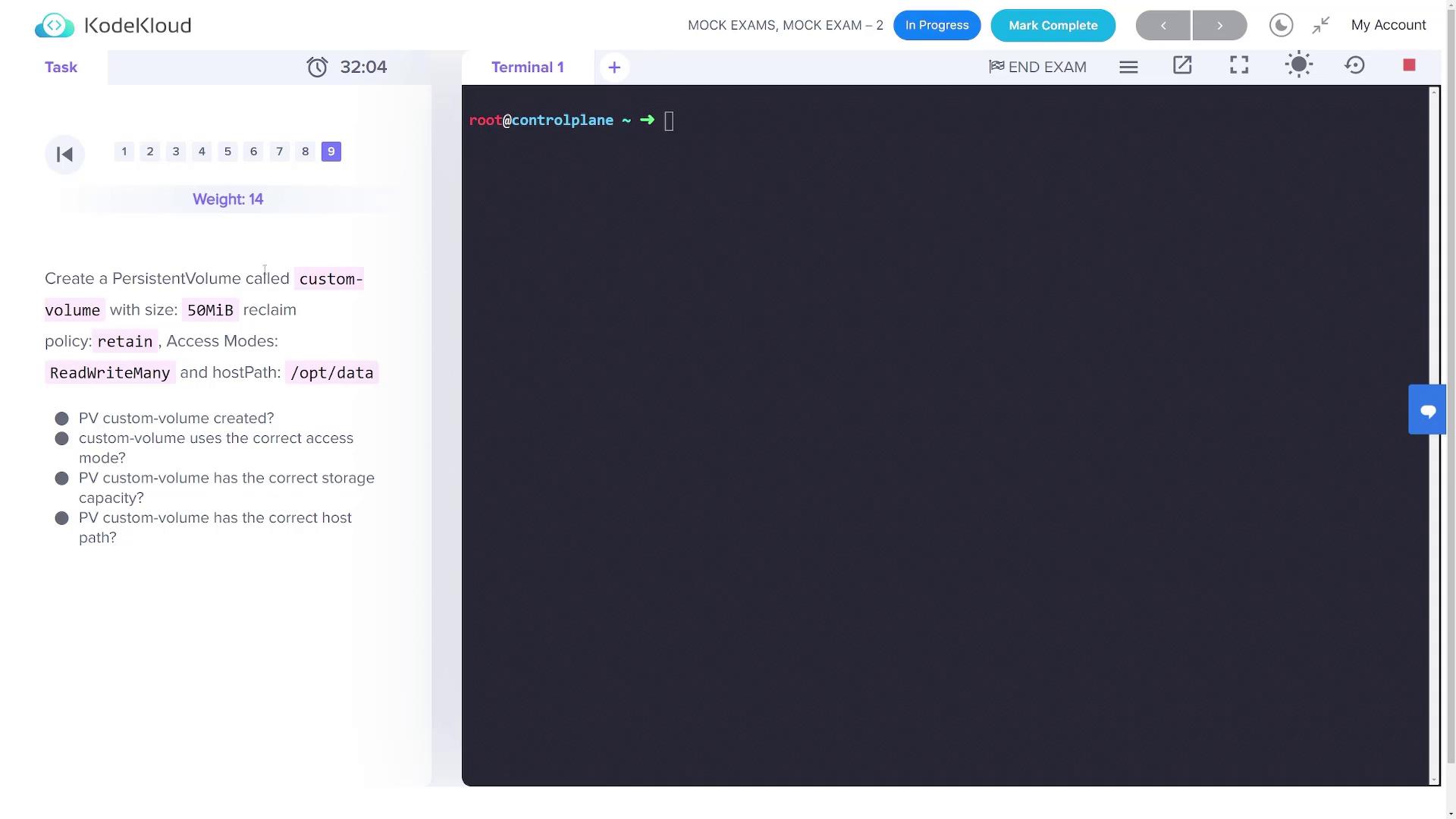
9. Create a Persistent Volume Create a persistent volume named custom-volume with these attributes:
Storage: 50MiReclaim Policy: RetainAccess Modes: ReadWriteManyHost Path: /opt/data
Create a file named pv.yaml with the configuration below:
apiVersion : v1 kind : PersistentVolume metadata : name : custom-volume spec : capacity : storage : 50Mi accessModes : - ReadWriteMany persistentVolumeReclaimPolicy : Retain hostPath : path : /opt/data
Apply the persistent volume configuration:
This concludes the mock exam solutions. Verify each resource with the appropriate kubectl commands to ensure all configurations are applied successfully. Enjoy scaling your Kubernetes expertise!