

- Graphical login on a local machine.
- Graphical remote login via RDP.
- Text-based login using SSH.
Graphical Login on a Local Machine
In this section, we use a CentOS virtual machine (VM) that is already booted and configured with a graphical interface. To log in, follow these steps:- On the login screen, select your username.
- Enter your password, then click Sign In.
Graphical Remote Login via RDP
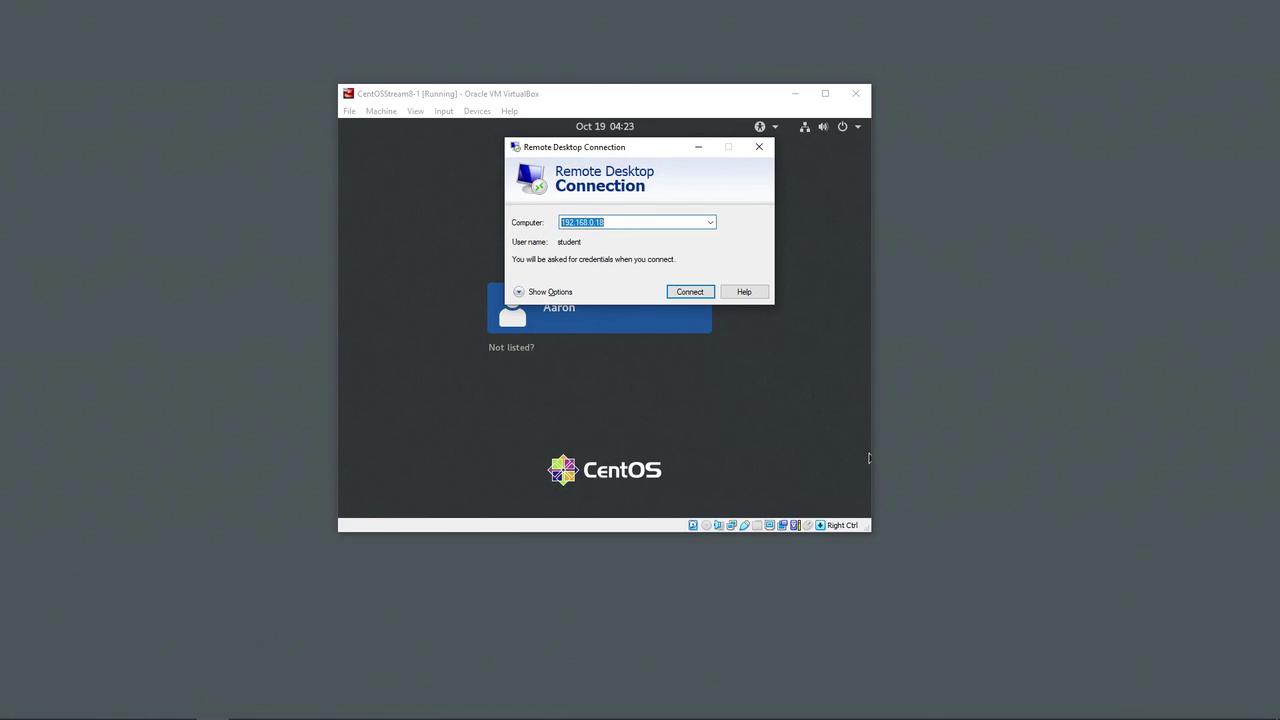
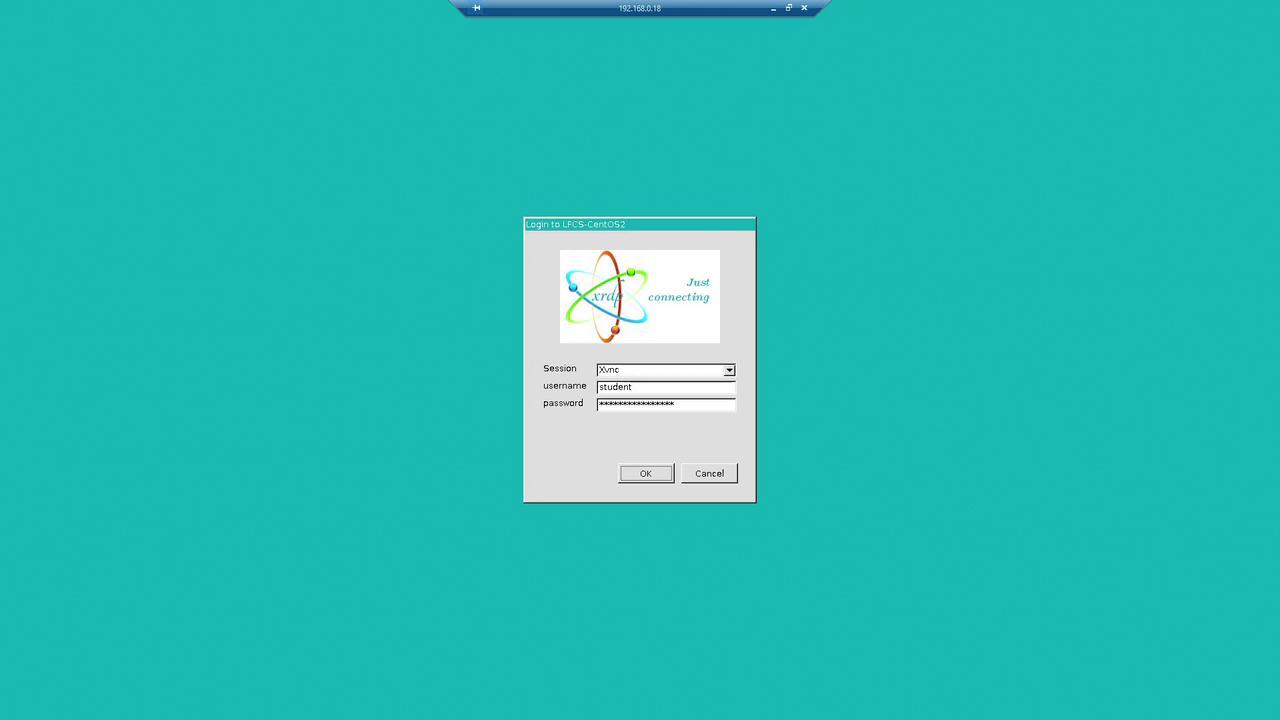
In this part, we demonstrate remote access via Windows Remote Desktop (RDP). A dedicated VM is configured to accept RDP connections. To establish a remote login session, perform the following:- Open your Remote Desktop connection tool.
- Enter the target IP address (pre-filled for demonstration) and click Connect.
Text Mode Login via SSH
From the GNOME Terminal session, where you are logged in as “student” on LFCS-CentOS2, initiate an SSH connection to another machine with the following command:For more detailed guidance on SSH configurations and management, refer to the OpenSSH documentation.