Configure networking and hostname resolution statically or dynamically
This guide covers configuring networking and hostname resolution in Linux, including static and dynamic methods for IP addresses, gateways, and DNS settings.
Welcome to this comprehensive guide on configuring networking and hostname resolution in Linux—both statically and dynamically. Every device connected to a network requires an IP address (e.g., 192.168.0.5 or 10.0.0.9). In addition, internet connectivity demands proper gateway and DNS resolver settings. For instance, when accessing google.com, the typical process is:
The device queries a DNS resolver to obtain google.com’s IP address (e.g., 203.0.113.9).
With the resolved IP, the device sends data to its gateway.
The gateway forwards the data hop-by-hop until it reaches the destination.
These settings—IP addresses, gateways, DNS resolvers, network routes, and so forth—can be configured dynamically (typically using DHCP) or statically (via manual configuration).
On Red Hat-based systems (such as Red Hat Enterprise Linux or CentOS), the configuration files and tools may vary slightly compared to other Linux distributions.
Before modifying any settings, it is important to identify the correct network interface. Start by listing all network interfaces with the following command:
Copy
Ask AI
ip link show
A sample output might look like this:
Copy
Ask AI
[aaron@LFCS-CentOS ~]$ ip link show1: lo: <LOOPBACK,UP,LOWER_UP> mtu 65536 qdisc noqueue state UNKNOWN mode DEFAULT group default qlen 1000 link/loopback 00:00:00:00:00:00 brd 00:00:00:00:00:002: enp0s3: <BROADCAST,MULTICAST,UP,LOWER_UP> mtu 1500 qdisc fq_codel state UP mode DEFAULT group default qlen 1000 link/ether 08:00:27:6b:d7:87 brd ff:ff:ff:ff:ff:ff3: virbr0: <NO-CARRIER,BROADCAST,MULTICAST,UP> mtu 1500 qdisc noqueue state DOWN mode DEFAULT group default qlen 1000 link/ether 52:54:00:9c:e8:04 brd ff:ff:ff:ff:ff:ff[aaron@LFCS-CentOS ~]$
In this example, the first non-loopback interface is enp0s3. To see the IP addresses assigned to these interfaces, you can run:
Copy
Ask AI
ip address show
Alternatively, use the abbreviated command:
Copy
Ask AI
ip a
The loopback adapter typically has the IP address 127.0.0.1 (localhost), while the physical adapter (enp0s3) might have an IP like 192.168.1.79/24. Note that the CIDR notation (“/24”) designates the network prefix length, meaning 24 bits are fixed and only the remaining 8 bits are available for device addressing. For example, with a /16 configuration, the first 16 bits are fixed (e.g., 192.168), and the last two octets can vary.A detailed sample output from ip address show is:
Copy
Ask AI
[aaron@LFCS-CentOS ~]$ ip address show1: lo: <LOOPBACK,UP,LOWER_UP> mtu 65536 qdisc noop state UNKNOWN group default qlen 1000 link/loopback 00:00:00:00:00:00 brd 00:00:00:00:00:00 inet 127.0.0.1/8 scope host lo valid_lft forever preferred_lft forever inet6 ::1/128 scope host valid_lft forever preferred_lft forever2: enp0s3: <BROADCAST,MULTICAST,UP,LOWER_UP> mtu 1500 qdisc fq_codel state UP group default qlen 1000 link/ether 08:00:27:6b:d7:87 brd ff:ff:ff:ff:ff:ff inet 192.168.1.79/24 brd 192.168.1.255 scope global dynamic noprefixroute enp0s3 valid_lft 2449sec preferred_lft 2449sec inet6 fe80::a00:27ff:fe6b:d787/64 scope link noprefixroute valid_lft forever preferred_lft forever3: virbr0: <NO-CARRIER,BROADCAST,MULTICAST,UP> mtu 1500 qdisc noqueue state DOWN group default qlen 1000 link/ether 52:54:00:9c:e8:04 brd ff:ff:ff:ff:ff:ff inet 192.168.122.1/24 brd 192.168.122.255 scope global virbr0 valid_lft forever preferred_lft forever[aaron@LFCS-CentOS ~]$
Note that physical network interfaces typically start with “e” (e.g., enp0s3) and wireless interfaces generally start with “w”.
The output above also displays IPv6 addresses. For example, the IPv6 address on enp0s3 appears as:
Copy
Ask AI
inet6 fe80::a00:27ff:fe6b:d787/64 scope link noprefixroute
IPv6 addresses are 128 bits long. The “/64” indicates that the first 64 bits are reserved as the network prefix, leaving the remaining bits for the device’s interface identifier.
The routing table dictates how network traffic is directed. To review the system’s routing table, use:
Copy
Ask AI
ip route show
Or the shorter version:
Copy
Ask AI
ip r
A typical routing table output might be:
Copy
Ask AI
[aaron@LFCS-CentOS ~]$ ip rdefault via 192.168.1.1 dev enp0s3 proto dhcp metric 100192.168.1.0/24 dev enp0s3 proto kernel scope link src 192.168.1.79 metric 100192.168.122.0/24 dev virbr0 proto kernel scope link src 192.168.122.1 linkdown[aaron@LFCS-CentOS ~]$
This output confirms that the default gateway is 192.168.1.1. To check the DNS resolver settings, display the contents of the /etc/resolv.conf file:
Copy
Ask AI
cat /etc/resolv.conf
A sample output might be:
Copy
Ask AI
[aaron@LFCS-CentOS ~]$ cat /etc/resolv.conf# Generated by NetworkManagernameserver 192.168.1.1[aaron@LFCS-CentOS ~]$
Each line beginning with nameserver signifies a valid DNS resolver. It is common to configure multiple resolvers for redundancy. The automatic appearance of these settings suggests they were assigned via DHCP or a similar mechanism.
Network Configuration Files in Red Hat-Based Systems
On Red Hat-based distributions, networking configuration files are stored in the /etc/sysconfig/network-scripts/ directory. Files often follow the naming scheme ifcfg-<interface>. For example, the configuration file for the enp0s3 interface might be:
Copy
Ask AI
[aaron@LFCS-CentOS ~]$ ls /etc/sysconfig/network-scripts/ifcfg-enp0s3 route-enp0s3[aaron@LFCS-CentOS ~]$
Viewing the contents of the interface configuration file is simple:
Notice that BOOTPROTO=dhcp signifies a dynamic configuration. For a static setup, change this value to none and manually assign the IP address, gateway, and DNS details.
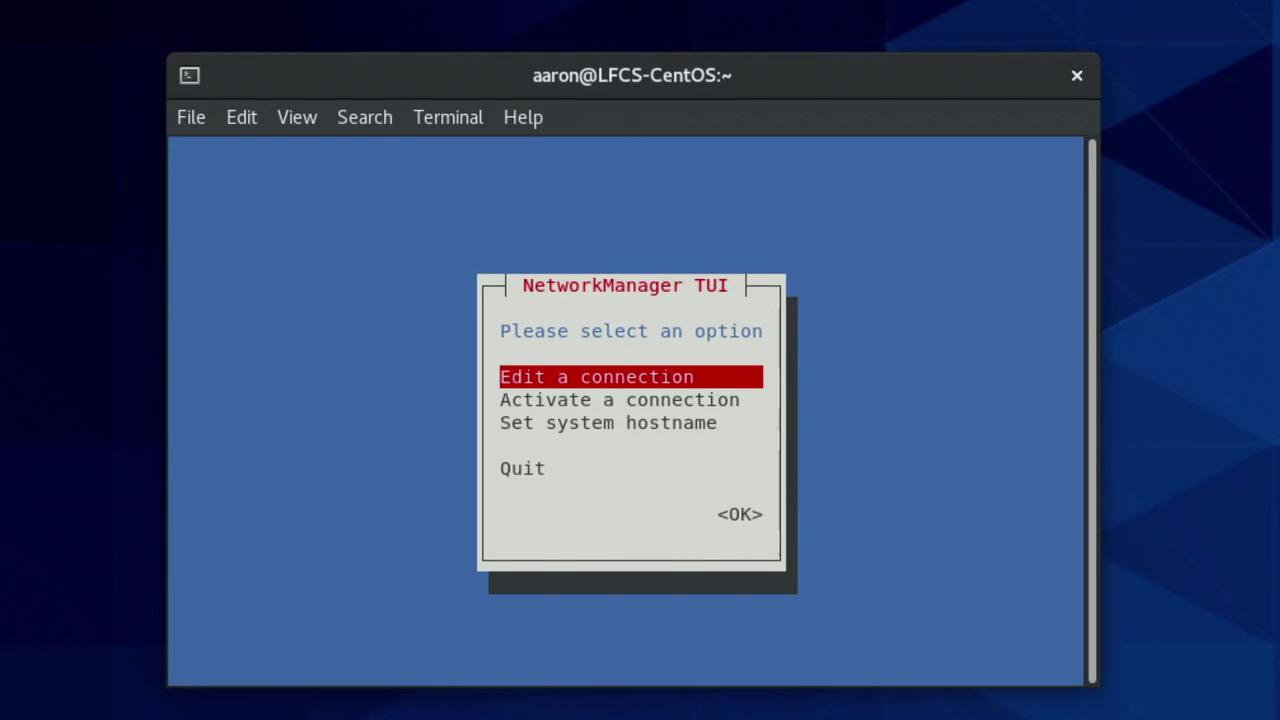
You will see an interface similar to the following:
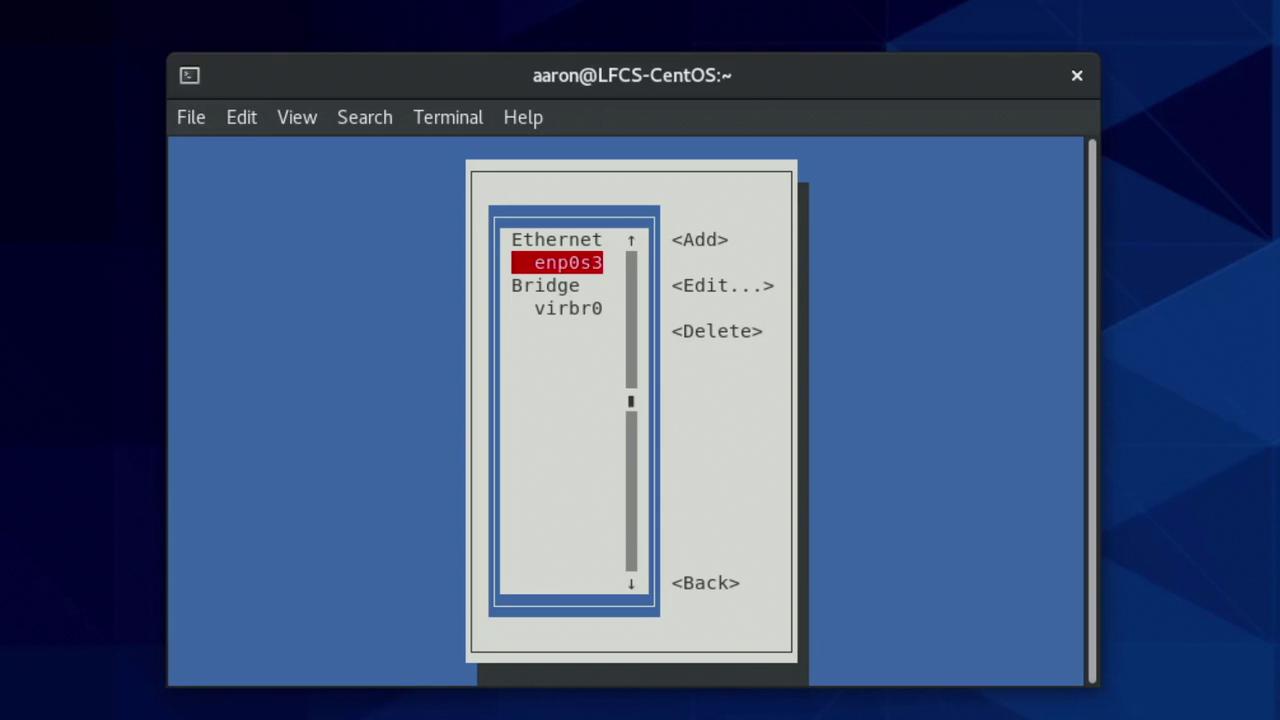
Select “Edit a connection” and choose the network connection corresponding to enp0s3:
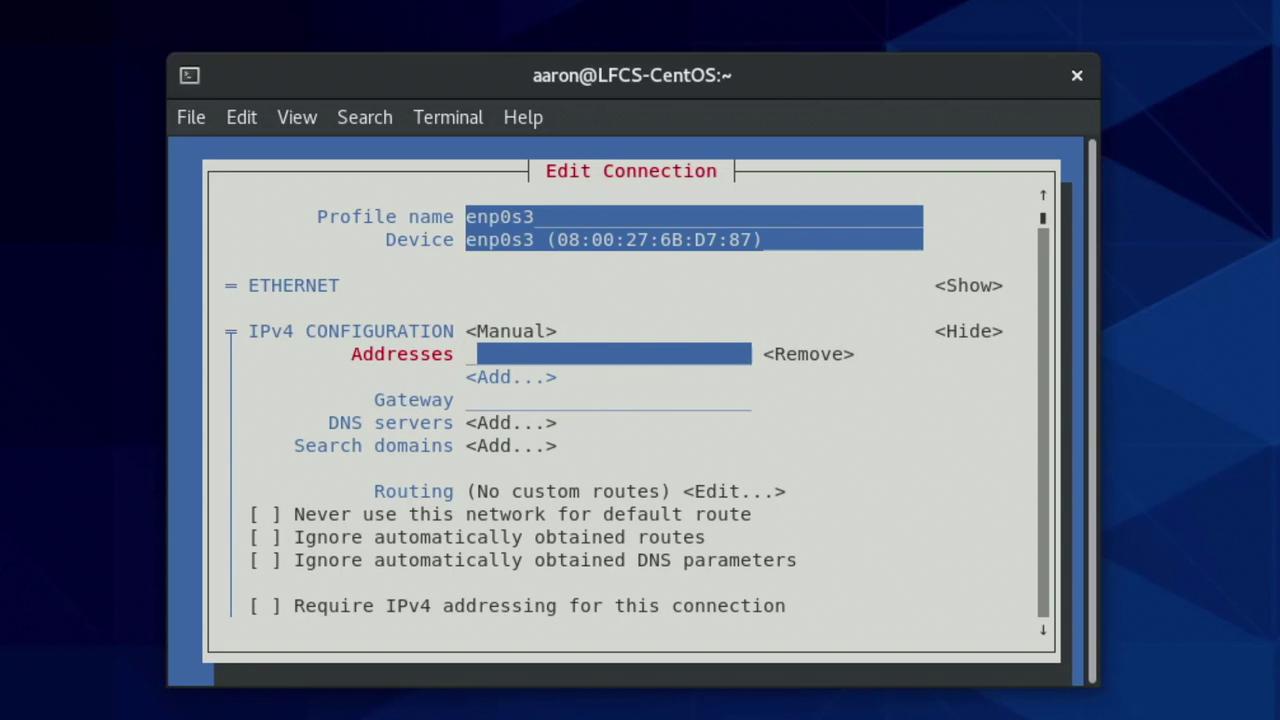
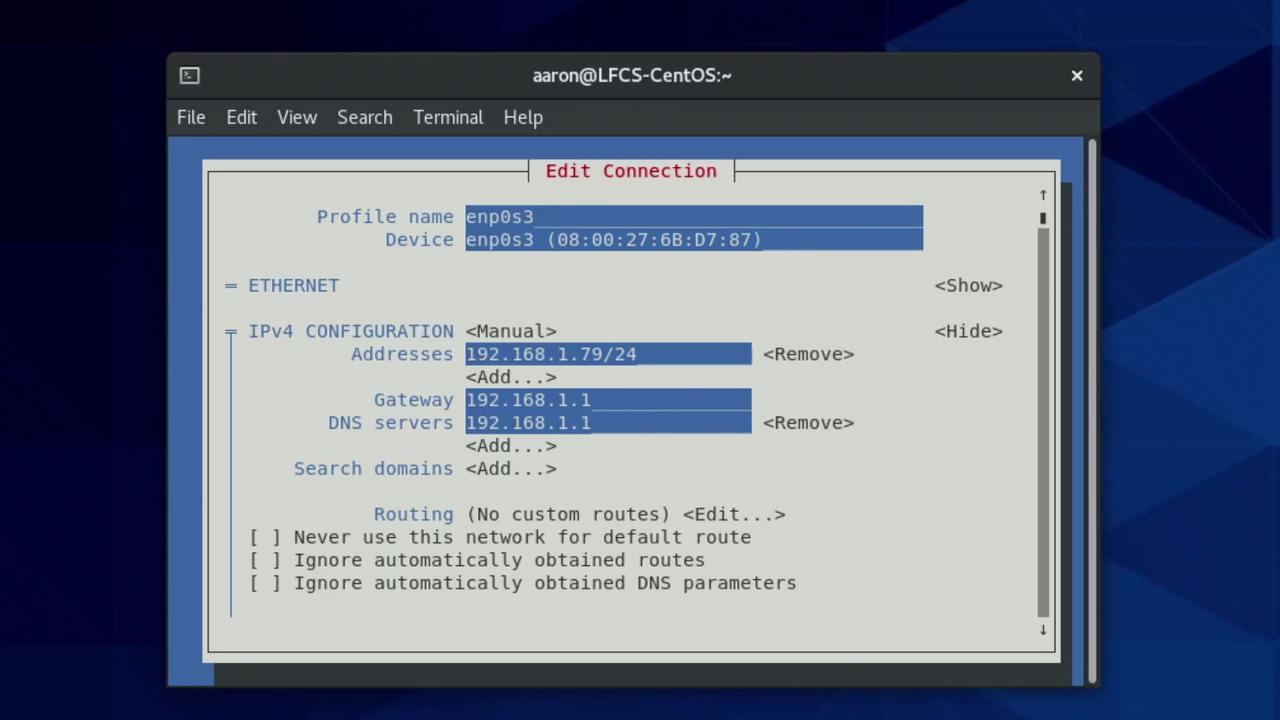
Within the editor, use the Tab and arrow keys to navigate between fields. The profile name can be arbitrary, but the “Device” field must exactly match the network interface (e.g., enp0s3). By default, the IPv4 and IPv6 settings use DHCP. To configure IPv4 with a static IP, change the method from “automatic” to “manual” and specify your desired static address (e.g., 192.168.1.79/24) along with the default gateway and DNS information.
After entering the static settings, navigate to the “OK” button to save your changes:
If you are connected remotely (e.g., via SSH), saving these changes may temporarily disrupt your network connection. It is advisable to test the new configuration locally before applying it to remote systems.
It is also possible to combine both DHCP and manual assignments. In such a hybrid configuration, the system obtains a primary IP via DHCP, while additional manual IP addresses are applied upon connection restart or system boot.To apply the changes immediately, use nmcli. For example, if your network interface is correctly identified as enp0s3, run:
Copy
Ask AI
sudo nmcli device reapply enp0s3
If you mistype the device name, you will receive an error such as:
Copy
Ask AI
sudo nmcli device reapply enp03
which produces:
Copy
Ask AI
# Error: Device 'enp03' not found.
After verifying the correct device name with ip link show, reapply using:
Copy
Ask AI
sudo nmcli device reapply enp0s3
A successful operation returns:
Copy
Ask AI
Connection successfully reapplied to device 'enp0s3'.
will use the static IP mapping, making it easier to connect without remembering complex IP addresses.If you need reminders on available commands, simply type:
Copy
Ask AI
ip
Press the Tab key twice to view available commands, and similarly for nmcli. A sample output for the ip command might be:
Copy
Ask AI
[aaron@LFCS-CentOS ~]$ ipaddress l2tp mroute nexthop tap xfrmaddrlabel link mrule ntable tcpmetrics tokenfou macsec neighbour ntbl route tunnelhelp maddress netconf rule ila monitornetns sr vrf
This guide has covered essential topics for configuring networking and hostname resolution on Linux both statically and dynamically. The areas discussed include:
By carefully following these steps, you can seamlessly manage network settings and hostname resolution on your Linux system. Continue exploring and practicing these configurations to ensure robust and reliable network management.Happy networking!