This article explores common Linux commands for viewing, editing, transforming, and comparing text file content to enhance workflow efficiency.
Linux is built around text. Whether you’re working in an SSH session, configuring applications, or modifying system settings, you’ll encounter numerous text files. In this article, we explore common commands used to view, edit, transform, and compare file content, providing practical examples to improve your workflow.
For small files, the cat command allows you to display the entire file content quickly. For example, if you have a file named “users.txt”, you can run:
If you wish to display the file contents in reverse order (i.e., with the last line first), use the tac command, which works similarly to cat but in reverse.For large files such as system logs, you might be interested only in the most recent entries. The tail command displays the last 10 lines by default. You can specify a different number of lines with the -n option:
Copy
Ask AI
$ tail -n 20 /var/log/dnf.log2021-11-02T18:11:47-0500 DEBUG baseos: using metadata from Thu 28 Oct2021-11-02T18:11:48-0500 DEBUG reviving: 'extras' can be revived - repomd matches.2021-11-02T18:11:48-0500 DEBUG extras: using metadata from Thu 28 Oct2021-11-02T18:11:48-0500 DEBUG User-Agent: constructed: 'libdnf (CentOS Stream 8; generic; Linux.x86_64)'2021-11-02T18:11:48-0500 INFO Metadata cache created.2021-11-02T18:11:48-0500 DEBUG Cleaning up.2021-11-02T19:22:58-0500 INFO --- logging initialized ---2021-11-02T19:22:58-0500 DDEBUG timer: config: 1 ms2021-11-02T19:22:58-0500 DDEBUG DNF version: 4.7.02021-11-02T19:22:58-0500 DDEBUG Command: dnf makecache --timer2021-11-02T19:22:58-0500 DDEBUG Installroot: /2021-11-02T19:22:58-0500 DDEBUG Releaserver: 82021-11-02T19:22:58-0500 DDEBUG cachedir: /var/cache/dnf2021-11-02T19:22:58-0500 DDEBUG Base command: makecache2021-11-02T19:22:58-0500 DDEBUG Extra commands: ['makecache', '--timer']2021-11-02T19:22:58-0500 DEBUG Making cache files for all metadata files.2021-11-02T19:22:58-0500 INFO Metadata cache refreshed recently.2021-11-02T19:22:58-0500 DDEBUG Cleaning up.
To display the beginning of a file, the head command shows the first 10 lines by default. Similar to tail, you can modify the output by using the -n option:
Copy
Ask AI
$ head -n 20 /var/log/dnf.log2021-10-19T00:53:06-0500 INFO --- logging initialized ---2021-10-19T00:53:06-0500 DDEBUG timer: config: 3 ms2021-10-19T00:53:06-0500 DDEBUG DNF version: 4.7.02021-10-19T00:53:06-0500 DDEBUG Command: dnf makecache --timer2021-10-19T00:53:06-0500 DDEBUG Installroot: /2021-10-19T00:53:06-0500 DDEBUG Releasver: 82021-10-19T00:53:06-0500 DDEBUG cachedir: /var/cache/dnf2021-10-19T00:53:06-0500 DDEBUG Base command: makecache2021-10-19T00:53:06-0500 DDEBUG Extra commands: ['makecache', '--timer']2021-10-19T00:53:06-0500 DDEBUG Making cache files for all metadata files.2021-10-19T00:53:06-0500 WARNING Failed determining last makecache time.2021-10-19T00:53:06-0500 DDEBUG appstream: has expired and will be refreshed.2021-10-19T00:53:06-0500 DDEBUG baseos: has expired and will be refreshed.2021-10-19T00:53:06-0500 DDEBUG extras: has expired and will be refreshed.2021-10-19T00:53:25-0500 DDEBUG appstream: using metadata from Thu 07 Oct2021-10-19T00:07:51 AM CDT.2021-10-19T00:53:25-0500 DDEBUG repo: downloading from remote: appstream2021-10-19T00:54:07-0500 DDEBUG repo: downloading from remote: baseos2021-10-19T00:54:07-0500 DDEBUG baseos: using metadata from Thu 07 Oct2021-10-19T00:07:02 AM CDT.2021-10-19T00:54:07-0500 DDEBUG repo: downloading from remote: extras
For files with warnings or error messages, consider piping the output to a pager like less to navigate the content easily.
Manually editing large files can be tedious, especially when you need to update many occurrences of the same text. The sed (stream editor) utility automates text transformations.Imagine you have a file named “userinfo.txt” that includes addresses, phone numbers, and citizenship details. If the country “Canada” is misspelled as “canda” throughout the file, you can preview the correction with:
Copy
Ask AI
$ sed 's/canda/canada/g' userinfo.txt
In this command:
The s stands for substitute.
s/canda/canada/g tells sed to replace every occurrence of “canda” with “canada” on each line (the g flag indicates a global replacement).
After confirming the output, apply the changes in-place using the -i option:
Copy
Ask AI
$ sed -i 's/canda/canada/g' userinfo.txt
Always preview changes before applying them with the -i option to avoid accidental modifications.
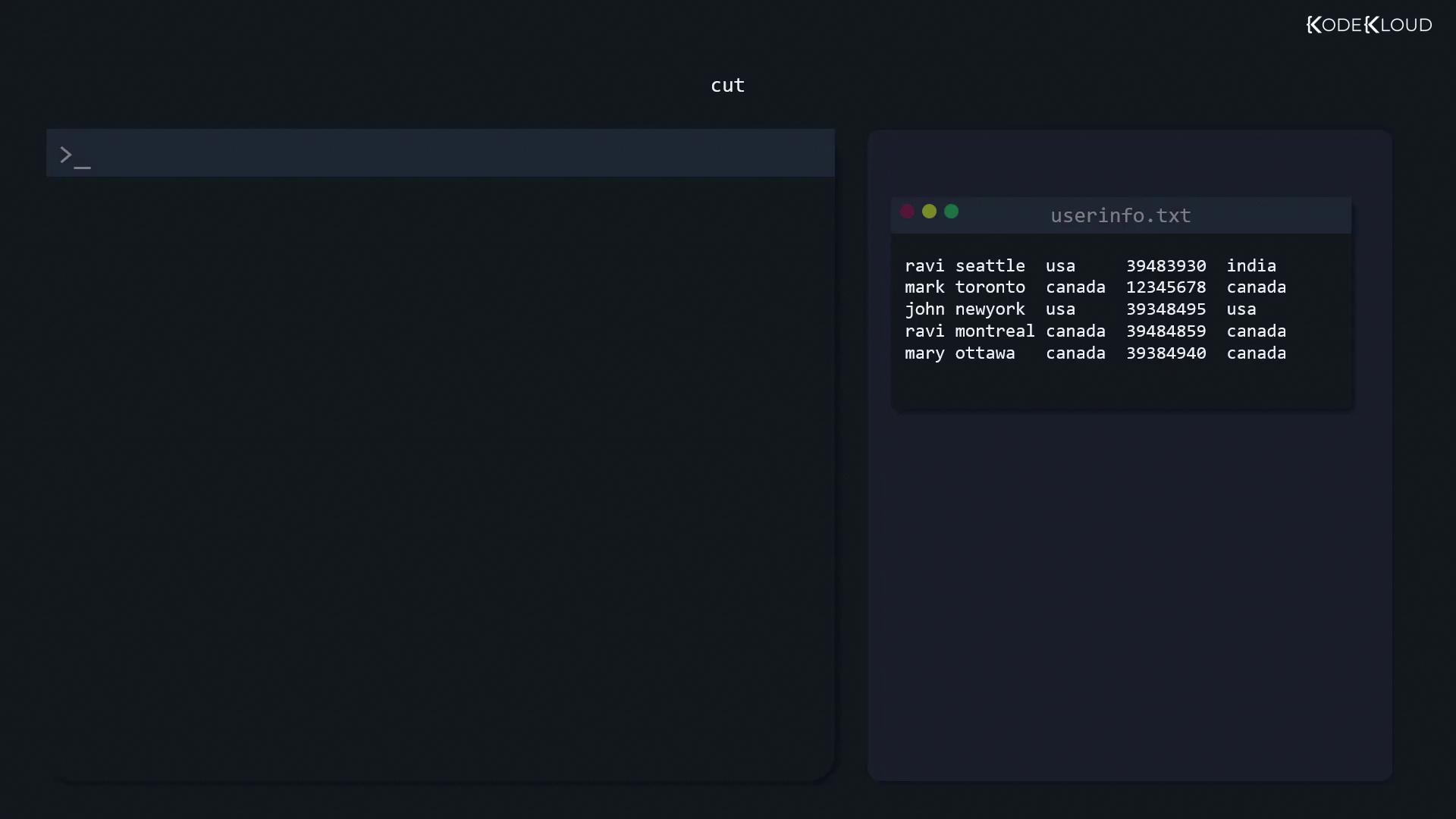
Sometimes you need only a part of a file. For instance, to extract the first column (e.g., names) from “userinfo.txt” when fields are space-delimited, use the cut command:
The -d option defines the delimiter (a space in this case).
The -f option selects the field (column 1).
If your file uses commas as delimiters and you want to extract the third field (perhaps representing countries), you can direct the output to a new file:
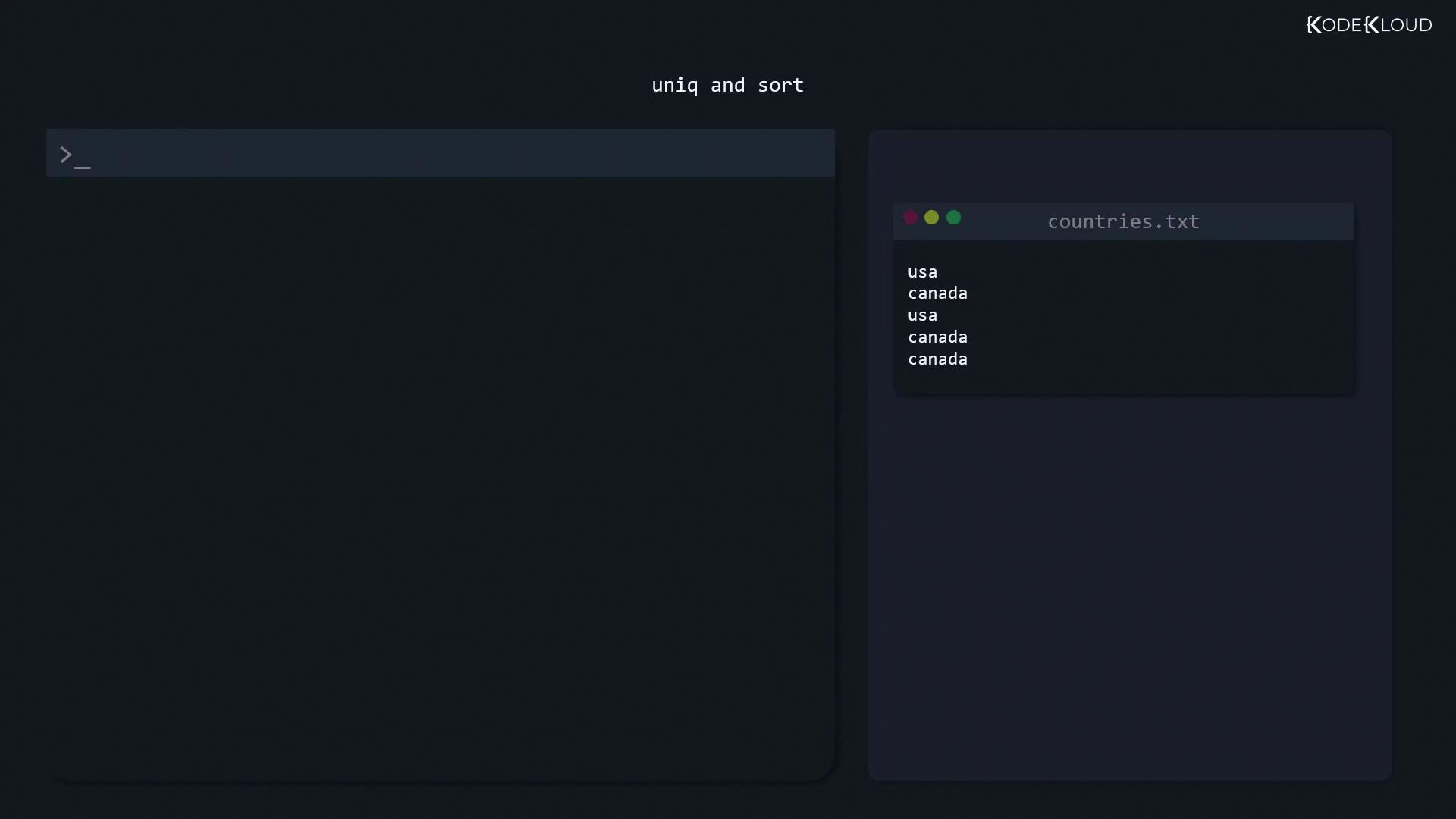
If the output file (e.g., “countries.txt”) contains duplicate entries, the uniq command removes adjacent duplicate lines. However, since it only works with consecutive duplicates, sort the file first:
When configuration files change during an upgrade, comparing the old and new versions is crucial. The diff command isolates differences between files, making it easier to identify what has changed.For a simple comparison:
Copy
Ask AI
$ diff file1 file2
Example output:
Copy
Ask AI
1c1< only exists in file 1---> only exists in file 24c4< only exists in file 1---> only exists in file 2
This indicates that line 1 in file1 differs from line 1 in file2 (denoted by 1c1), and similarly for line 4. Here, < shows content from the first file and > shows content from the second file.For additional context, use the context option (-c):
Copy
Ask AI
$ diff -c file1 file2*** file1 2021-10-28 20:39:43.083264406 -0500--- file2 2021-10-28 20:40:02.900262846 -0500****************** 1,4 ****! only exists in file 1 identical line 2 identical line 3! only exists in file 1--- 1,4 ----! only exists in file 2 identical line 2 identical line 3! only exists in file 2
For those who prefer a side-by-side comparison, use the -y option or the sdiff command:
Copy
Ask AI
$ diff -y file1 file2only exists in file 1 | only exists in file 2identical line 2 identical line 2identical line 3 identical line 3only exists in file 1 | only exists in file 2$ sdiff file1 file2only exists in file 1 | only exists in file 2identical line 2 identical line 2identical line 3 identical line 3only exists in file 1 | only exists in file 2
In these side-by-side outputs, a pipe (|) separates the differing content.
After extracting data, such as a list of countries, you might notice duplicates. Combining the sort and uniq commands will both sort the entries and remove duplicates, ensuring an ordered list.
In this article, we’ve covered essential Linux utilities for managing text files, including:
Viewing files with cat, tac, tail, and head
Modifying content with sed
Extracting columns with cut
Removing duplicates and sorting using sort and uniq
Comparing files with diff and sdiff
These tools are indispensable for system administration and everyday Linux operations. With practice, you’ll be better equipped to efficiently manage and analyze text files.Happy scripting!