

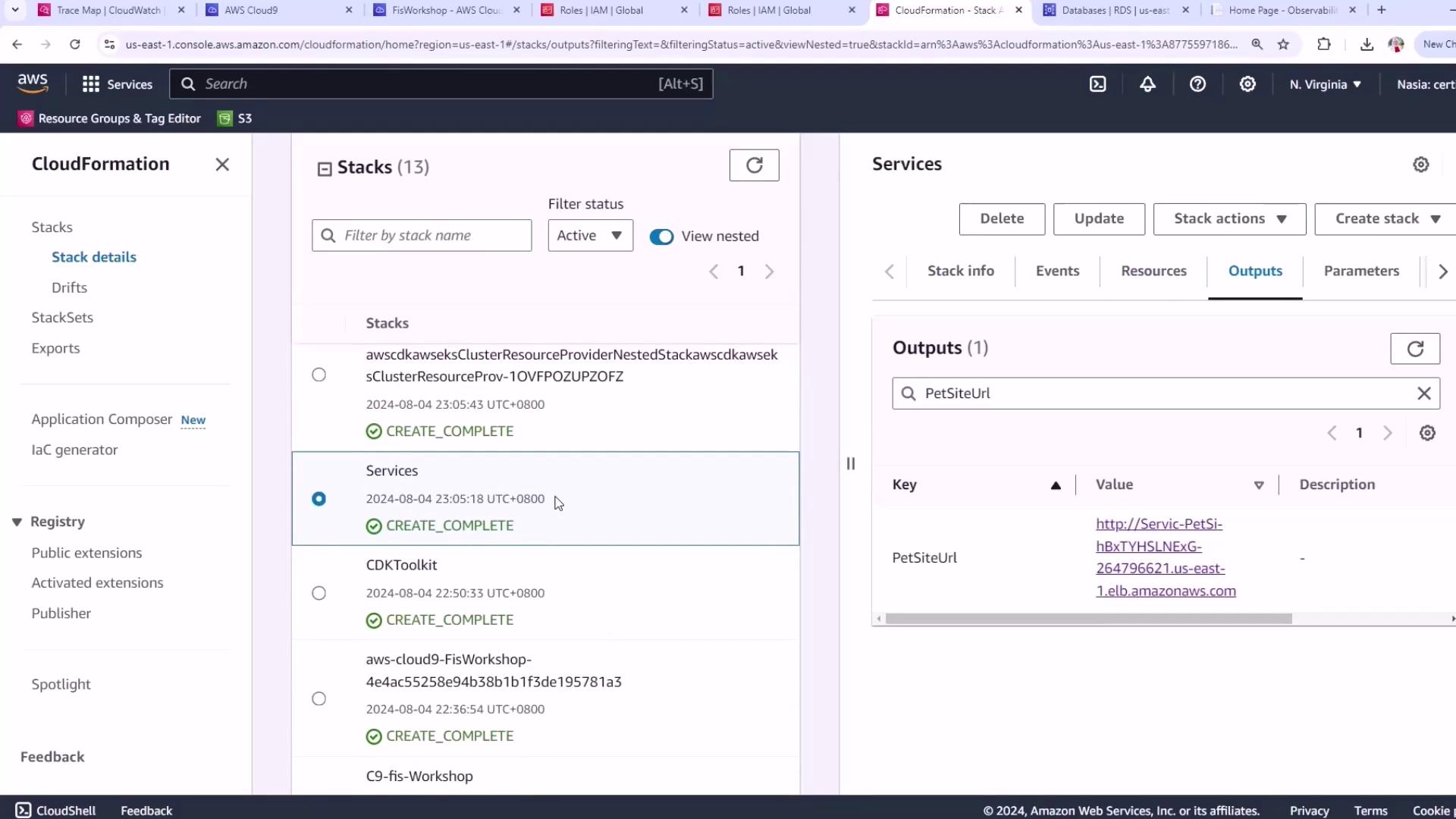
If any stack is still in progress, refresh the console after a few moments or check the AWS CloudFormation Troubleshooting guide.
Accessing the Pet Site Application
In the Outputs tab of your services stack, locate thePetSiteUrl key. Click the URL to open the pet adoption site in your browser. This site lets you browse pets, select one to adopt, and complete the checkout flow.
Establishing a Steady State by Generating Load
Before injecting faults, define your application’s steady state under normal traffic. We’ll scale up the existing ECS Fargate traffic-generator to simulate realistic load.Scaling Fargate tasks may incur additional AWS charges. Monitor your AWS Billing Dashboard accordingly.
- Open your Cloud9 environment:
- Retrieve the ECS cluster ARN that contains “PetLis”:
- Find the traffic-generator service ARN:
- Scale the service to 5 tasks:
Simulating Real User Behavior with k6 and Chromium
We’ll use k6’s browser extension with Chromium in Docker to generate realistic user flows on the pet site.- Create the k6 script (
k6petsite.js): - Inject your actual PetSite URL:
- Download the Docker seccomp profile and run the test:
After downloading, launch k6 in Docker (approximately 10 minutes):
This browser-based load test runs for ~10 minutes and simulates real user searches on your pet adoption site.
Next Steps
- Open the AWS CloudWatch console.
- Navigate to RUM (Real User Monitoring).
- Review the performance metrics to confirm your steady-state baseline before starting fault-injection experiments.