

Prerequisites
- AWS account with administrative permissions (or FIS, EC2, CloudFormation privileges)
- AWS CLI configured locally
- Basic familiarity with CloudFormation and Auto Scaling groups
Step 1: Clone the Repository
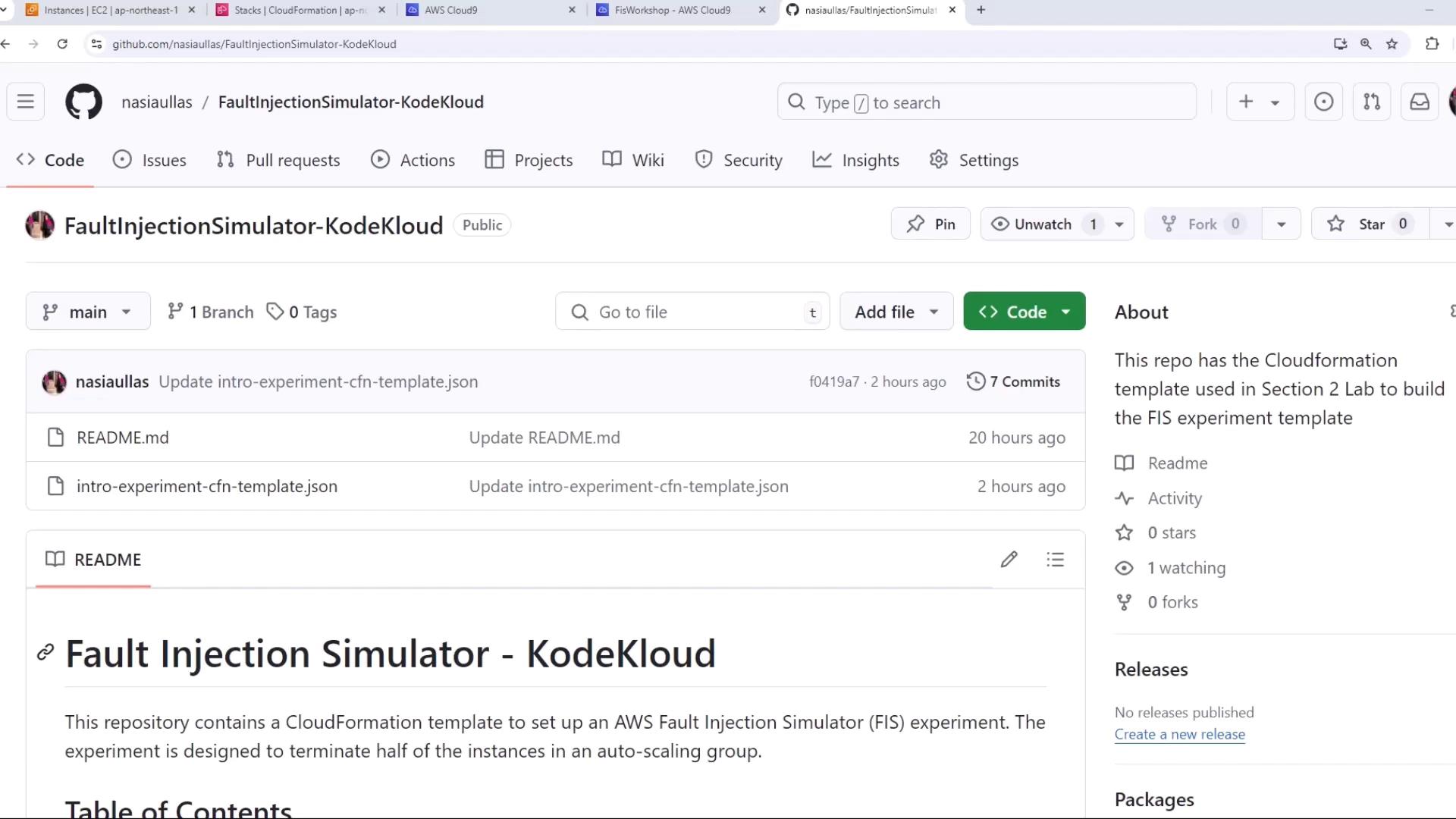
- Navigate to the GitHub repo shown above.
- Download or clone the repository to your local system:
- Locate the CloudFormation template (
fis-experiment-template.json).
Step 2: Review the CloudFormation Template
Below is the core resource definition that creates an FIS experiment template to terminate 50% of instances in an Auto Scaling group:| Template Section | Purpose | Details |
|---|---|---|
| Description | Explains the experiment intent | Terminate 50% of instances |
| Tags | Metadata for easy identification | Name=FisWorkshop-Exp1-CloudFormation |
| Actions | Defines chaos actions | aws:ec2:terminate-instances targeting a resource selector |
| Targets | Selects the EC2 instances to terminate | FisWorkshopAsg-50Percent selects half of the instances by tag filter |
| IAM Role & Logs | (Not shown) Creates an IAM execution role and CloudWatch Logs group | Required for FIS permissions and audit trails |
This template does not declare any parameters—everything is preconfigured.
Step 3: Deploy the CloudFormation Stack
- Open the AWS CloudFormation console.
- Choose Create stack → With new resources (standard).
- Upload the JSON template (
fis-experiment-template.json).
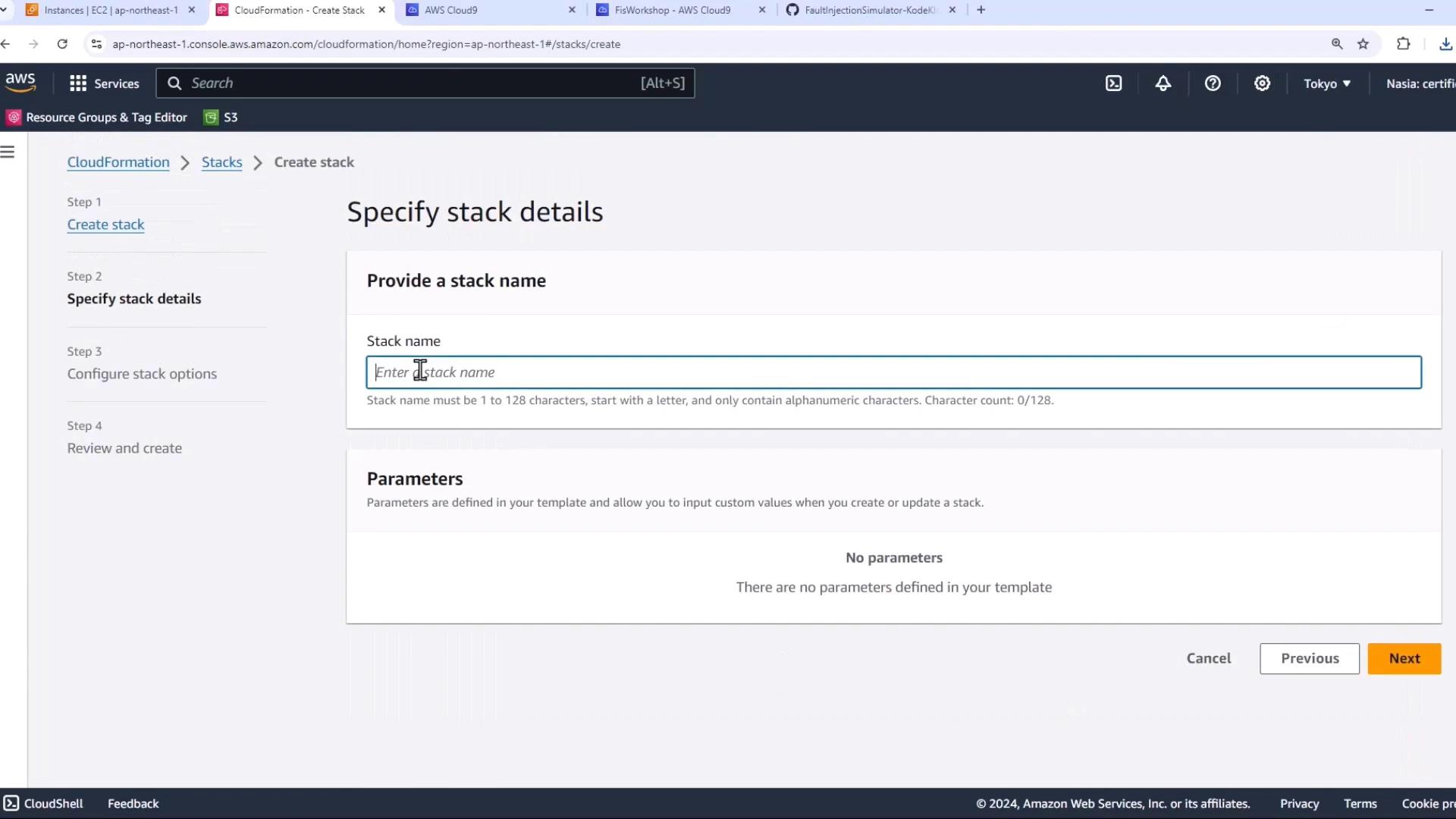
- Provide a stack name (e.g.,
fis-experiment-stack) and click Next through the remaining screens. - Review and click Create stack.
FisWorkshopTemplate resource exists:
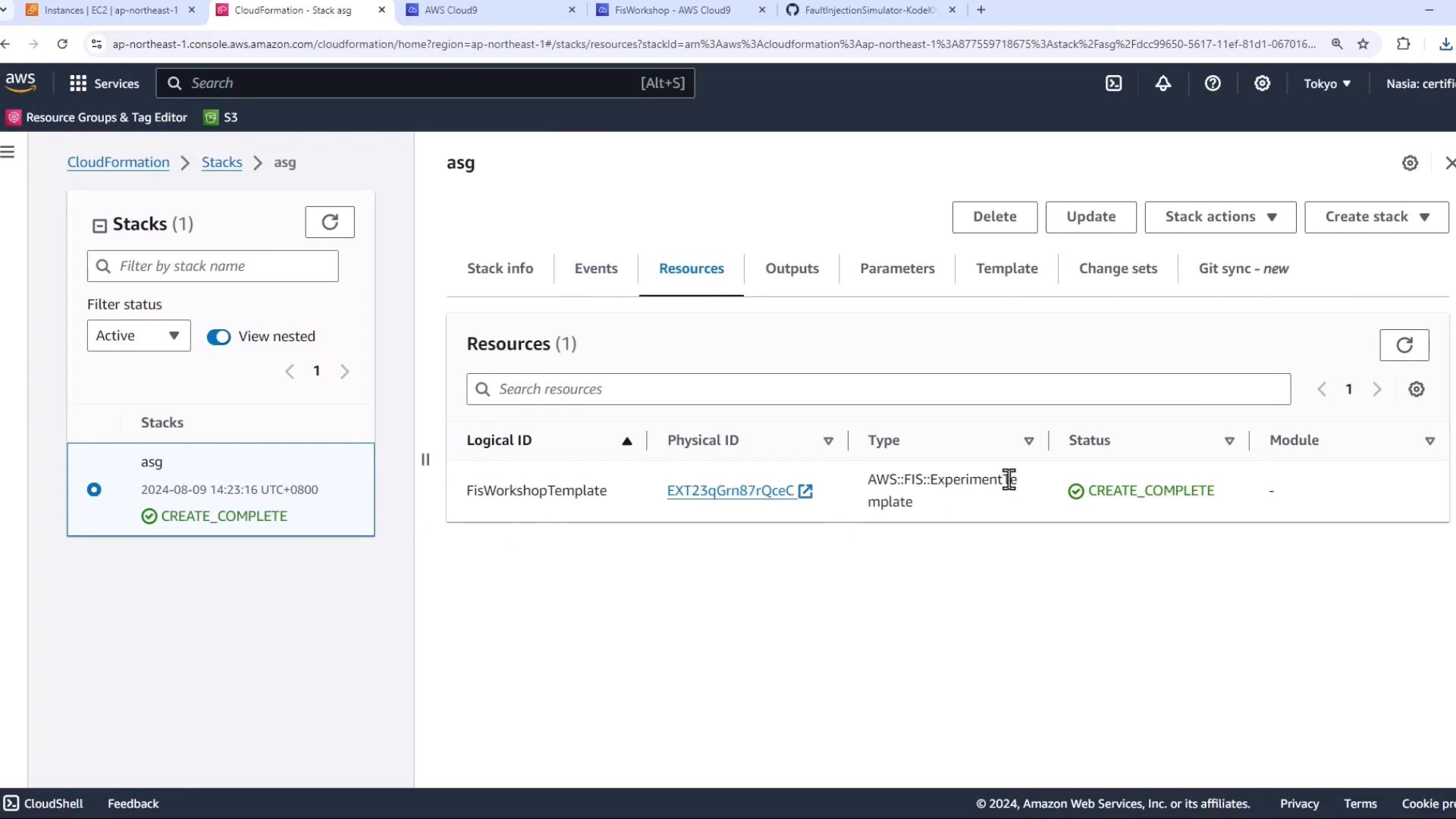
Step 4: Inspect the Experiment in the FIS Console
- In CloudFormation, click the FisWorkshopTemplate resource.
- Select View in Console to open the AWS FIS console.
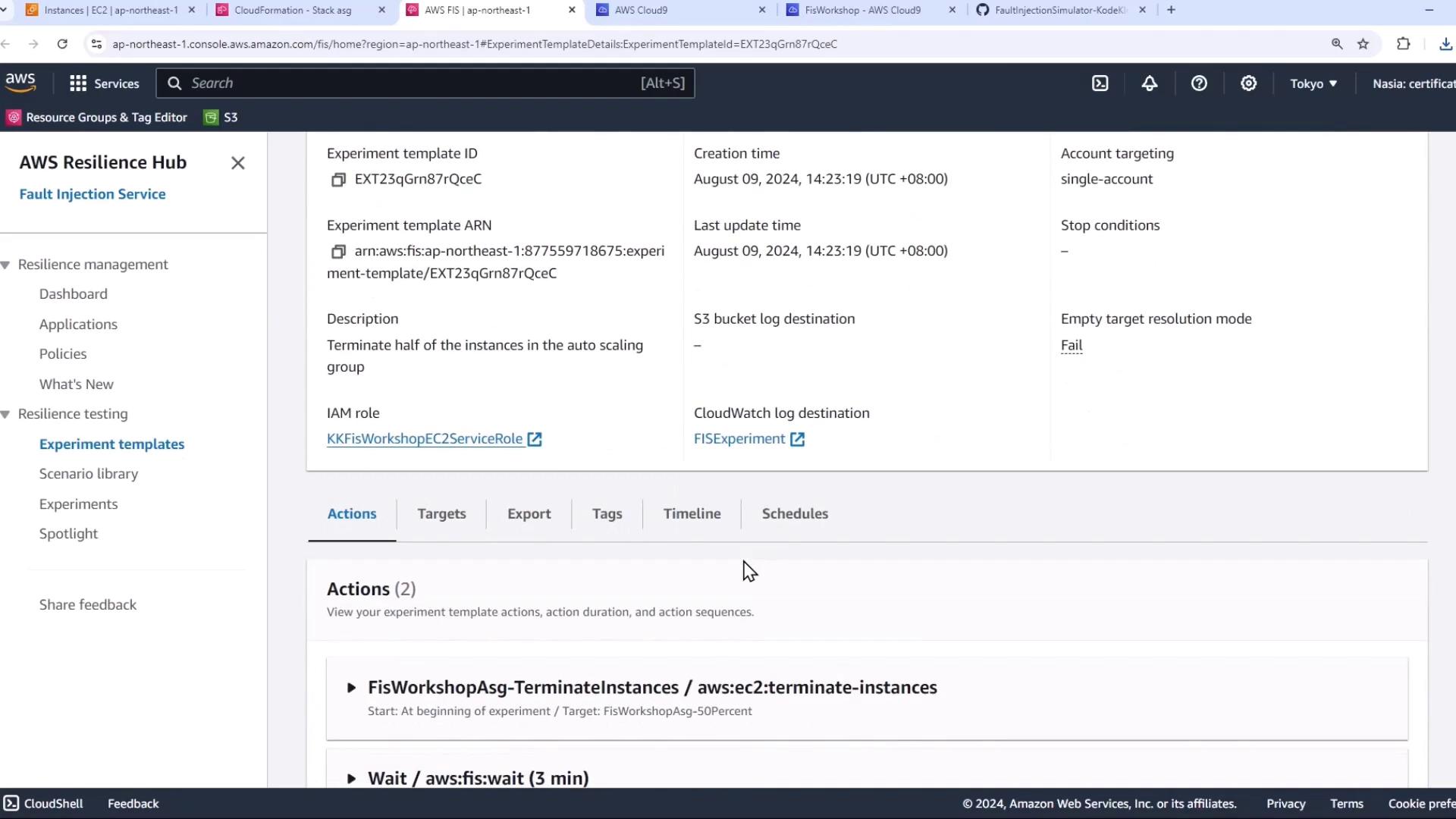
- Review the Actions and Targets.
- Click Generate preview to simulate which instances would be affected.
If your Auto Scaling group has fewer than 2 instances, the preview will fail because you cannot select 50% of one instance.
Step 5: Scale the Auto Scaling Group
- Open the EC2 Auto Scaling console.
- Select your Auto Scaling group and click Edit.
- Increase the Desired and Minimum capacity from 1 to 2.
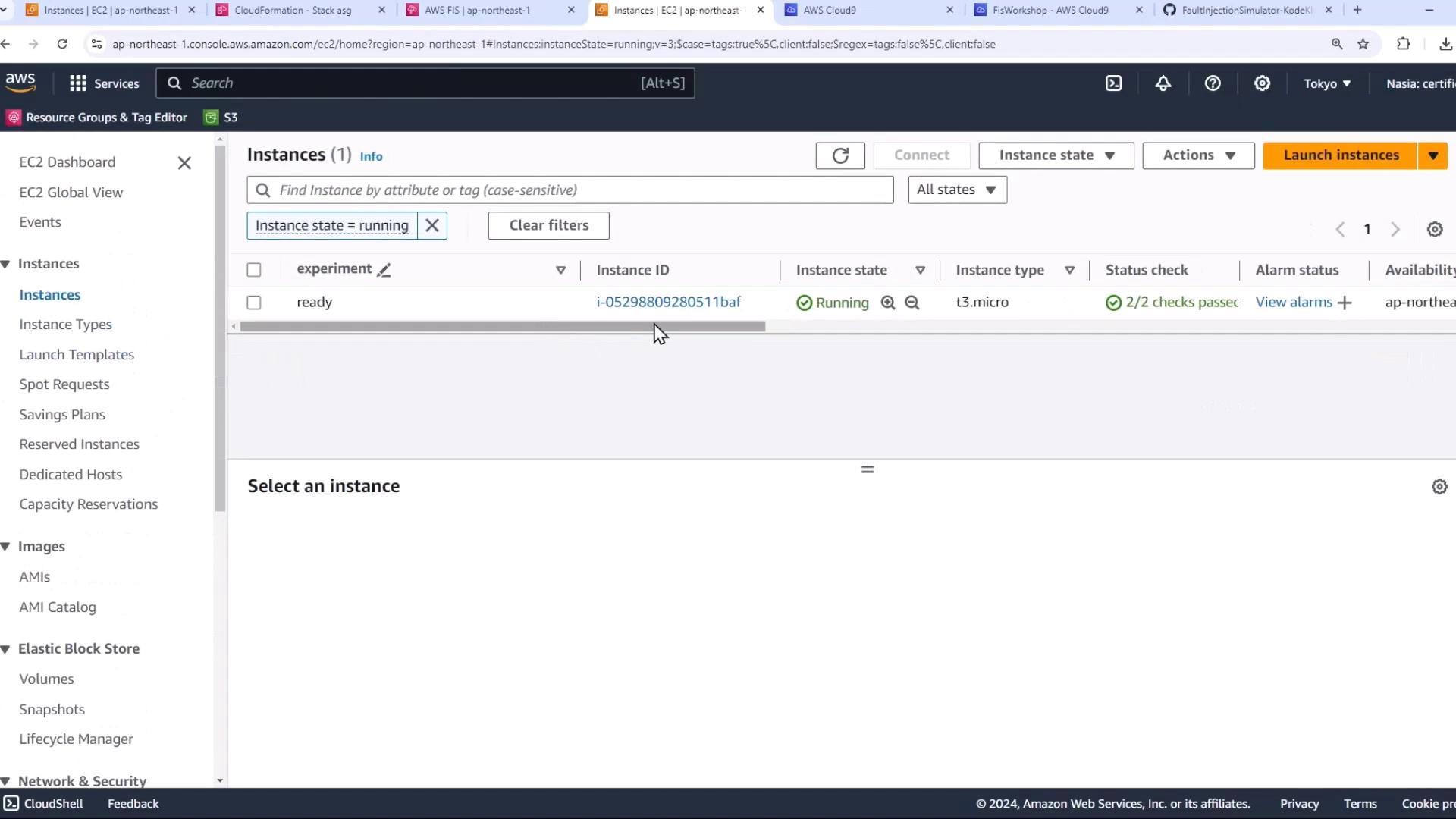
- Save and wait for the second instance to reach the running state.
Step 6: Generate Preview and Run the Experiment
- Return to the FIS console and click Generate preview again. You’ll see one of the two instances selected.
- Click Start experiment to terminate the instance.
- Observe that the Auto Scaling group immediately replaces the terminated instance—maintaining your application’s capacity without disruption.