

1. Clearly State Your Goal
Begin by explicitly stating what you want Copilot to achieve. For instance, if you need to draft an email welcoming a new team member, clearly indicate that this is your primary objective.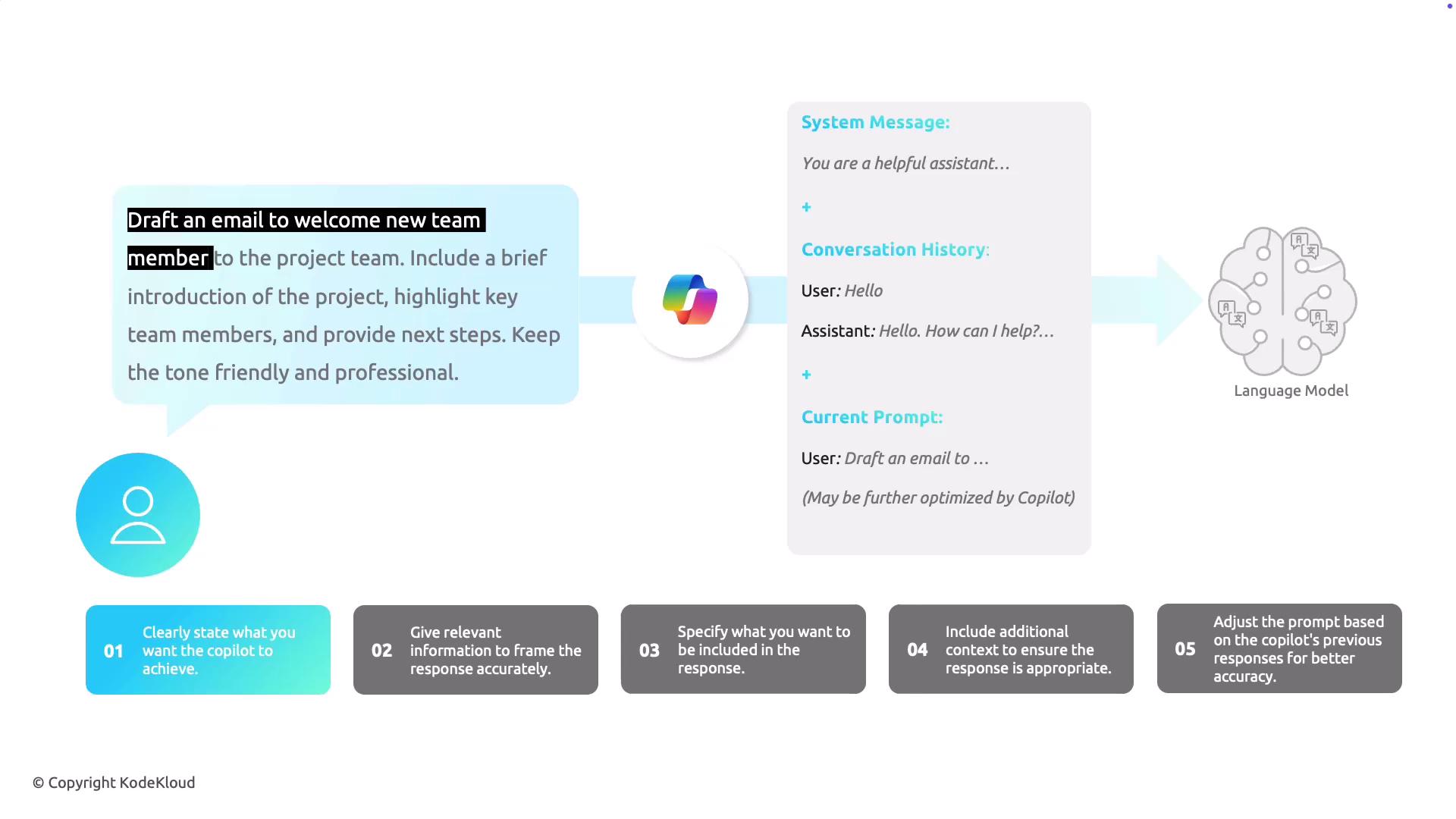
2. Provide Relevant Information
Include any background information or context that will help Copilot understand the task in greater depth. For example, providing a brief introduction to the project or highlighting key team members in your email draft can enable Copilot to generate a tailored response.3. Specify Desired Details
Be explicit about the elements you want in the response. If your email should include next steps or emphasize introductions, mention these details clearly. This enhances the likelihood that Copilot’s response will meet your expectations.4. Include Additional Context for Tone and Style
Sometimes, specifying the tone or style in your prompt can significantly refine the output. For example, if your email needs to adopt a friendly yet professional tone, state this explicitly to guide Copilot in generating the desired voice.Including detailed tone instructions can help avoid misunderstandings and ensure the final output matches your desired communication style.
5. Adjust Based on Previous Interactions
When engaged in an ongoing conversation with Copilot, consider the conversation history. Tailoring your prompt based on previous responses can help refine the interaction, making the conversation more accurate and coherent. By combining these elements—clear goal definition, relevant context, detailed specifications, tone considerations, and iterative adjustments—you set Copilot up for success. The more effort you invest in crafting your prompt, the more useful and precise the resulting output will be.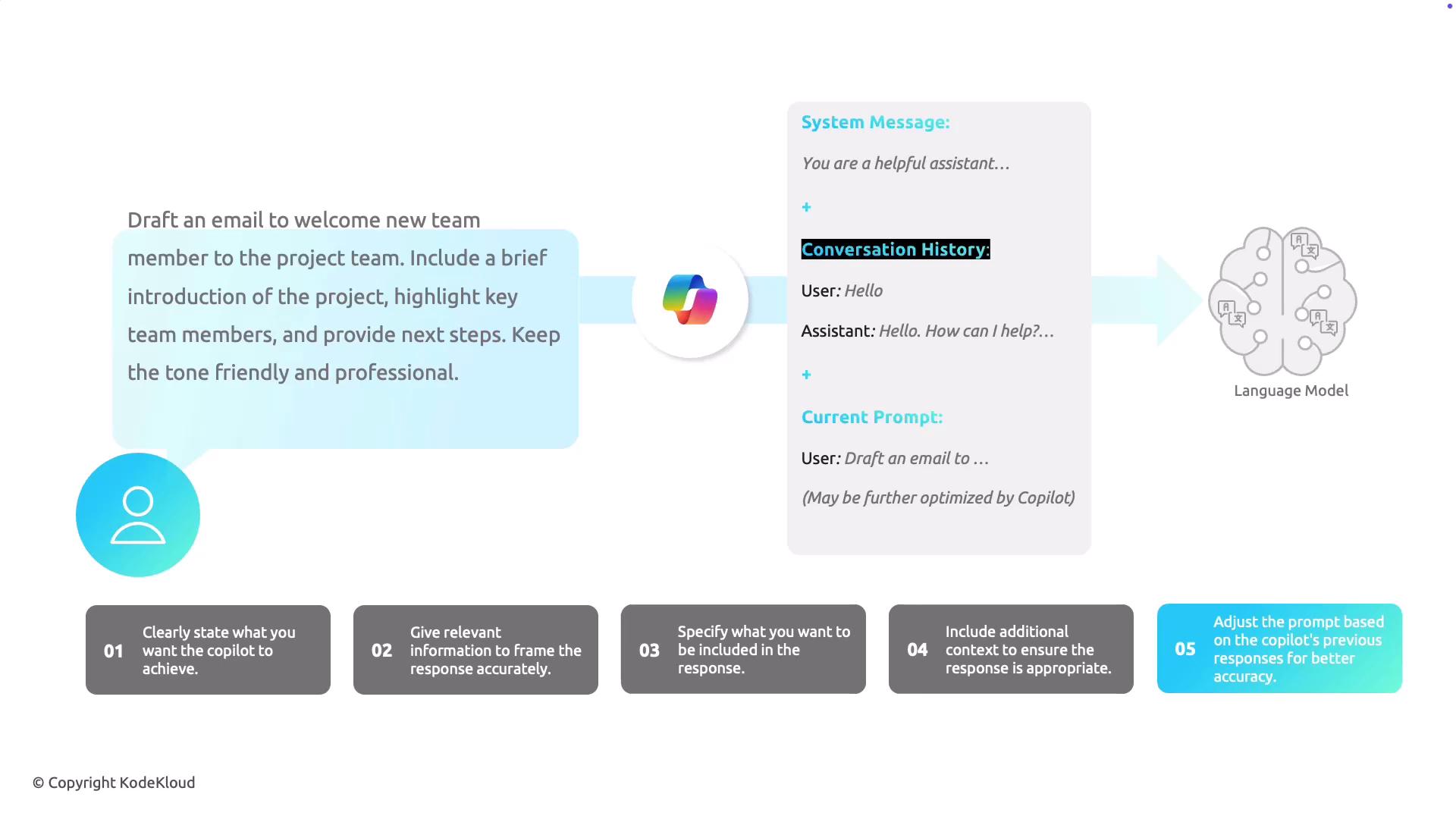
Using Copilot
To get started with Copilot, visit copilot.microsoft.com and sign in to enable personalized responses. Signing in allows the platform to access your conversation history and preferences, tailoring the output more effectively. For example, after providing your name and preferred voice, you can issue prompts like “draft an email saying that I’ll be out of the office tomorrow” and even instruct Copilot to enhance the professionalism of the draft.Effective prompting is the key to unlocking Copilot’s full potential as your personalized AI assistant. With practice, developing these prompts will become intuitive, enabling you to maximize your productivity and ensure high-quality outputs.