Learn to deploy applications on Google Kubernetes Engine within Google
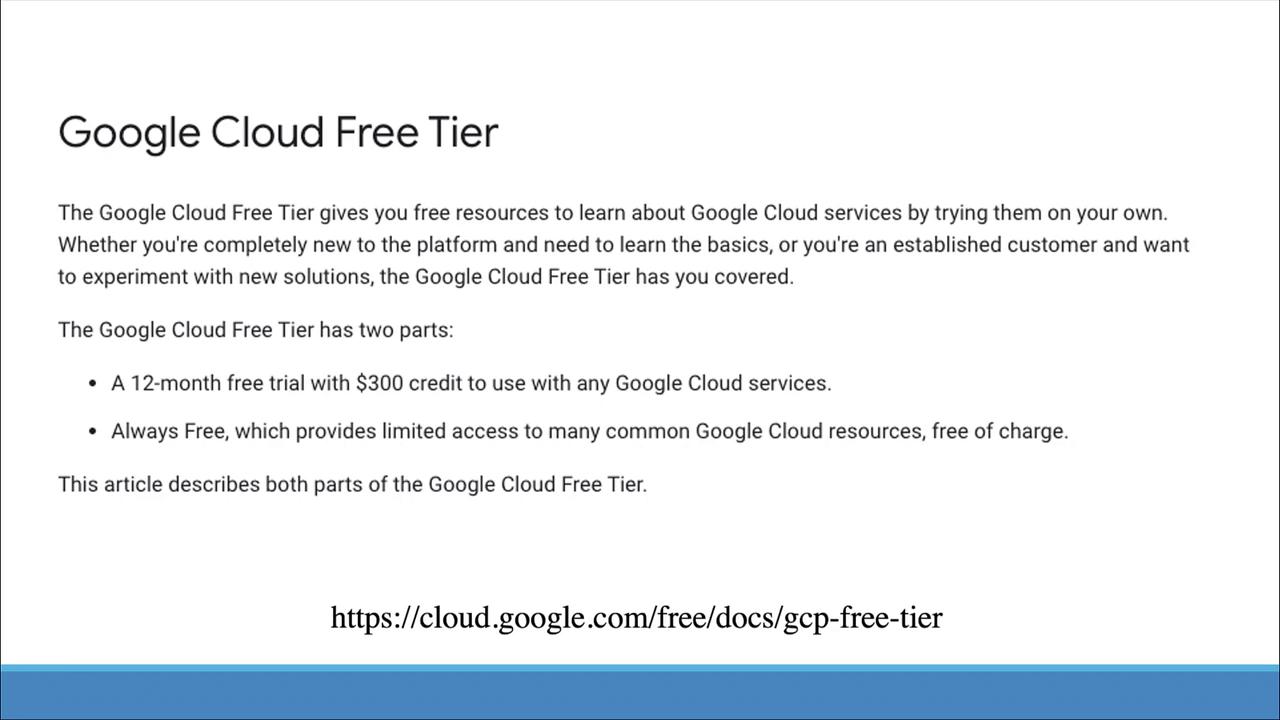
In this article, you will learn how to deploy your application on Google Kubernetes Engine (GKE) within the Google Cloud Platform (GCP). Before getting started, ensure you have access to a Google Cloud account. Google offers a 12-month free trial with a $300 credit, which is sufficient for following along with this guide.
A basic understanding of the GCP console and shell usage is essential, as you will configure the prerequisites directly in the cloud console.
Ensure you have:
A valid Google Cloud account.
Familiarity with GCP Console and basic terminal commands.
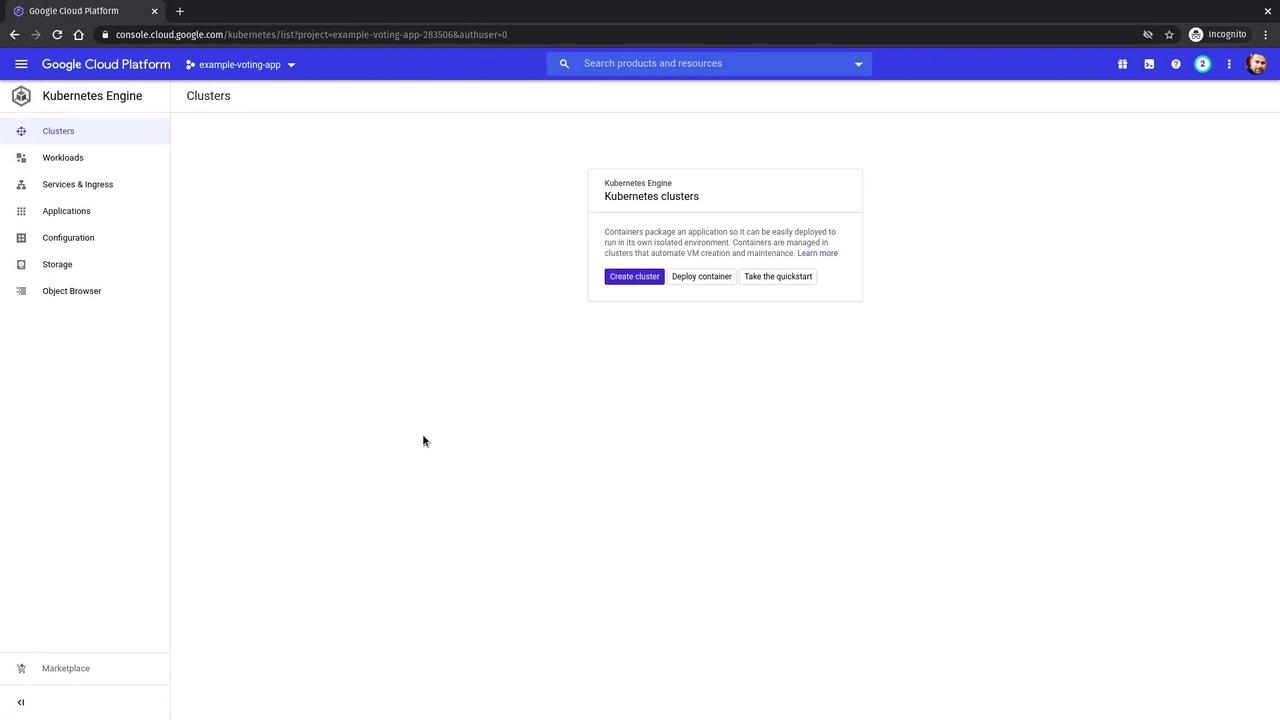
After logging into the GCP console, locate your project. In this example, we will use the project named “Example Voting App”. Follow these steps to begin configuring GKE:
Click the navigation menu at the top left corner.
Under the Compute section, select Kubernetes Engine.
In the Kubernetes Engine section, click Create Cluster.
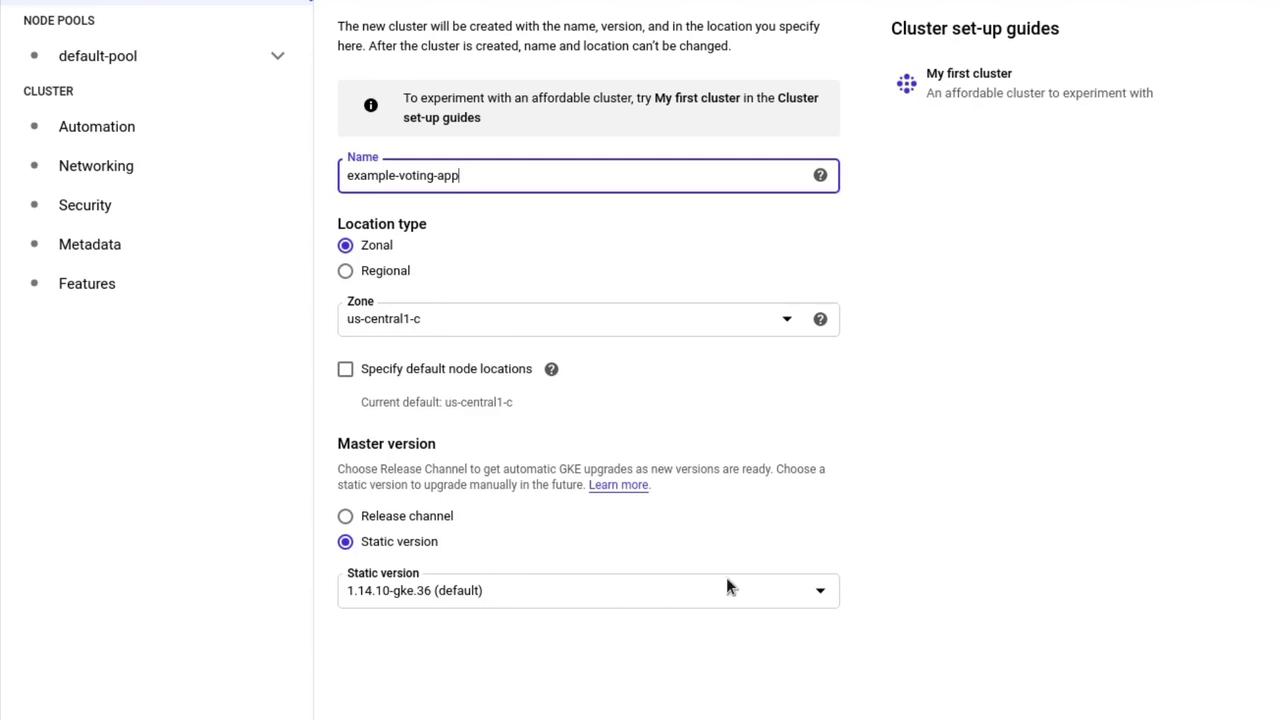
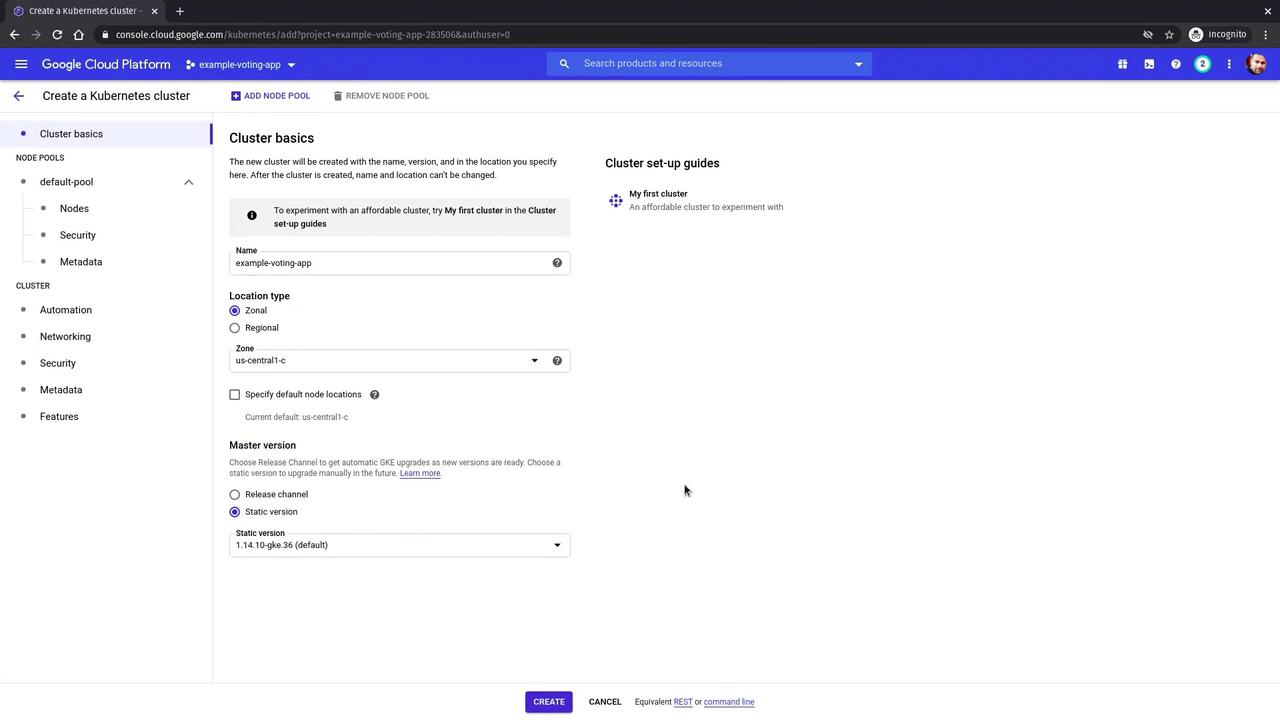
This action opens the Kubernetes cluster creation interface:
Use the default values for location type and zone.
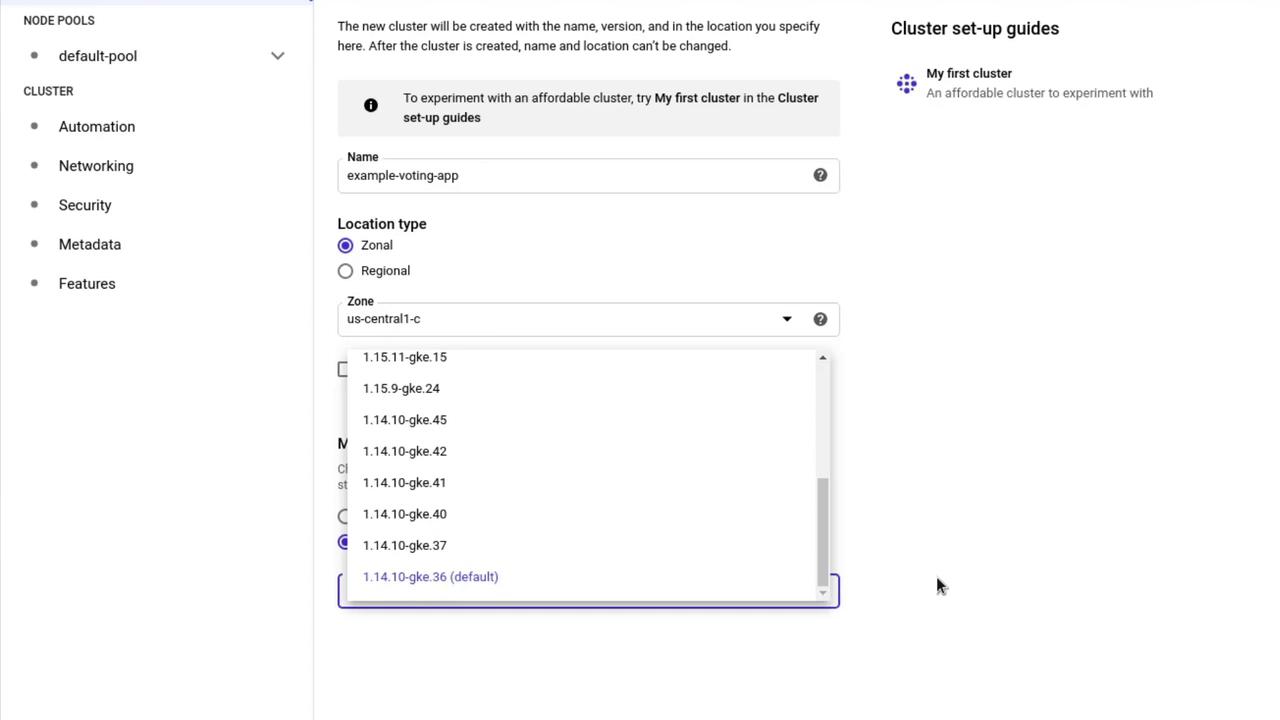
For the master version, you can either select a static version or a release channel for automatic upgrades. For this demonstration, leave it at the default setting.
Additional options are available for worker nodes, such as configuring the VM type or size; however, the default settings will suffice for this tutorial.
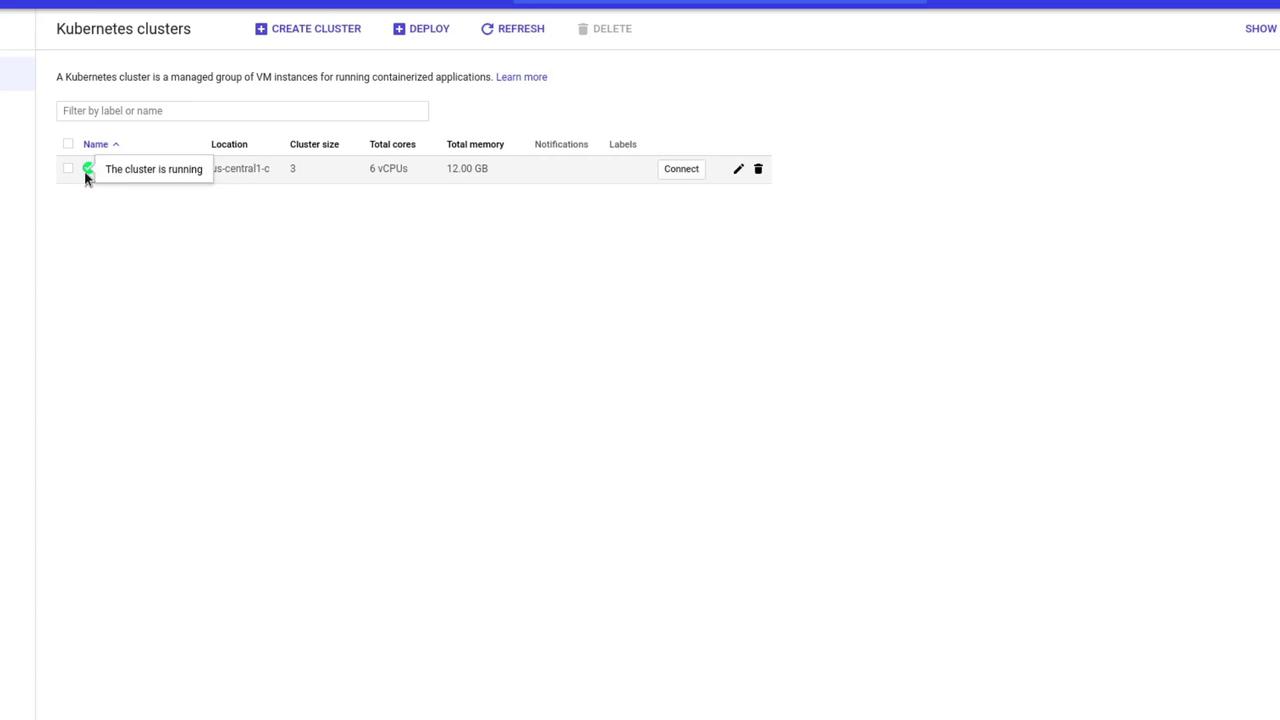
Once your configuration is complete, click Create to begin provision the cluster. Note that this process typically takes between 5 to 10 minutes. You can monitor the progress by clicking the Refresh button:
When the cluster setup is complete, you’ll see a green check mark next to the cluster name.
The simplest method to connect to your cluster is by clicking the Connect button:
Click Connect to display the command needed to configure kubectl using Cloud Shell. Once the Cloud Shell opens (you can maximize the window for convenience), run the provided command:
Now that your cluster is connected, you can deploy the YAML files for the various Deployments and Services that make up the voting application. These files are available in a GitHub repository. Follow the steps below in your Cloud Shell:
To ensure the application works seamlessly in a cloud environment, a minor modification was made to the service definitions. For example, the voting service YAML now uses a LoadBalancer instead of a NodePort:
Note that the external IP for load balancers might initially show as <pending>. Wait a few minutes and rerun the command to confirm that the IPs have been assigned.
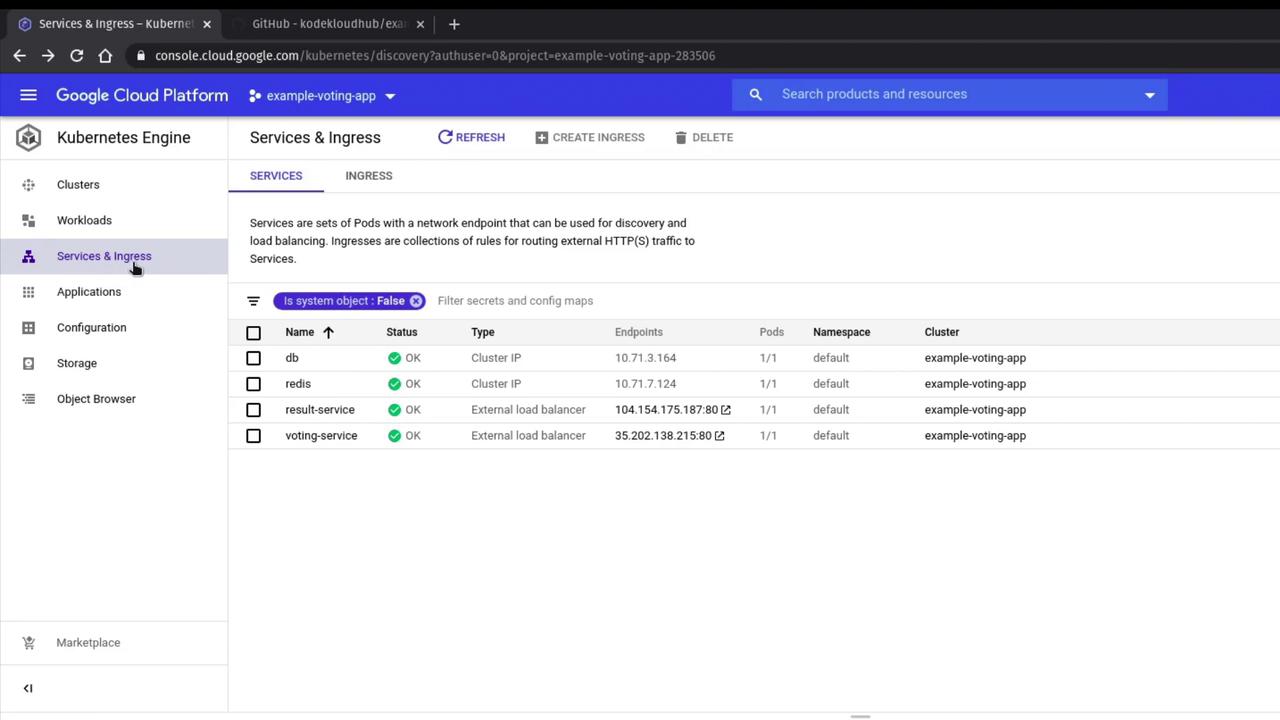
Once all deployments are ready and pods are running, verify the load balancer settings in the GCP console. Navigate to Services & Ingress under the Kubernetes Engine section. Here, you’ll see internal services (such as PostgreSQL and Redis) and front-end services that utilize the cloud provider’s native load balancer.
Click on each service to view detailed information including ClusterIP, load balancer IP, and URL endpoints. Ensure that all statuses are marked as OK.
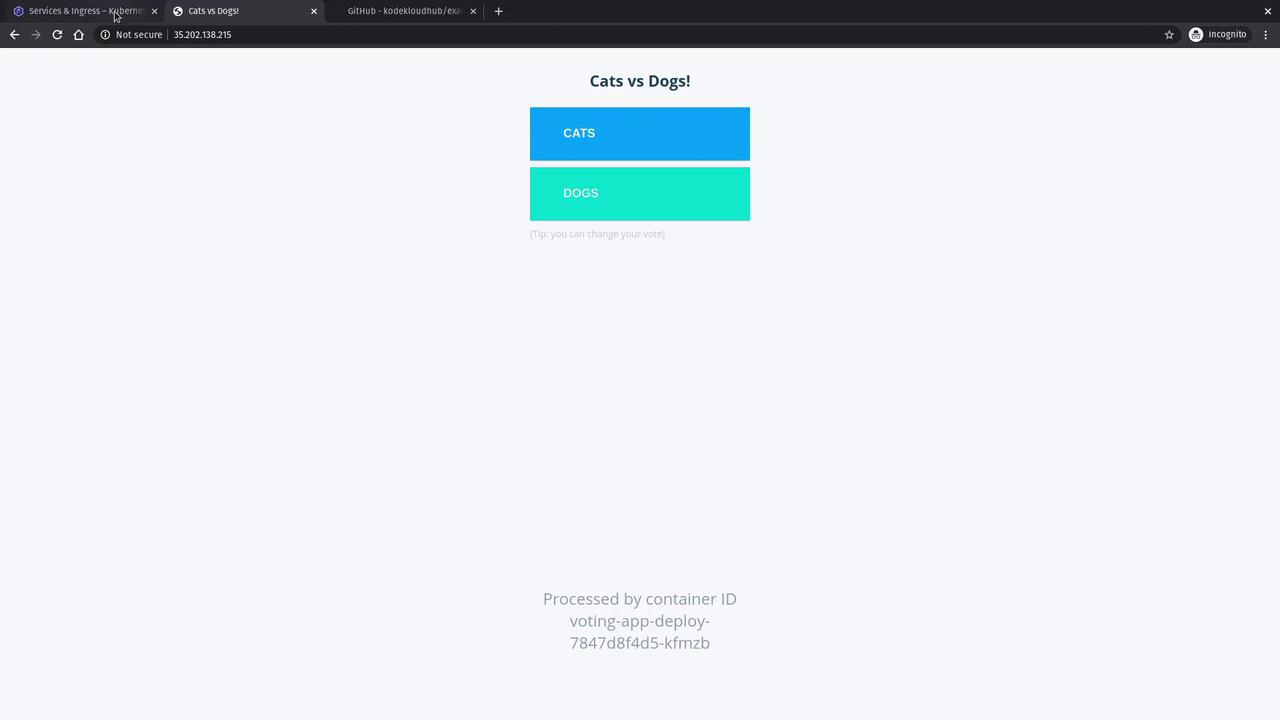
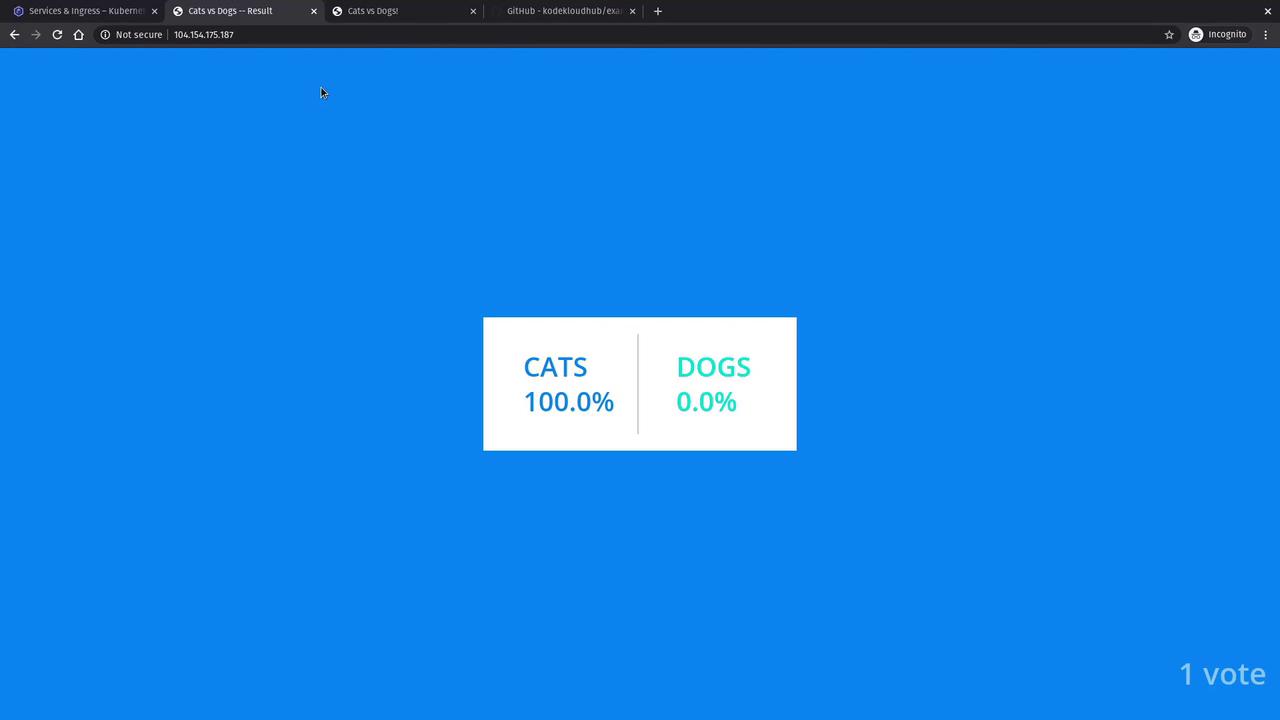
After the load balancers are assigned external IPs, open a new browser tab and navigate to the external IP associated with the voting service to load the voting application interface. Open another tab to view the results application.
Cast a vote and observe that the results update dynamically to reflect the percentage of votes. Further voting should continuously update the displayed results.
This guide has demonstrated the process of deploying a Kubernetes cluster on GKE and launching a multi-component voting application. Happy deploying, and stay tuned for more advanced Kubernetes tutorials!