In this guide, you’ll learn how to format and optimize Linux partitions using XFS and ext4 filesystems. Whether you’re preparing storage for backups or application data, these commands help you tailor performance and capacity to your needs. We’ll cover:
  • Formatting a partition with XFS
  • Inspecting and tuning XFS filesystems
  • Formatting a partition with ext4
  • Inspecting and tuning ext4 filesystems

Formatting with XFS

XFS is the default filesystem on CentOS and is known for high performance and scalability.
Running mkfs.xfs on a device will destroy all existing data. Double-check the device name (e.g., /dev/sdb1) before proceeding.

1. Create an XFS Filesystem

To format /dev/sdb1 with the default XFS settings:
sudo mkfs.xfs /dev/sdb1

2. Read the Manual and Set a Label

Consult the mkfs.xfs manual for all available options, such as adding a volume label:
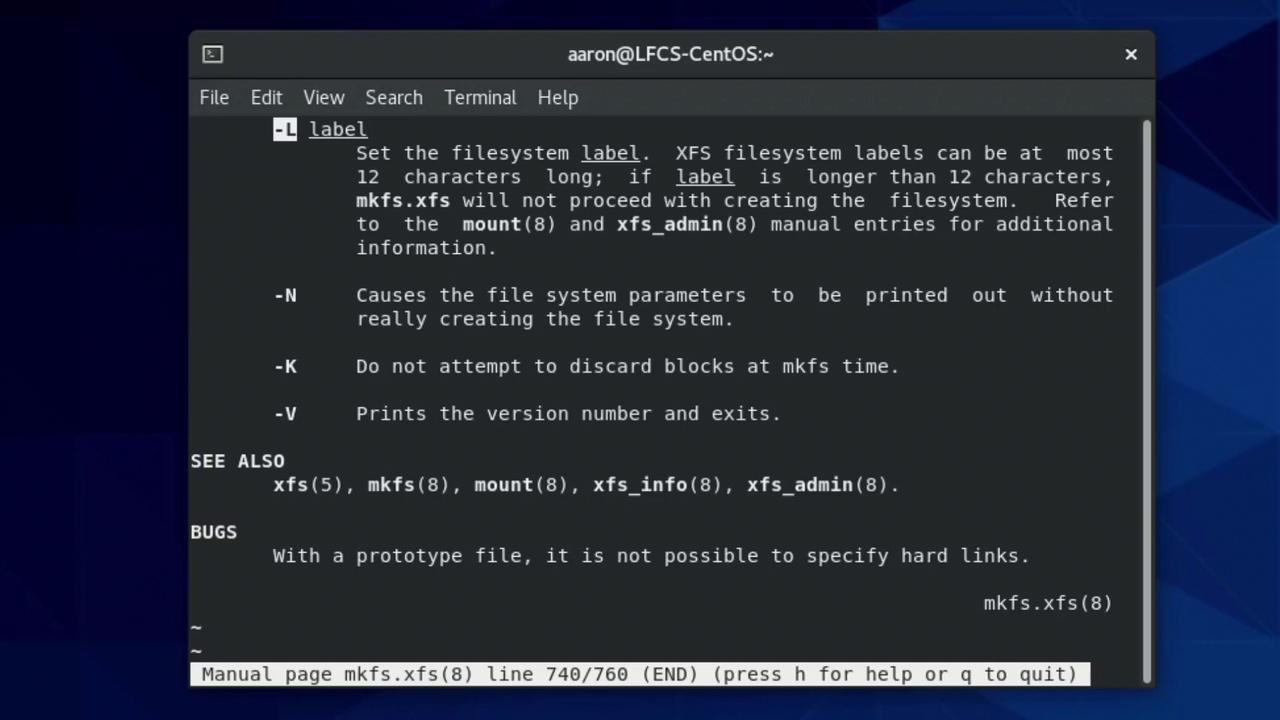
man mkfs.xfs
The image shows a terminal window displaying a manual page for the mkfs.xfs command, detailing options and usage for setting filesystem labels and other parameters.
To assign a label (up to 12 characters):
sudo mkfs.xfs -L "BackupVolume" /dev/sdb1

3. View All Creation Options

Running mkfs.xfs without arguments displays a summary of flags:
mkfs.xfs
Example excerpt:
/* blocksize */        [-b size=num]
/* label */            [-L label (maximum 12 characters)]
/* inode size */       [-i size=num,...]
...
<devicename> is required ...

4. Custom Inode Size and Label

Combine options to fine-tune your filesystem. For instance, set 512-byte inodes and a label:
sudo mkfs.xfs -i size=512 -L "BackupVolume" /dev/sdb1
Sample output:
meta-data=/dev/sdb1           isize=512    agcount=4, agsize=262144 blks
data     =                     bsize=4096    blocks=1048576, imaxpct=25
naming   =version 2
log      =internal log
realtime =none

5. Explore XFS Utilities

The XFS toolset lets you inspect and manage filesystems. Typing xfs_ lists available commands:
UtilityPurpose
xfs_adminView or change the filesystem label
xfs_infoDisplay geometry and layout details
xfs_growfsExpand a mounted XFS filesystem
xfs_quotaManage project and user quotas

6. Change an Existing XFS Label

To view the current label:
sudo xfs_admin -l /dev/sdb1
# label = "BackupVolume"
To update the label:
sudo xfs_admin -L "FirstFS" /dev/sdb1
# writing all SBs
# new label = "FirstFS"

Formatting with ext4

ext4 is widely supported and offers robust data integrity features.
mkfs.ext4 is a convenient alias for mke2fs -t ext4. You can use either command interchangeably.

1. Create an ext4 Filesystem

Format /dev/sdb2 with default ext4 options:
sudo mkfs.ext4 /dev/sdb2

2. Read the Manual

Inspect available flags like -L (label) and -N (inode count):
man mkfs.ext4

3. Set a Custom Label and Inode Count

If your workload involves many small files, increase the inode count:
sudo mkfs.ext4 -L "BackupVolume" -N 500000 /dev/sdb2
Sample output:
mke2fs 1.45.6 (20-Mar-2020)
Creating filesystem with 1048576 4k blocks and 500224 inodes
Filesystem UUID: 903a4d4d-af29-4bf3-9fad-1dfdd0cd9f39
Superblock backups stored on blocks:
    32768, 98304, 163840, 229376, 294912, 819200, 884736
Allocating group tables: done
Writing inode tables: done
Creating journal (16384 blocks): done
Writing superblocks and filesystem accounting information: done

4. Examine and Tune ext4

List parameters and check the label:
sudo tune2fs -l /dev/sdb2
sudo tune2fs -l /dev/sdb2 | grep 'Filesystem volume name'
# Filesystem volume name:   BackupVolume
To change the label:
sudo tune2fs -L "SecondFS" /dev/sdb2
Verify:
sudo tune2fs -l /dev/sdb2 | grep 'Filesystem volume name'
# Filesystem volume name:   SecondFS

References