This tutorial explains how to modify a Jenkinsfile to send Slack notifications based on build status.
In this tutorial, we demonstrate how to modify your Jenkinsfile to send Slack notifications based on build status. By following these steps, you can integrate Slack alerts without affecting your main branch.
Before making any changes, create a new branch to work on Slack notifications safely. For example, create a branch named feature/enabling-slack:
Copy
Ask AI
root@jenkins-controller-1 in solar-system on 🌿 main via 🦕 v20.16.0 on 🌍 (us-east-2)➜ git checkout -b feature/enabling-slackSwitched to a new branch 'feature/enabling-slack'root@jenkins-controller-1 in solar-system on 🌿 feature/enabling-slack via 🦕 v20.16.0 on 🌍 (us-east-2)➜
Step 2: Modify the Jenkinsfile to Configure Slack Notifications
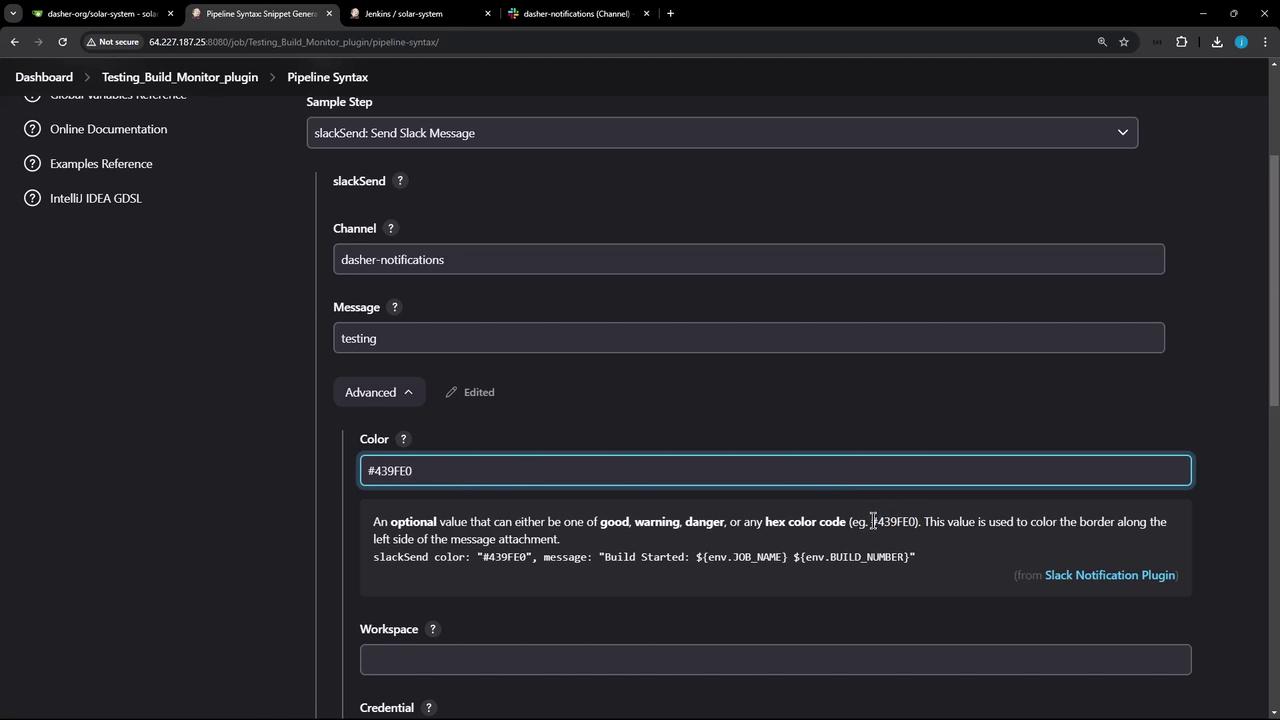
Update your Jenkinsfile to include Slack notifications. Open the Pipeline Syntax Generator and search for Slack commands like slackSend, slackUploadFile, or those used for user ID resolution. In this guide, we focus on the slackSend command.You will need to specify:
The Slack channel (e.g., “dasher-notifications”)
A message (e.g., “Testing”)
An optional color based on the build result (green for success, red for failure)
Below is a screenshot of the Jenkins Pipeline configuration screen:
After configuring the options, your command may look similar to the following:
Step 3: Implement Slack Notifications in the Post Section
Add the Slack notification command in the post block of your stages to handle conditions like success, failure, aborted, or unstable builds. For example:
git checkout -b feature/enabling-slackSwitched to a new branch 'feature/enabling-slack'
To simplify maintenance when working with many stages (20 or more), consider creating a reusable Groovy method for sending Slack notifications rather than adding duplicate post blocks in every stage.
Step 4: Create a Reusable Groovy Notification Method
Add the following Groovy method before the pipeline block in your Jenkinsfile. This method accepts an optional build status (defaulting to ‘STARTED’), determines the notification color, and constructs a message using the job details.
Copy
Ask AI
def slackNotificationMethod(String buildStatus = 'STARTED') { buildStatus = buildStatus ?: 'SUCCESS' def color if (buildStatus == 'SUCCESS') { color = '#47ec05' } else if (buildStatus == 'UNSTABLE') { color = '#d5ee0d' } else { color = '#ec2805' } def msg = "${buildStatus}: *${env.JOB_NAME}* #${env.BUILD_NUMBER}:\n${env.BUILD_URL}" slackSend(color: color, message: msg)}
Copy
Ask AI
git checkout -b feature/enabling-slackSwitched to a new branch 'feature/enabling-slack'root@jenkins-controller-1 in solar-system on 📦 feature/enabling-slack via 🦊 v20.16.0 on ☁️ (us-east-2)
Step 5: Integrate the Notification Method into Your Pipeline
Invoke the reusable notification method in the post always section of your pipeline to ensure that a notification is sent regardless of build outcome:
Copy
Ask AI
def slackNotificationMethod(String buildStatus = 'STARTED') { buildStatus = buildStatus ?: 'SUCCESS' def color if (buildStatus == 'SUCCESS') { color = '#47ec05' } else if (buildStatus == 'UNSTABLE') { color = '#d5ee0d' } else { color = '#ec2805' } def msg = "${buildStatus}: `${env.JOB_NAME}` *#${env.BUILD_NUMBER}*:\n${env.BUILD_URL}" slackSend(color: color, message: msg)}pipeline { agent any tools { // Add tool configurations if necessary. } post { always { slackNotificationMethod("${currentBuild.result}") } }}
Copy
Ask AI
git checkout -b feature/enabling-slackSwitched to a new branch 'feature/enabling-slack'root@jenkins-controller-1 in solar-system on feature/enabling-slack
With this configuration, no matter which stage fails, the post always block will invoke the slackNotificationMethod, sending a Slack notification with details like the build ID, URL, and job name. Jenkins is preconfigured with the necessary channel and token credentials, so you don’t have to manually set them in your script.
git checkout -b feature/enabling-slackSwitched to a new branch 'feature/enabling-slack'
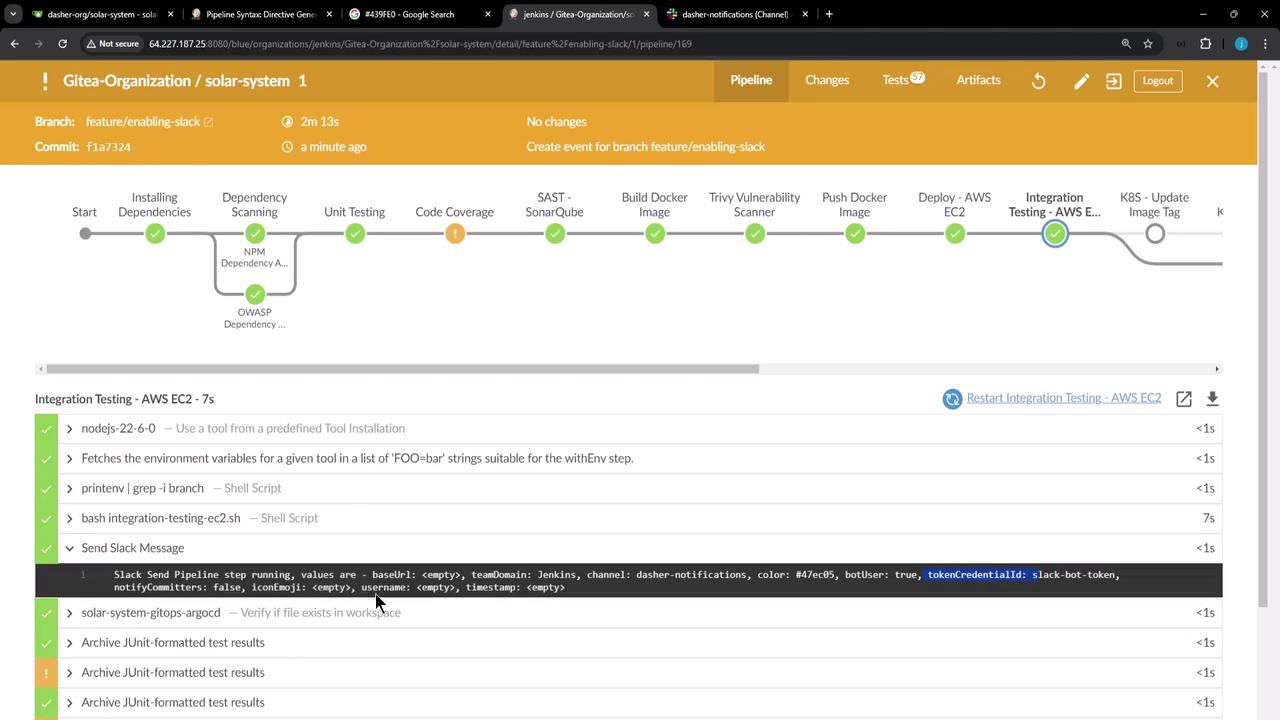
When a build is initiated on the feature/enabling-slack branch, the pipeline executes all stages and sends Slack notifications with detailed build information. You might notice console logs similar to:
In your Jenkinsfile for code coverage, a catchError block can be used to adjust the build result, ensuring that the Slack notification method receives the correct parameter:
Copy
Ask AI
stage('Code Coverage') { steps { catchError(buildResult: 'SUCCESS', message: 'Oops! It will be fixed in future releases', stageResult: 'UNSTABLE') { sh 'npm run coverage' } }}
Copy
Ask AI
git checkout -b feature/enabling-slackSwitched to a new branch 'feature/enabling-slack'root@jenkins-controller-1 in solar-system on ⏣ feature/enabling-slack via ⬢ v20.16.0 on (us-east-2)
To simulate a failure, you can add an exit 1 command in a stage. For example:
git checkout -b feature/enabling-slackSwitched to a new branch 'feature/enabling-slack'root@jenkins-controller-1 in solar-system on feature/enabling-slack via v20.16.0 on (us-east-2)
In this case, the post always block will trigger a failure notification with the corresponding red color.
Below is the final version of the reusable Groovy method used throughout the Jenkinsfile:
Copy
Ask AI
def slackNotificationMethod(String buildStatus = 'STARTED') { buildStatus = buildStatus ?: 'SUCCESS' def color if (buildStatus == 'SUCCESS') { color = '#47ec05' } else if (buildStatus == 'UNSTABLE') { color = '#d5ee0d' } else { color = '#ec2805' } def msg = "${buildStatus}: `${env.JOB_NAME}` #${env.BUILD_NUMBER}:\n${env.BUILD_URL}" slackSend(color: color, message: msg)}pipeline { agent any tools { // Add your tool configurations here. }}
Copy
Ask AI
git checkout -b feature/enabling-slackSwitched to a new branch 'feature/enabling-slack'root@jenkins-controller-1 in solar-system on ⬢ feature/enabling-slack via 🐱 v20.16.0 on 💬 (us-east-2)
In larger environments, consider using shared libraries to reuse common methods (like the Slack notification method) across multiple Jenkinsfiles. This approach maintains consistency while reducing duplicated code and simplifying maintenance.
That concludes our guide on integrating Slack notifications in a Jenkins pipeline. Happy automating!