Learn to use the Job Configuration History plugin for Jenkins to back up, compare, and restore job configurations effectively.
In this guide, you will learn how to leverage the Job Configuration History plugin for Jenkins to automatically back up your job and system configurations. The plugin captures every modification to your configuration files, allows side-by-side diff comparisons, and even facilitates restoration of previous versions. This is especially useful when recovering accidentally deleted jobs or unintended changes.
Before you begin, install the plugin and restart Jenkins manually to ensure all features are active.
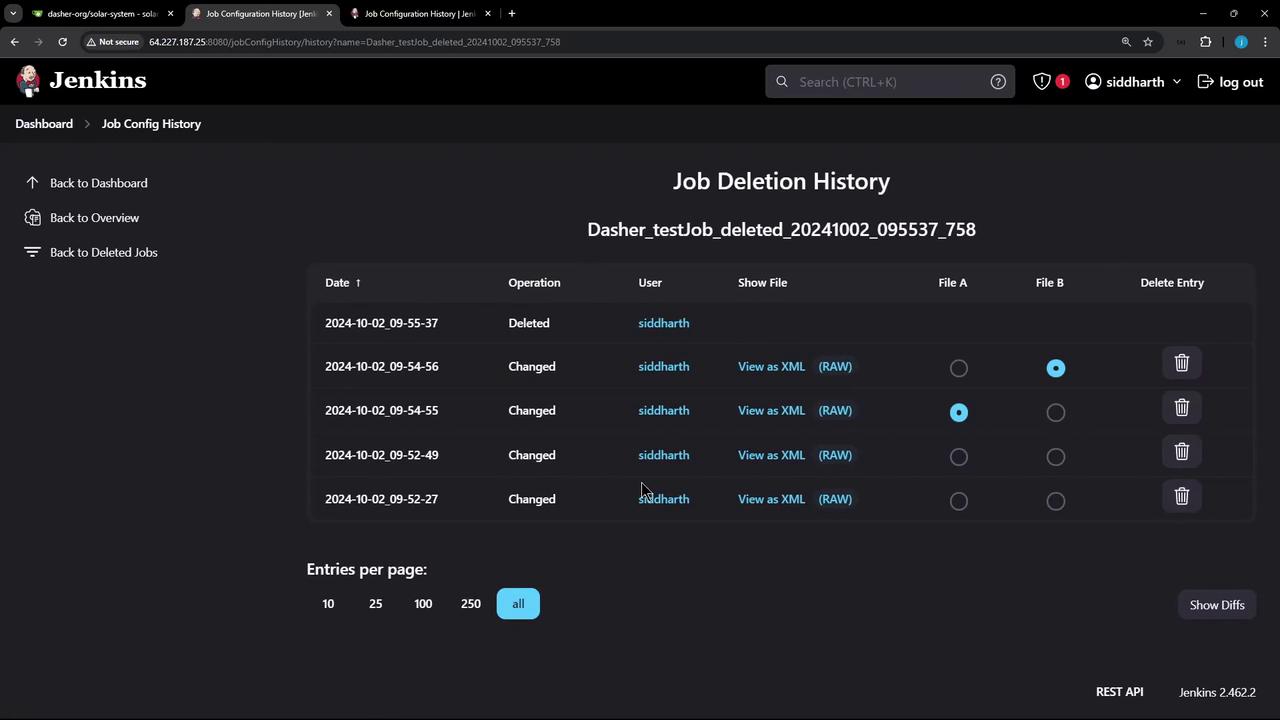
Once you click the “Job Config History” link, you will be directed to a page that lists all configuration changes. Use the filters on the left to sort through system configurations, job configurations, created jobs, or deleted jobs.
Edit the build steps for your test job by adding a shell command:
Copy
Ask AI
echo Hello Testing a new Plugin
Save the configuration and run the job. The console log should display an output similar to:
Copy
Ask AI
Started by user siddharthRunning as SYSTEMBuilding in workspace /var/lib/jenkins/workspace/Dasher_testJob[Dasher_testJob] $ /bin/sh -xe /tmp/jenkins5147897380265973327.sh+ echo Hello Testing a new PluginHello Testing a new Plugin[Gitea] do not publish assets due to source being no GiteaCMSourceFinished: SUCCESS
Further refine the job configuration by including an extra shell command to pause execution:
Copy
Ask AI
sleep 5
Save the updated configuration and run the job again. Now, both the echo command and the sleep command are executed, and the plugin records all these changes.
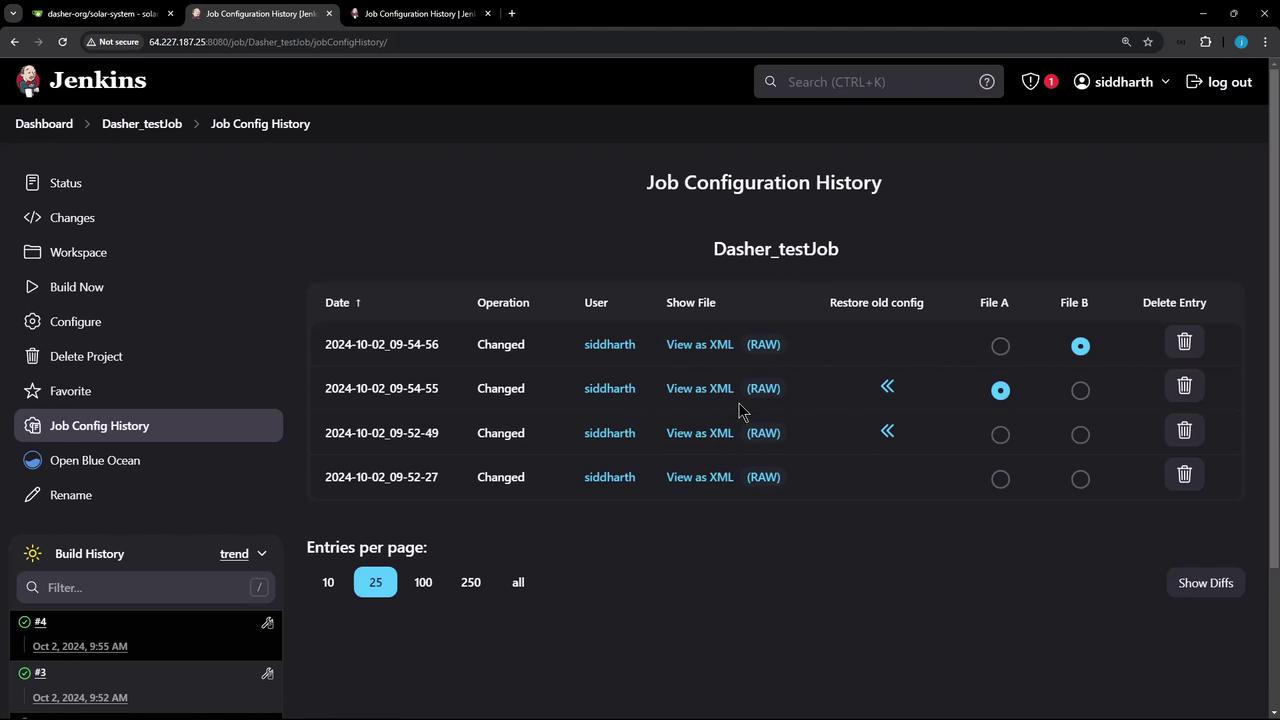
Return to the “Job Config History” page and click “Show All Configs” to review the tracked changes. You will now see the configuration files displayed in XML format.For example:
First build configuration:
Copy
Ask AI
<command>echo Hello Testing a new Plugin!</command>
Second build configuration:
Copy
Ask AI
<command>echo Hello Testing a new Plugin!</command><command>sleep 5</command>
The history log captures details such as the timestamp, job name, type of operation, and the user responsible for the change.
If you need to revert to an earlier configuration:
Locate the job’s configuration history.
Click “Show Difference” to compare the two versions.
Choose the correct version (for example, the one with only the echo command) and click “Restore”.
After confirmation, the job will revert to its previous state. You can verify this by running the job again; the console log should now only display the echo command:
Copy
Ask AI
Started by user siddharthRunning as SYSTEMBuilding in workspace /var/lib/jenkins/workspace/Dasher_testJob[Dasher_testJob] $ /bin/sh -xe /tmp/jenkins126000273998578306.sh+ echo Hello Testing a new PluginHello Testing a new Plugin[Gitea] do not publish assets due to source being no GiteaCMSourceFinished: SUCCESS
When you inspect the job configuration, it will now contain:
Copy
Ask AI
echo Hello Testing a new Plugin
The restore feature allows you to quickly recover from any unintended configuration changes by reverting to a known good state.
The plugin also tracks deleted jobs. If you accidentally remove a job, you can filter the history to display only deleted jobs and restore them as necessary.
To restore a deleted job, simply:
Filter by deleted jobs.
Click on the restore option.
Confirm the restoration, and the job will reappear on the dashboard.
By default, the configuration history is stored in the Jenkins home directory under “/var/lib/jenkins/config-history”. You can inspect this directory directly from your VM.For example, listing the contents shows:
Copy
Ask AI
drwxr-xr-x 4 jenkins jenkins 4096 Oct 2 09:52 config-his/...
Change into the config history directory:
Copy
Ask AI
root@jenkins-controller-1 in /var/lib/jenkins> cd config-history/root@jenkins-controller-1 in /var/lib/jenkins/config-history> lltotal 16drwxr-xr-x 4 jenkins jenkins 4096 Oct 2 09:52 .drwxr-xr-x 3 jenkins jenkins 4096 Oct 2 09:56 ..drwxr-xr-x 3 jenkins jenkins 4096 Oct 2 09:56 ./drwxr-xr-x 3 jenkins jenkins 4096 Oct 2 09:56 jobs/
Each job has its own subdirectory within the “jobs” folder. For instance, to inspect “Dasher_testJob”:
Copy
Ask AI
root@jenkins-controller-1 in /var/lib/jenkins/config-history/jobs> cd Dasher_testJob/root@jenkins-controller-1 in /var/lib/jenkins/config-history/jobs/Dasher_testJob> lltotal 32drwxr-xr-x 2 jenkins jenkins 4096 Oct 2 09:55 ./drwxr-xr-x 3 jenkins jenkins 4096 Oct 2 09:56 ../drwxr-xr-x 2 jenkins jenkins 4096 Oct 2 09-52-27/drwxr-xr-x 2 jenkins jenkins 4096 Oct 2 09-52-49/drwxr-xr-x 2 jenkins jenkins 4096 Oct 2 09-54-55/drwxr-xr-x 2 jenkins jenkins 4096 Oct 2 09-54-56/drwxr-xr-x 2 jenkins jenkins 4096 Oct 2 09:52 2024-10-02_09-56-37/drwxr-xr-x 2 jenkins jenkins 4096 Oct 2 09:56 2024-10-02_09-56-17/
To inspect a particular change log file (e.g., history.xml):
The Job Configuration History plugin is an essential tool for managing and tracking changes in your Jenkins job configurations. Its ability to display side-by-side differences, restore previous configurations, and manage deleted jobs makes it invaluable for maintaining a stable and reliable CI/CD environment.For further reading and related resources: