

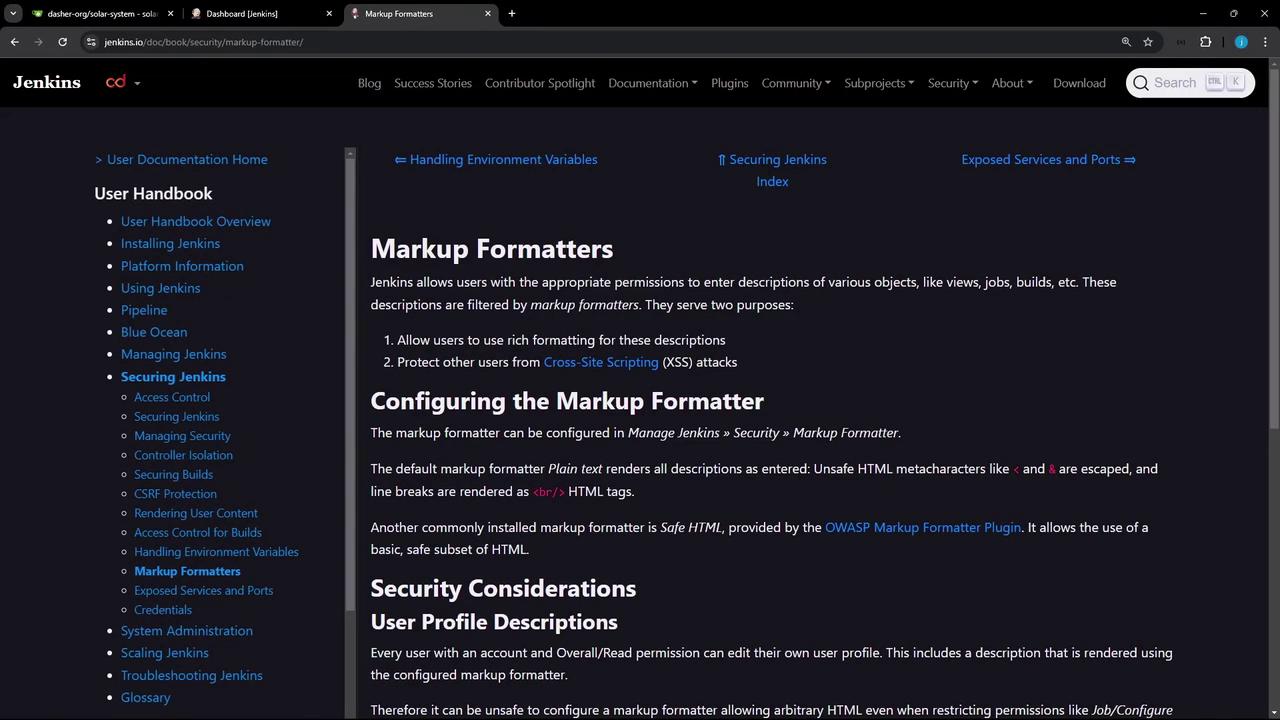
Understanding the Options
Jenkins provides multiple formatting options, including plain text and safe HTML. When displayed in the Jenkins UI, these two options produce different effects based on the configuration. Imagine you are logged into your Jenkins controller. Initially, you might see a simple system message that looks like this: Welcome to Dasher CI organization. To enhance this system message with HTML formatting, follow these steps:- Navigate to the “Manage Jenkins” section.
- Select “System Configuration.”
- Replace the plain text message with HTML formatted text. For example, you might use the
<strong>tag to create bold text or include other styling tags to improve the message’s appearance.
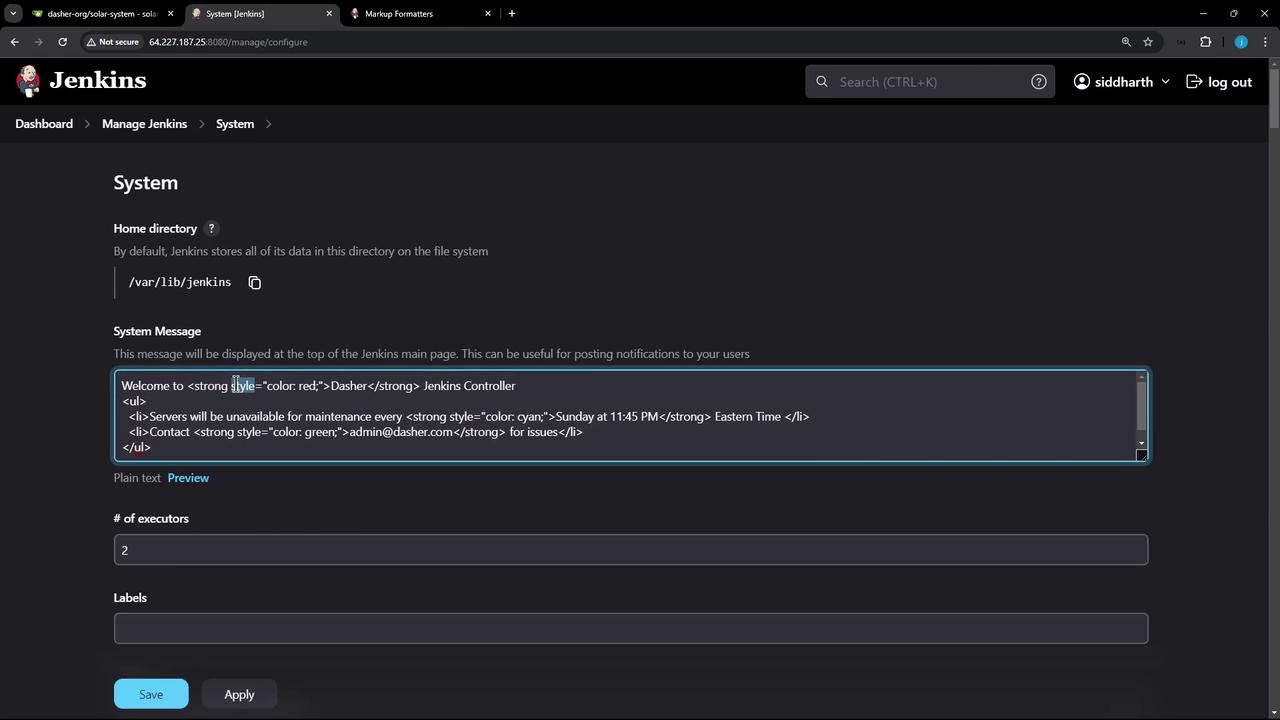
Even if you include HTML tags (like
<strong>), the default configuration under “Manage Jenkins” → “Security” uses the plain text markup formatter. As a result, HTML tags will be escaped and displayed as plain text.Enabling HTML Formatting
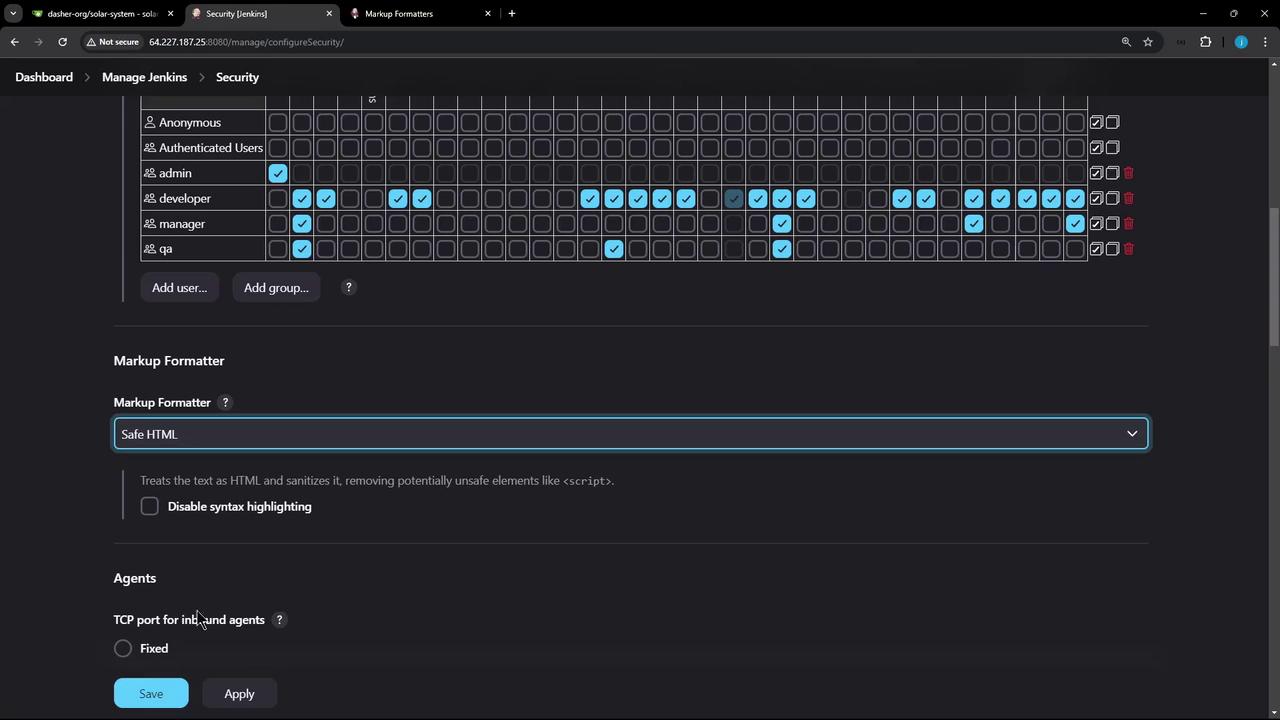
To enable HTML formatting in your system messages and other text areas:- Change the configuration to use the safe HTML formatter.
- The safe HTML formatter treats your input as HTML but sanitizes it to remove potentially harmful elements (such as
<script>tags) while preserving allowed HTML tags.
Broad Application of Markup Formatter
This approach of using the safe HTML formatter applies across multiple areas in Jenkins. Use it to enhance:- System Messages: Improve visibility and user engagement.
- Job Descriptions: Clearly communicate job details and instructions.
- Build Details: Make build logs and statuses more readable.
- View Configurations: Customize dashboards for a better user experience.