This article explains how to enhance a Jenkins Pipeline by adding stages for building and testing a Java application.
In this lesson, we enhance our Jenkins Pipeline by adding multiple stages to build and test a Java application. The sections below explain the updates and modifications, preserving the original content structure and technical diagrams.
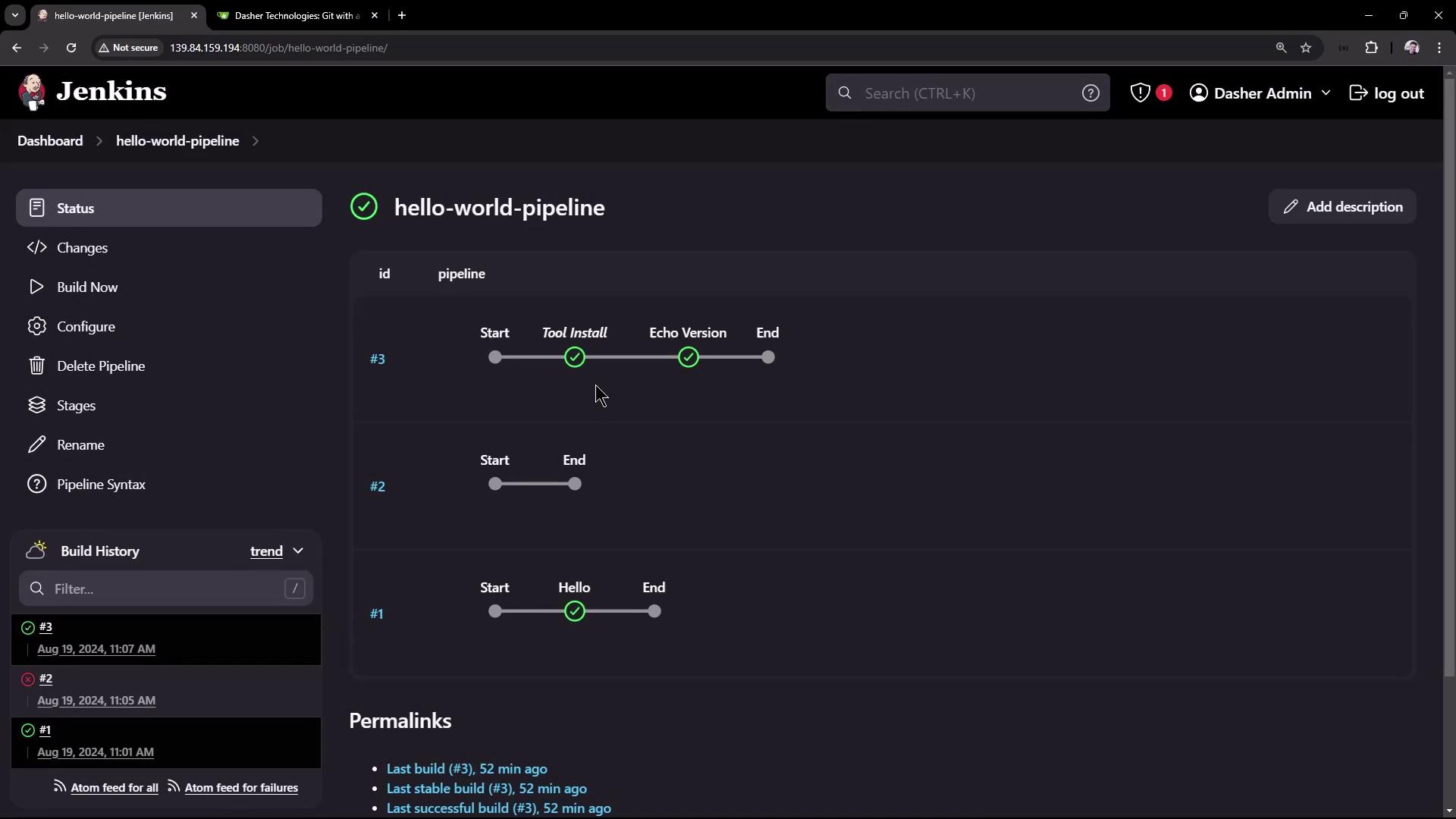
Previously, we configured the Maven tool and printed the Maven version. In that example, the Pipeline featured only an “Echo Version” stage while the build stage was commented out. Refer to the following Jenkins dashboard snapshot:
In this updated Pipeline, we add two new stages:
Build: Retrieve the code from a Git repository and build the application using Maven.
In the build stage, the code is first fetched from a Git repository, and then Maven is used to build the application. Commands differ based on the operating system: on a Unix agent, we use sh, while bat is utilized for Windows agents.
Copy
Ask AI
stage('Build') { steps { // Get some code from a GitHub repository git 'https://github.com/igluok/simple-maven-project-with-tests.git' // Run Maven on a Unix agent. sh 'mvn -Dmaven.test.failure.ignore=true clean package' // To run Maven on a Windows agent, use: // bat 'mvn -Dmaven.test.failure.ignore=true clean package' } post { // Record the test results and archive the jar if Maven runs the tests, // even if some tests fail. success { junit '**/target/surefire-reports/TEST-*.xml' archiveArtifacts 'target/*.jar' } }}
Here, Maven’s clean package command is used with the option to ignore test failures during packaging. Post-build actions then archive the test results and packaged JAR file.
Build: Fetches the source code from the Git repository and builds the application.
Unit Test: Runs unit tests in a separate stage.
Copy
Ask AI
pipeline { agent any tools { // Install the Maven version configured as "M398" and add it to the path. maven "M398" } stages { stage('Echo Version') { steps { sh 'echo Print Maven Version' sh 'mvn -version' } } stage('Build') { steps { // Get some code from a Gitea repository specifying the main branch git branch: 'main', url: 'http://139.84.159.194:5555/dasher-org/jenkins-hello-world.git' // Run Maven Package command and skip tests sh 'mvn clean package -DskipTests=true' } } stage('Unit Test') { steps { sh 'mvn test' } } }}
The Git plugin is used to fetch source code from a self-hosted Git service, which, despite a URL similar to GitHub, is actually served by Gitea.
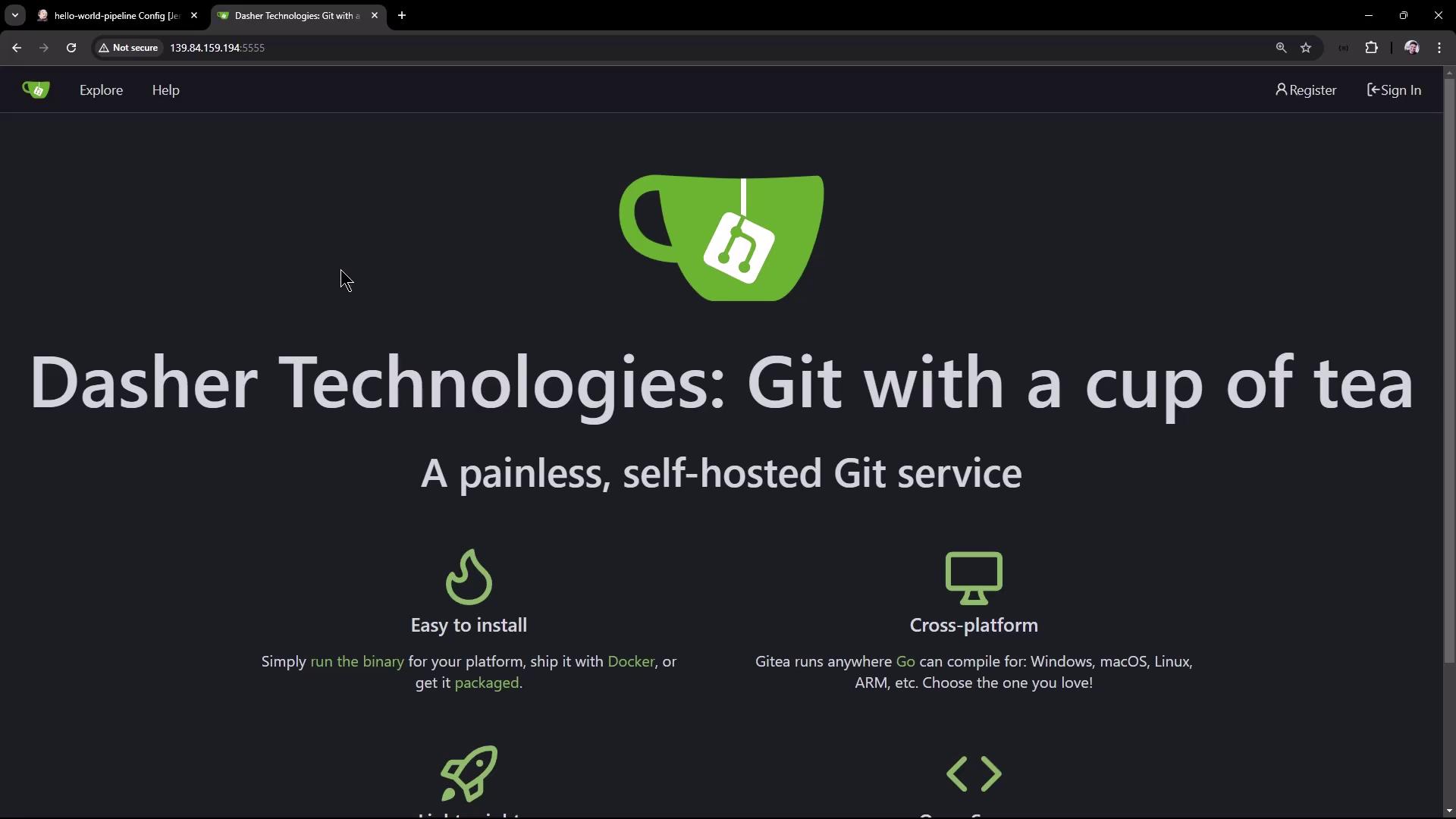
In this lesson, we use Gitea as our self-hosted Git service. Below is a screenshot showcasing the Dasher Technologies Git service interface:
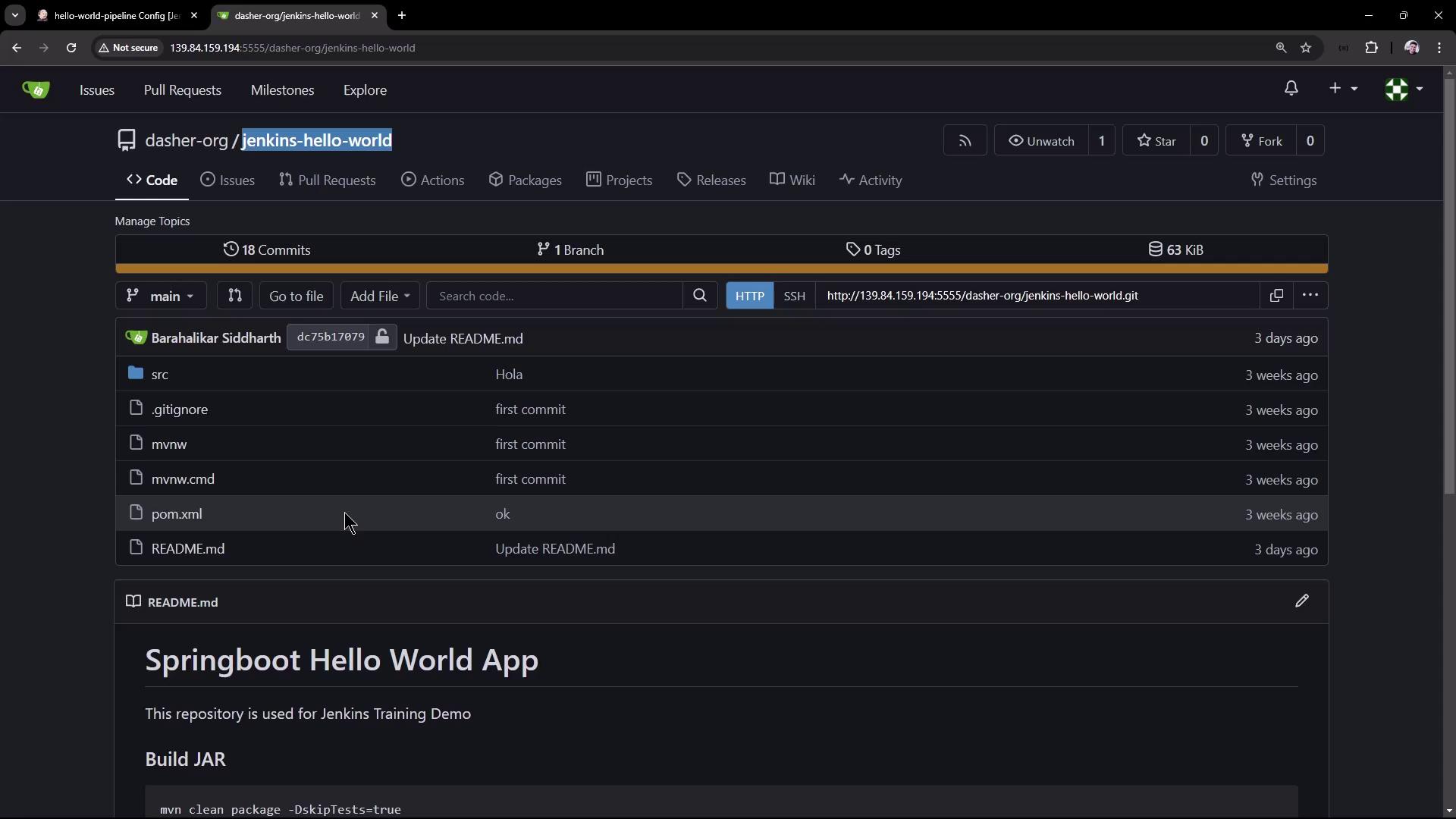
After signing in with the credentials (username: gitty-admin), navigate to the Dasher Team organization and open the “Jenkins Hello World” repository. This repository contains a Spring Boot-based Java application designed for Jenkins training. For an overview of the repository, view the screenshot below:
Since this project is built with Maven, we utilize Maven commands to generate the application JAR file and execute tests.
Our Git server operates as a Docker container on a virtual machine. The container’s internal port 3000 is mapped to port 5555 on the host. You can verify the container status with:
Copy
Ask AI
docker ps
Sample output:
Copy
Ask AI
CONTAINER ID IMAGE COMMAND NAMES CREATED STATUS PORTS5133f2f22ae7 gitea/gitea:latest "/usr/bin/entrypoint…" gitea 22 hours ago Up 22 hours 0.0.0.0:5555->3000/tcp, :::5555->3000/tcp
The repository contains several JUnit test cases for the Hello Controller. One test was initially configured to expect an incorrect greeting, causing a failure:
An error occurred during Pipeline execution because Jenkins attempted to clone the repository’s master branch, while our repository uses the main branch. The Git checkout has been updated to specify the main branch:
pipeline { agent any tools { // Install the Maven version configured as "M398" and add it to the path. maven "M398" } stages { stage('Echo Version') { steps { sh 'echo Print Maven Version' sh 'mvn -version' } } stage('Build') { steps { // Get some code from a Gitea repository specifying the main branch git branch: 'main', url: 'http://139.84.159.194:5555/dasher-org/jenkins-hello-world.git' // Run Maven Package command and skip tests sh 'mvn clean package -DskipTests=true' } } stage('Unit Test') { steps { sh 'mvn test' } } }}
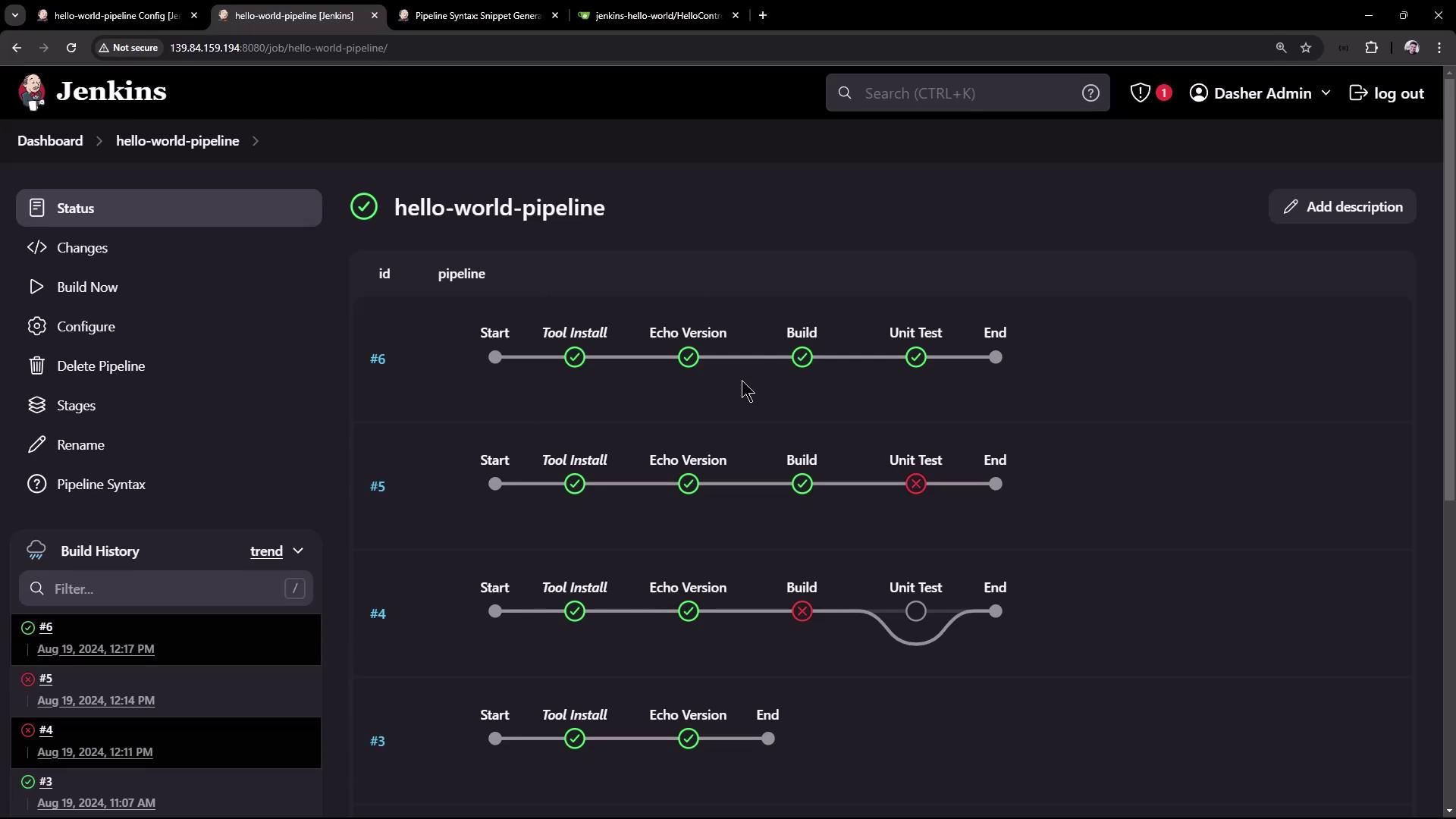
After redeploying, the build stage completed successfully (after downloading dependencies), and all unit tests passed.
Using this Pipeline, we built the application and executed unit tests in separate stages. In the next session, we will:
Transition the Pipeline script from the Jenkins UI to a Git repository for version control and collaboration.
Explore further enhancements by implementing an end-to-end Pipeline with a Node.js application.
Refer to the following Jenkins dashboard snapshot to see an overview of the successful Pipeline execution:
Thank you for following along with this lesson.
Stay tuned for our upcoming session, where we will integrate version control practices and demonstrate how to implement a Node.js application using a similarly structured Pipeline.