Downloading the Jenkins CLI
Download the Jenkins CLI jar file using wget. First, change to the root directory of your virtual machine and run:Running Basic CLI Commands
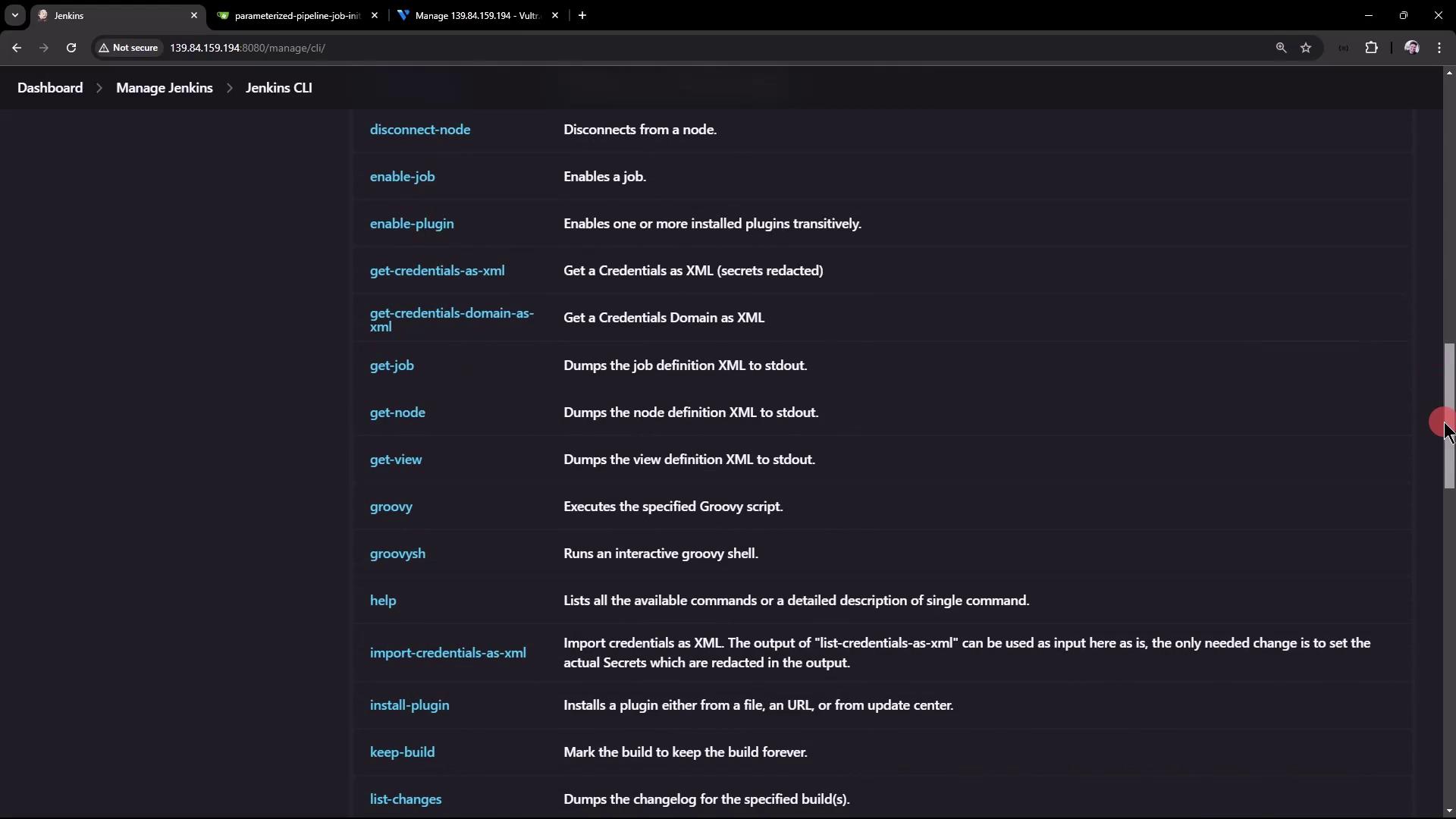
Once you have the jar file, you can run commands directly from the terminal or copy commands from the Jenkins UI. For example, to display all available CLI options, run:-s, -webSocket, -http, -ssh, and more.
A helpful command is who-am-i, which reports your current authentication status:
Authenticating with the Jenkins CLI
To access protected data, authenticate with your username and password (or API token) using the-auth parameter:
Building a Parameterized Pipeline Job
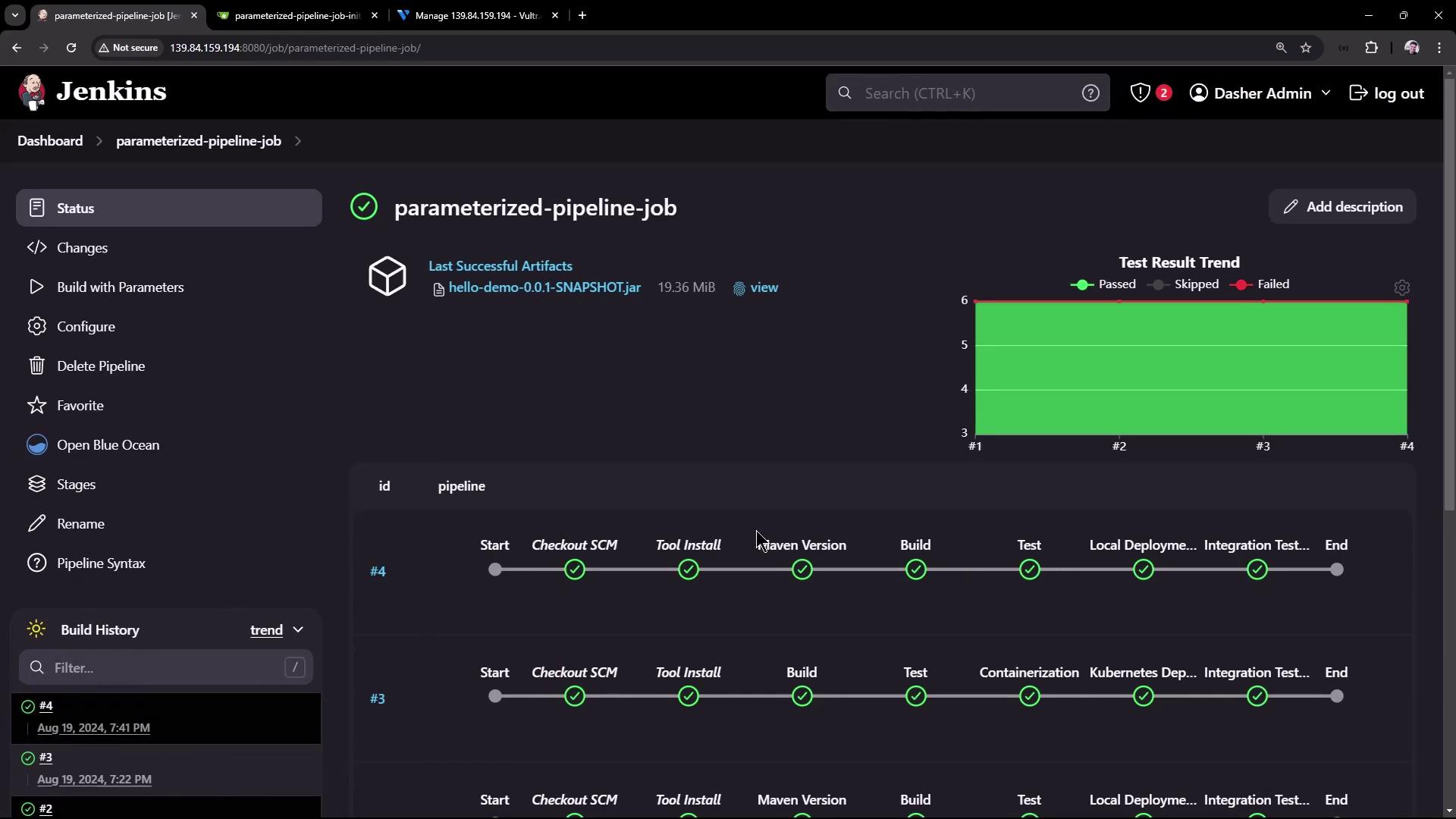
Building a project using the CLI is straightforward. Thebuild command supports several options:
-c: Check for SCM changes before initiating the build.-f: Follow the build progress.-p: Pass build parameters in key-value format.-s: Wait until the build completes or aborts.-v: Display the console output.-w: Wait until the build begins.
-v flag.
Summary of Commands
Below is a table summarizing the most commonly used Jenkins CLI commands:| Command | Description | Example |
|---|---|---|
| List Jobs | Lists all jobs in Jenkins | java -jar jenkins-cli.jar -s http://139.84.159.194:8080/ -auth admin:password list-jobs |
| Who Am I | Displays your current authentication status | java -jar jenkins-cli.jar -s http://139.84.159.194:8080/ -auth admin:password who-am-i |
| Build Job with Parameter | Triggers a build for a parameterized pipeline job | java -jar jenkins-cli.jar -s http://139.84.159.194:8080/ -auth admin:password build parameterized-pipeline-job -f -p BRANCH_NAME=test |