Learn to install and set up Docker on an Ubuntu VM for modern application deployment.
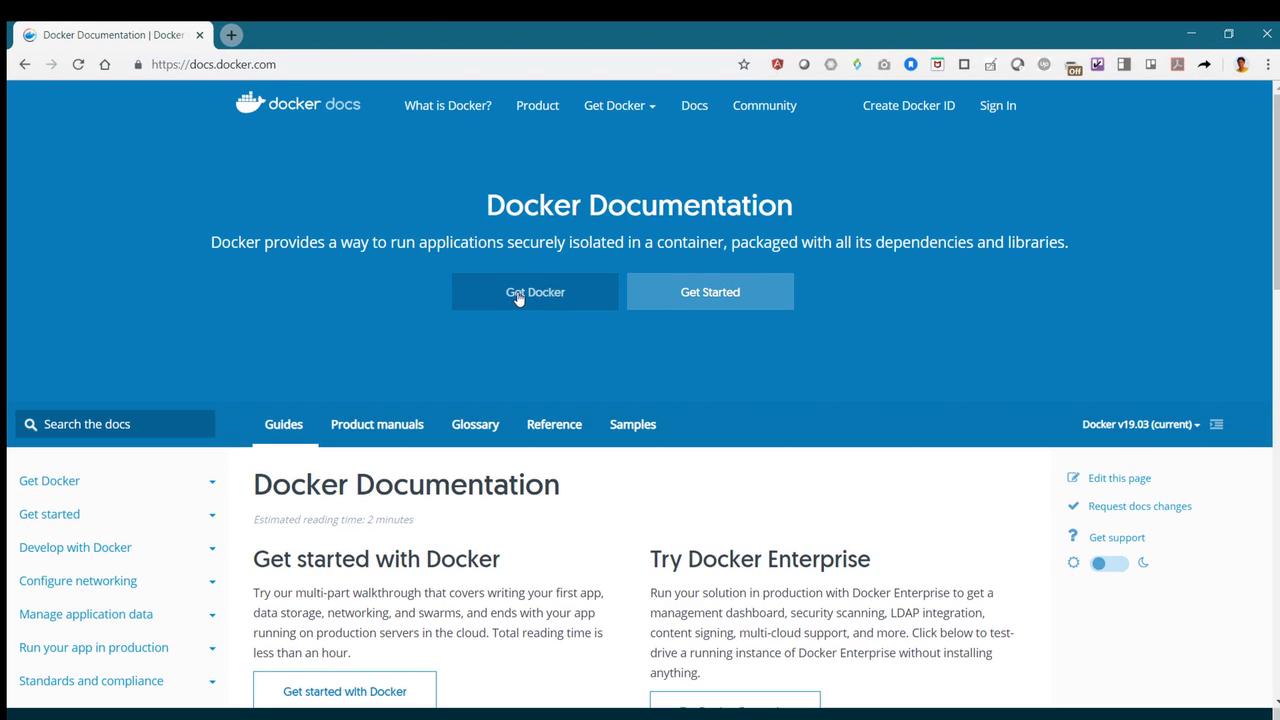
In this lesson, you’ll learn how to install and get started with Docker—a powerful containerization platform essential for modern application deployment. We’ll walk you through setting up Docker on a supported system, using an Ubuntu VM as our example.Open your browser and navigate to docs.docker.com. Click on the “Get Docker” button to access the Docker Engine Community Edition page, which is the free version featured in this guide.
From the left-hand menu, select your system type. For this demonstration, choose Linux, then select your Ubuntu flavor (such as Disco, Cosmic, Bionic, or Sanyo). Make sure to review the prerequisites confirming that your Ubuntu system is 64-bit and one of the supported versions.
Ensure that your system meets all prerequisites before proceeding with the Docker installation.
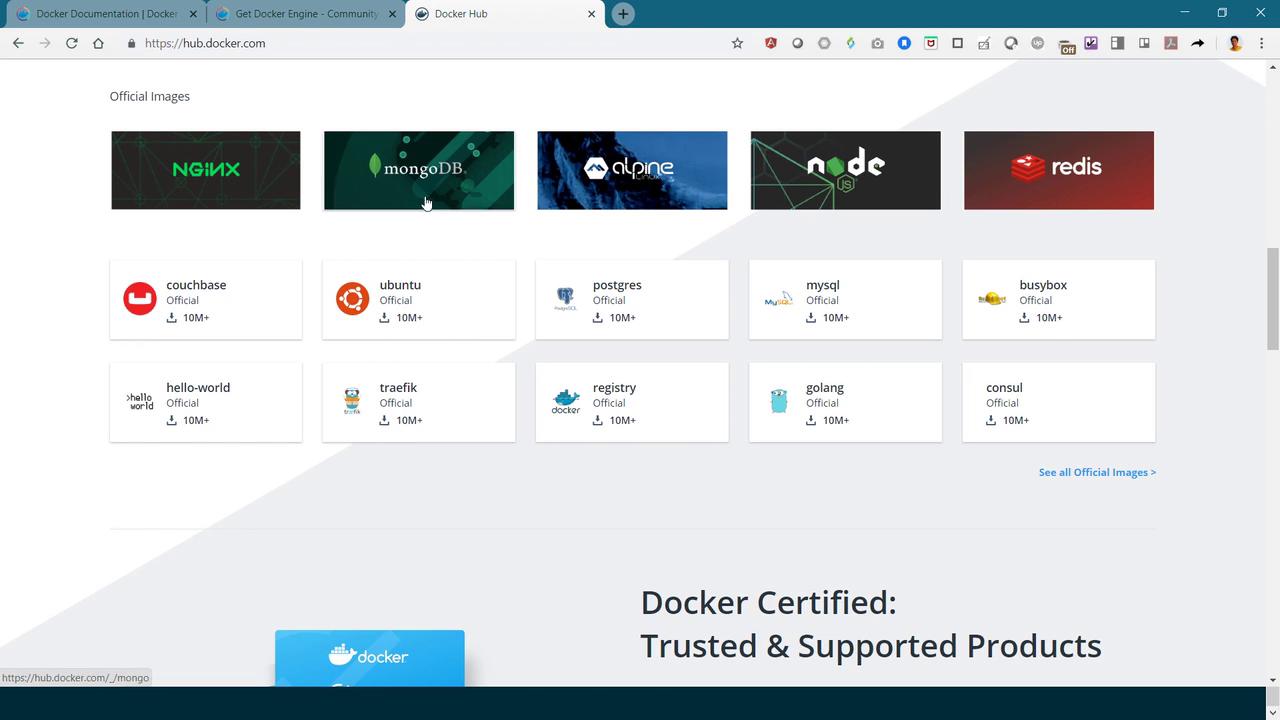
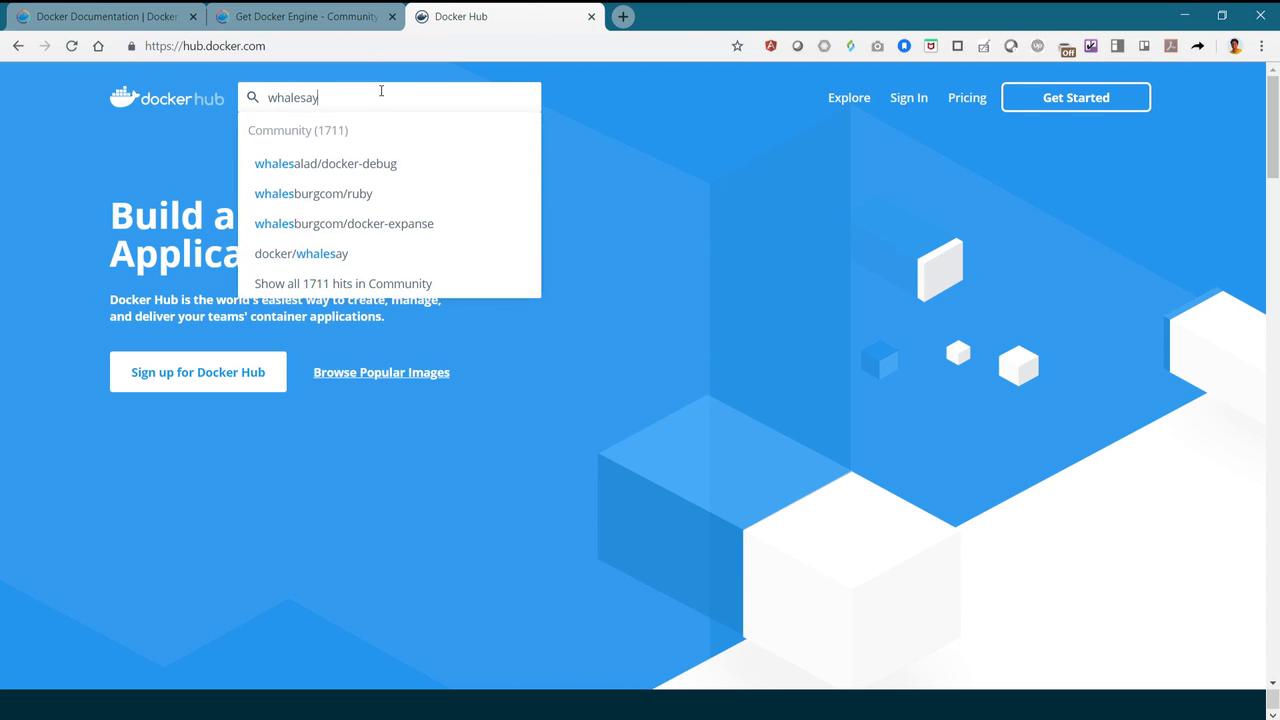
To confirm Docker is running correctly, try launching a simple container. Docker Hub offers a variety of images; in this guide, we’ll use the fun “whalesay” image.
Modify the Command with Sudo and Change the Message
Copy
Ask AI
sudo docker run docker/whalesay cowsay Hello-World!
When executed, Docker pulls the whale image from Docker Hub and displays a message:
Copy
Ask AI
vagrant@ubuntu-bionic:~$ sudo docker run docker/whalesay cowsay Hello-World!Unable to find image 'docker/whalesay:latest' locallylatest: Pulling from docker/whalesay[DEPRECATION NOTICE] registry v2 schema1 support will be removed in an upcoming release. Please contact admins of the docker.io registry NOW to avoid future disruption.e190868d6f3f: Pull complete909cd34c6fd7: Pull complete0b9fbabab7c1: Pull completea3ed95caeb02: Pull complete0bf65475aba: Pull completec57b6bcc83e3: Pull complete897f867892ef: Pull complete8eed3712d2cf: Pull completeDigest: sha256:178598e51a26abbc958b8a2e48825c90bc22e641de3d31e18aaf55f3258ba93bStatus: Downloaded newer image for docker/whalesay:latest __________< Hello-World! > ---------- \ ^__^ \ (oo)\_______ (__)\ )\/\ ||----w | || ||vagrant@ubuntu-bionic:~$
While this guide provides an overview of setting up Docker, hands-on labs are available for those who want to experiment and gain further practical experience.
This demonstration has provided a comprehensive guide to installing Docker on an Ubuntu system, from removing previous installations to launching your first container. With Docker now installed, you can begin exploring containerized application deployments and enjoy the benefits of modern development workflows.Happy containerizing!