This article covers advanced Docker container management, including running containers, specifying image tags, and deploying applications like Jenkins.
Welcome to this comprehensive lesson on advanced Docker container management. In this guide, you will learn how to leverage additional options with the docker run command. We will explore image tags, running containers in both attached and detached modes, port and volume mapping, and deploying applications like Jenkins in Docker.Before proceeding, ensure you have Docker installed, know how to run basic Docker commands, and are comfortable managing containers.
In previous exercises, you may have launched an Ubuntu container using a simple command:
Copy
Ask AI
root@Docker:/root # docker run ubuntu
This command pulls the latest Ubuntu image and runs it. However, because there is no long-running process, the container exits immediately. To keep it alive just long enough to display information, you can append a command. For instance, to display the Ubuntu version, execute:
Copy
Ask AI
root@Docker:/root # docker run ubuntu cat /etc/*release*
To run a specific version of Ubuntu, such as 17.10, you can explicitly specify the image tag. Docker pulls the latest image only when no tag is provided. Follow these steps:
When you run a container in the foreground, you are attached to its output. For instance, running:
Copy
Ask AI
root@Docker:/root # docker run ubuntu sleep 15
keeps the container alive for fifteen seconds with you attached to its console. If you run a long-running process, like a web server, remaining attached may not be practical. Instead, use detached mode with the -d flag:
Copy
Ask AI
root@Docker:/root # docker run -d ubuntu sleep 1500
This command starts the container in the background and returns a unique container ID. Verify that your container is running with:
Copy
Ask AI
docker ps
To attach to the running container later:
Copy
Ask AI
docker attach <container-id>
Alternatively, if you need to stop the container, open a new terminal and run:
Copy
Ask AI
docker stop <container-id>
Running in detached mode is especially useful for applications that require continuous operation without tying up your terminal.
Jenkins is a powerful Continuous Integration and Delivery server. Running Jenkins inside a container lets you experiment without extensive host installations.
Next, run Jenkins with port mappings for both its web UI and the agent communication port (50000):
Copy
Ask AI
docker run -p 8080:8080 -p 50000:50000 jenkins
As the container starts, you will see log messages similar to:
Copy
Ask AI
Jenkins initial setup is required. An admin user has been created and a password generated. Please use the following password to proceed to installation:9d338c648c604203a9918272ac787b98This may also be found at: /var/jenkins_home/secrets/initialAdminPassword...Jenkins is fully up and running--> setting agent port for jnlp... done
Internal Access:
Retrieve the container’s internal IP by:
Copy
Ask AI
docker ps
Then inspect the container:
Copy
Ask AI
docker inspect <jenkins-container-id>
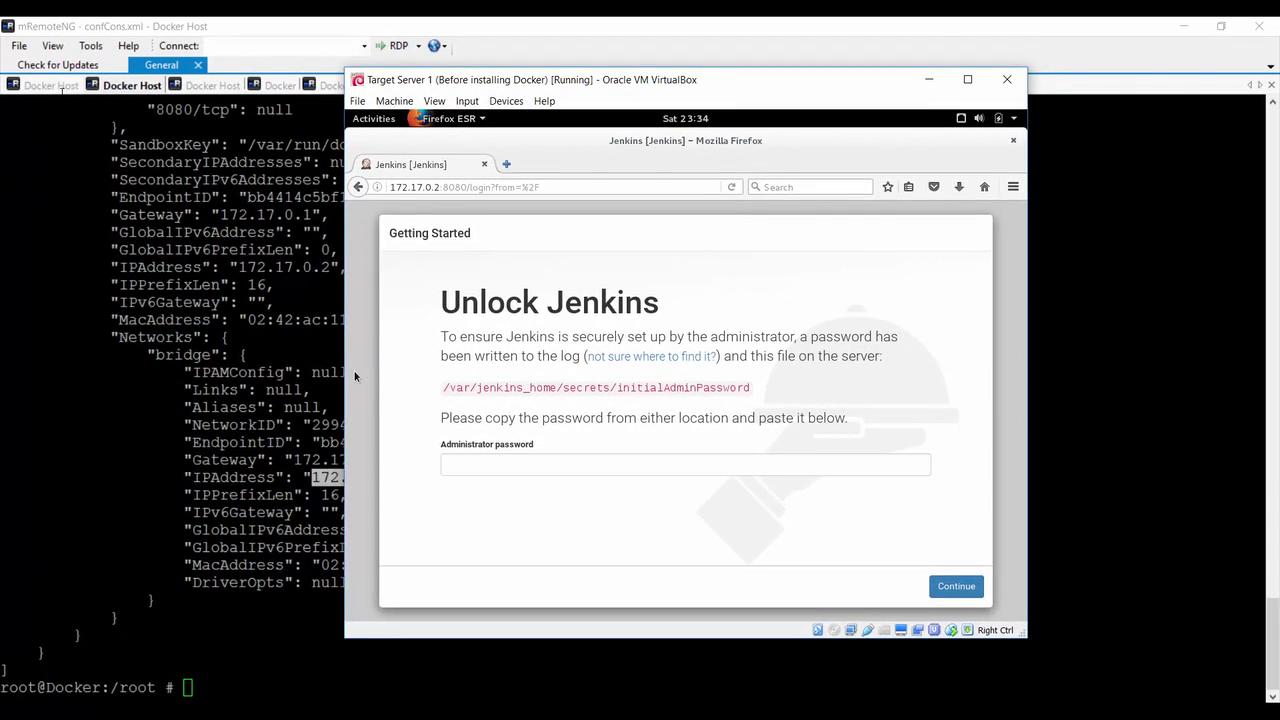
Look under the “Networks” section for an IP like 172.17.0.2. Navigate to:
Copy
Ask AI
http://172.17.0.2:8080
External Access via Port Mapping:
By mapping container port 8080 to your host, access Jenkins externally using the host’s IP address (e.g., http://192.168.1.14:8080).
Ensure no other Jenkins containers are running without proper port mappings before starting Jenkins externally.
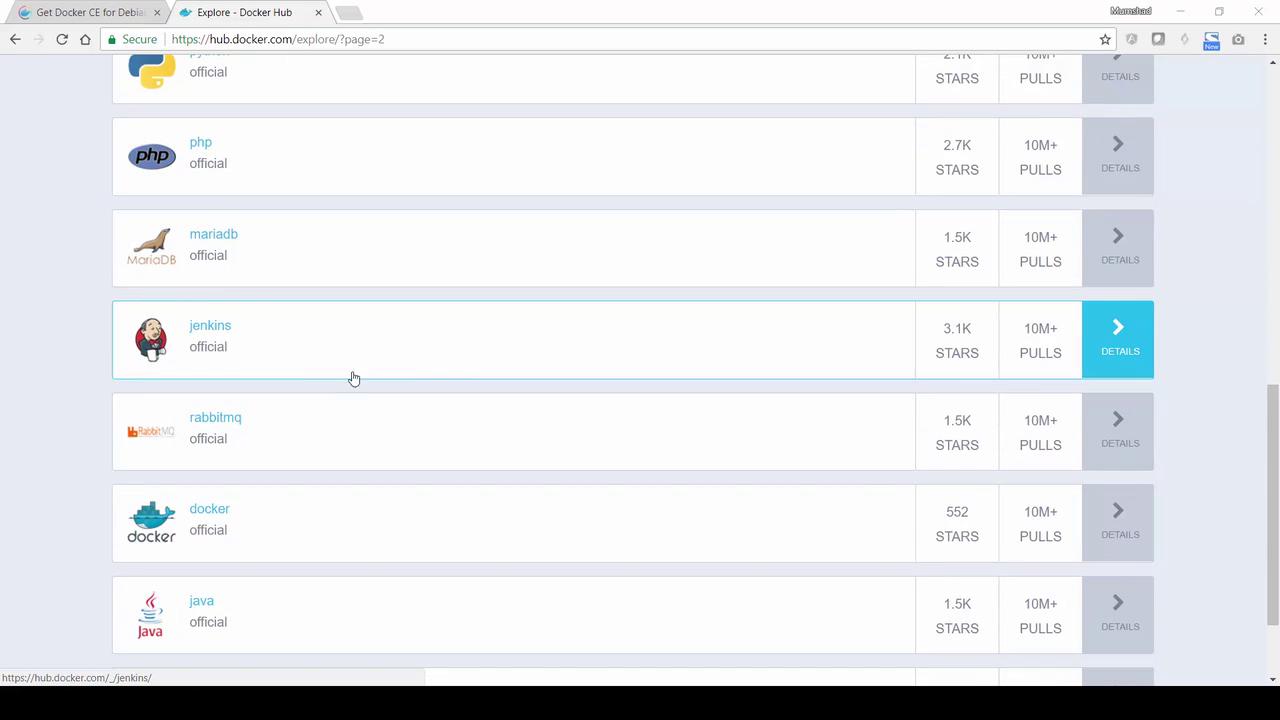
The image below displays an overview of official repositories on Docker Hub, including Jenkins:
After Jenkins starts, the setup screen prompts for the initial administrator password:
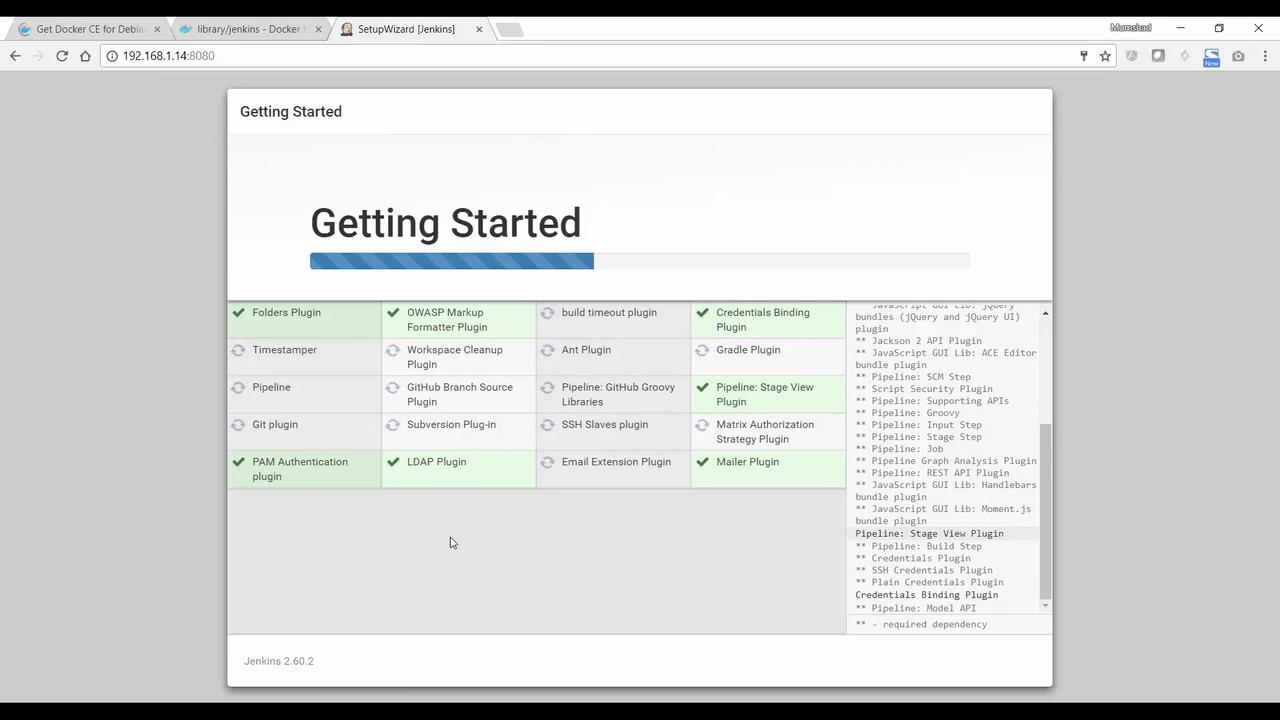
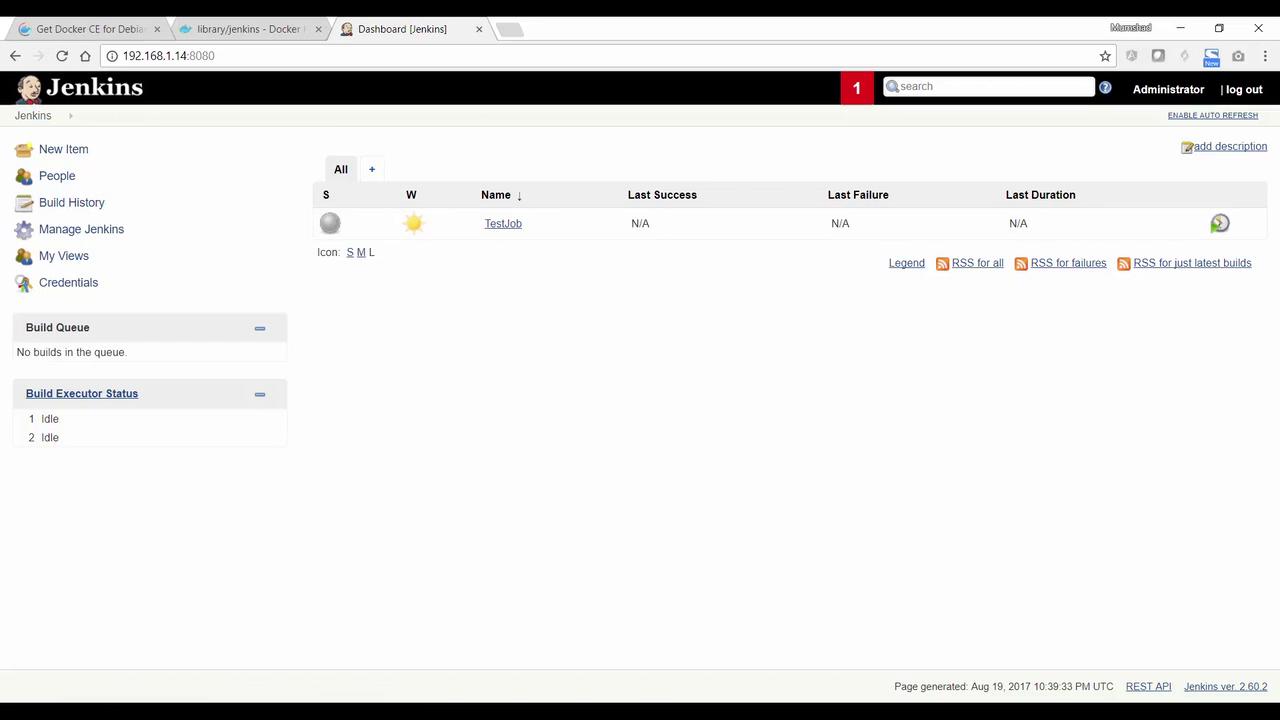
Follow the on-screen instructions to complete the installation, including entering the admin password and installing the suggested plugins.
By default, stopping a Jenkins container causes all configuration and job data to be lost. To persist data across container restarts, map a host directory to the Jenkins home directory.