This guide explains how to build a custom Docker image for a Python Flask web application and push it to Docker Hub.
Welcome to this detailed guide on building a custom Docker image for a simple Python Flask web application. In this tutorial, you’ll learn how to set up the application, manually run it, containerize it using Docker, and finally push your image to Docker Hub. The complete project is available on my GitHub page.
If you receive a “pip: command not found” error, install pip:
Copy
Ask AI
apt-get install python-pip
Then install Flask using pip:
Copy
Ask AI
pip install flask
Successful installation will display messages confirming that Flask and its dependencies (itsdangerous, click, Werkzeug, Jinja2, MarkupSafe) have been installed.
After copying your application code into the container (for example, place it in /opt/app.py), run the application with:
Copy
Ask AI
FLASK_APP=app.py flask run --host=0.0.0.0
The expected output is:
Copy
Ask AI
 * Serving Flask app "app"
 * Running on http://0.0.0.0:5000/ (Press CTRL+C to quit)
You can now access the application using the container’s IP on port 5000. Visiting the /how%20are%20you route should trigger a GET request and display the correct response.
Create a project directory (e.g., my-simple-webapp) and add a file named Dockerfile with the following content:
Copy
Ask AI
FROM ubuntu# Update package lists and install Python and pipRUN apt-get update && apt-get install -y python python-pip# Install Flask via pipRUN pip install flask# Copy application source code into the containerCOPY app.py /opt/app.py# Set the entrypoint to run the Flask applicationENTRYPOINT ["flask", "run", "--host=0.0.0.0", "--app", "/opt/app.py"]
Ensure that your app.py file is in the same directory as your Dockerfile.
Without port mapping, the application is accessible only from the host or via Docker’s internal IP. To make the application accessible externally, run:
Copy
Ask AI
docker run -p 5000:5000 my-simple-webapp
Then, navigate to http://<HOST_IP>:5000 in your web browser.
Sharing your application on Docker Hub is simple. Follow these steps:
Tag your image using your Docker Hub username (e.g., if your username is mmumshad):
Copy
Ask AI
docker build . -t mmumshad/my-simple-webapp
Log in to Docker Hub:
Copy
Ask AI
docker login
Enter your username and password when prompted.
Push the image to Docker Hub:
Copy
Ask AI
docker push mmumshad/my-simple-webapp
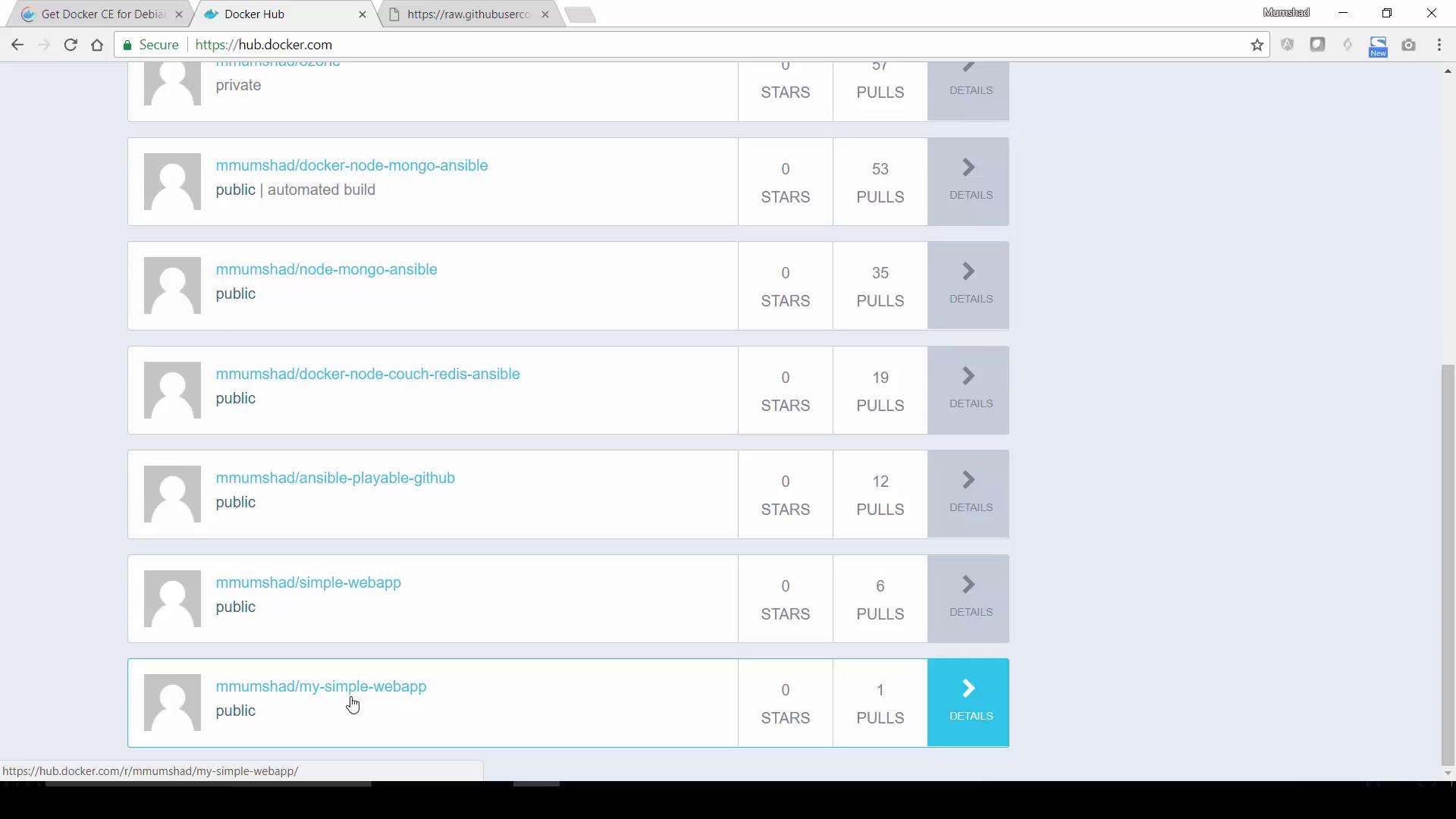
If you encounter an error like “requested access to the resource is denied,” ensure that you have tagged your image with your Docker Hub account name and that you are logged in.Upon a successful push, your image will be available in your Docker Hub repository. You can view it on your Docker Hub dashboard.
Others can pull your image by running:
Copy
Ask AI
docker pull mmumshad/my-simple-webapp
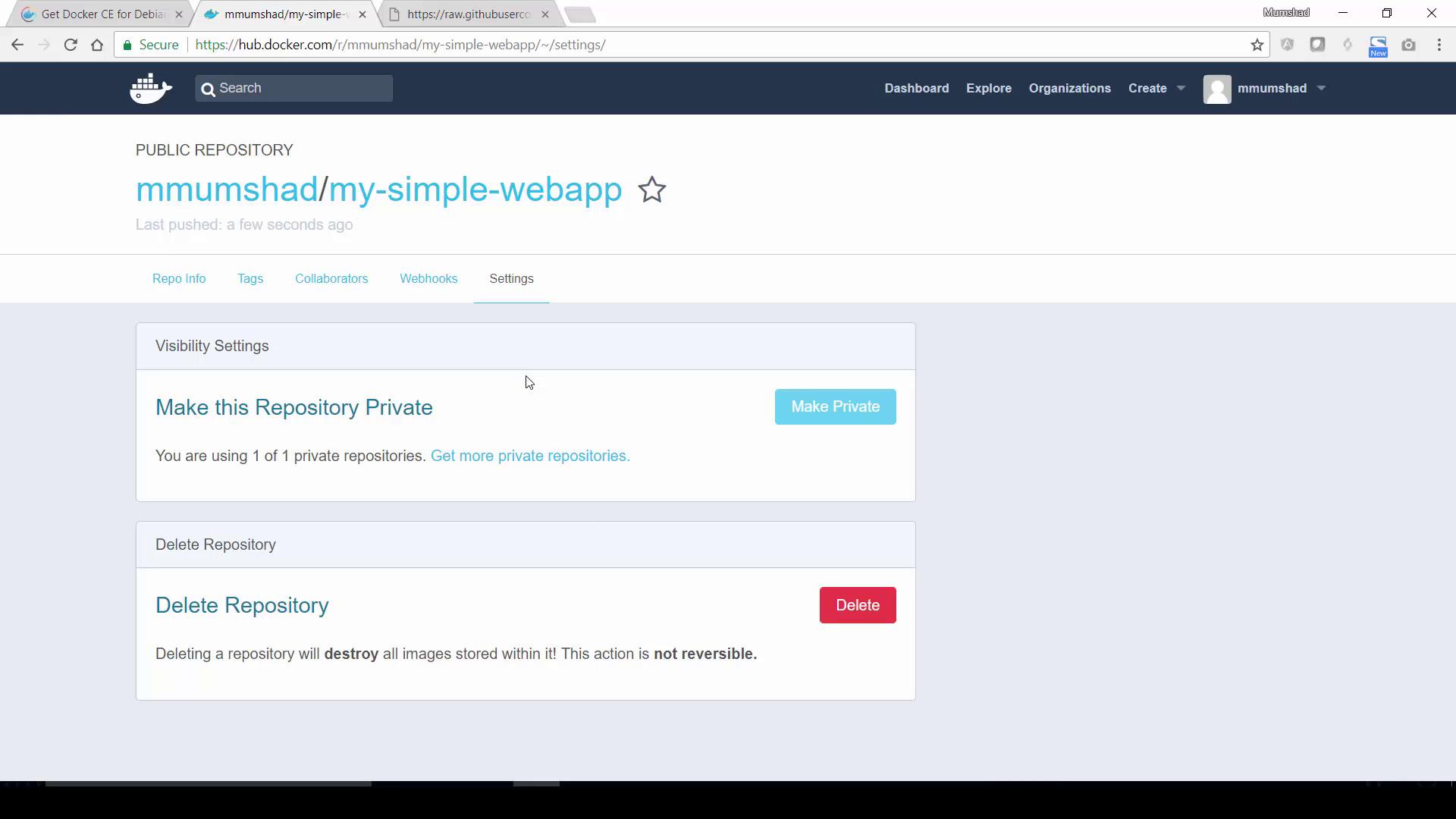
For private images, note that free Docker Hub accounts are limited to one private repository.